Folio Lookup lets you search all the mutual fund folios in your business, see which client each folio is mapped to, view and download a folio's Statement of Account, and fix folio details such as client mapping, UCC, CAN and external asset manager. Client names, PAN numbers and folio numbers in the screenshots in this guide are blurred for privacy.
1. When to use Folio Lookup
- To find a folio and see which client it is mapped to.
- To list all folios of a fund, a fund category or an RTA (Cams or KFintech).
- To download the Statement of Account (SOA) of a folio.
- To map a folio to the correct client, or to update its UCC, CAN or external asset manager.
- To refresh a folio's data from the RTA.
2. How to open Folio Lookup
Click Folio Lookup in the left menu. The page opens with the Report Configuration section, where you choose what to look up.
3. Step 1: Choose what to look up
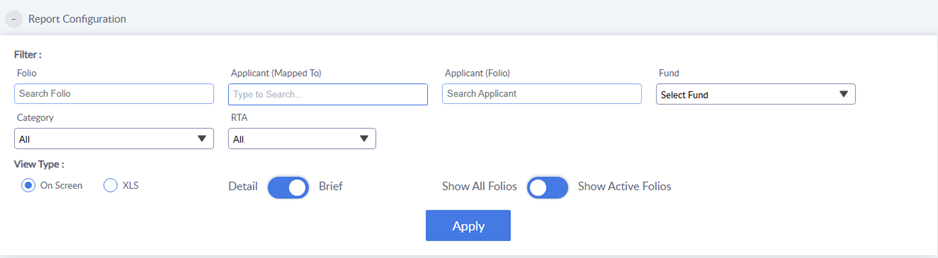
Use the filters in Report Configuration to narrow down the folios. You can use one filter or combine several. To see all folios, leave the filters as they are and click Apply.
Filters
- Folio: type a folio number in the Search Folio box.
- Applicant (Mapped To): type to search for the client the folio is mapped to in your client list.
- Applicant (Folio): search by the applicant's name as it appears on the folio from the RTA file.
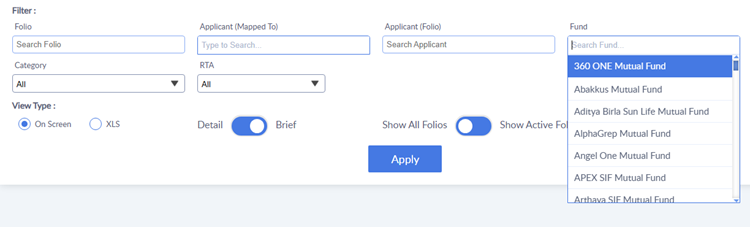
- Fund: choose a fund house from the dropdown. Type in the search box at the top of the dropdown to find a fund house quickly.
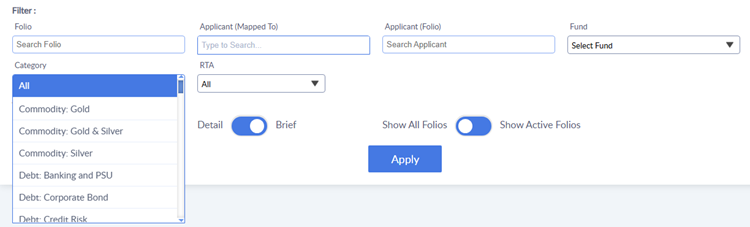
- Category: choose a scheme category, for example Commodity: Gold or Debt: Corporate Bond. The default is All.
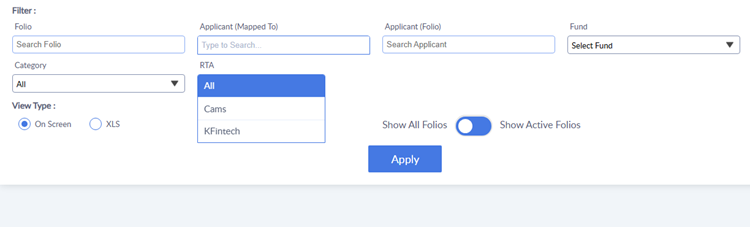
- RTA: choose All, Cams or KFintech.
4. Step 2: Choose how to view the result
- View Type: choose On Screen to see the folios on the page, or XLS to download them as an Excel file.
- Detail / Brief: use this switch to choose between a detailed or a brief report.
- Show All Folios / Show Active Folios: use this switch to see all folios, or only the active folios.
Click Apply. The list of folios appears below. The Report Configuration section closes to save space. Click the + icon beside Report Configuration to open it again and change the filters.
5. The folio list
The message "Select Folio(s) from below to perform actions" appears above the list. Each row is one folio in one scheme.
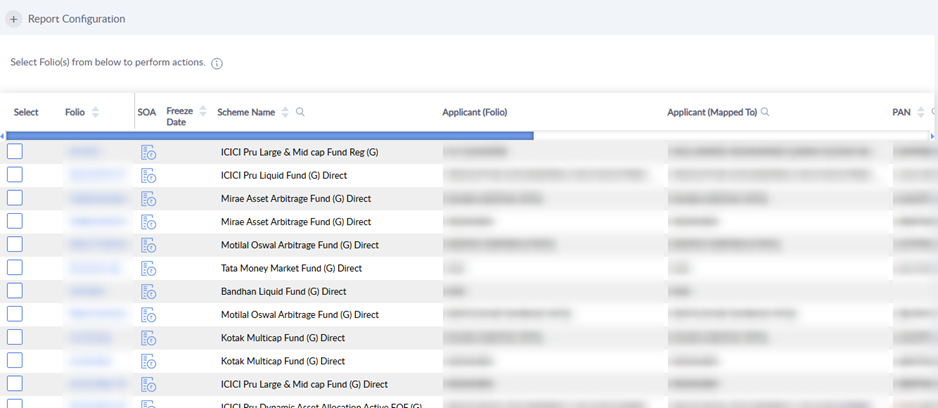
Columns in the list
- Select: a checkbox to select the folio for an action (see section 7).
- Folio: the folio number. Click the arrows to sort.
- SOA: the Statement of Account icon.
- Freeze Date, Scheme Name, Applicant (Folio), Applicant (Mapped To) and PAN.
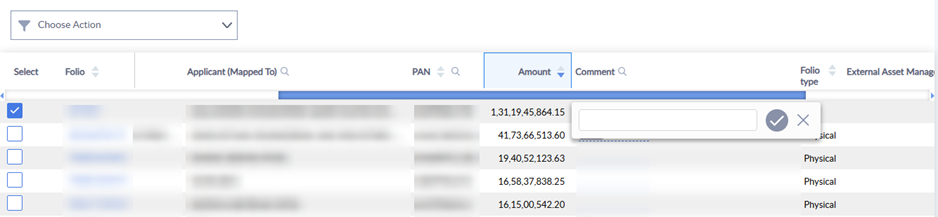
- Amount: the current value of the folio. The list is sorted by Amount, highest first, by default.
- Comment: a note for the folio, which you can edit (see below).
- Folio type, External Asset Manager, UCC Number and CAN Number.
Scroll the list to the right to see all the columns. Click the search icon beside a column heading (for example Scheme Name, Applicant (Mapped To), PAN, Comment, External Asset Manager, UCC Number or CAN Number) to search within that column. Click the arrows beside a heading to sort by that column.
Add or edit a comment
- Click the dotted line in the Comment column of the folio.
- Type the comment in the box that opens.
- Click the tick to save, or the X to cancel.
6. Folio details and Statement of Account
Click a folio number to open the Folio Detail screen. Click the back arrow at the top left to return to the list.
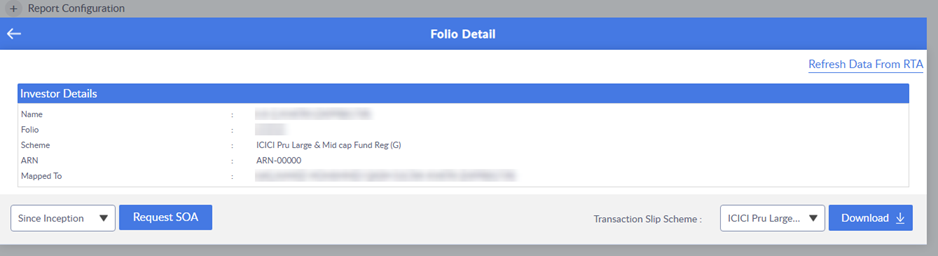
- Investor Details: the Name, Folio, Scheme, ARN and the client the folio is Mapped To.
- Refresh Data From RTA: click this link at the top right to refresh the folio's data from the RTA. In case a details like mobile number has been changed in the folio but is not getting updated in the investwell portal, click refresh data from RTA to update the same.
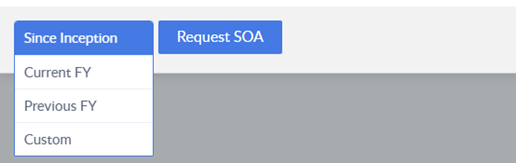
- Request SOA: choose a period from the dropdown on the left and click Request SOA. The periods are Since Inception, Current FY, Previous FY and Custom.
- Transaction Slip Scheme and Download: choose a scheme from the dropdown and click Download to download the transaction slip.
Statement of Account
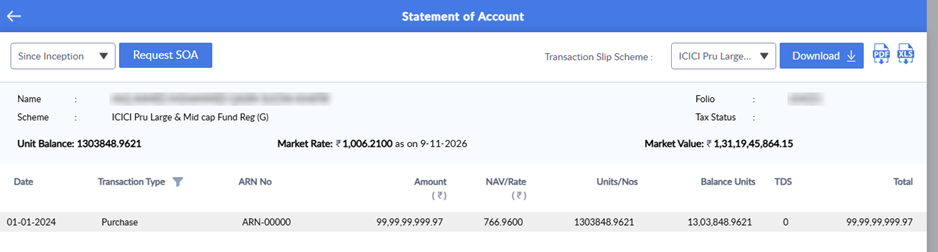
After you click Request SOA, the Statement of Account screen opens. It shows the name, scheme, folio and tax status (minor, individual etc.) (this data can be checked in the SOA) , the unit balance, the market rate (with its date) and the market value, followed by the transactions with their Date, Transaction Type, ARN No, Amount, NAV/Rate, Units/Nos, Balance Units, TDS and Total. Use the filter icon beside Transaction Type to show only certain types of transactions. Click the PDF or XLS icon at the top right to download the statement, and click the back arrow to return.
7. Actions on folios
You can change the details of one or more folios by selecting them and choosing an action.
- Tick the checkbox in the Select column for each folio you want to change.
- Click the Choose Action dropdown above the list.
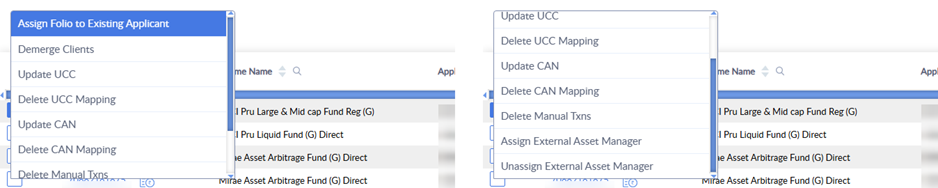
- Choose the action. The list scrolls, so scroll down to see all the actions.
- Follow the prompt that appears for the action, and confirm.
Available actions
- Assign Folio to Existing Applicant: maps the selected folio to a client who already exists in your client list.
- Demerge Clients: separates a folio from the client it is currently merged with.
- Update UCC: updates the UCC linked to the folio.
- Delete UCC Mapping: removes the UCC linked to the folio.
- Update CAN: updates the CAN linked to the folio.
- Delete CAN Mapping: removes the CAN linked to the folio.
- Delete Manual Txns: deletes transactions that were entered manually in the folio.
- Assign External Asset Manager: assigns an external asset manager to the folio.
- Unassign External Asset Manager: removes the external asset manager from the folio.
Example: assign an external asset manager
- Select the folio.
- Choose Assign External Asset Manager from Choose Action.
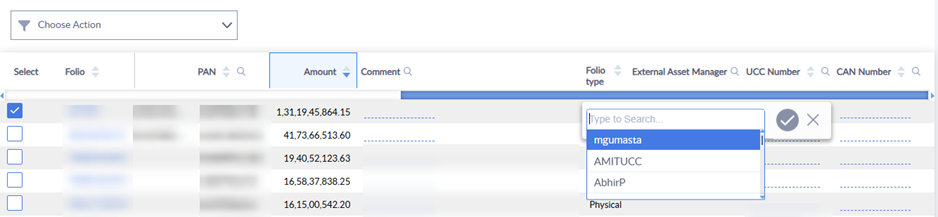
- In the External Asset Manager column of the folio, a search box with a list opens. Type to search, and click the name you want.
- Click the tick to save, or the X to cancel.
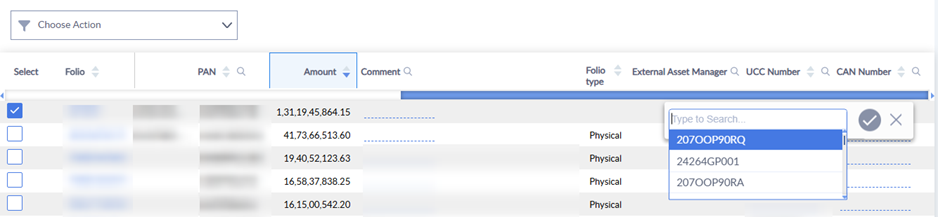
The Update UCC and Update CAN actions work in the same way. A list of the available UCC or CAN numbers opens in the UCC Number or CAN Number column of the selected folio. Choose one and click the tick to save.
Actions such as Delete UCC Mapping, Delete CAN Mapping and Delete Manual Txns remove data. Check that you have selected the right folios before you confirm.
8. Tips
- To find the folio of a particular client, type the client's name in Applicant (Mapped To). To find a folio from a statement the client has, type the folio number in Folio.
- Use the RTA filter to check folios of Cams and KFintech separately.
- Choose XLS as the View Type when you want to download a large list of folios.
- Use Show Active Folios to leave out folios that are no longer active.
- If a folio's data looks out of date, open it and click Refresh Data From RTA.
- Use the Comment column to leave a note for yourself or your team about a folio.
9. Frequently asked questions
Q1. How do I find the folios of a particular client?
Go to Folio Lookup, type the client's name in Applicant (Mapped To) and click Apply.
Q2. How do I find a particular folio?
Type the folio number in the Folio box and click Apply.
Q3. What is the difference between Applicant (Folio) and Applicant (Mapped To)?
Applicant (Folio) is the applicant's name as it appears on the folio. Applicant (Mapped To) is the client in your client list to whom the folio is mapped.
Q4. How do I see only Cams or only KFintech folios?
Choose Cams or KFintech in the RTA filter and click Apply.
Q5. How do I download the list of folios?
Choose XLS as the View Type before you click Apply.
Q6. How do I download a folio's Statement of Account?
Click the folio number, choose a period (Since Inception, Current FY, Previous FY or Custom) and click Request SOA. In the Statement of Account screen, click the PDF or XLS icon.
Q7. How do I update a folio's data from the RTA?
Open the folio by clicking the folio number, and click Refresh Data From RTA.
Q8. How do I map a folio to a different client?
Select the folio, choose Assign Folio to Existing Applicant from Choose Action, and follow the prompt.
Q9. How do I update the UCC or CAN of a folio?
Select the folio and choose Update UCC or Update CAN from Choose Action. Choose the number from the list and click the tick to save.
Q10. How do I assign an external asset manager to a folio?
Select the folio, choose Assign External Asset Manager, choose the name from the list and click the tick to save.
Q11. How do I add a note to a folio?
Click the dotted line in the Comment column, type the note and click the tick.
Q12. Where do I see the other actions in Choose Action?
Scroll down in the Choose Action list. It has nine actions, and the last two are Assign External Asset Manager and Unassign External Asset Manager.
Still need help? Contact the Investwell support team by raising a ticket.
Was this article helpful?
That’s Great!
Thank you for your feedback
Sorry! We couldn't be helpful
Thank you for your feedback
Feedback sent
We appreciate your effort and will try to fix the article