Overview
The Calculators in Investwell Mint help you plan your clients' financial goals and investments during client meetings. You can show a client how much they may need for a goal, suggest ways to reach it, add the schemes you recommend, and share the plan as a PDF proposal.
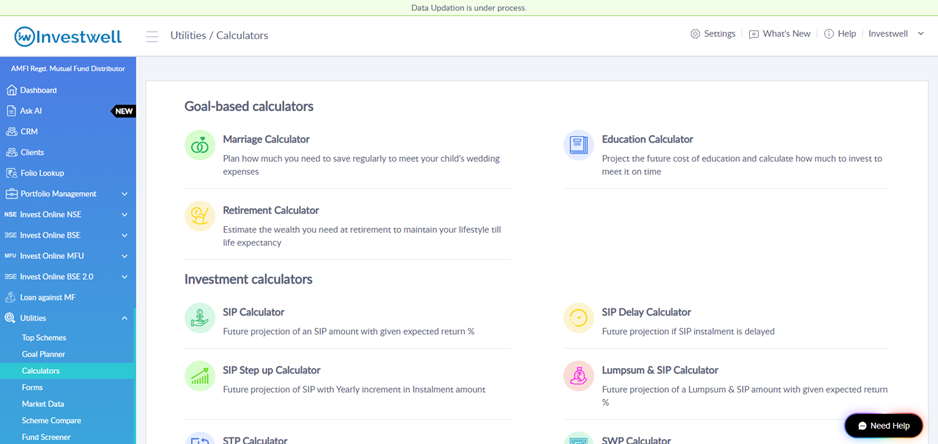
To open them, go to Utilities in the left menu and click Calculators. The calculators are grouped into two sections:
- Goal-based calculators: Marriage, Education and Retirement.
- Investment calculators: SIP, SIP Delay, SIP Step Up, Lumpsum & SIP, STP and SWP.
How to use a calculator
- Go to Utilities and click Calculators.
- Click the calculator you want to use, for example Marriage Calculator.
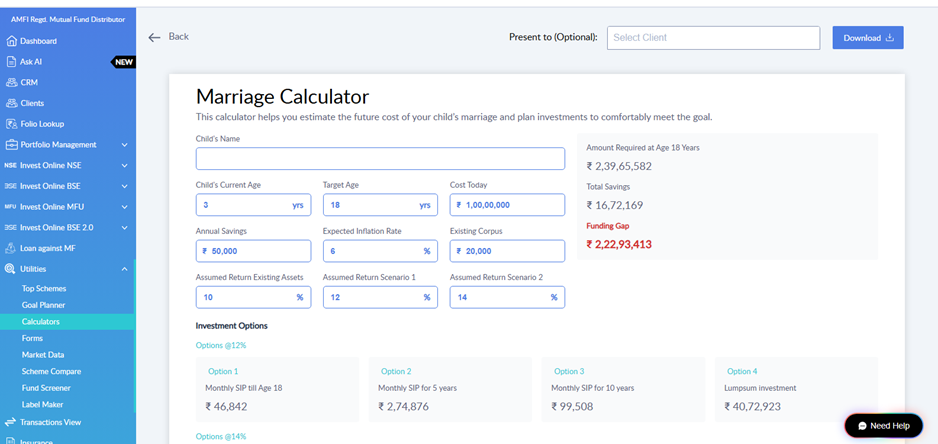
- Enter the client's details in the input fields, such as current age, target age, cost today and existing savings. The results update on the right side of the screen.
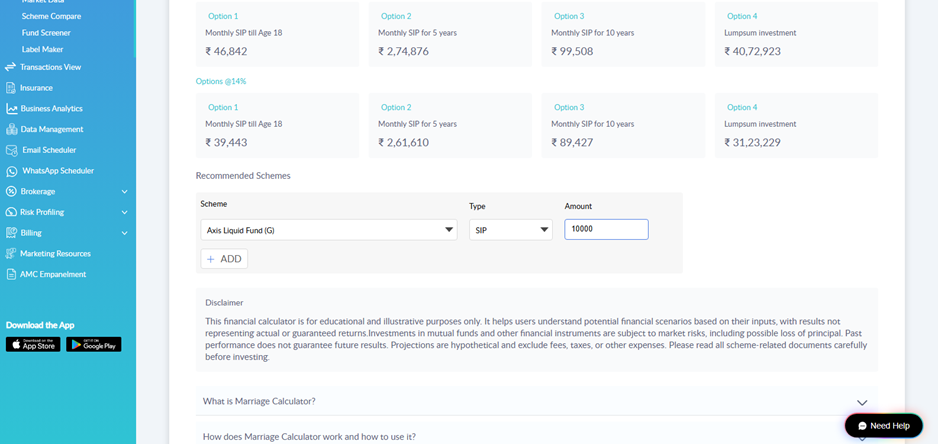
- Review the investment options shown under Investment Options. These are the different ways the client can work towards the goal.
- Under Recommended Schemes, add the schemes you want to suggest to the client.
- In Present to (Optional), select the client you are preparing the plan for.
- Click Download to save the plan as a PDF proposal and share it with your client.
- Click Back to return to the list of calculators.
Goal-based calculators
Goal-based calculators help you plan for a specific life goal of your client. Each one shows the amount the client is likely to need, how much they are on track to have, and the gap between the two. It then suggests investment options to close that gap.
Marriage Calculator
Use this calculator when a client wants to plan for their child's wedding expenses. Enter the child's name and age, the target age, today's expected cost, and the client's current savings and existing corpus.
Education Calculator
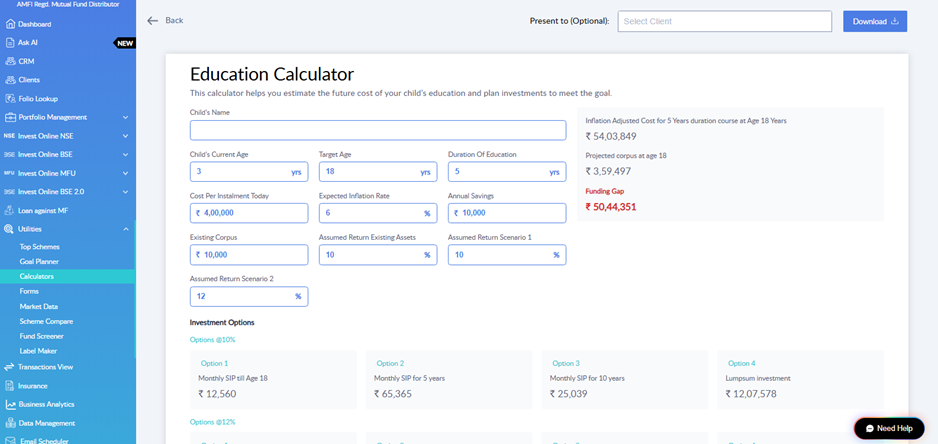
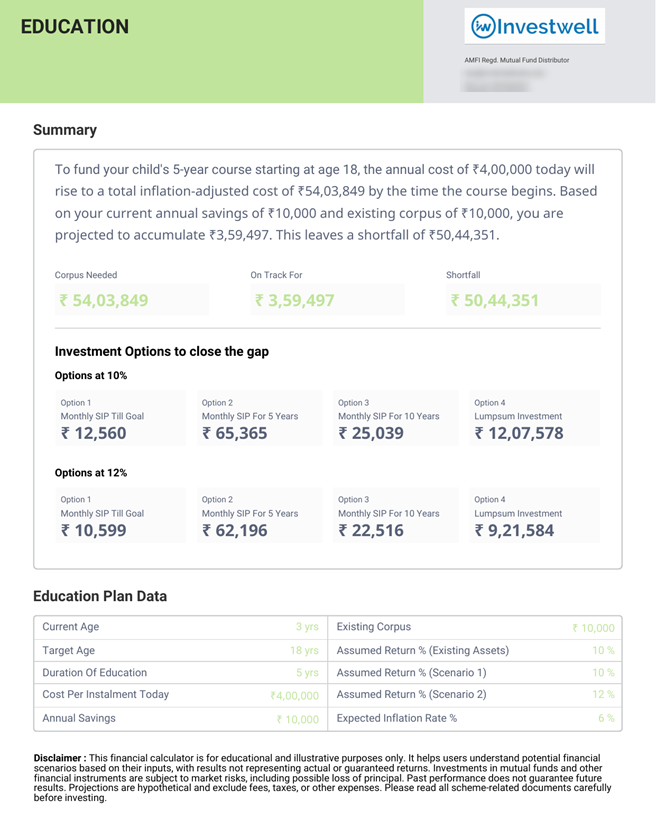
Use this calculator when a client wants to plan for their child's higher education. Along with the child's age and target age, you can enter the duration of the course and the cost per instalment today.
Retirement Calculator
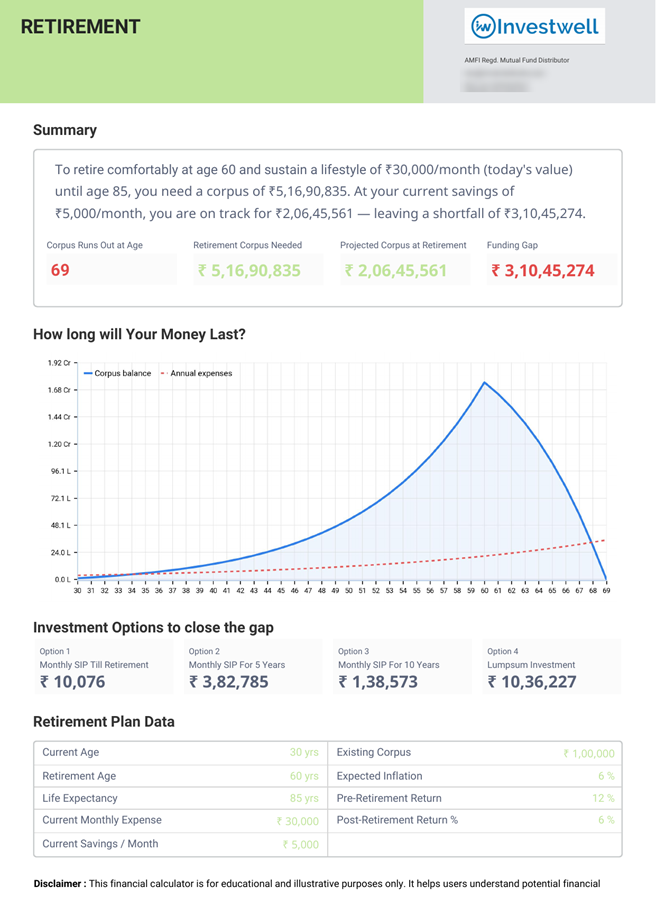
Use this calculator when a client wants to plan for retirement. You can enter the client's current age, retirement age, life expectancy, current monthly expenses and monthly savings. The proposal also shows how long the client's retirement corpus may last.
Suggesting a plan to reach the goal
The Investment Options section shows different ways for the client to reach the goal, under two assumed return scenarios that you can set. For each scenario you see four options:
- Monthly SIP till the goal (or till retirement)
- Monthly SIP for 5 years
- Monthly SIP for 10 years
- Lumpsum investment
You can walk the client through these options and choose the one that best suits their cash flow, for example a regular SIP or a one-time lumpsum.
Adding recommended schemes
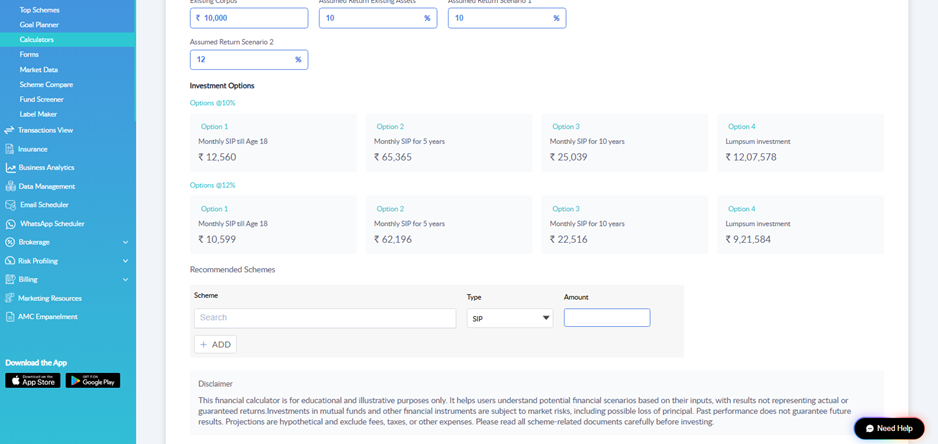
Under Recommended Schemes, you can add the schemes you suggest for the plan. These schemes are included in the proposal PDF.
- In Scheme, search for and select the scheme.
- In Type, select the transaction type, for example SIP.
- In Amount, enter the amount you recommend.
- Click ADD to add another scheme.
Sharing the proposal with your client
Once the plan is ready, you can download it as a PDF and share it with your client.
- In Present to (Optional), start typing the client's name and select the client from the list.
- Click Download. The proposal is saved as a PDF.
- Share the PDF with your client, for example by email or WhatsApp.
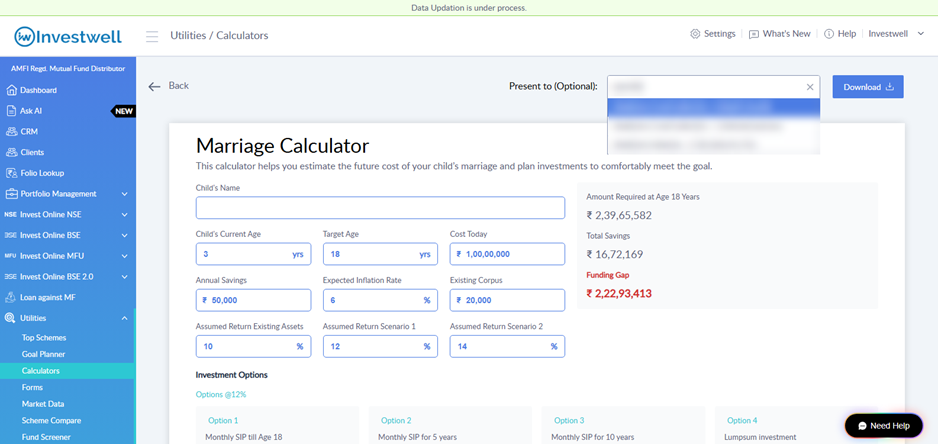
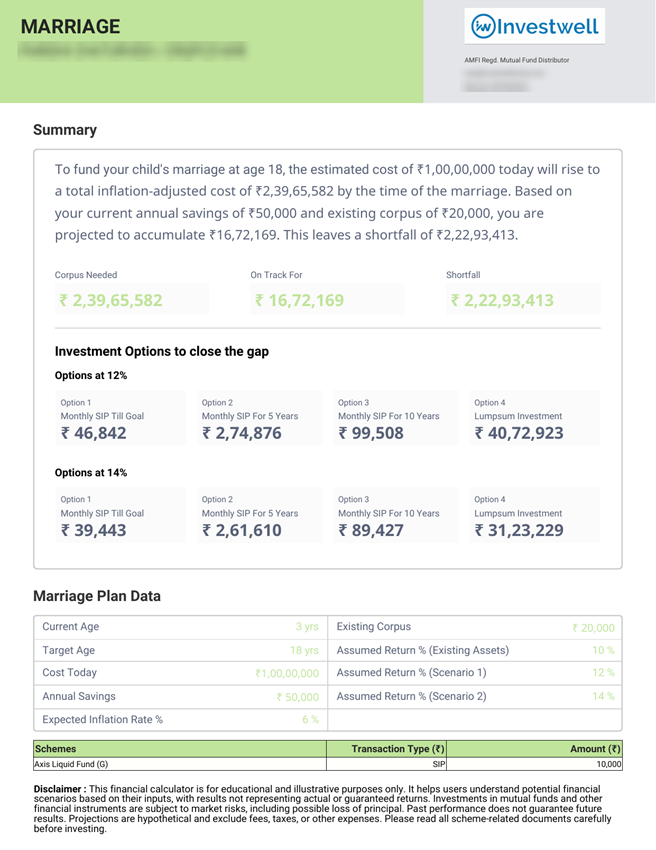
Selecting a client is optional. If you select one, the client's name and PAN appear at the top of the proposal. The proposal also shows your contact details as the distributor, a summary of the goal, the investment options, the plan data you entered, the recommended schemes, and a disclaimer.
Sample proposals are shown below. Client and contact details have been blurred.
Marriage proposal
Education proposal
Retirement proposal
Investment calculators
Investment calculators help you show clients how their investments may grow, so you can suggest the right investment approach. You can add recommended schemes, select a client and download a proposal from these calculators as well.
SIP Calculator
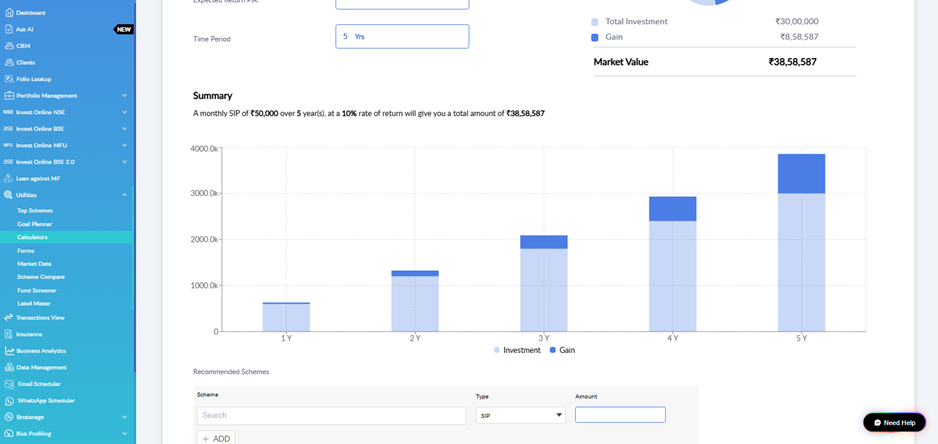
The SIP Calculator has three modes. Select the one that matches the client's question:
- Calculate goal amount: shows what a monthly SIP may grow to over a period. Use it when a client asks what their regular investment could become.
- Calculate investment amount: shows the monthly SIP needed to reach a target amount. Use it when a client has a target in mind.
- Calculate duration: shows how long it may take to reach a target with a fixed monthly SIP.
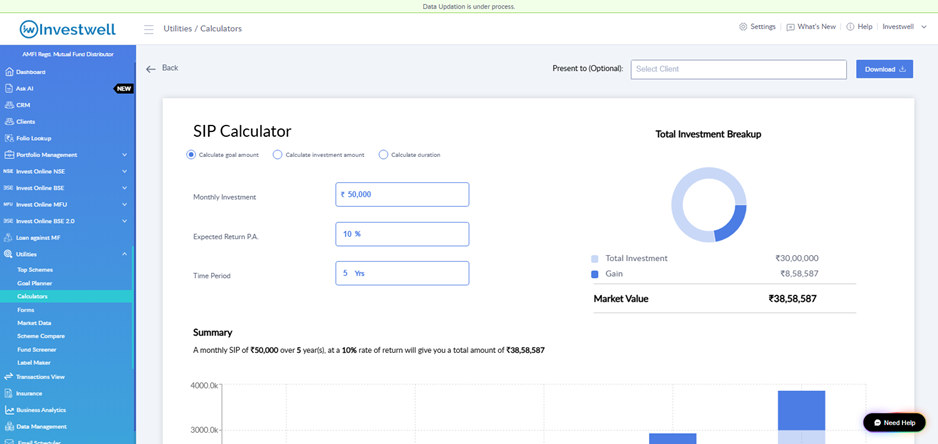
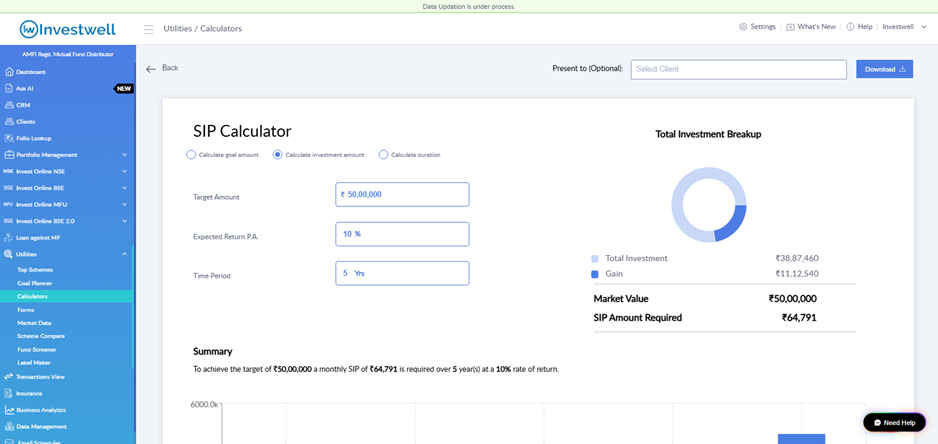
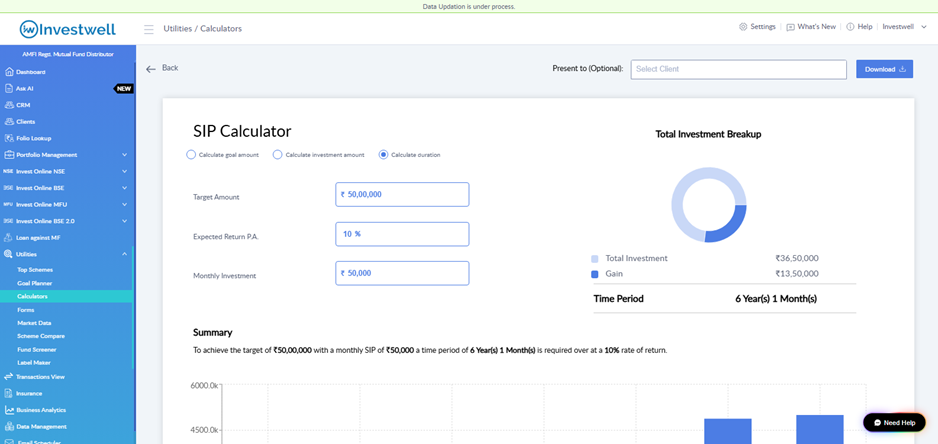
The year-wise chart below the summary shows the investment and gain for each year. Hover over a bar to see the values for that year.
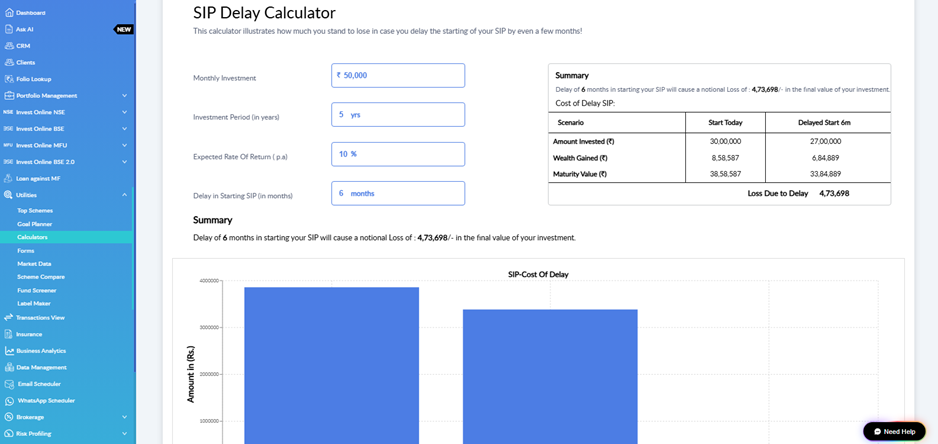
SIP Delay Calculator
Use this calculator to show a client the impact of delaying the start of their SIP by a few months. It helps encourage clients to start investing early.
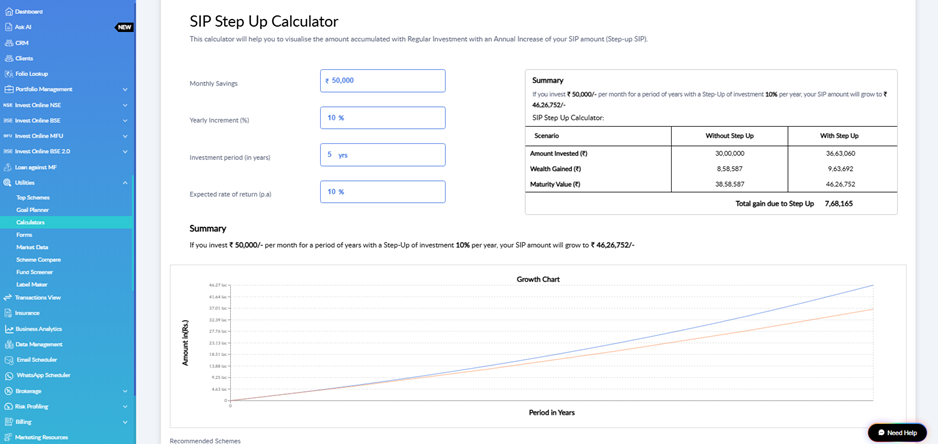
SIP Step Up Calculator
Use this calculator to show a client the benefit of increasing their SIP amount every year. It compares a regular SIP with a step-up SIP.
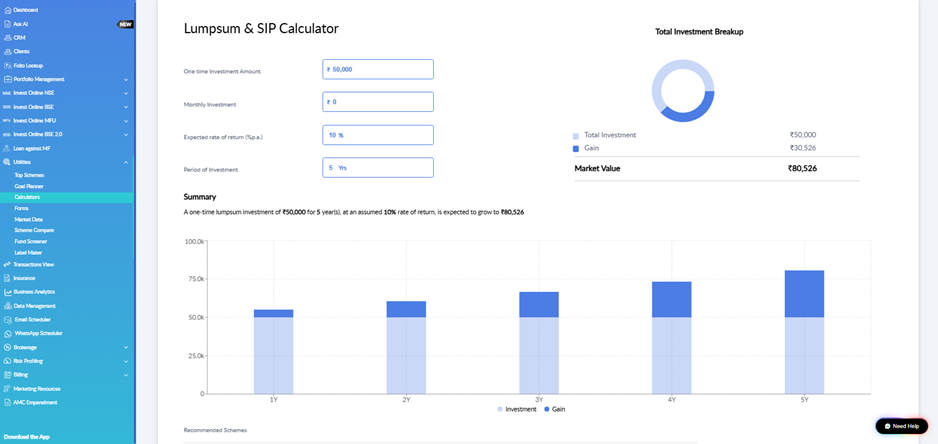
Lumpsum & SIP Calculator
Use this calculator when a client wants to invest a one-time amount, a monthly SIP, or both together.
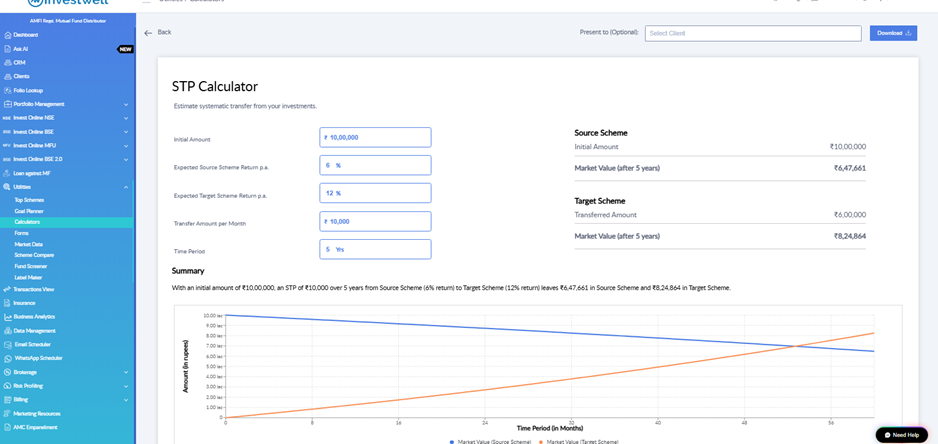
STP Calculator
Use this calculator when a client wants to move money gradually from one scheme to another through a Systematic Transfer Plan, for example from a debt scheme to an equity scheme.
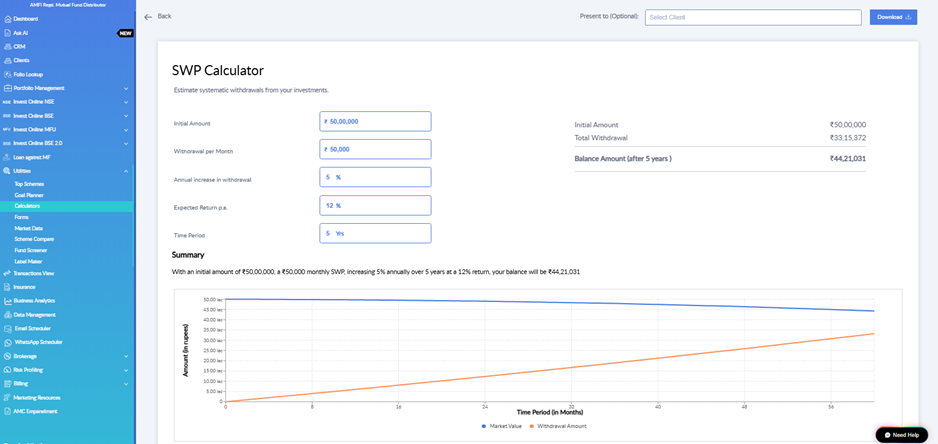
SWP Calculator
Use this calculator when a client wants a regular income from their investments through a Systematic Withdrawal Plan, for example after retirement.
STP Planner and SWP Planner in Investwell Mint
Overview
The STP Planner and SWP Planner show how a Systematic Transfer Plan (STP) or Systematic Withdrawal Plan (SWP) would have performed in a real scheme over a past period.
They are different from the other calculators. The other calculators project future values using a return rate you assume. These planners use the actual historical NAV of the scheme you select, so the results are based on real past data.
You can use these planners to:
- Show clients how an STP or SWP has actually worked in a scheme in the past.
- Explain how systematic transfers move money from one scheme to another over time.
- Explain how regular withdrawals affect the remaining balance in a scheme.
- Share a report with clients as a PDF to support your recommendation.
To open them, go to Utilities in the left menu, click Calculators, and select SWP Planner or STP Planner.
SWP Planner
Use the SWP Planner when a client wants to see how regular withdrawals from a scheme would have worked in the past, for example when planning a regular income after retirement.
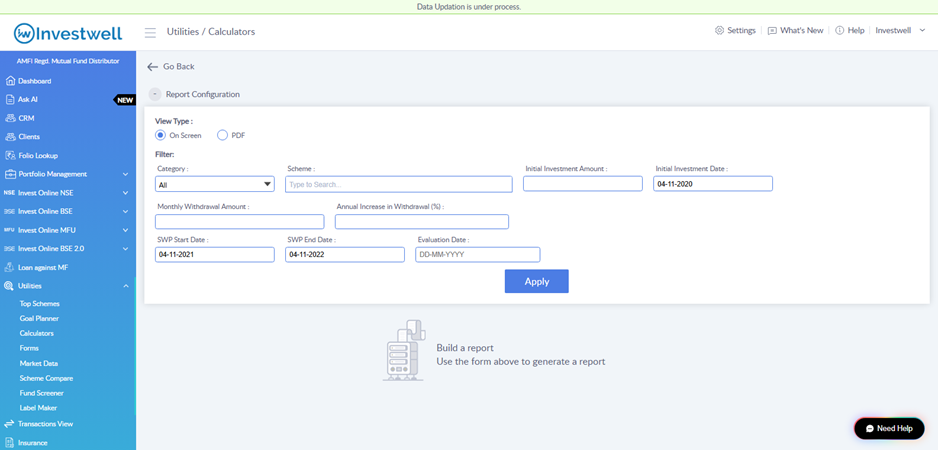
How to generate an SWP report
- In View Type, select On Screen to see the report in the portal, or PDF to download it.
- In Category, select the scheme category, or leave it as All.
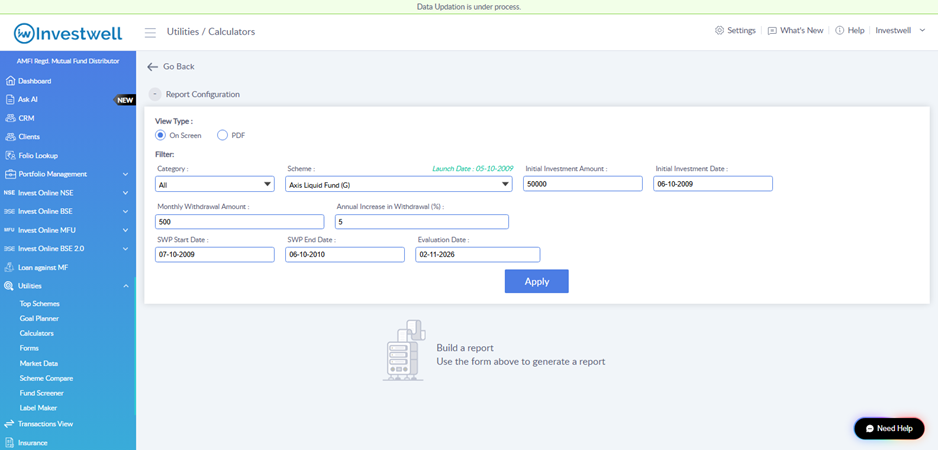
- In Scheme, search for and select the scheme. The scheme's launch date is shown above the field.
- Enter the Initial Investment Amount and Initial Investment Date.
- Enter the Monthly Withdrawal Amount and the Annual Increase in Withdrawal (%), if any.
- Enter the SWP Start Date and SWP End Date.
- Enter the Evaluation Date, the date on which you want to see the value of the investment.
- Click Apply.
Example with the details filled in:
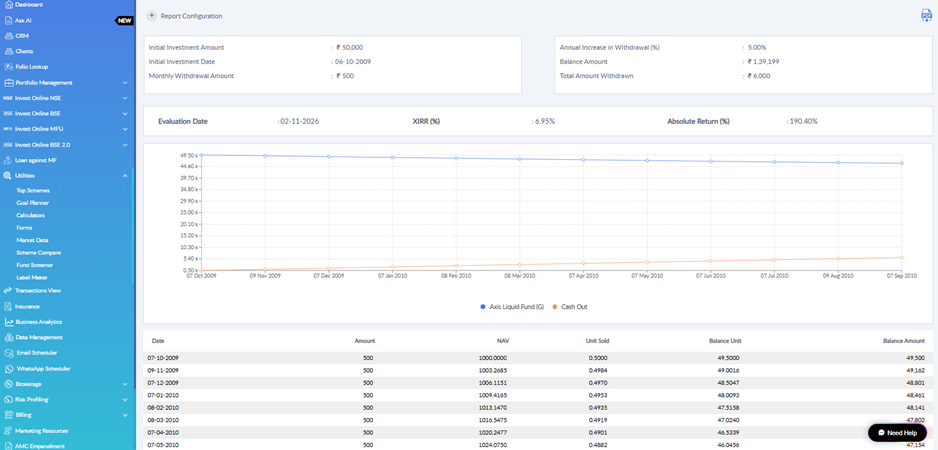
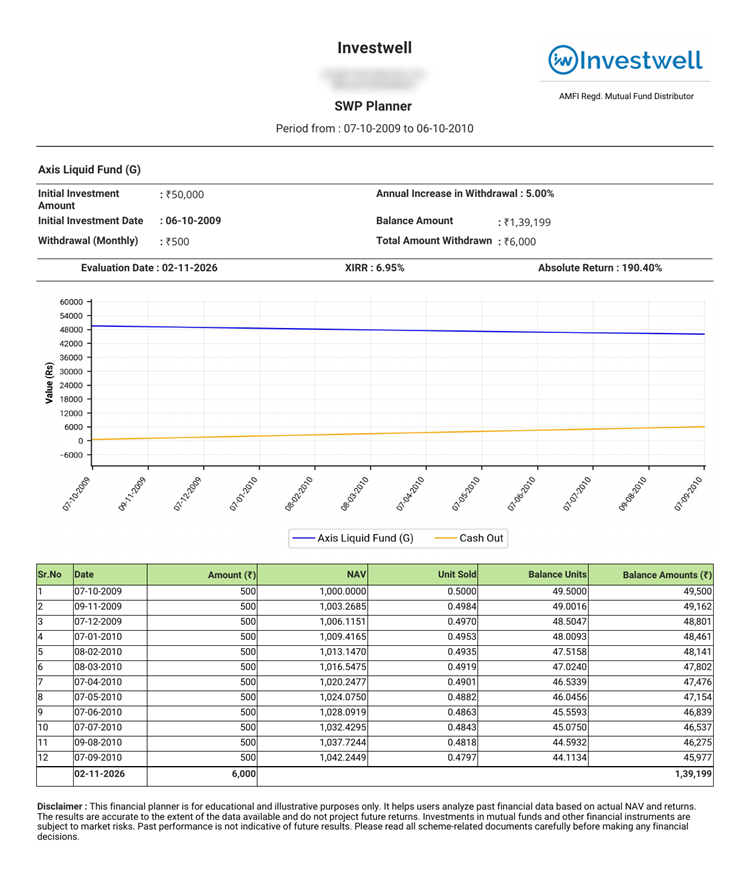
Understanding the SWP report
The report shows:
- A summary of the details you entered, along with the balance amount and the total amount withdrawn.
- XIRR and absolute return as on the evaluation date.
- A chart showing the value of the scheme and the cash withdrawn over the period.
- A date-wise table showing each withdrawal, the NAV on that date, the units sold, the balance units and the balance amount.
STP Planner
Use the STP Planner when a client wants to see how moving money gradually from one scheme to another would have worked in the past, for example from a liquid fund to an equity fund.
How to generate an STP report
- In View Type, select On Screen or PDF.
- In Fund, select the fund house.
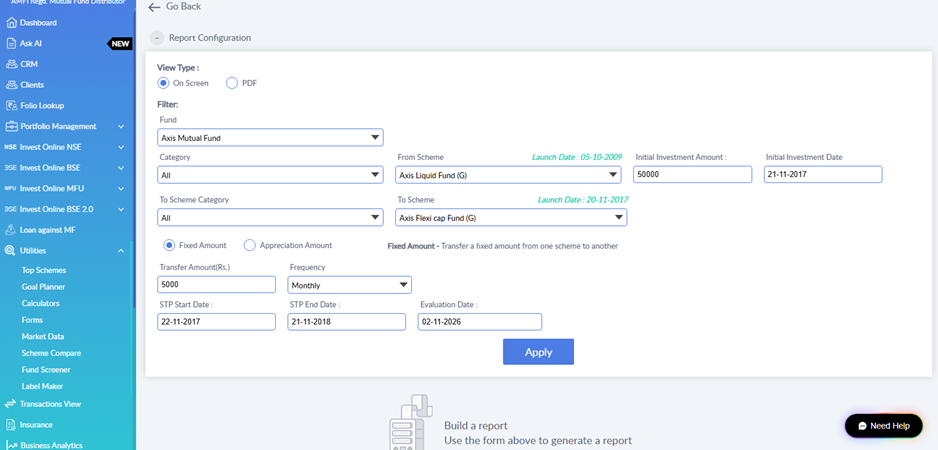
- In Category and From Scheme, select the scheme the money will be transferred from.
- Enter the Initial Investment Amount and Initial Investment Date.
- In To Scheme Category and To Scheme, select the scheme the money will be transferred to.
- Select the transfer type. Fixed Amount transfers a fixed amount from one scheme to another. You can also select Appreciation Amount.
- Enter the Transfer Amount and select the Frequency, for example Monthly.
- Enter the STP Start Date, STP End Date and Evaluation Date.
- Click Apply.
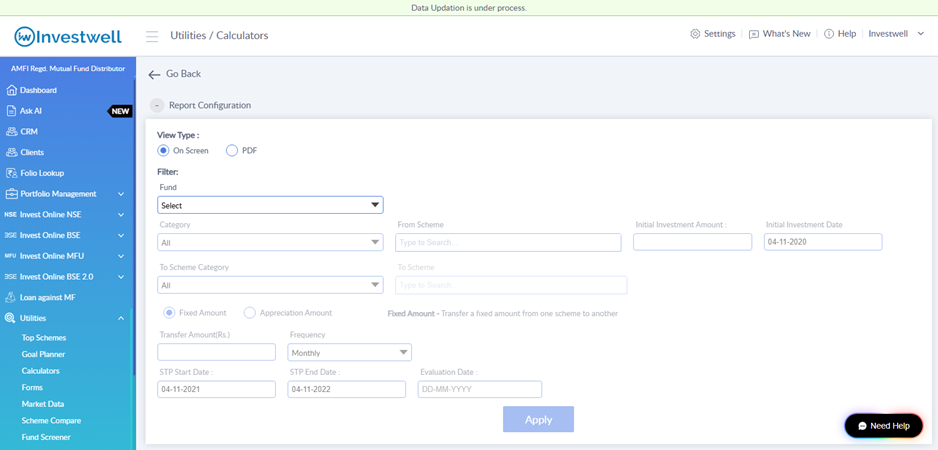
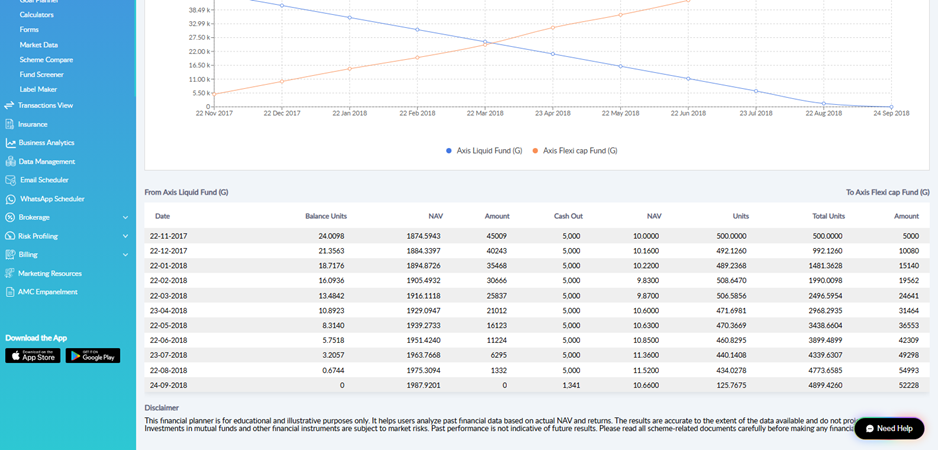
Example with the details filled in:
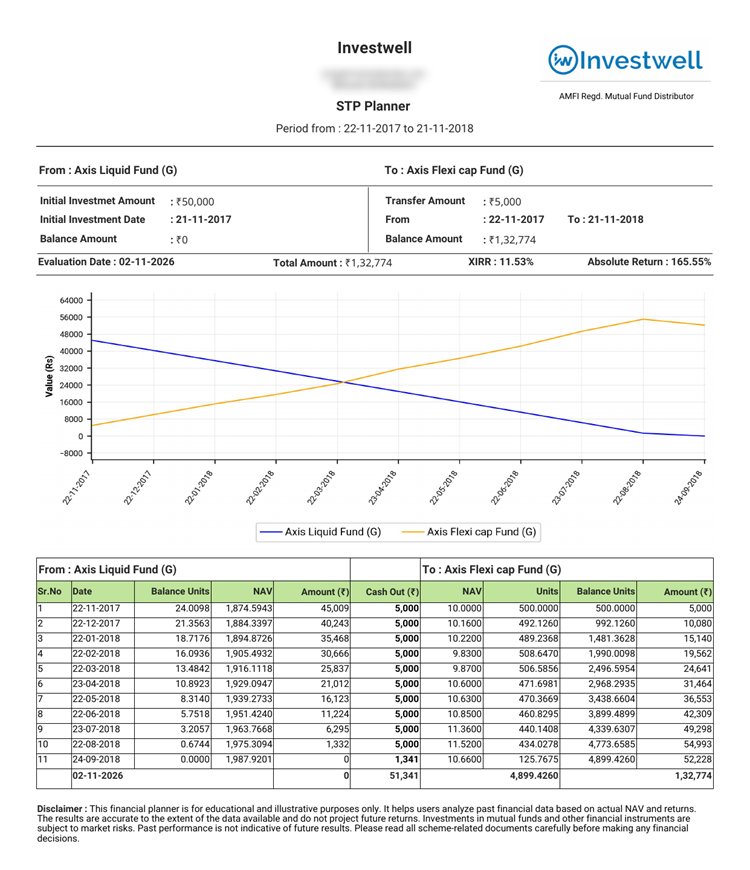
Understanding the STP report
The report shows:
- A summary for the From scheme and the To scheme, including the transfer amount, transfer period and balance amount.
- The total amount, XIRR and absolute return as on the evaluation date.
- A chart showing how the value moves from the From scheme to the To scheme over the period.
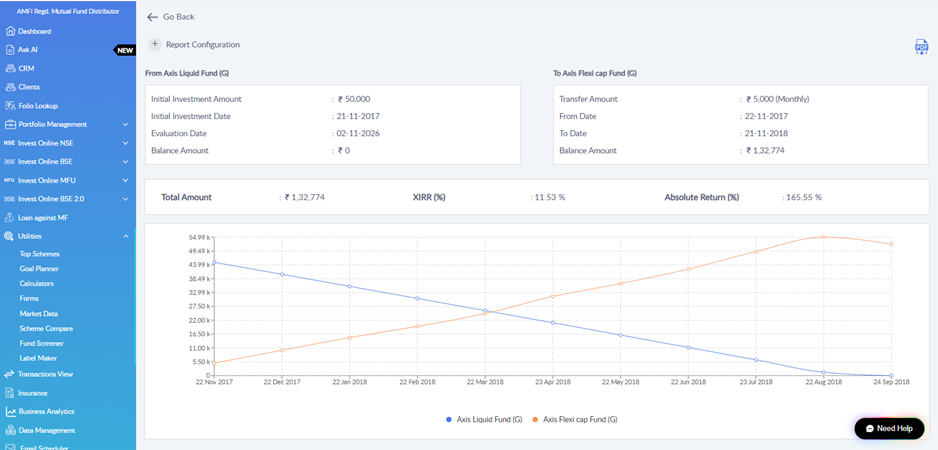
Below the chart, a date-wise table shows each transfer, with the NAV, units and amount for both schemes.
Downloading and sharing the report
You can download the report as a PDF in either of these ways:
- Select PDF in View Type before clicking Apply.
- After generating the report on screen, click the PDF icon at the top right of the report.
You can then share the PDF with your client. Sample reports are shown below. Contact details have been blurred.
SWP Planner report
STP Planner report
Frequently asked questions
How is the STP or SWP Planner different from the STP or SWP Calculator?
The calculators project future values based on a return rate you assume. The planners use the actual historical NAV of the selected scheme to show how the plan would have performed in the past.
Why is the scheme launch date shown?
Historical data is available only from the scheme's launch date. Choose an investment date and start date on or after the launch date.
Does past performance guarantee future returns?
No. These reports are for illustration only. Past performance does not indicate future results, as mentioned in the disclaimer on each report.
Was this article helpful?
That’s Great!
Thank you for your feedback
Sorry! We couldn't be helpful
Thank you for your feedback
Feedback sent
We appreciate your effort and will try to fix the article