Overview
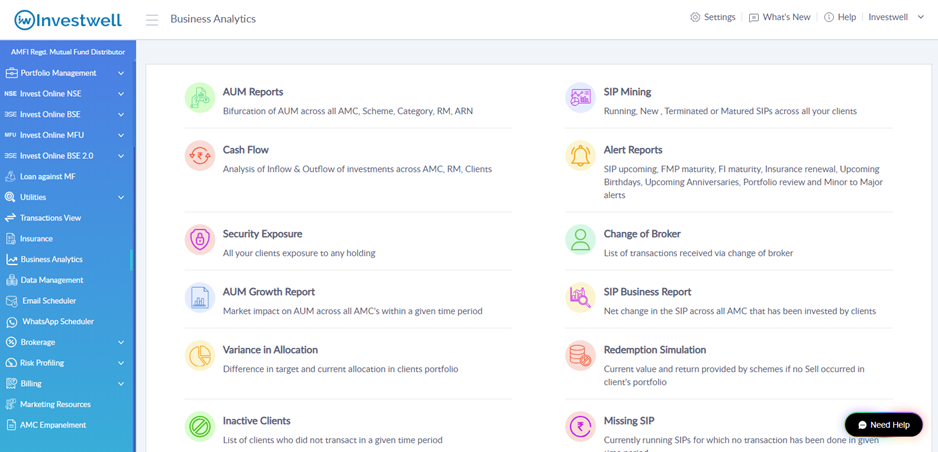
Alert Reports give you a single place to see upcoming events across your client base, so you can follow up on time. You can track upcoming SIPs, SIP renewals, insurance renewals, FD, bond and FMP maturities, client birthdays and anniversaries, minor to major changes, portfolio reviews, and Sub Broker ARN and EUIN renewals.
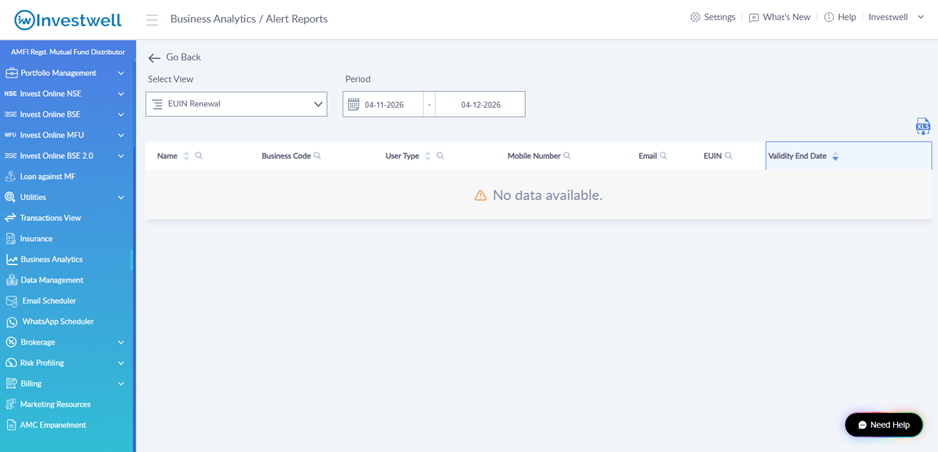
To open it, go to Business Analytics in the left menu and click Alert Reports.
How to use Alert Reports
- Log in to the Investwell Mint portal.
- In the left menu, click Business Analytics, then click Alert Reports.
- In Select View, choose the alert you want to see, for example SIP Upcoming or Insurance Renewal.
- In Period, set the From and To dates. The report shows only the events that fall within this date range.
- Review the list. You can:
- Click a column header with the arrow icon to sort by that column.
- Click the search icon next to a column header (for example Investor, Folio or Amount) to filter the list.
- Click an investor name to open that client's details.
- Tick the checkboxes to select specific rows.
- To download the report, click the XLS icon at the top right of the table.
- Click Go Back to return to the Business Analytics page.
A phone icon next to an investor name may appear in some rows. If you are not sure what it means for your account, please check with the Investwell support team.
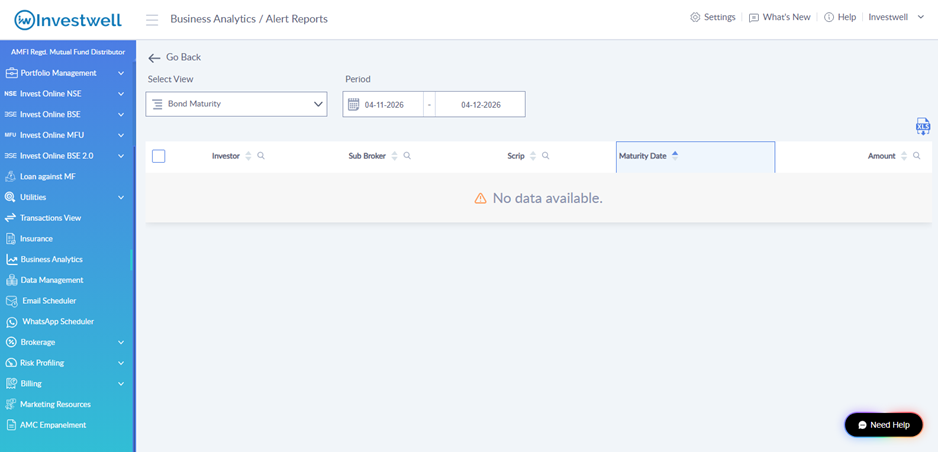
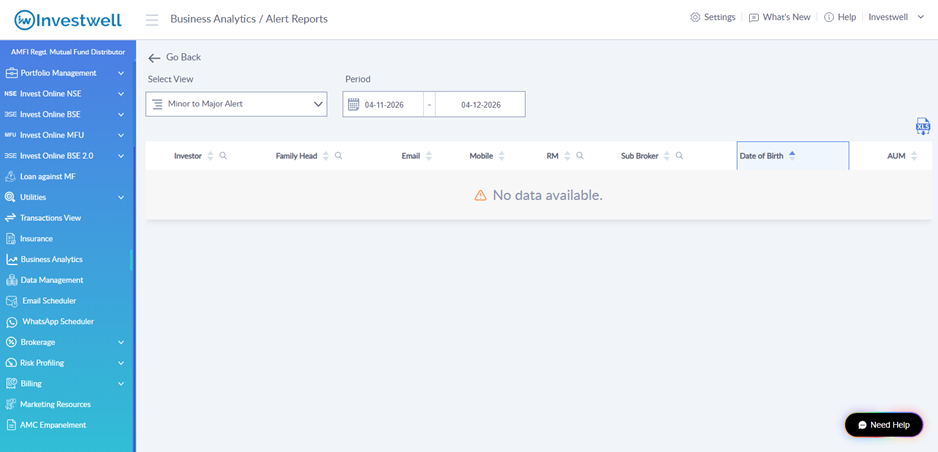
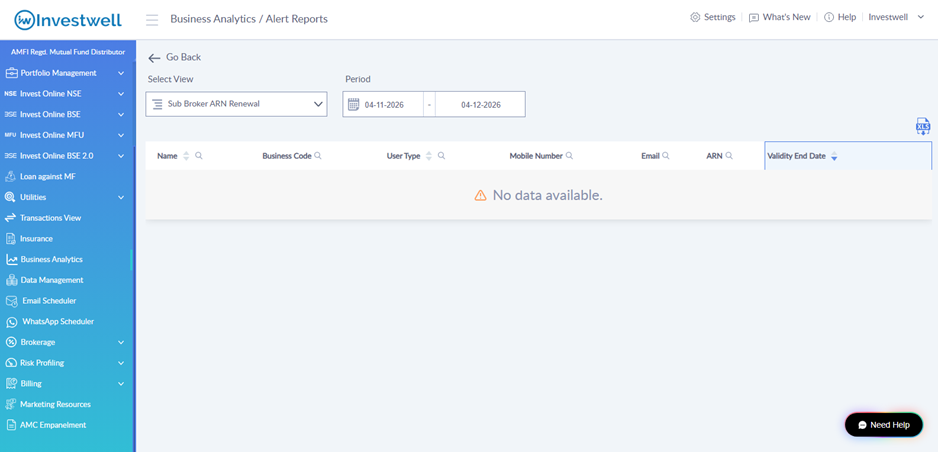
If no records fall within the selected period, the report shows "No data available."
Alert reports available
The Select View dropdown offers the reports below. Each view shows different columns.
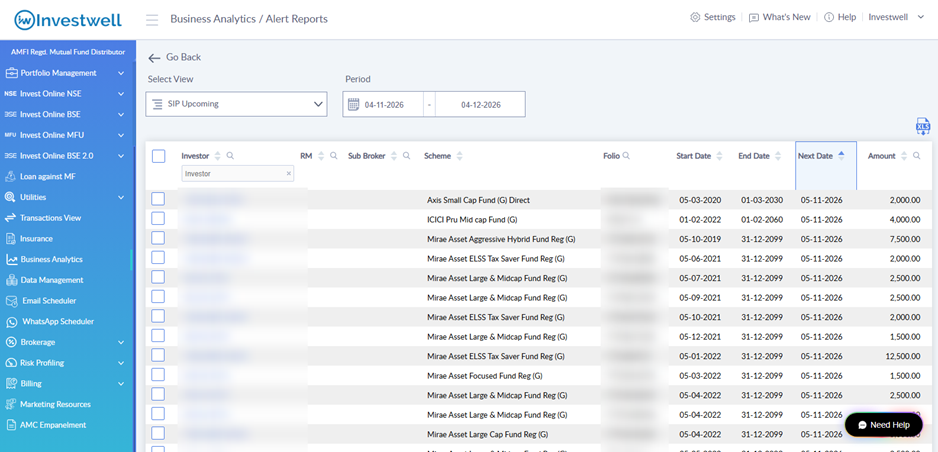
1. SIP Upcoming
Lists SIP instalments due within the selected period. Use it to remind clients to keep enough balance in their bank account.
Columns: Investor, RM, Sub Broker, Scheme, Folio, Start Date, End Date, Next Date, Amount.
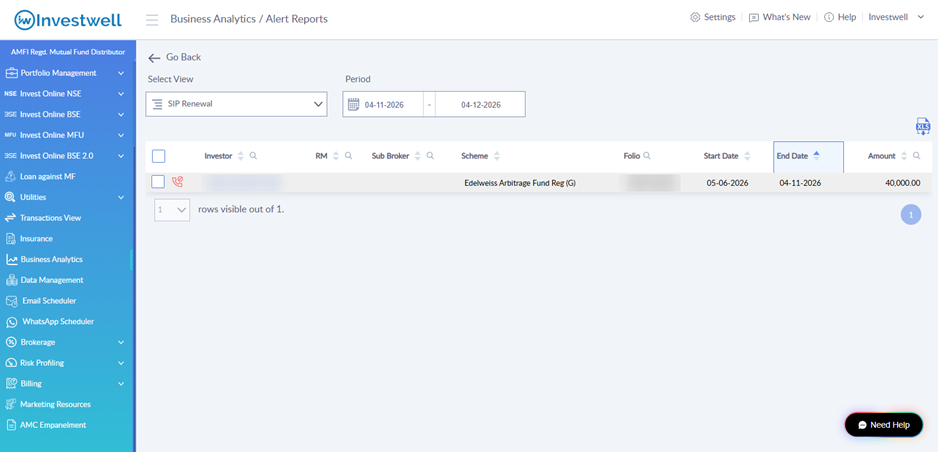
2. SIP Renewal
Lists SIPs whose end date falls within the selected period. Use it to contact clients about renewing their SIP.
Columns: Investor, RM, Sub Broker, Scheme, Folio, Start Date, End Date, Amount.
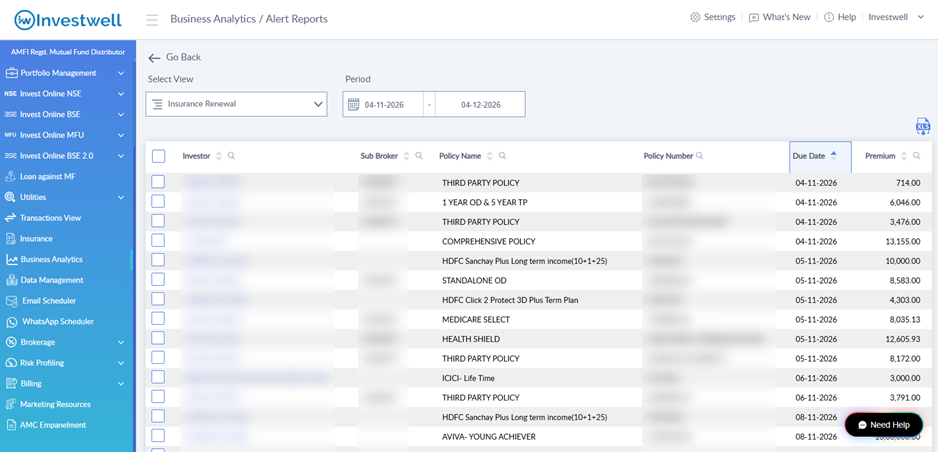
3. Insurance Renewal
Lists insurance policies with a premium due date in the selected period.
Columns: Investor, Sub Broker, Policy Name, Policy Number, Due Date, Premium.
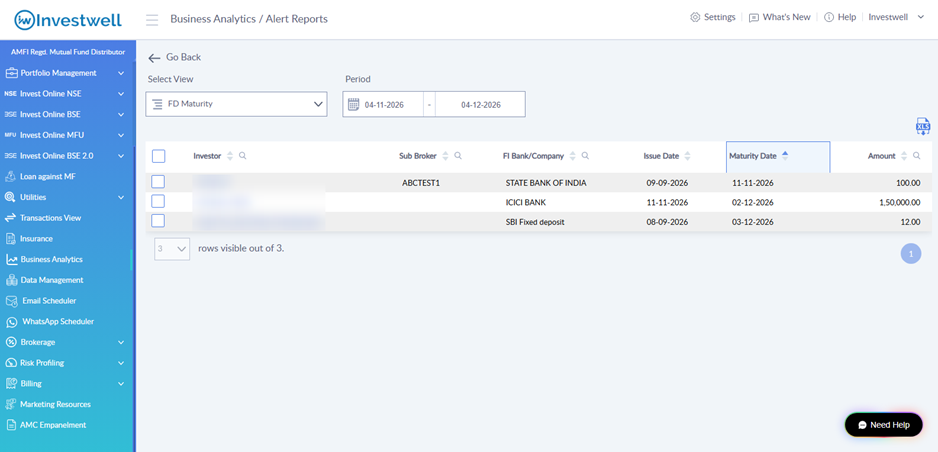
4. FD Maturity
Lists fixed deposits maturing in the selected period.
Columns: Investor, Sub Broker, FI Bank/Company, Issue Date, Maturity Date, Amount.
5. Bond Maturity
Lists bonds maturing in the selected period.
Columns: Investor, Sub Broker, Scrip, Maturity Date, Amount.
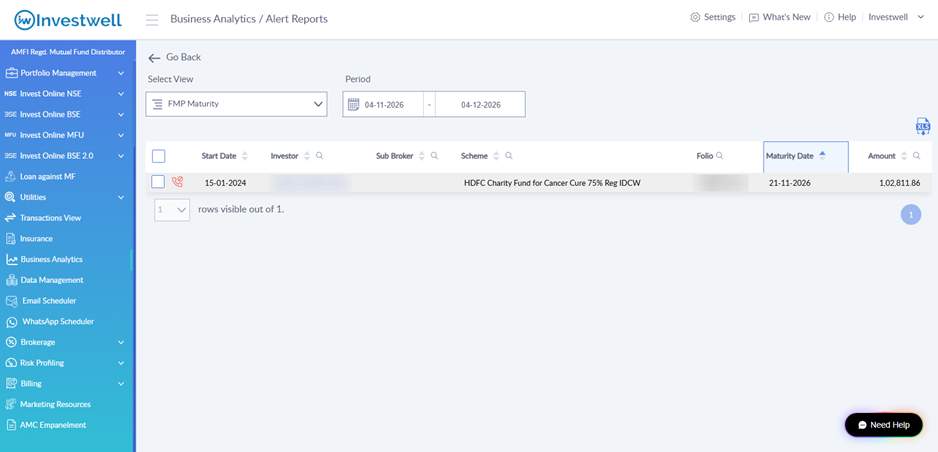
6. FMP Maturity
Lists Fixed Maturity Plans maturing in the selected period.
Columns: Start Date, Investor, Sub Broker, Scheme, Folio, Maturity Date, Amount.
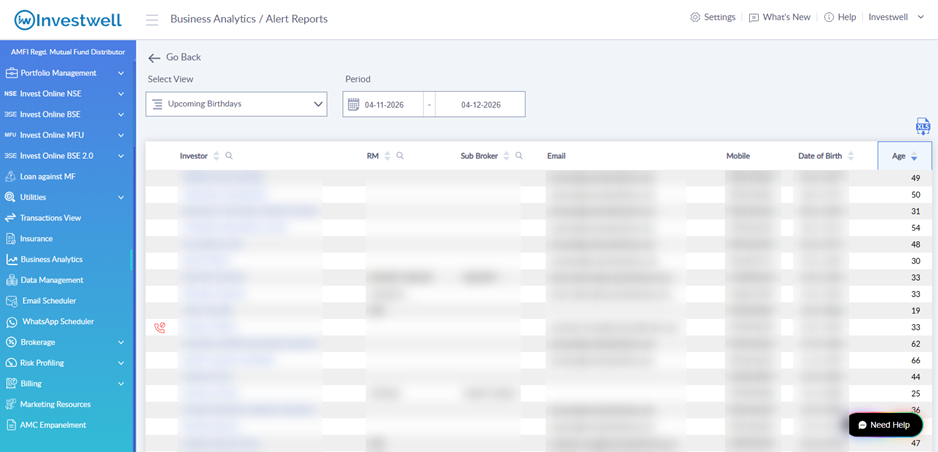
7. Upcoming Birthdays
Lists clients whose birthday falls in the selected period, so you can send greetings.
Columns: Investor, RM, Sub Broker, Email, Mobile, Date of Birth, Age.
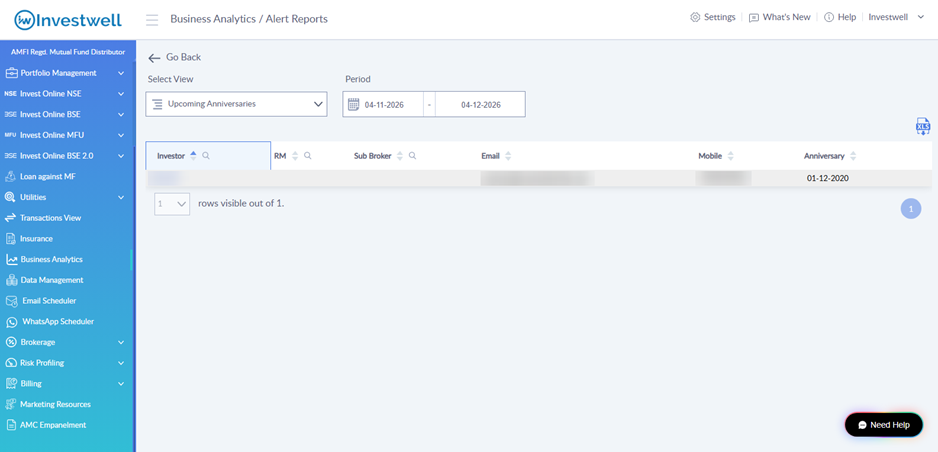
8. Upcoming Anniversaries
Lists clients whose anniversary falls in the selected period.
Columns: Investor, RM, Sub Broker, Email, Mobile, Anniversary.
9. Minor to Major Alert
Lists clients who are turning 18 in the selected period. These folios usually need a change of status from minor to major with the AMC.
Columns: Investor, Family Head, Email, Mobile, RM, Sub Broker, Date of Birth, AUM.
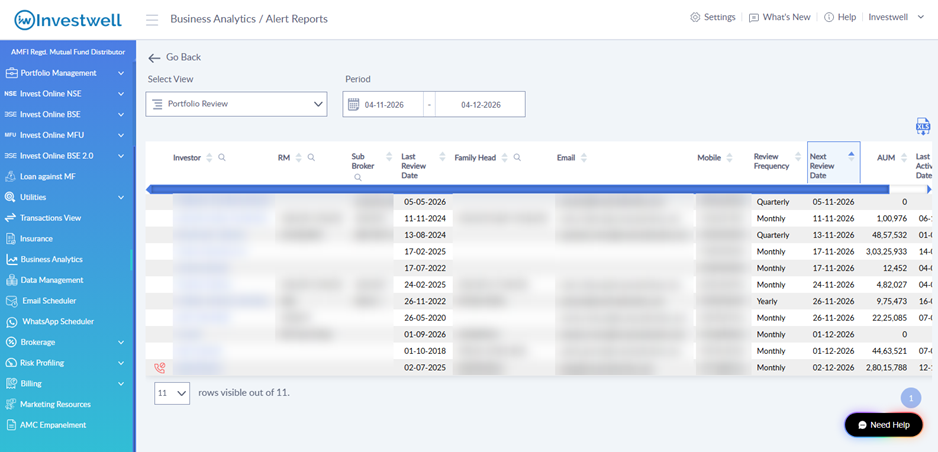
10. Portfolio Review
Lists clients whose next portfolio review is due in the selected period, based on the review frequency set for them (for example Monthly, Quarterly or Yearly).
Columns: Investor, RM, Sub Broker, Last Review Date, Family Head, Email, Mobile, Review Frequency, Next Review Date, AUM, Last Activity Date. Scroll the table sideways to see all columns.
11. Sub Broker ARN Renewal
Lists Sub Brokers whose ARN validity ends in the selected period.
Columns: Name, Business Code, User Type, Mobile Number, Email, ARN, Validity End Date.
12. EUIN Renewal
Lists users whose EUIN validity ends in the selected period.
Columns: Name, Business Code, User Type, Mobile Number, Email, EUIN, Validity End Date.
Alerts on the Dashboard
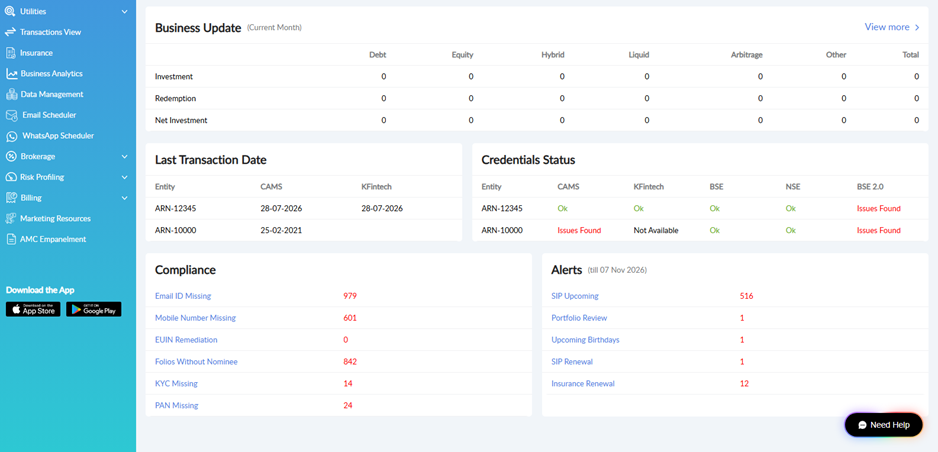
The Dashboard has an Alerts section that shows a count for each alert type, such as SIP Upcoming, Portfolio Review, Upcoming Birthdays, SIP Renewal and Insurance Renewal. The date next to the heading shows the period the counts cover. Click any alert name to open the matching Alert Report.
Frequently asked questions
Why does a report show "No data available"?
No records fall within the selected period for that view. Try widening the date range in Period.
Can I download the report?
Yes. Click the XLS icon at the top right of the table to download the current view as an Excel file.
Why don't the Dashboard alert counts match the report?
The Dashboard counts cover their own fixed period, shown next to the Alerts heading. The report uses the dates you select in Period. Set the same dates to compare.
Was this article helpful?
That’s Great!
Thank you for your feedback
Sorry! We couldn't be helpful
Thank you for your feedback
Feedback sent
We appreciate your effort and will try to fix the article