You can view, upload documents for, and add bank accounts to an NSE profile on Investwell from the Profile List.
Steps to manage banks
- Go to Invest Online NSE and select Profile List from the menu.
- For the profile you want to update, click Manage Banks.
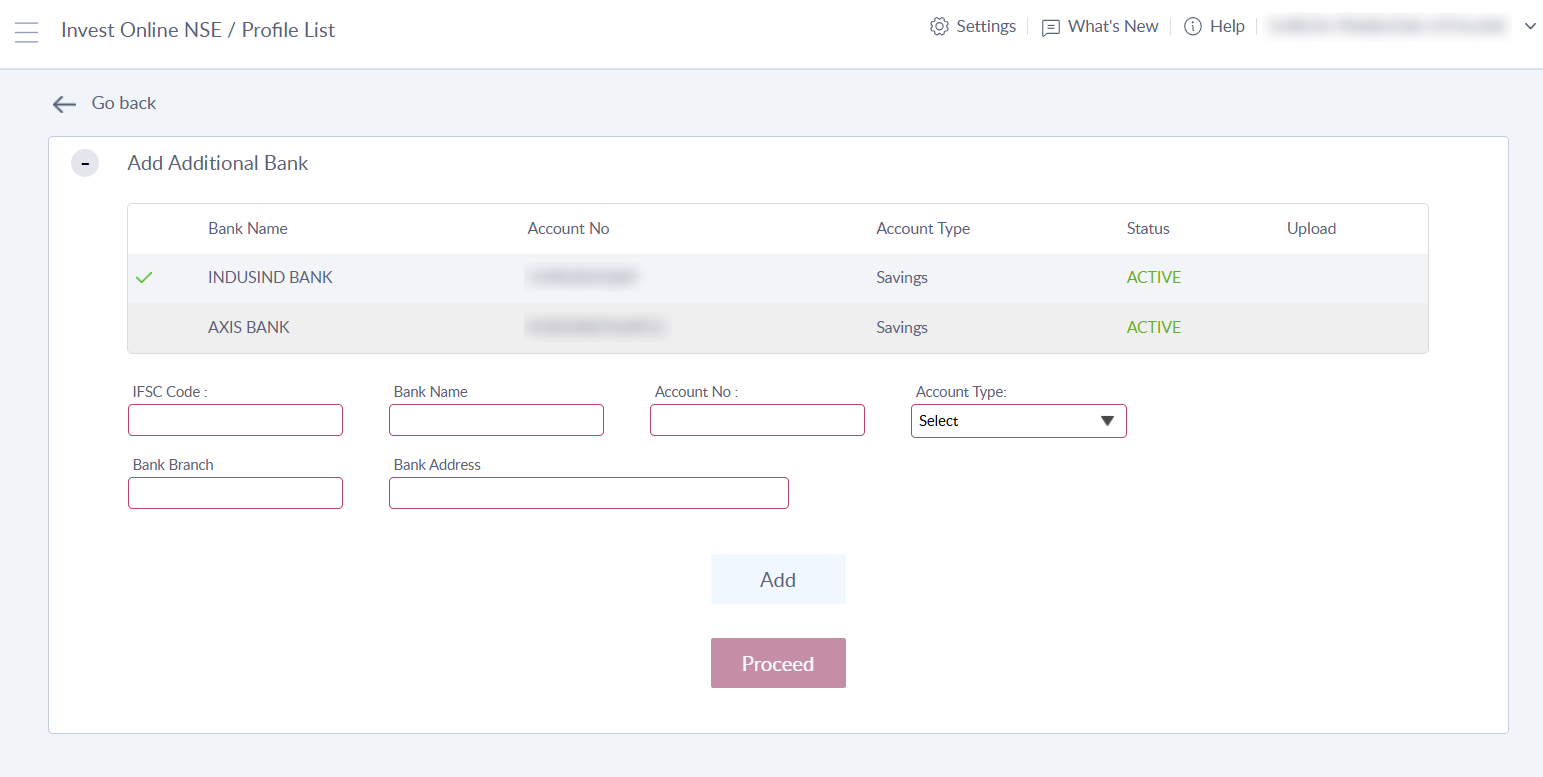
- Review the list of bank accounts already added to the UCC. Each account shows its bank name, account number, account type, and status.
- Check the tick mark, which indicates the default bank account.
- If a bank account is inactive, upload a cheque or bank statement for it in the Upload column.
Adding a new bank account
Below the list of existing banks, fill in the following details:
- IFSC Code
- Bank Name
- Account No
- Account Type
- Bank Branch
- Bank Address
The bank name, bank branch, and bank address are filled in automatically from the IFSC code. You can edit them if required.
- Once the details are entered, click Add. The bank account appears in the Profile List.
- Click Proceed. The request is sent to NSE to add the bank account to the profile.
- The client receives an email from NSE to authorise the addition of the bank account.
- Once the client approves, the bank account is added to the profile based on the exchange’s verification.
FAQs
1. Where do I manage bank accounts for an NSE profile on Investwell?
Go to Invest Online NSE, select Profile List, and click Manage Banks for the profile.
2. How do I know which bank account is the default?
The default bank account is marked with a tick in the list of bank accounts.
3. What should I do if a bank account is inactive?
Upload a cheque or bank statement for the account in the Upload column.
4. Which details are filled in automatically when I add a bank account?
The bank name, bank branch, and bank address are filled in automatically from the IFSC code. You can edit them if required.
5. Is the bank account added to NSE as soon as I click Add?
No. Clicking Add adds the bank account to the Profile List. Clicking Proceed sends the request to NSE.
6. Who needs to authorise the new bank account?
The client receives an email from NSE to authorise the addition. The bank account is added to the profile once the client approves and the exchange completes its verification.
7. How do I update a bank account for an NSE profile on Investwell?
You can update a profile’s bank details in two ways:
- Add a new bank account: Go to Invest Online NSE, select Profile List, and click Manage Banks for the profile. Fill in the IFSC code, account number, account type, and other details below the list of bank accounts, then click Add. Click Proceed to send the request to NSE. The client then receives an email from NSE to authorise the addition.
- Upload a cheque or bank statement: In the Upload column of the bank account list, upload a cheque or bank statement for the account.
8. How do I add a bank account to a UCC on Investwell?
Go to Invest Online NSE, select Profile List, and click Manage Banks for the profile. Fill in the IFSC code, account number, account type, and other details below the list of bank accounts. The bank name, branch, and address are filled in automatically from the IFSC code, and you can edit them if required. Click Add, then click Proceed to send the request to NSE. The client receives an email from NSE to authorise the addition. Once the client approves, the bank account is added to the UCC based on the exchange’s verification.
9. How do I change the default bank account in a UCC on Investwell?
This is not available on Investwell yet, as the feature is still in development. It will be updated once it is live. For now, you can change the default bank account for any UCC on the NSE platform, then sync that profile on Investwell.
10. How do I sync a profile for NSE on Investwell?
Go to the Profile List. In the top right section, next to the Sync button, enter the UCC in the text box and click Sync. The profile updates in real time, or you can wait for the overnight sync and check the next day.
Was this article helpful?
That’s Great!
Thank you for your feedback
Sorry! We couldn't be helpful
Thank you for your feedback
Feedback sent
We appreciate your effort and will try to fix the article