Overview
The Portal Settings page lets you manage your organization's details, registration and branding, portal preferences, PDF report appearance and RTA ZIP passwords. These settings can only be configured by the organization admin.
The page is split into five sections. Click a section's heading (the + icon) to open it, and click the – icon to close it. Each section has its own Submit or Save button, so save your changes in a section before you open another one.
- IFA Details
- IFA Registration
- IFA Preferences
- PDF Reports Configuration
- RTA Zip Passwords
Fields marked with an asterisk (*) are required.
1. IFA Details
This section holds the main contact details of your account.
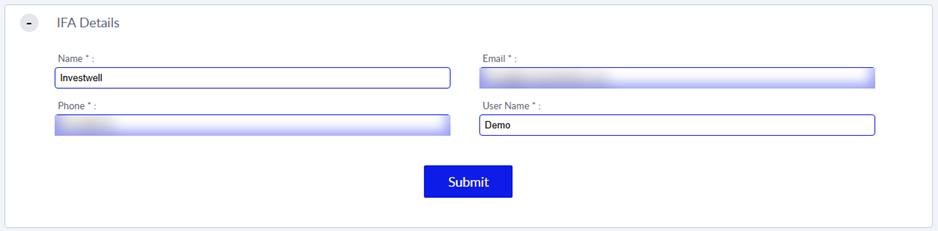
- Name: your name or your organization's name.
- Email: the email address linked to your account.
- Phone: your contact phone number.
- User Name: the user name you log in with for the admin account.
Click Submit to save.
2. IFA Registration
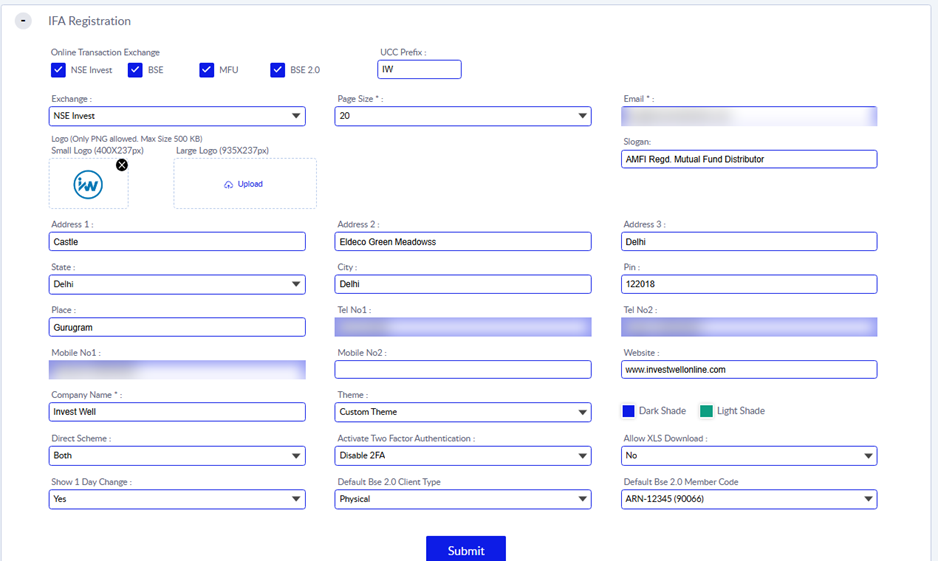
This section holds your organization's registration, exchange, contact, branding and key portal settings.
Exchanges
- Online Transaction Exchange: tick the exchanges your organization uses for online mutual fund transactions: NSE Invest, BSE, MFU and BSE 2.0.
- UCC Prefix: the short code added at the start of the unique client codes (UCC) created for your clients, for example IW.
- Exchange: the default exchange, chosen from the exchanges you ticked above.
- Default Bse 2.0 Client Type: the client type that is selected by default when a client is created via Self Onboarding using BSE 2.0.
- Default Bse 2.0 Member Code: the BSE 2.0 member code (ARN) used by default when a client is created via Self Onboarding using BSE 2.0.
Portal display
- Page Size: the number of rows shown per page in lists and tables. For example, 20.
- Company Name: your organization's name as it should appear on the portal.
- Slogan: your organization's slogan or tagline, if you have one.
- Small Logo: upload the small version of your logo. PNG only, 400 × 237 pixels, maximum 500 KB.
- Large Logo: upload the large version of your logo. PNG only, 935 × 237 pixels, maximum 500 KB.
To replace a logo, click the × on the current one and upload a new file.
- Theme: choose how the portal looks. If you pick Custom Theme, choose your Dark Shade and Light Shade colours.
Contact details
- Email: your organization's email address.
- Address 1, Address 2 and Address 3: your organization's address. Use the extra lines if the address is long.
- State, City, Pin and Place: the location details for your address.
- Tel No1 and Tel No2: your organization's telephone numbers, where applicable.
- Mobile No1 and Mobile No2: your organization's mobile numbers, where applicable.
- Website: your organization's website address.
Other settings
- Direct Scheme: choose which schemes are available to your clients: Direct, Regular or Both.
- Activate Two Factor Authentication: choose Enable 2FA or Disable 2FA. Two-factor authentication adds an extra verification step when your broker users log in.
- Allow XLS Download: choose Yes or No to control whether sub-users can download data in Excel format.
- Show 1 Day Change: choose Yes or No to show or hide the one-day change value in portfolio views.
Click Submit to save.
3. IFA Preferences
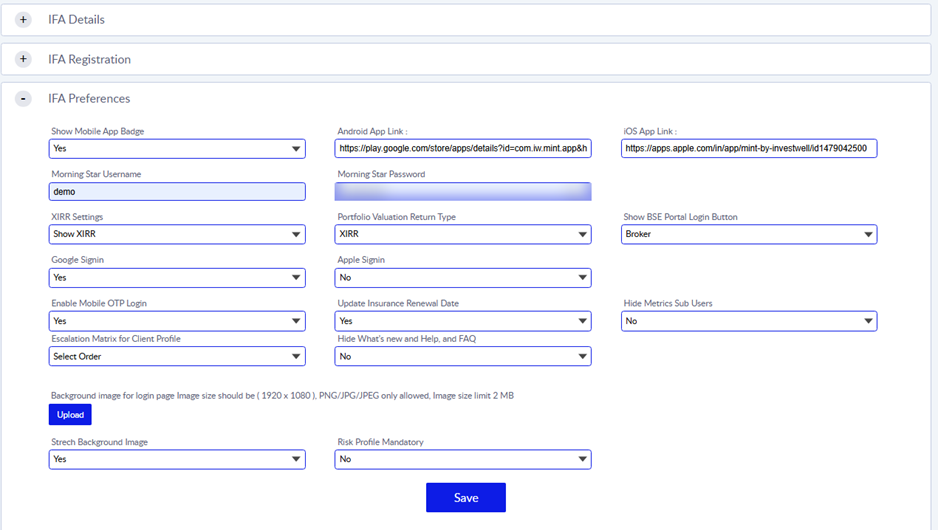
This section controls login options, portfolio display settings and the app links shown to your clients.
Mobile app
- Show Mobile App Badge: choose Yes to show the app download badges on your portal.
- Android App Link: the Google Play Store link of your Android app.
- iOS App Link: the Apple App Store link of your iOS app.
Make sure both links open the correct apps.
Portfolio display
- Morning Star Username and Password: your Morningstar login details, used for the Morningstar data in the portal.
- XIRR Settings: choose how XIRR (the annualised return) appears in portfolio views: Show XIRR, Show XIRR Net of Fees or Hide XIRR.
- Portfolio Valuation Return Type: the type of return shown in portfolio valuation, XIRR, Weighted CAGR or Standard CAGR.
Login and access
- Show BSE Portal Login Button: choose who sees the BSE portal login button, for example Broker. Other levels can also be chosen.
- Google Signin: choose Yes to let broker users and clients sign in with their Google account.
- Apple Signin: choose Yes to let broker users and clients sign in with their Apple account.
- Enable Mobile OTP Login: choose Yes to let clients log in with a one-time password sent to their mobile number.
- Background image for login page: upload a picture to show on your login page. The size should be 1920 × 1080 pixels, in PNG, JPG or JPEG format, and under 2 MB.
- Strech Background Image: choose Yes to stretch the login background image to fill the whole screen.
Other preferences
- Update Insurance Renewal Date: choose Yes or No to control whether the insurance renewal date is auto updated by the system.
- Hide Metrics Sub Users: choose Yes to hide the metrics from sub-users on their respective dashboards.
- Escalation Matrix for Client Profile: choose the order in which escalation contacts are shown on the client profile. Click Select Order to choose.
- Hide What's new and Help, and FAQ: choose Yes to hide these links from the portal.
- Risk Profile Mandatory: choose Yes to make the risk profile a required step.
Click Save to save.
4. PDF Reports Configuration
This section controls how your PDF reports look and what they include.
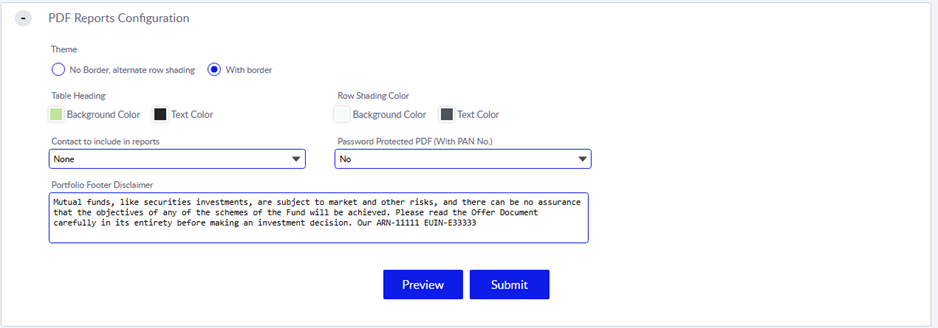
- Theme: choose No Border, alternate row shading or With border for report tables.
- Table Heading: pick a Background Color and a Text Color for the heading row of report tables.
- Row Shading Color: pick a Background Color and a Text Color for the shaded rows of report tables.
- Contact to include in reports: choose which contact details appear on your reports. The default is None, Any role of user can be selected here.
- Password Protected PDF (With PAN No.): choose Yes to protect PDF reports with the client's PAN number as the password, or No to leave them unprotected.
- Portfolio Footer Disclaimer: type the disclaimer that should appear at the bottom of your portfolio reports.
Click Preview to see how a report will look, then click Submit to save.
5. RTA Zip Passwords
Some files you receive from RTAs come as password-protected ZIP files. Save those passwords here so the files can be opened and processed.
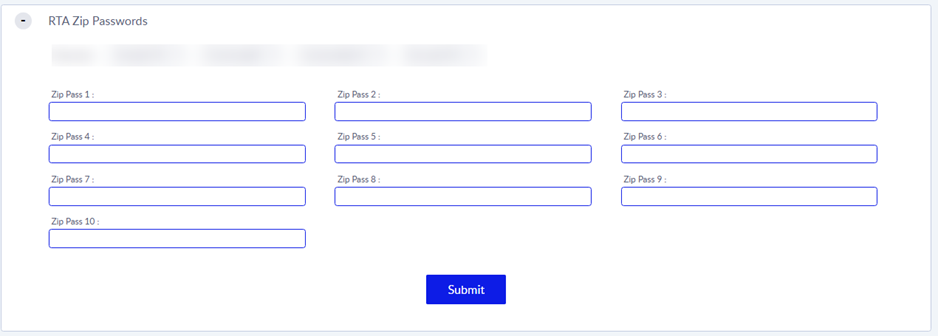
- Passwords: the passwords already saved are shown at the top. Click the x next to a password to remove it. Before you delete one, make sure it is not needed for any files you still expect to receive.
- Zip Pass 1 to Zip Pass 10: type a new password in any empty box. You can save up to 10 additional passwords.
Click Submit to save.
Saving your changes
Each section has its own Submit or Save button. Changes you make in one section are not saved when you save a different section, so save each section after you update it.
If a setting is missing or you are not sure what it does, contact your Investwell administrator or Investwell Support.
Was this article helpful?
That’s Great!
Thank you for your feedback
Sorry! We couldn't be helpful
Thank you for your feedback
Feedback sent
We appreciate your effort and will try to fix the article