Understanding the Dashboard
Introduction
Investwell CRM enables you to manage all your investors, leads, and their associated tasks from a single, unified dashboard. Records can be created through Mint sync, converted from existing leads, or added manually, ensuring complete flexibility in managing your data.
From this dashboard, you can:
View and manage tasks efficiently
Access detailed lead and investor information
Monitor team activities and workload
Track important investor milestones such as birthdays and anniversaries of your clients
Stay updated on recent activities related to clients, leads, and tasks
And more coming soon...…
This centralized view enhances visibility, improves coordination, and helps ensure timely follow-ups across your organization.
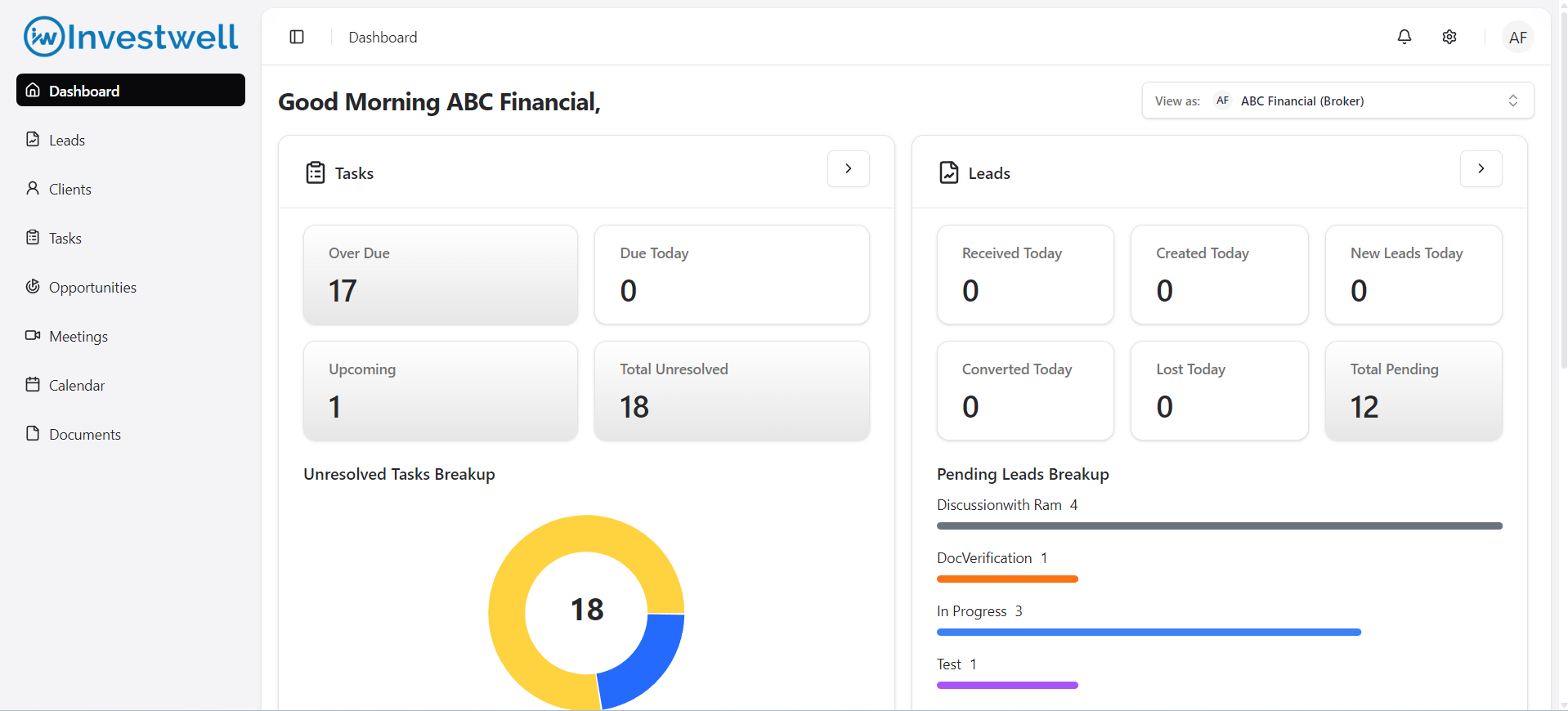
View As
This feature allows a user to view the CRM dashboard of any broker user within their reporting hierarchy for monitoring and supervisory purposes.
When a different user is selected under “View As”:
The logged-in user remains authenticated in their own account at all times.
The system does not switch accounts; it only changes the dashboard perspective.
The dashboard data displayed (tasks, leads, activities, etc.) reflects the selected user’s view.
Navigation Behaviour
Clicking on tasks, leads, or other dashboard widgets redirects the logged-in user to the respective My Team – Tasks or My Team – Leads screens.
The system automatically applies filters such as Assignee (Task) or Primary User (Lead), based on the selected “View As” user.
This ensures that the displayed records correspond to the selected user’s workload and data.
Creation Rights
Any new entity (task, lead, investor, etc.) created while in “View As” mode will always be created under the logged-in user’s account.
The system does not create records on behalf of the selected “View As” user.
This functionality provides visibility into team performance and workload without transferring control, ownership, or login rights.
Tasks
Please find below explanation for all metrics as mentioned below
- Over due
- Displays the number of My tasks overdue for the logged in user. On click the user is re directed to the Task listing page with the respective filtered applied
- Due Today
- Displays the number of My tasks Due today for the logged in user. On click the user is re directed to the Task listing page with the respective filtered applied
- Upcoming
- Displays the number of My tasks upcoming for the logged in user. On click the user is re directed to the Task listing page with the respective filtered applied
- Total Unresolved
- Displays all My tasks with Status = Pending + On Hold + In progress. On click the user is re directed to the Task listing page with the respective filtered applied
- Pie chart
- Displays all the My tasks segregated as per Status. In centre the number being displayed = Total Unresolved tasks
- Arrow symbol
- Redirects the user to the Leads listing page with no filter applied
- Graph
- Bifurcates the Total pending leads within the respective status
Path: CRM → Dashboard
Leads
Please find below explanation for all metrics as mentioned below
- Received today
- Displays the number of Leads assigned to the logged in user today which is visible under My Leads tab. On click the user is re directed to the My Leads listing page with the respective filtered applied
- For Broker Admin - This button is disabled as this is the Sum of Created today + New leads today
- Created Today
- Displays the number of Leads created by the logged in user today which is visible under My Leads tab. On click the user is re directed to the My Leads listing page with the respective filtered applied
- New Leads Today
- Displays the number of Leads received from Contact on us form on the login page of Mint which is visible under New Leads tab. On click the user is re directed to the New Leads listing page with the respective filtered applied
- This Tab is only visible to Broker admin.
- Converted Today
- Displays the number of Leads which have been marked converted by the logged in user which is visible under My Leads tab. On click the user is re directed to the My Leads listing page with the respective filtered applied
- Lost Today
- Displays the number of Leads which have been marked Lost by the logged in user which is visible under My Leads tab post applying filter. On click the user is re directed to the My Leads listing page with the respective filtered applied
- Total Pending
- Displays the Total leads with all status (Except New, Won and Lost). On On click the user is re directed to the My Leads listing page with the respective filtered applied
Path: CRM → Dashboard
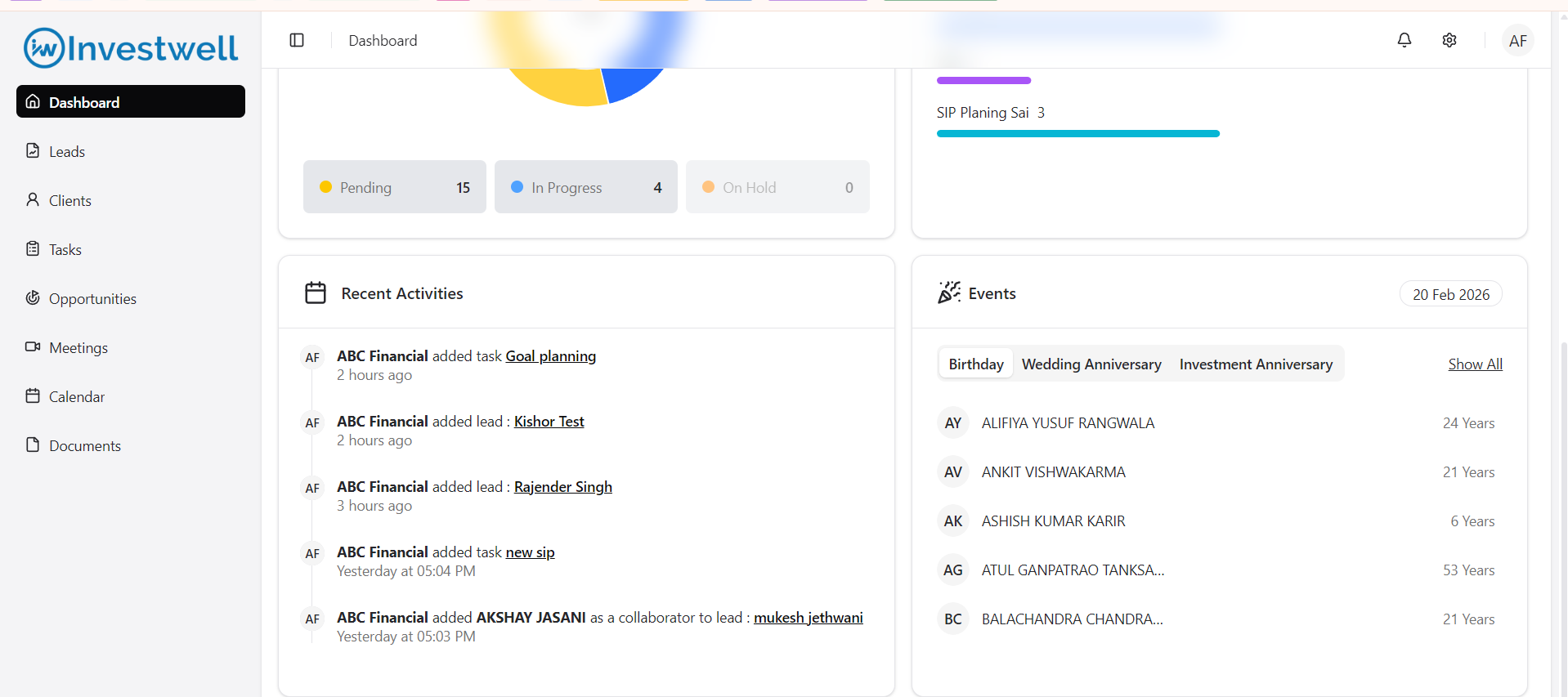
Recent Activities
Displays the last 5 activities related to entity in which the user is either a Primary user, creator, Assignee.
User may open the entity by clicking on the respective entity name
Events
The below events are listed for the Clients which are directly or assigned to a team member under the logged in user. the respective date should be filled in the Client profile for them to be displayed here.
Birthday - Displays the Clients with Birth date = Current Date
Wedding Anniversary - Displays the Clients with Wedding Anniversary date = Current Date
Investment Anniversary - Displays the Clients with Investment Anniversary date (1st Purchase with the MFD) = Current Date
Show all - opens a cascade to view all client list
Notes
The user may change the theme colour and set Mode = Light/Dark by clicking on the setting icon
The user shall view all notifications related to activities of their entities in the notification icon
The notifications are divided into Direct and Collaborators
Direct - Notifications for entities where the user is direclty engaged (either Creator or Assignee/Primary user)
Collaborator - Notifications where the user is a collaborator
On click on notification the user shall be re directed to the entity
Was this article helpful?
That’s Great!
Thank you for your feedback
Sorry! We couldn't be helpful
Thank you for your feedback
Feedback sent
We appreciate your effort and will try to fix the article