Understanding the Clients Module
Introduction
The Clients module in Investwell CRM helps you manage all your investors in one place — whether they are created from Mint sync, converted from a Lead, or added manually. From this screen, you can view client details, collaborate with your team, and take actions such as assigning tasks, creating opportunities, and viewing activity logs.
Why It’s Important
A properly managed client base allows for:
Better tracking of tasks, meetings, opportunities and follow-ups.
Centralized visibility across RMs, Sub-brokers, and Service RMs.
Improved collaboration between team members.
How Clients Are Created
Clients in CRM can be created in one of three ways:
Automatically synced from Mint when a new investor or family head is created.
Converted from a Lead after qualification.
Each client profile includes key details such as PAN, Email, Contact Number, Family Group, AUM and last purchase date.
Path: CRM → Clients
Key Tabs in Clients View
My Clients: Clients directly owned by you or assigned to you in mint hierarchy.
Collaborations: Clients where you are added as a collaborator.
Team Clients: Shows all clients assigned to users under you as per mint hierarchy
Actions You Can Perform
You can perform several quick actions from the Clients list:
Search or filter clients by Name, PAN, Mobile, or RM.
Assign collaborators
Add comments or logs.
Create Tasks or Opportunities linked to a client.
Ways to Create a Client
From Leads Module: Convert a qualified lead into a client.
Automatic Sync: Clients are auto-created during Mint synchronization when a new folio or investor record appears.
What Happens After Merging
When a client is merged into another client,
All associated activities, comments, and opportunities move to the new merged client.
A system log entry records who performed the merge and when.
Assigning Collaborators
Introduction
Collaborators allow multiple team members to jointly manage a client — e.g., RM, Sub-Broker, or Service RM. This ensures smooth handovers and shared visibility without duplication.
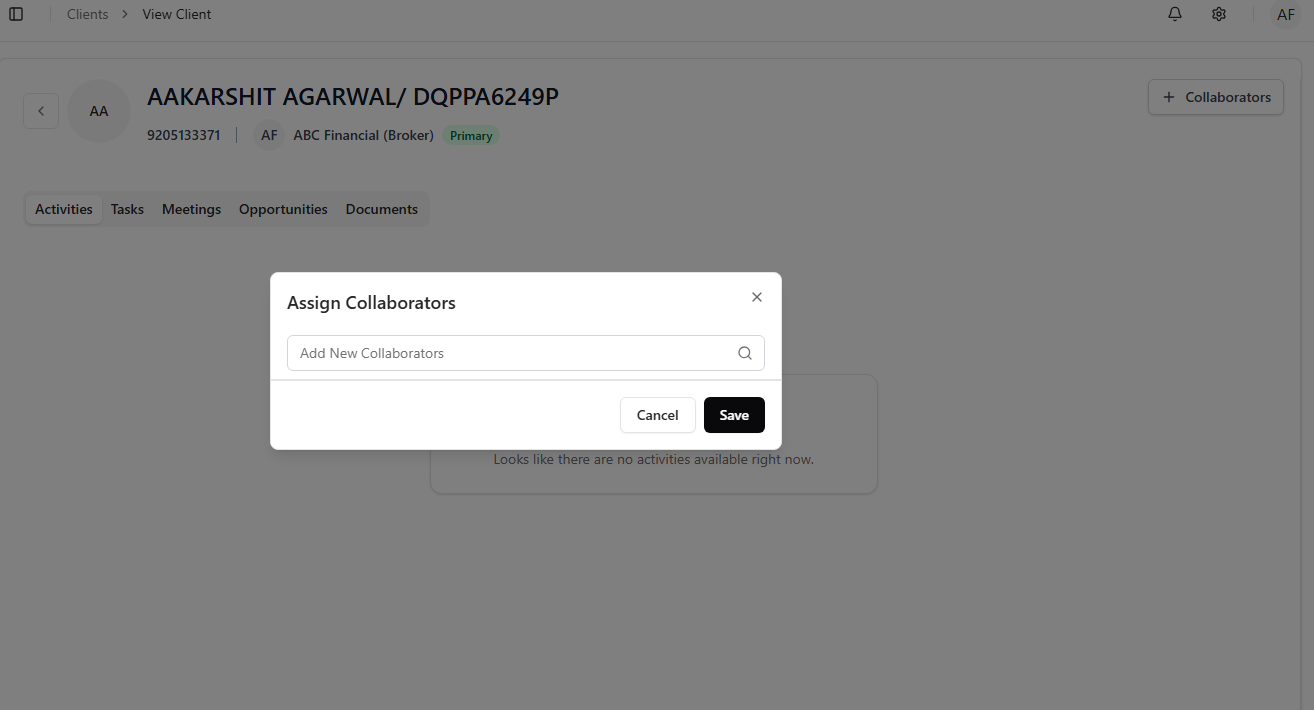
Path: CRM → Clients → View Client (by clicking on the name of the client) → Add Collaborators Button
Adding Collaborators
Open the client profile.
Click Add Collaborator.
Choose the team member (RM / Sub-Broker / Service RM).
Click Save.
Removing or Reassigning
Click on the initials of added collaborators
Removed collaborators will lose access to the client’s data and notifications.
Notes
Each collaborator receives email and in-app notifications for client updates under collaborators tab in notification bar.
Clients can have multiple collaborators but only one Primary RM.
Viewing Client Profile (Activities, Opportunities, Documents)
Introduction
The Client Profile is the central hub for all interactions with an investor. It provides a 360° view — from basic details to activities, opportunities, documents, and meeting notes.
Path: CRM → Clients → Click on Client Name
Key Tabs in Client Profile
Overview: Displays key details like AUM, Mandate Status, RM, and Collaborators.
Activities: Shows all logs, comments, and tasks linked to this client.
Opportunities: Lists open or closed opportunities related to the client.
Documents: Access or upload KYC, FATCA, or custom files.
Meetings: View scheduled meetings and done meetings with notes created during client discussions.
Actions Available
Create Task using quick-action buttons.
Syncing Clients from Leads or Mint
Introduction
Clients in Investwell CRM can be auto-synced from two primary sources:
Leads Module (on conversion)
Mint (via API integration)
This ensures consistent investor information across both platforms.
Sync from Leads
When a Lead is marked as Converted, a new client record is automatically created.
All linked tasks and meeting notes transfer to the new client.
The original Lead record is closed for editing.
Sync from Mint
Matching is based on Name and PAN.
Families created in Mint reflect automatically in CRM.
Notes
Name and PAN are the primary fields for searching.
Was this article helpful?
That’s Great!
Thank you for your feedback
Sorry! We couldn't be helpful
Thank you for your feedback
Feedback sent
We appreciate your effort and will try to fix the article