INTRODUCTION
The Tasks Module in Investwell CRM helps you manage all follow-ups, client interactions, and internal action items in one place. Each task can be assigned to a team member, linked to a client or lead, and tracked until completion.
Path: CRM → Dashboard → Tasks Module (Via Left navigation or Directly Via Dashboard)
TABLE OF CONTENTS
- INTRODUCTION
- Purpose of Task Module
- Task Types
- Notes
- Creating & Assigning Tasks
- Viewing Tasks
- Managing Tasks
Purpose of Task Module
- Create and assign tasks to any user across the organisation, enabling seamless collaboration.
- Track all pending and completed actions across Clients and Leads from a single view.
- Assign clear responsibilities to Relationship Managers (RMs), Sub-Brokers, or any other broker users across the organisation.
- Set due dates and reminders to ensure timely follow-ups and reduce missed actions.
- Improve accountability and visibility by giving teams full transparency into task ownership and status.
Task Types
- Common examples of tasks include:
- Client follow-up calls
- Sending investment proposals
- KYC or document collection
- Portfolio review meetings
Notes
- Tasks can be created directly from the Client, Lead, or Opportunity modules.
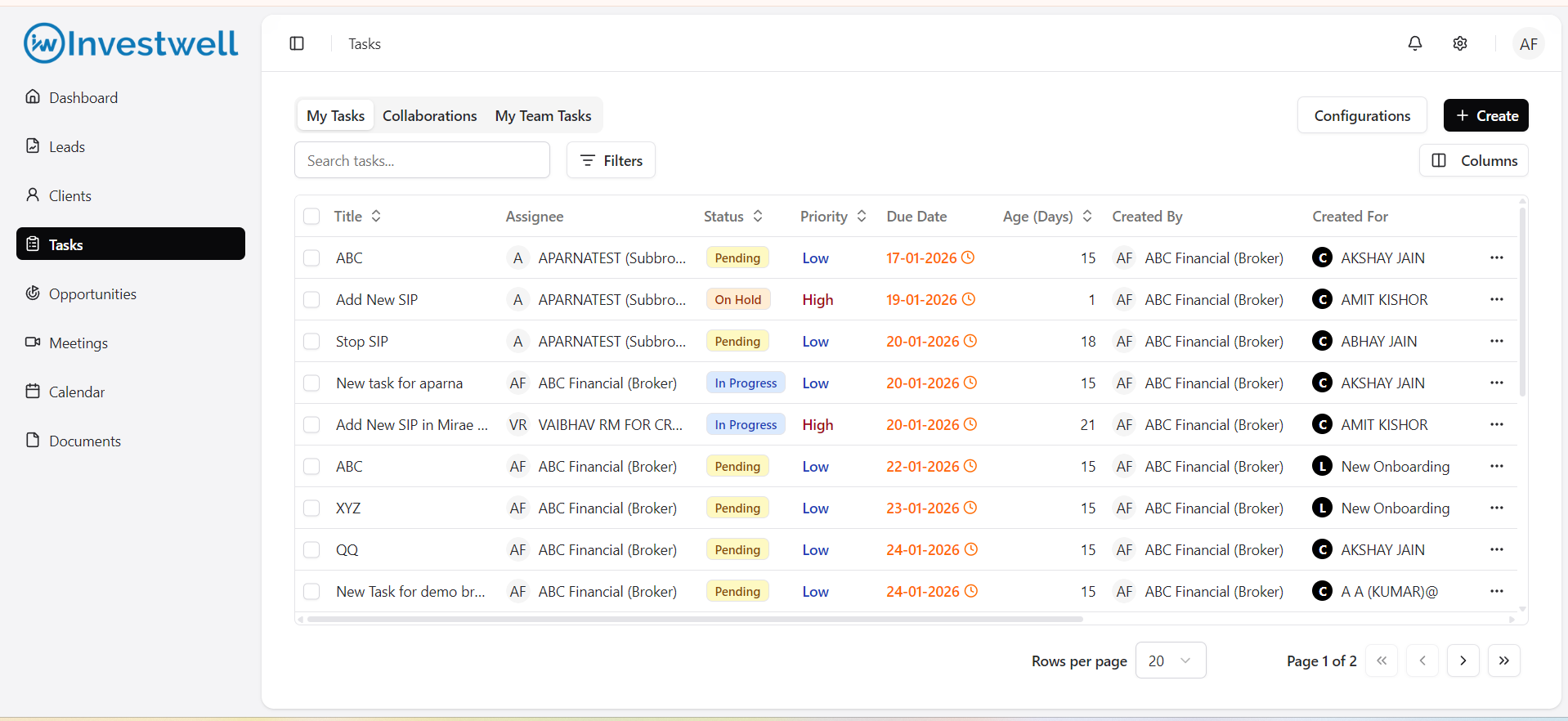
- Each user can view their assigned tasks and/or tasks created by them under My Tasks tab in Task listing page
- Each User can view the tasks on which they have been added as a collaborator under Collaborations tab in listing page
- Each user can view the tasks assigned to their team under the Team Tasks tab.
- Task summary for user specific shall be available on the Dashboard
Creating & Assigning Tasks
Introduction
Tasks can be created manually or automatically as part of workflows. Assigning them ensures the right team member follows up promptly on key actions.
Path:
- CRM → Tasks → Add Task
- CRM → Clients/Leads etc.→ Add Task
Steps to Create a Task
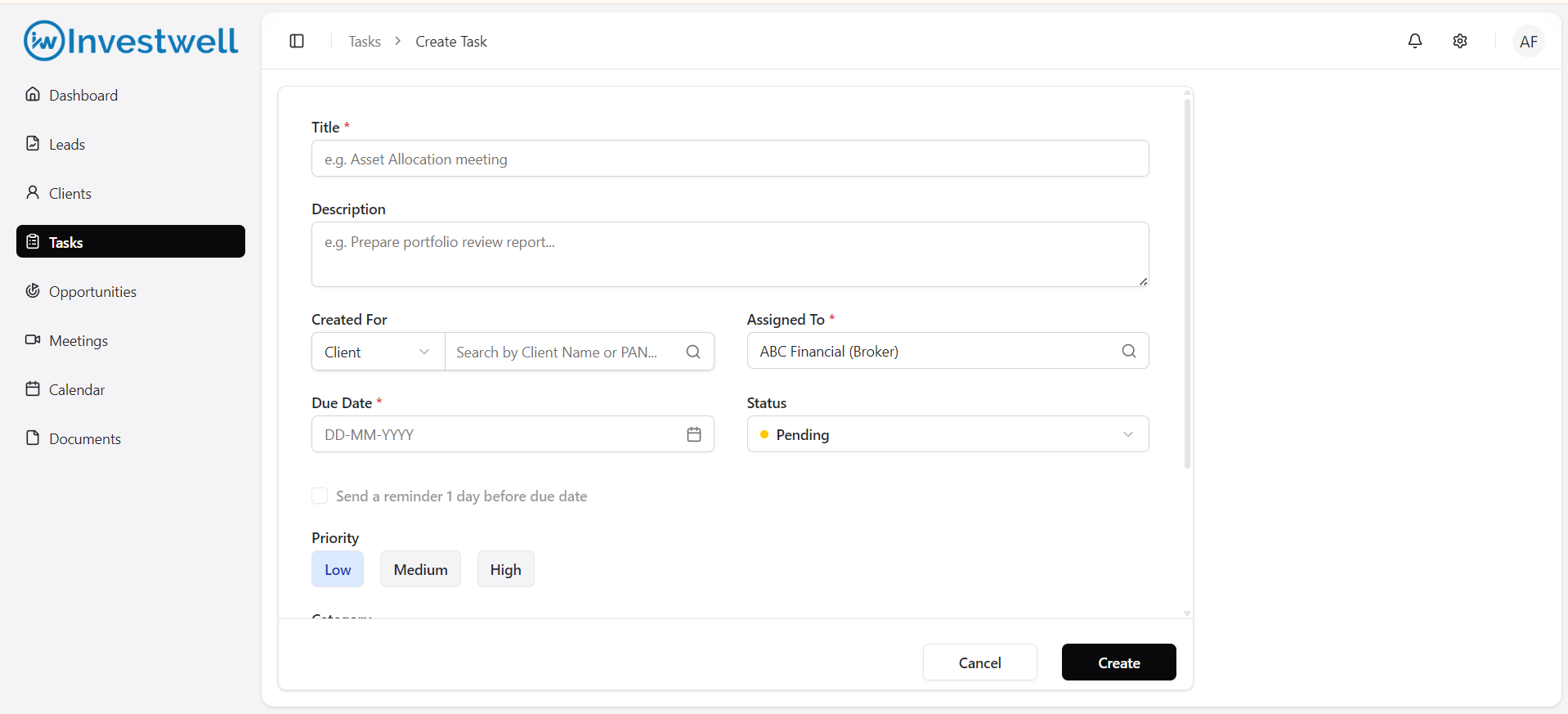
- Click Add Task.
- Enter the Task Title and Description.
- Link it to a Client or Lead (optional).
- This Client or Lead shall be the clients which are under the users Mint Hierarchy.
- Set a Due Date
- Set a reminder for 1 day before
- If the Current date < Due date + 1 day, then the reminder shall be set automatically. However, this can be unchecked as well.
- If otherwise, the reminder shall not be allowed to set
- Reminders shall trigger web notifications for Assignee, Creator, Collaborators of the Task
- Set Priority (Optional).
- Optional - Set the status
- By default - Status = Pending
- Assign it to a Team Member.
- This can be anyone across the organisation (Even User above the logged in users hierarchy)
- Optional - Select Category/Subcategory (Which can be configured from the Masters in the listing page)
- Optional - Add Attachments and Collaborators (Collaborators can be anyone from the organisation and has no limit)
- User can add themselves as collaborator and assignee both
- The Primary user of the Client/Lead, for whom the task is created, shall be added as collaborator by default on the Task and cannot be removed
- The Collaborators of the Client/Lead, for whom the task is created, shall be added by default as a collaborator for the task, but they can be removed from the Task as collaborator
- On removal, such collaborators shall not have access for the particular task, but they still shall be collaborator to the Client/Lead and can view the task on the Client view, but on click they shall not be able to view the details of the particular task
- Click on Create
- Post Creation the user shall be navigated to the View page of the created task.
Notes
- Assigned users receive in-app notifications.
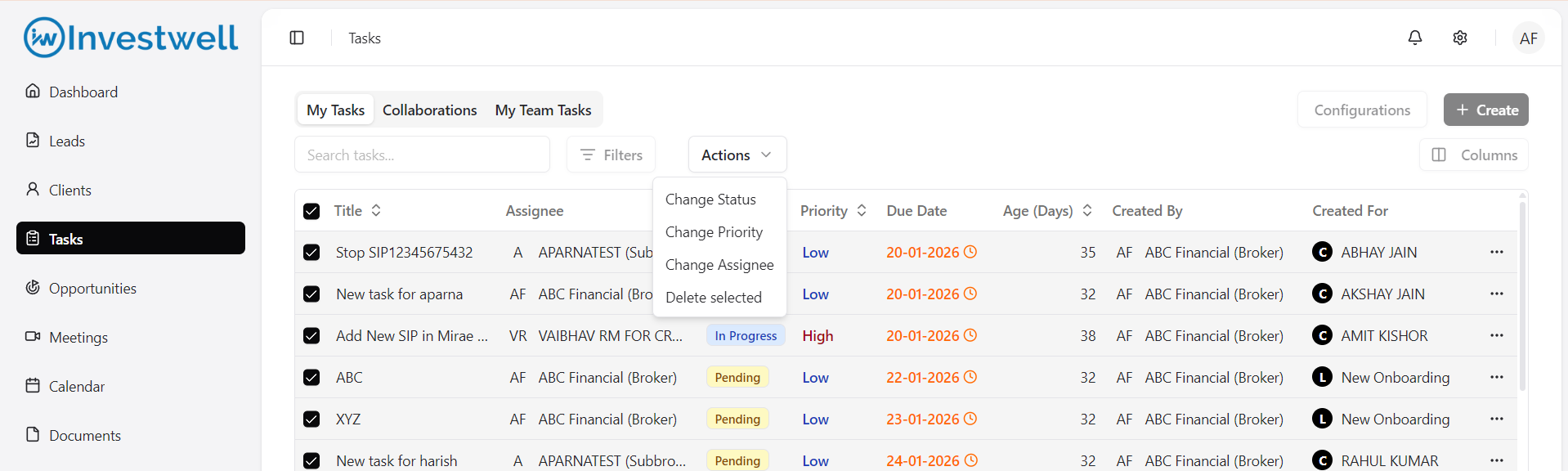
- Bulk actions available for users
- Can reassign tasks between users (Admin Only)
- Can change status of tasks
- Can Change Priority of tasks
- Can delete the tasks (Admin Only)
- This can be done by users from the listing page and bulk selecting tasks - post which the screen shall give bulk options
- Post creation, the user shall be navigated to the View page of the task, and the created task shall be visible in the respective tabs of the Task listing page
Viewing Tasks
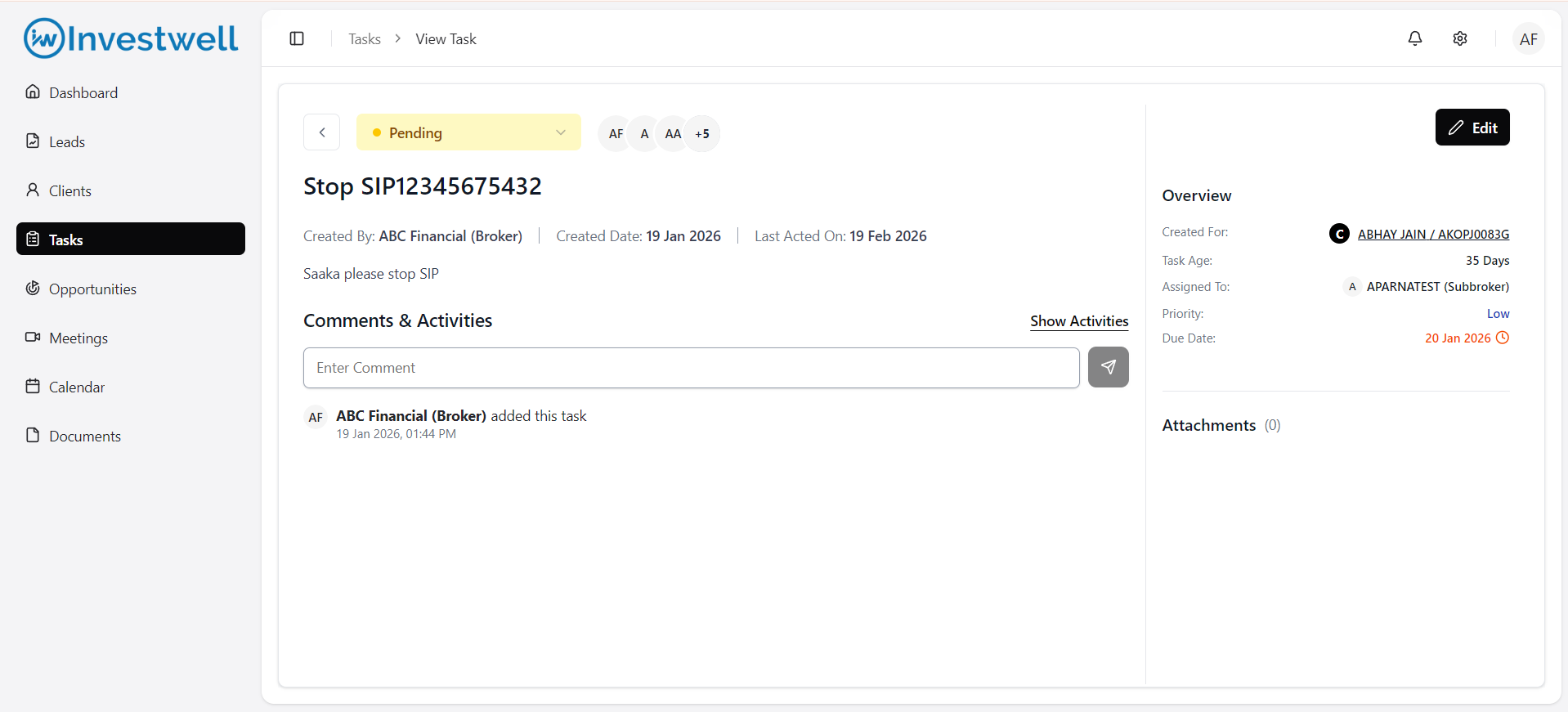
Users shall be able to view the task by clicking on the task name in the task listing page
Path: CRM → Tasks → Click on task name
On the View page users can
- Edit task
- If the user clicks on Edit task, the user shall be redirected to the Edit screen.
- Change the status of the task
- Add/remove Collaborators of the task
- Comment on the task
- Check Activities performed on the task
- Activities give an information
- What changed
- Who changed
- What time it was changed
- Activities give an information
Managing Tasks
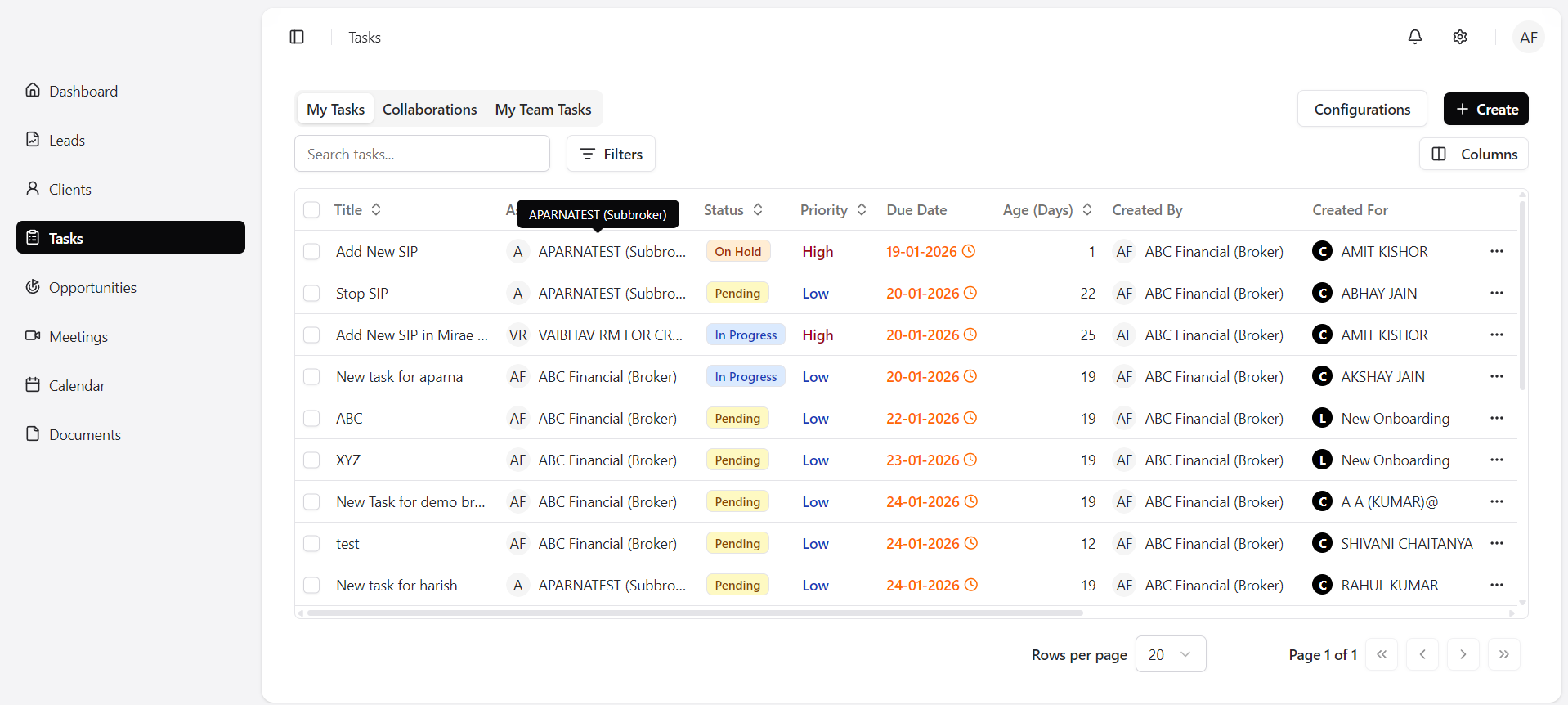
The Tasks List View allows you to see all tasks assigned to you or your team. You can filter, sort, and update status directly from this screen.
Path: CRM → Tasks
Viewing Tasks
Use the Tabs to switch between:
- My Tasks: Tasks assigned to you and/or Created By you
- Team Tasks: Tasks assigned to your team members
- Collaborations: Task to which you are only added as a collaborator (Tasks in which you are a collaborator and assignee/creator shall be visible in My Tasks)
The user may click on any Task name to open view page.
The user may click on 3 dots at the right end to Edit/Delete (Delete only for Admin).
Filtering
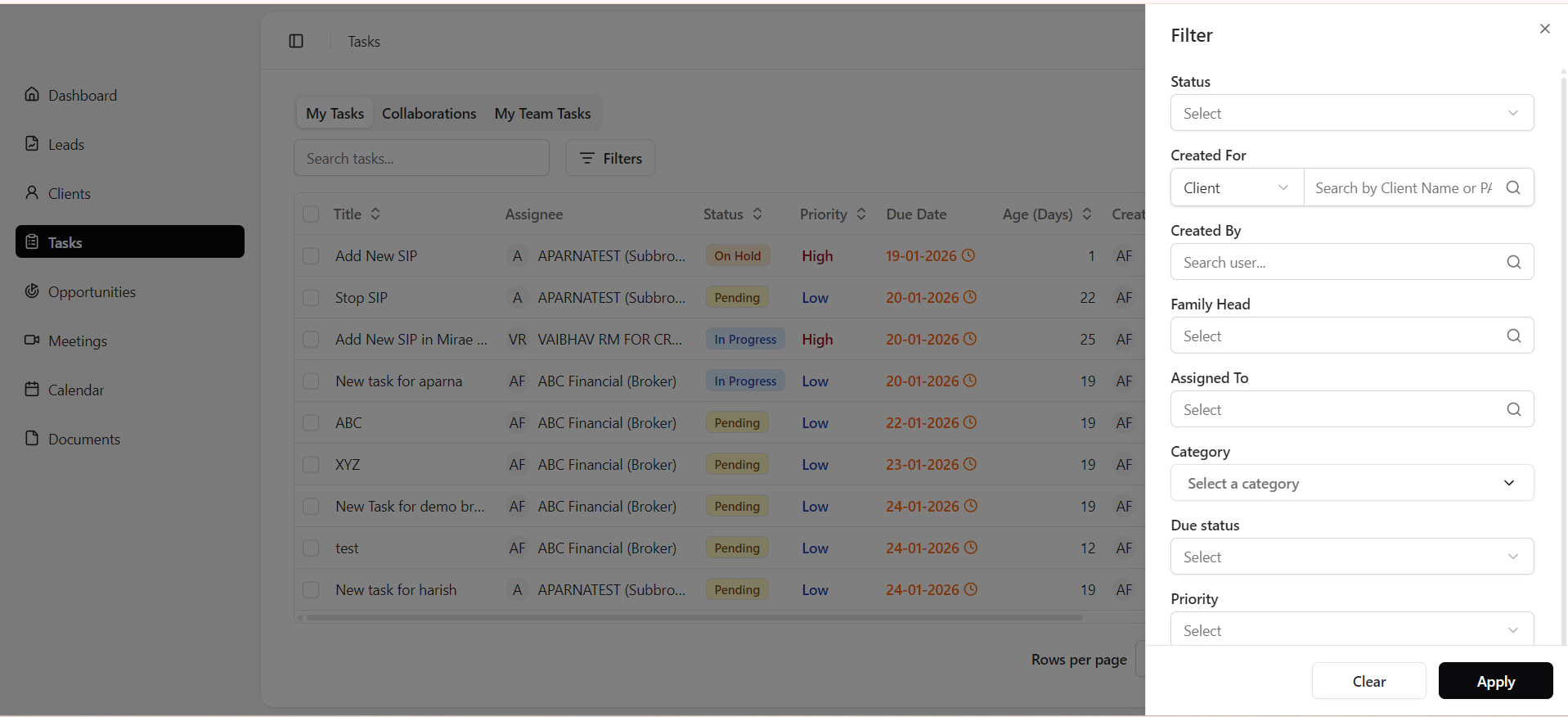
You can filter by:
- Status - Allows the user to filter the tasks on the screen as per the status - Pending, In progress, On hold and Done
- Created For- Client/Lead - Allows the user to filter the tasks on the screen as per entity for which they were created for - Client/Lead
- Created By - Allows the user to filter the tasks on the screen as per user user who have created the tasks
- Family Head - Allows the user to filter the tasks on screen based on Family head.
- Assigned To - Allows the user to filter the tasks based on the assignee.
- Category/Sub-Category - Allows the user to filter the tasks based on Category/Sub category . Category and Sub category can be defined the Broker admin user themselves.
- Due Status - Allows the user to filter the tasks based on Overdue, Due today and upcoming
- Overdue - tasks with Due date < Current Date
- Due Today - tasks with Due date = Current Date
- Upcoming - tasks with Due date > Current Date.
- Priority - Allows the user to filter the tasks based on Priority - High, Medium and Low. This priority is defined by the user while creating/editing the task.
Notes
- Overdue tasks are highlighted in orange.
- Listing is as per -
- Overdue tasks are listed first starting from farthest to nearest as per date
- Done tasks are not visible on the listing page upfront. User shall have to apply a filter to view their done tasks
- Bulk actions can be performed by selecting multiple tasks via checkboxes given
- Tasks can be searched by name within the tasks module via the search field given
Was this article helpful?
That’s Great!
Thank you for your feedback
Sorry! We couldn't be helpful
Thank you for your feedback
Feedback sent
We appreciate your effort and will try to fix the article