How to connect WhatsApp to Investwell CRM
Connect your WhatsApp Business number to Investwell CRM to send and receive WhatsApp messages with your clients without leaving the CRM. This guide walks you through every screen.
Before you begin
Keep these ready:
- Your Facebook login. Use the account that manages your business on Facebook (or the one you will use to set it up).
- The whatsapp business phone number you want to use for WhatsApp. Meta will send a verification code to it.
- Your business details: business name, email, website and type of business.
- Your Investwell CRM login with admin access.
What is a Business Portfolio?
A Business Portfolio is your business's account on Facebook. It is separate from your personal Facebook profile. Your business's WhatsApp number, Facebook Page and ads can all be managed from it.
If your business already has a Facebook Business Account (you may see it called Meta Business Suite), you already have a Business Portfolio. They are the same thing under different names.
You need one to connect WhatsApp. If you don't have one yet, you can create it during the steps below.
Step 1: Start in Investwell CRM
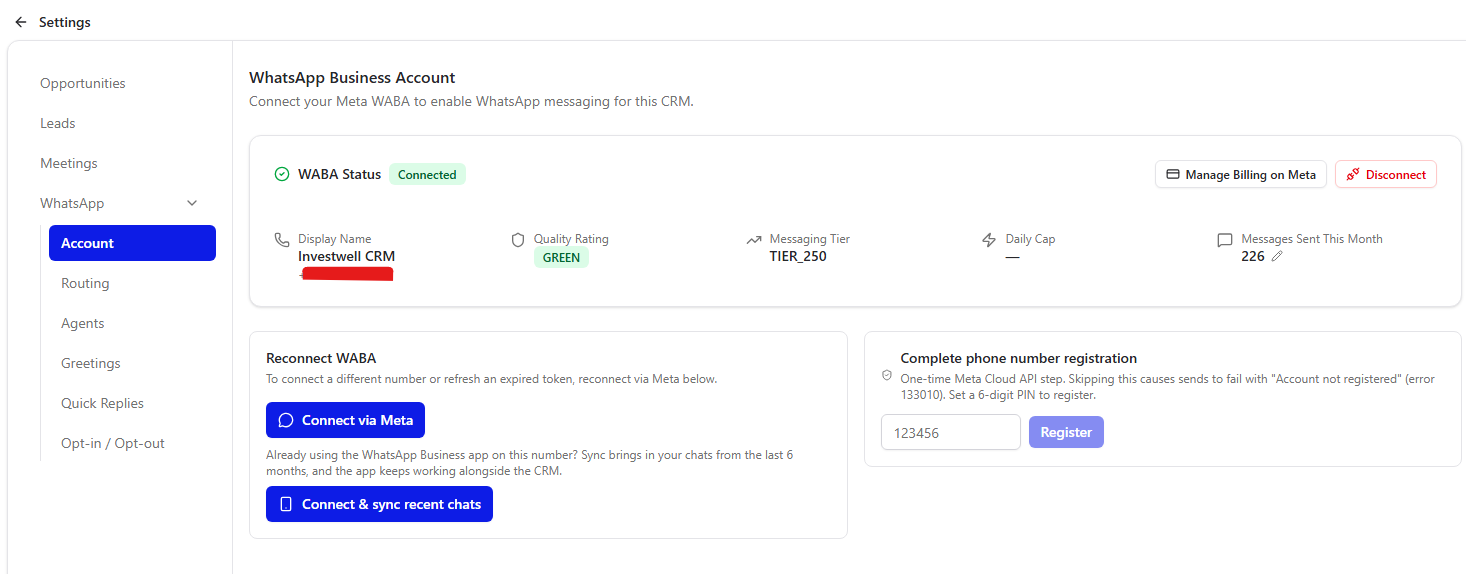
- Log in to Investwell CRM and go to Settings → WhatsApp → Account.
- Choose how to connect:
- Click Connect via Meta if your WhatsApp Business number is not being used anywhere else. Most clients should choose this.
- Click Connect and sync recent chats if the number is already in use (for example on the WhatsApp Business app on your phone) and you want to keep using it in both places.
Note on Migrate: your old chats will not move into the CRM. From now on, new chats will show in both places: on your phone and in Investwell CRM. A number already in use with another partner cannot be integrated with investwell CRM as per meta guidelines.
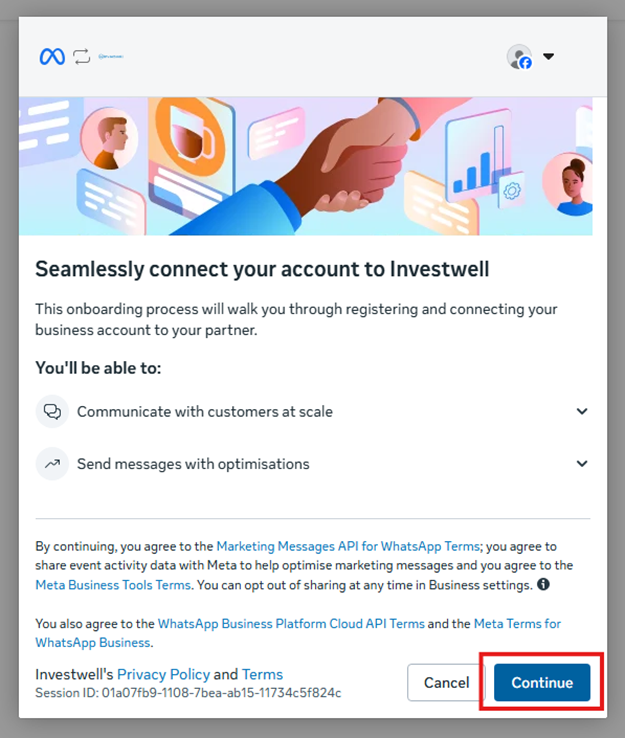
A Facebook window then opens with the title "Seamlessly connect your account to Investwell." Read it and click Continue.
Step 2: Check if you already have a Business Portfolio
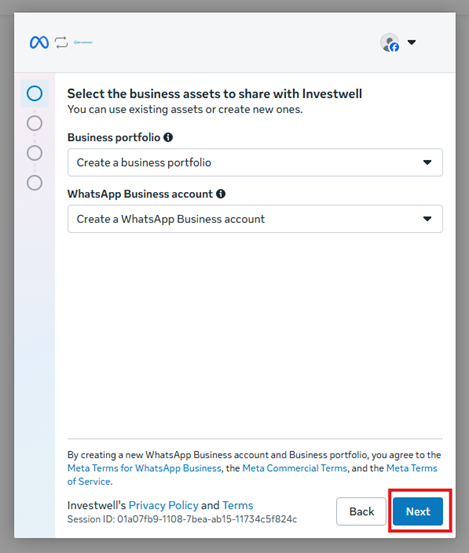
The next screen is called "Select the business assets to share with Investwell." What you see in the Business portfolio box tells you which path to follow:
- Your business name is already filled in (for example "Investwell"): you have a Business Portfolio.
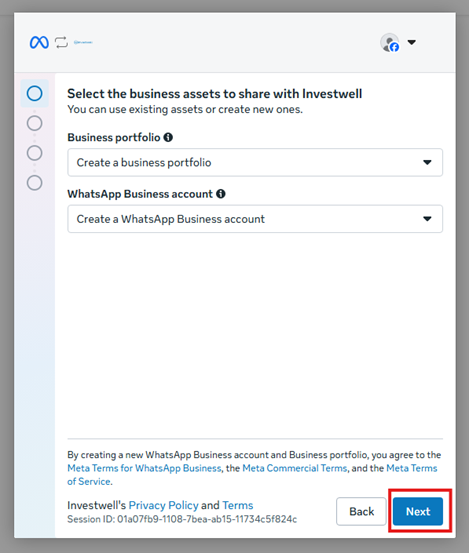
- The box says "Create a business portfolio": you don't have one yet.
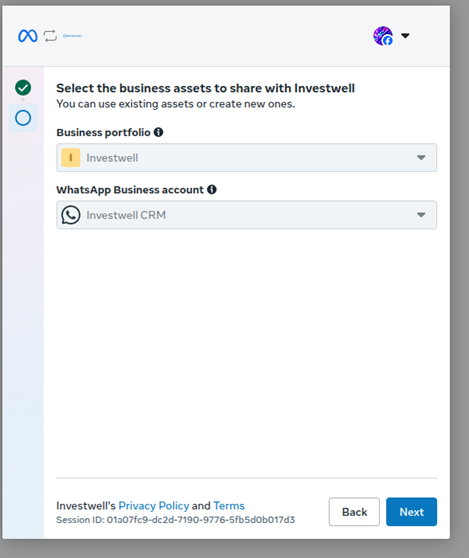
You have one: your business name is already filled in
Want to check before you start? Log in to Facebook and open business.facebook.com. If you see your business name, you already have one. If it asks you to set up a new business, you don't.
Scenario 1: You already have a Business Portfolio
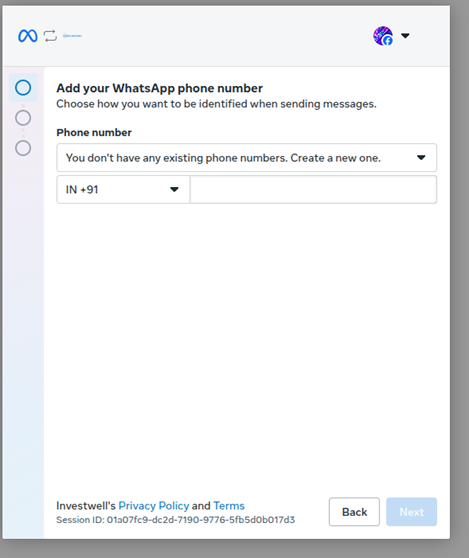
A1. Add your WhatsApp number
Choose the country code (for India, IN +91), enter the phone number and click Next.
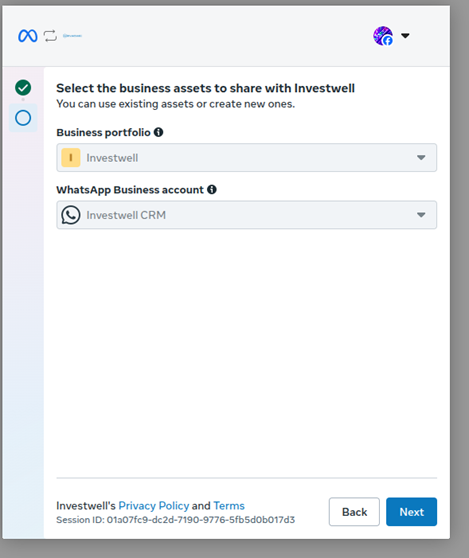
A2. Select your business
Choose your existing Business portfolio and WhatsApp Business account from the two boxes, then click Next.
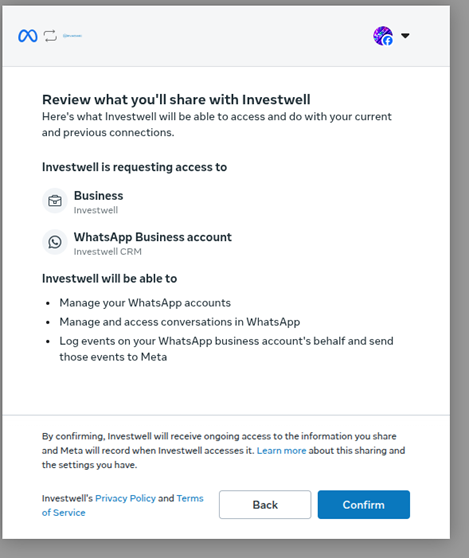
A3. Review and confirm
Meta shows what Investwell will be able to do: manage your WhatsApp accounts and conversations. Click Confirm.
Now go to Finish the setup below.
Scenario 2: You don't have a Business Portfolio yet
Meta will create everything for you.
B1. Create the new business and WhatsApp account
Leave both boxes as "Create a business portfolio" and "Create a WhatsApp Business account." Click Next.
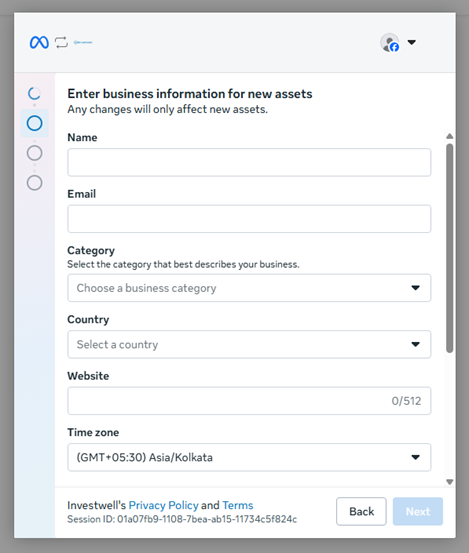
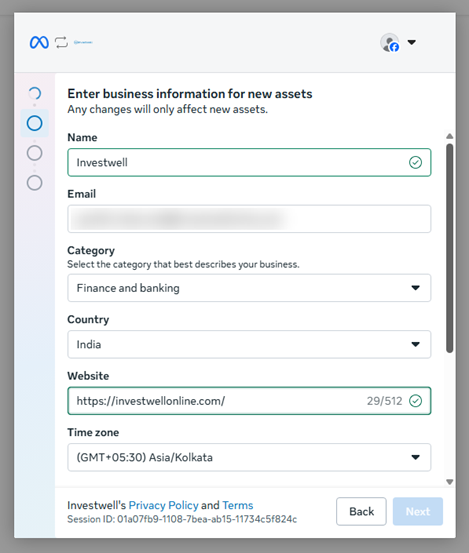
B2. Enter your business details
Fill in each field. Click Next once the fields show a green tick.
- Name: your business name
- Email: your business email
- Category: for example, Finance and banking
- Country: India
- Website: your website address
- Time zone: usually filled in for you
B3. Add your WhatsApp number and display name
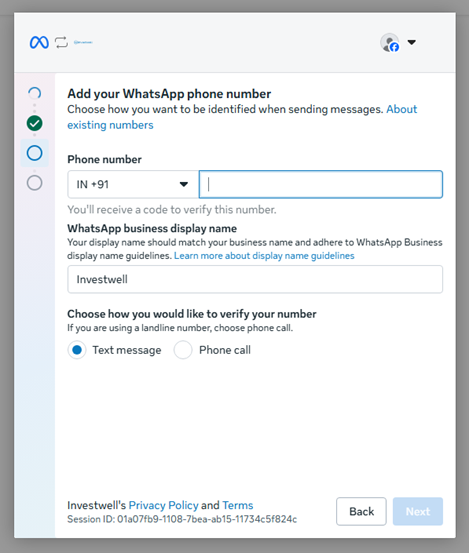
- Enter the phone number.
- Enter your WhatsApp business display name. This is the name your clients see, so it should match your business name.
- Choose how to get your verification code: Text message, or Phone call if the number is a landline.
Click Next.
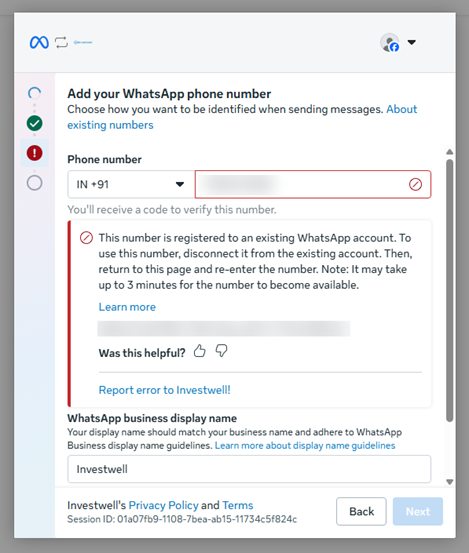
If you see "This number is registered to an existing WhatsApp account": the number is already linked to another WhatsApp account. See Troubleshooting below.
B4. Review and confirm
Meta may ask for a few more details about your new WhatsApp account (category, country, website, time zone). Check them and click Next. On the final review screen, check the business name shown and click Confirm.
Finish the setup (Common to both scenarios)
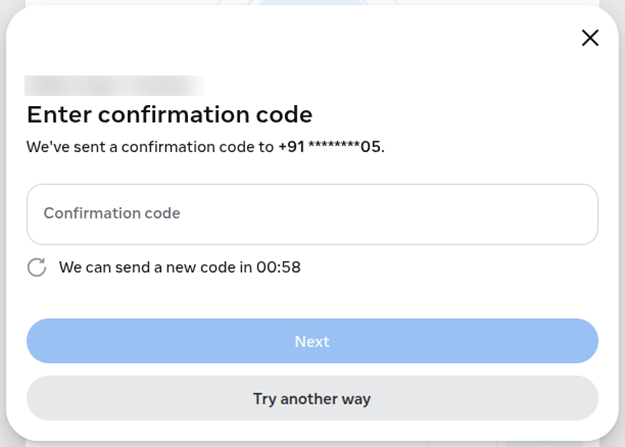
1. Enter the verification code
Meta sends a code to your phone number. Type it in and click Next. If you don't receive it, wait for the timer on screen to finish and ask for a new one, or click Try another way.
2. Finish on the Facebook window
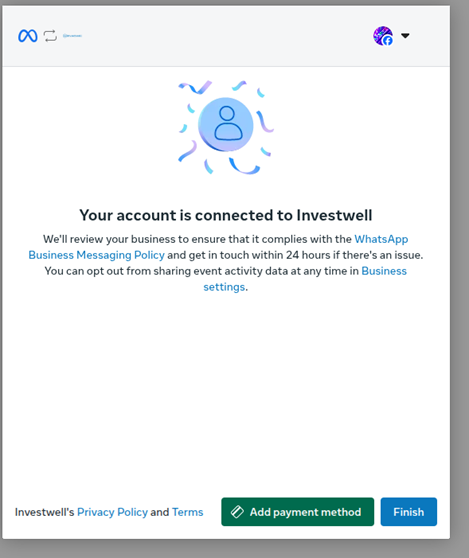
You will see "Your account is connected to Investwell." Click Finish. You can also click Add payment method here, or do it later using the link: https://business.facebook.com/latest/billing_hub/payment_methods
3. Register your number in Investwell CRM
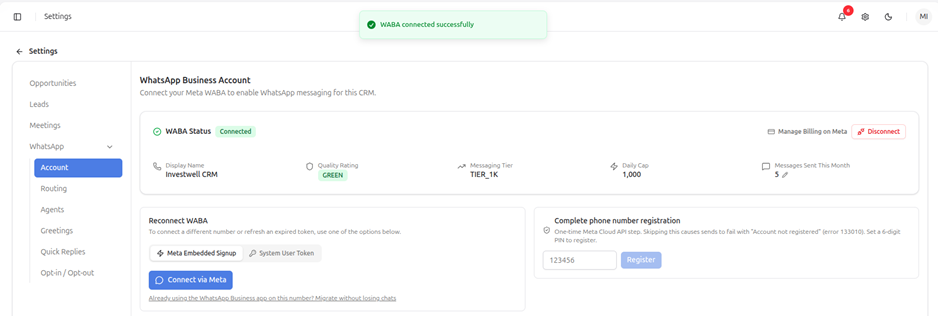
You will be taken back to Investwell CRM and see "WABA connected successfully." The status shows Connected.
One last step: under Complete phone number registration, enter a 6-digit PIN of your choice and click Register.
Important: do not skip this step. If you do, your messages will fail with the error "Account not registered" (error 133010).
You're done. You can now send and receive WhatsApp messages from Investwell CRM.
Troubleshooting
"This number is registered to an existing WhatsApp account"
The number is already linked to another WhatsApp account. You have two options:
- Disconnect the number from that account first, then come back, re-enter the number and wait up to 3 minutes before trying again.
- Or, if you want to keep using the number in both places, go back to Step 1 and choose Migrate without losing chats.
Frequently asked questions
Do I need a Business Portfolio to connect WhatsApp?
Yes, but you don't have to create it beforehand. If you don't have one, Meta creates it for you during the steps (Scenario 2).
How do I know if I already have a Business Portfolio?
On the "Select the business assets" screen, look at the Business portfolio box. If your business name is filled in, you have one. If it says "Create a business portfolio," you don't. You can also log in to business.facebook.com and see whether your business name appears.
Is a Business Portfolio the same as my personal Facebook profile?
No. It is your business's account and is separate from your personal profile. You log in with your personal Facebook login, but the business and its WhatsApp account belong to the Business Portfolio.
Which button should I click: Connect via Meta or Migrate without losing chats?
Click Connect via Meta if the number is not used anywhere else. Click Migrate without losing chats if the number is already active (for example on the WhatsApp Business app on your phone) and you want it to keep working in both places.
Will my old chats appear in Investwell CRM if I migrate?
No. Old chats are not moved. From the moment you migrate, new chats show in both your phone and Investwell CRM.
What does Investwell get access to?
On the review screen, Meta lists it: Investwell can manage your WhatsApp accounts, manage and access conversations in WhatsApp, and log events on your WhatsApp business account's behalf and send them to Meta.
I didn't receive the verification code. What do I do?
Check that the number is correct and can receive texts. Wait for the timer on screen to finish and ask for a new code. If it still doesn't arrive, click Try another way, or choose Phone call when you enter the number (needed for landlines).
What PIN should I use for registration?
Any 6-digit PIN you choose. Note it down somewhere safe.
My messages fail with "Account not registered" (error 133010). Why?
The final registration step was skipped. Go to Settings → WhatsApp → Account, enter a 6-digit PIN under Complete phone number registration and click Register.
Do I have to add a payment method?
The last Facebook screen offers Add payment method, and you can click Finish without it. You can manage billing later from the Account page in Investwell CRM using Manage Billing on Meta. If you're unsure whether you need it, contact Investwell support.
What happens after I connect? Does Meta review my business?
Yes. Meta reviews your business to make sure it follows the WhatsApp Business Messaging Policy. If there is an issue, they will get in touch within 24 hours.
What do Quality Rating, Messaging Tier and Daily Cap on the Account page mean?
They show how your WhatsApp number is doing. Quality Rating is Meta's rating of your account (GREEN is good). Messaging Tier and Daily Cap show the limit on how many clients you can message in a day, for example a Daily Cap of 1,000. Messages Sent This Month shows your usage.
How do I connect a different number later, or reconnect if the connection expires?
Go to Settings → WhatsApp → Account and click Connect via Meta again under Reconnect WABA.
Can I disconnect WhatsApp from Investwell CRM?
Yes. The Account page has a Disconnect button next to Manage Billing on Meta.
Still stuck? Contact Investwell support and send a screenshot of the screen you're on. We'll help you out.
Was this article helpful?
That’s Great!
Thank you for your feedback
Sorry! We couldn't be helpful
Thank you for your feedback
Feedback sent
We appreciate your effort and will try to fix the article