Alert Configuration in Investwell controls which system-driven reminders are sent to investors by email and WhatsApp, and the Campaign Log shows every alert that was sent.
Overview
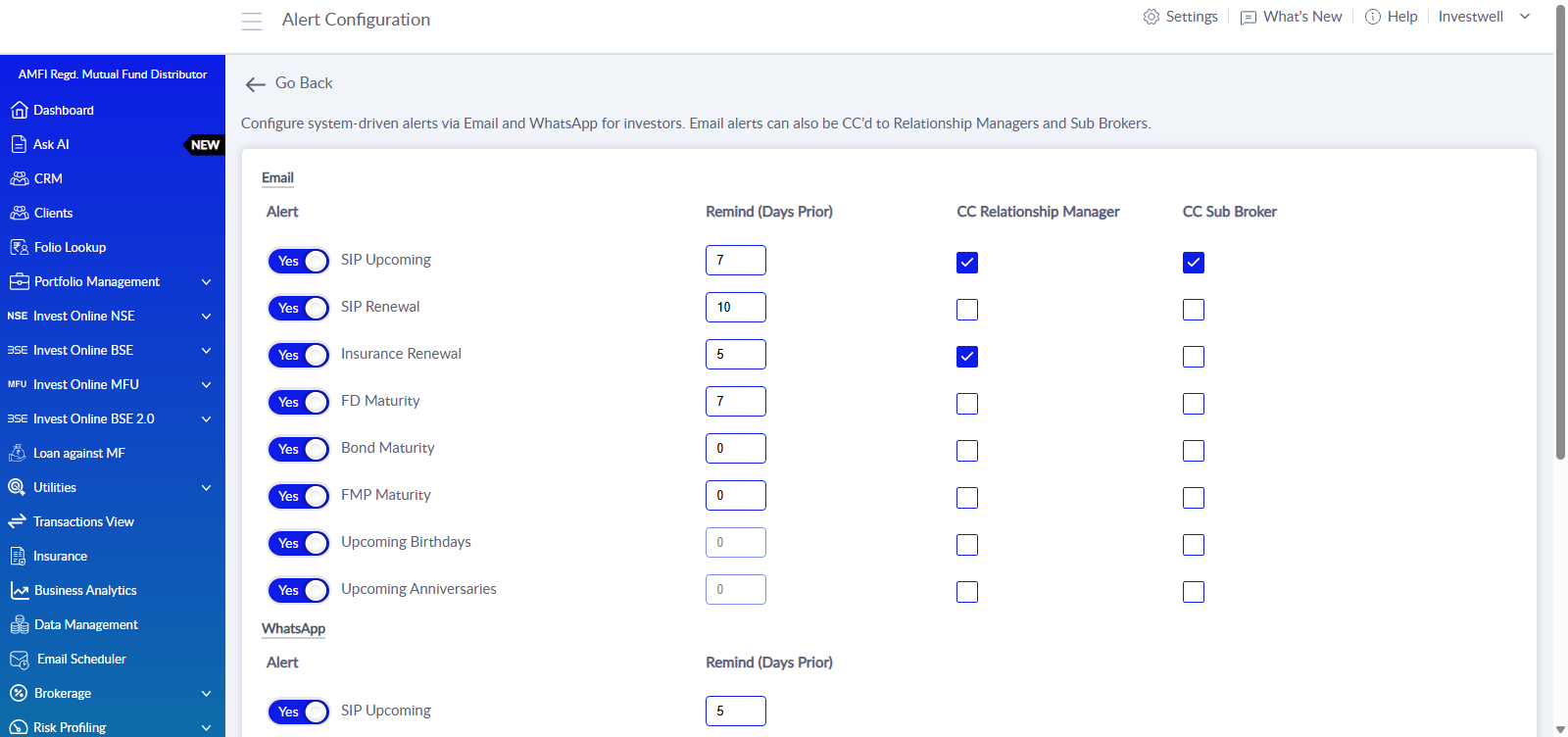
Investwell can send automatic alerts to investors for events such as an upcoming SIP, an insurance renewal or a maturing FD. Each alert can be switched on or off separately for email and for WhatsApp, and the number of days before the event at which the reminder goes out can be set.
Email alerts can also be copied (CC) to the investor's Relationship Manager and Sub Broker.
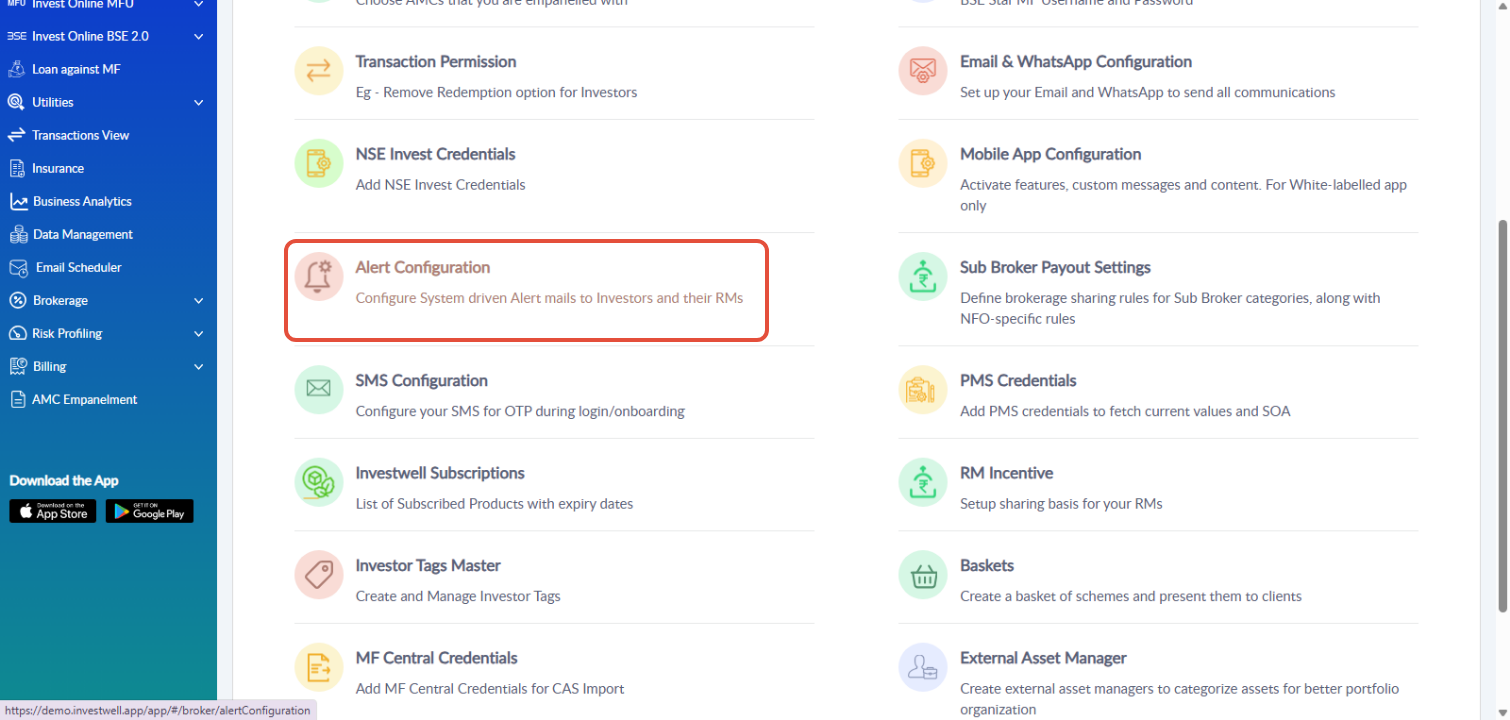
- Where to configure: Settings → Alert Configuration (described as "Configure System driven Alert mails to Investors and their RMs").
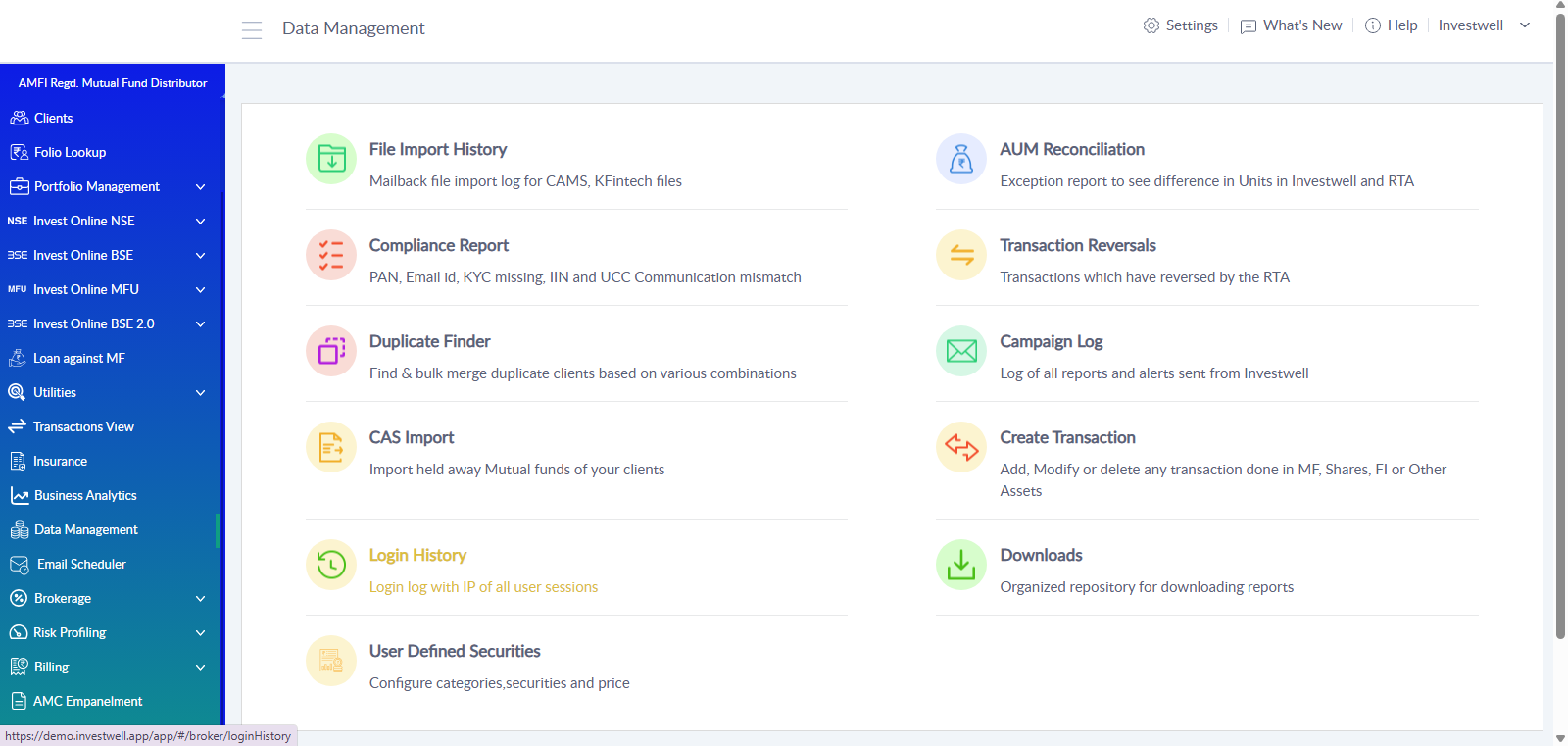
- Where to check what was sent: Data Management → Campaign Log.
Sending alerts depends on the Email and WhatsApp channels being set up first, under Settings → Email & WhatsApp Configuration.
Available alerts
The same eight alerts are listed for email and for WhatsApp.
Alert | Sent for |
SIP Upcoming | An upcoming SIP instalment |
SIP Renewal | A SIP that is due for renewal |
Insurance Renewal | An insurance policy that is due for renewal |
FD Maturity | A fixed deposit that is about to mature |
Bond Maturity | A bond that is about to mature |
FMP Maturity | A fixed maturity plan that is about to mature |
Upcoming Birthdays | An investor's upcoming birthday |
Upcoming Anniversaries | An investor's upcoming anniversary |
Configuring email alerts
- Open Settings and select Alert Configuration.
- In the Email section, set the toggle beside each alert to Yes (send) or No (do not send).
- In Remind (Days Prior), enter how many days before the event the email should be sent.
- Tick CC Relationship Manager and/or CC Sub Broker for any alert that should also be copied to them.
- Scroll to the bottom and click Save. Cancel discards the changes.
Field | What it does |
Yes / No toggle | Turns that alert on or off for email. |
Remind (Days Prior) | Number of days before the event at which the alert is sent. Example: 7 for SIP Upcoming sends the reminder 7 days ahead. |
CC Relationship Manager | Copies the alert email to the investor's Relationship Manager. |
CC Sub Broker | Copies the alert email to the investor's Sub Broker. |
For Upcoming Birthdays and Upcoming Anniversaries the days field is greyed out and cannot be edited.
Configuring WhatsApp alerts
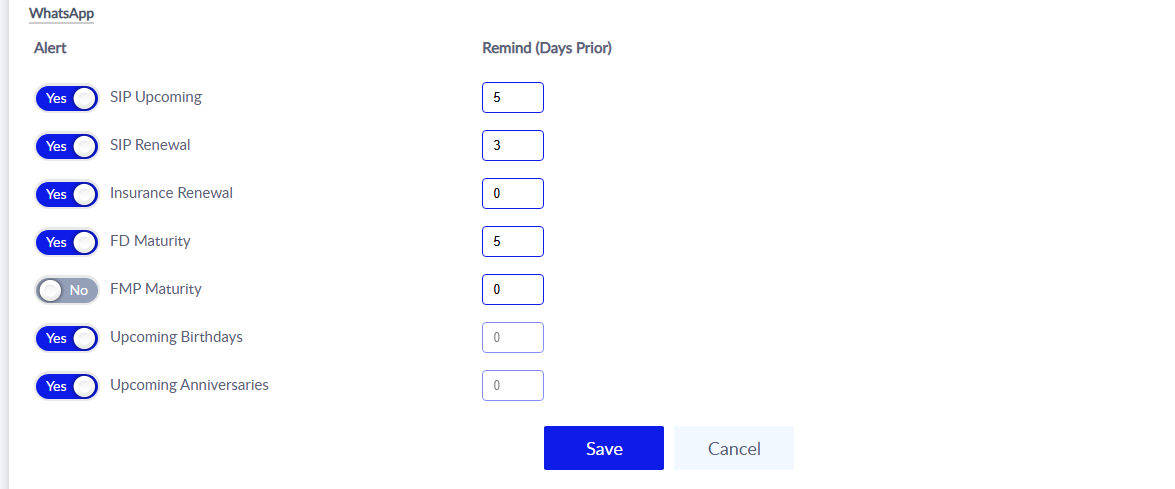
WhatsApp alerts are set on the same Alert Configuration page, in the WhatsApp section below the email section.
- Open Settings and select Alert Configuration, then scroll to the WhatsApp section.
- Set the toggle beside each alert to Yes or No.
- In Remind (Days Prior), enter how many days before the event the message should be sent.
- Click Save.
The WhatsApp section has no CC options. CC to Relationship Managers and Sub Brokers is available for email alerts only.
Email and WhatsApp settings are independent. An alert can be on for email and off for WhatsApp, and the days can differ between the two channels.
Where to find the alert logs
Every report and alert sent from Investwell is recorded in the Campaign Log.
- In the left menu, open Data Management.
- Select Campaign Log (described as "Log of all reports and alerts sent from Investwell").
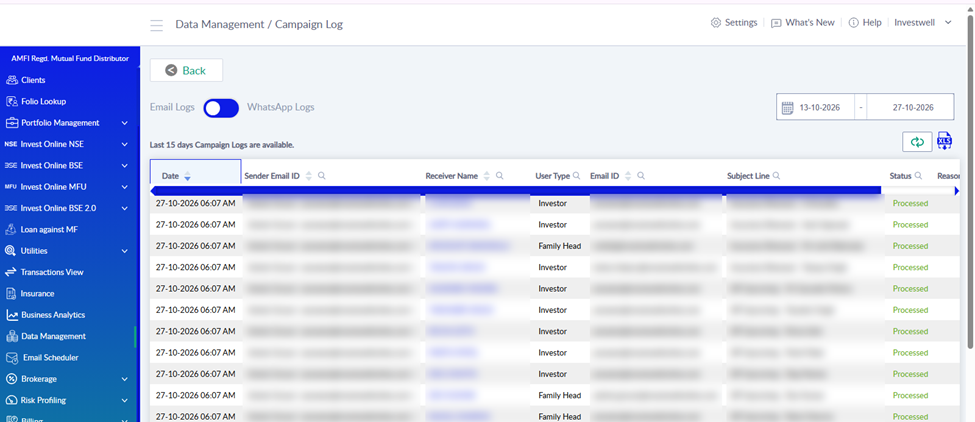
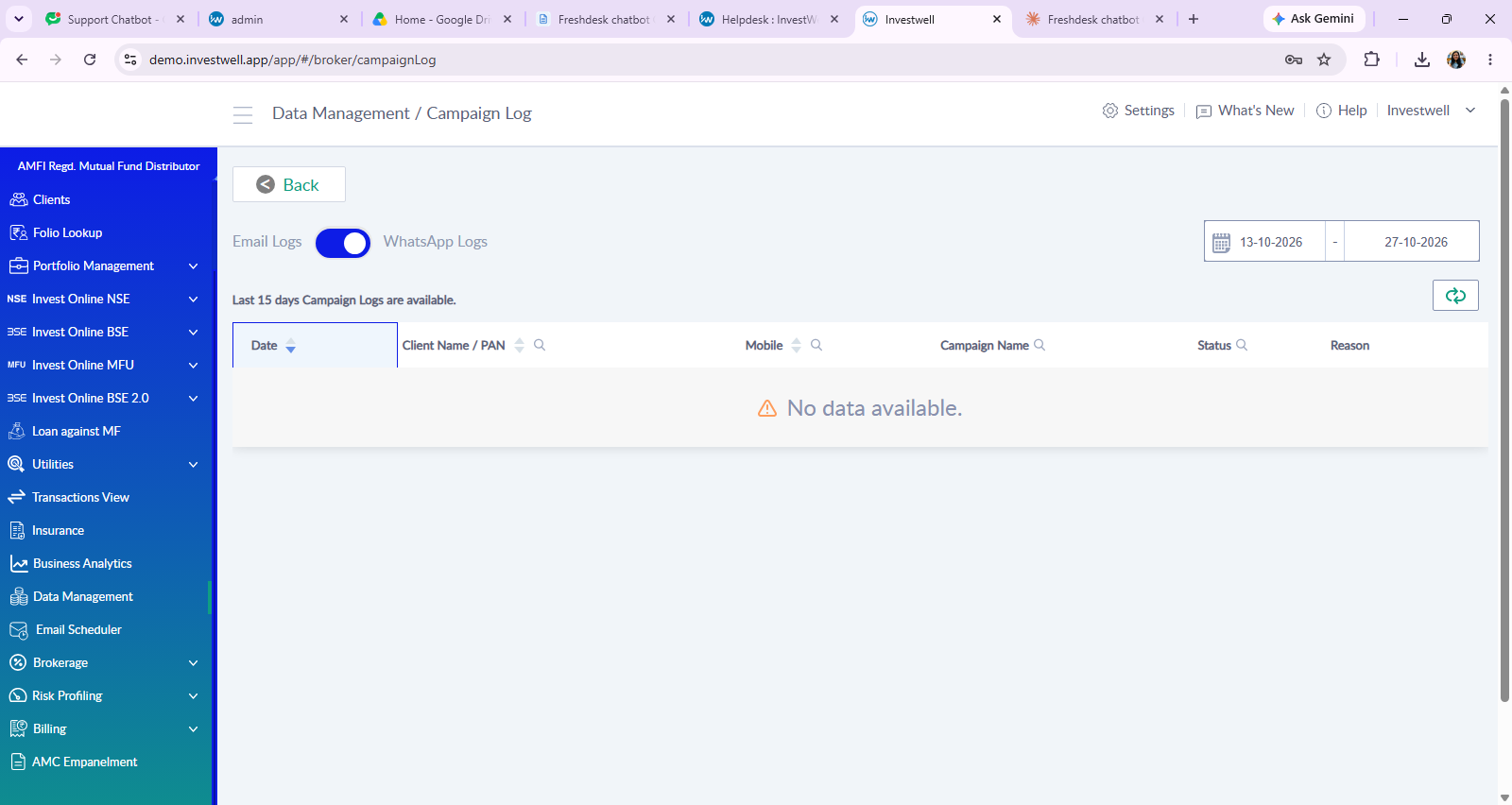
- Use the toggle at the top to switch between Email Logs and WhatsApp Logs.
- Set the date range at the top right to the period to check.
Campaign Logs are available for the last 15 days only. Older entries cannot be viewed.
Email Logs
Column | Meaning |
Date | Date and time the email was sent. |
Sender Email ID | The sender name and address used. |
Receiver Name | The client the alert was sent for. |
User Type | Whether the receiver is an Investor or a Family Head. |
Email ID | The address the email was sent to. |
Subject Line | The alert name and client, for example SIP Upcoming – [Client name]. |
Status | Sending status, such as Processed. |
Reason | Further detail on the status, where available. |
Resend | Button to send that email again. |
The refresh button reloads the log. The XLS button downloads the email log as an Excel file. Columns with a search icon can be searched or filtered.
WhatsApp Logs
Column | Meaning |
Date | Date and time the message was sent. |
Client Name / PAN | The client the message was sent to. |
Mobile | The mobile number used. |
Campaign Name | The alert that triggered the message. |
Status | Sending status. |
Reason | Further detail on the status, where available. |
If no messages were sent in the chosen date range, the screen shows "No data available."
Frequently asked questions
1. Where are alerts configured?
Under Settings → Alert Configuration. Email and WhatsApp alerts are on the same page, in separate sections.
2. Where can it be checked whether an alert was sent?
In Data Management → Campaign Log. Use the Email Logs / WhatsApp Logs toggle and pick the date range.
3. How far back do the logs go?
Campaign Logs show the last 15 days.
4. Can alerts be copied to the Relationship Manager or Sub Broker?
Yes, for email alerts. Tick CC Relationship Manager or CC Sub Broker beside the alert. WhatsApp alerts have no CC option.
5. What does Remind (Days Prior) mean?
The number of days before the event (for example a SIP date or FD maturity) at which the alert is sent.
6. Why can the days not be edited for birthdays and anniversaries?
Upcoming Birthdays and Upcoming Anniversaries will be sent on the same day of the respective events and is hence uneditable.
7. How is an alert stopped for one channel only?
Set the toggle for that alert to No in the Email or WhatsApp section and click Save. The other channel is not affected.
8. Changes made on the page are not applying. What is missing?
The Save button at the bottom of the page must be clicked. Cancel discards the changes.
9. An email shows in the log but the investor did not receive it. What can be done?
Check the Status and Reason columns in Email Logs. The Resend button sends the email again.
10. Can the email log be downloaded?
Yes. The XLS button in Email Logs downloads it as an Excel file.
Was this article helpful?
That’s Great!
Thank you for your feedback
Sorry! We couldn't be helpful
Thank you for your feedback
Feedback sent
We appreciate your effort and will try to fix the article