Once your WhatsApp Business number is connected, you can chat with clients, send approved message templates and run bulk campaigns without leaving Investwell CRM. This guide explains each screen and how to use it.
Open WhatsApp from the left menu. You will see five tabs at the top:
- Dashboard: a quick summary of your conversations and account health.
- Inbox: where you read and reply to client messages.
- Templates: the ready-made messages you can send to clients.
- Campaigns: send a template to many clients at once and track the results.
- Contacts: see who has agreed to receive your WhatsApp messages.
Dashboard
The Dashboard (called WhatsApp Overview) shows the state of your WhatsApp account at a glance.
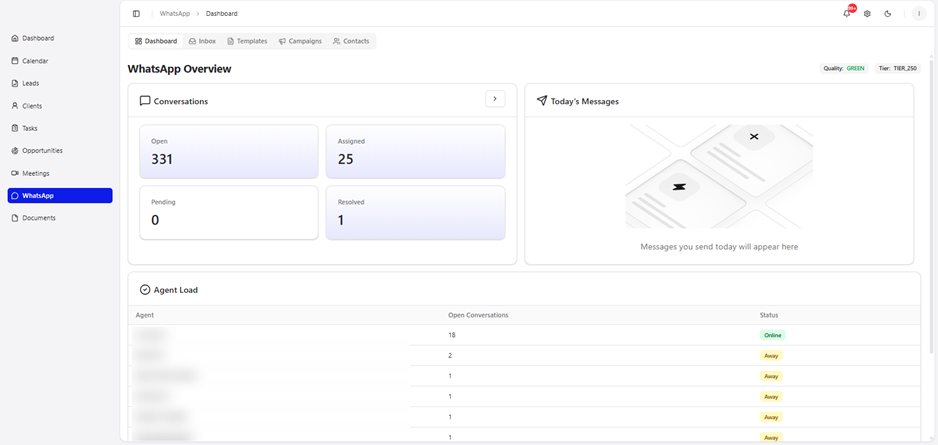
Conversations: how many chats are Open, Assigned, Pending and Resolved.
- Today's Messages: the messages you have sent today. This stays empty until you send something.
- Agent Load: each team member, how many open conversations they have, and whether they are Online or Away. An agent is marked online if they have logged in to CRM.
- Quality and Tier (top right): your WhatsApp account's health, shown as a colour such as GREEN, and your sending level, such as TIER_250. These are assigned by Meta.
Inbox
The Inbox shows all your WhatsApp chats. The list is on the left, the open conversation is in the middle and the client/ lead/ unknown contact's details are on the right.
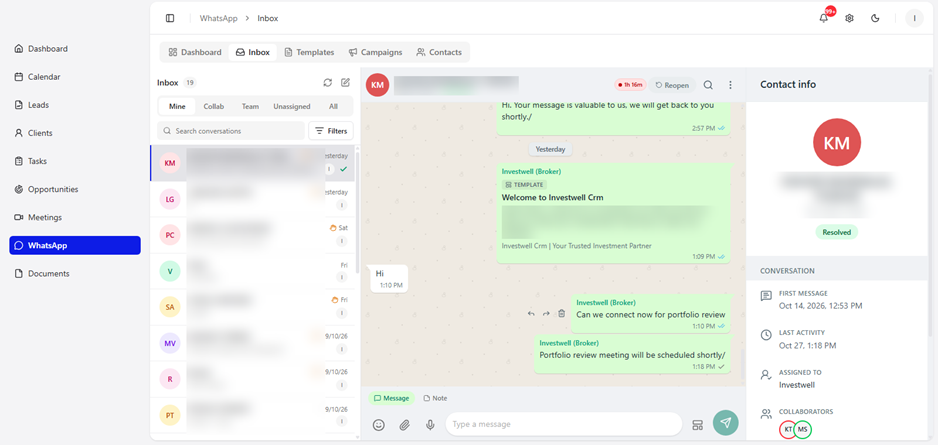
Find the right chats
- Use the tabs above the list: Mine (assigned to you), Collab (clients/ leads where you have been added as a collaborator), Team, Unassigned and All.
- Type a name or number in Search conversations.
- In order to start a new conversation with a contact, click on the pencil icon at the top next to search contact and enter the name/number to start sending templates in order to initiate a chat.
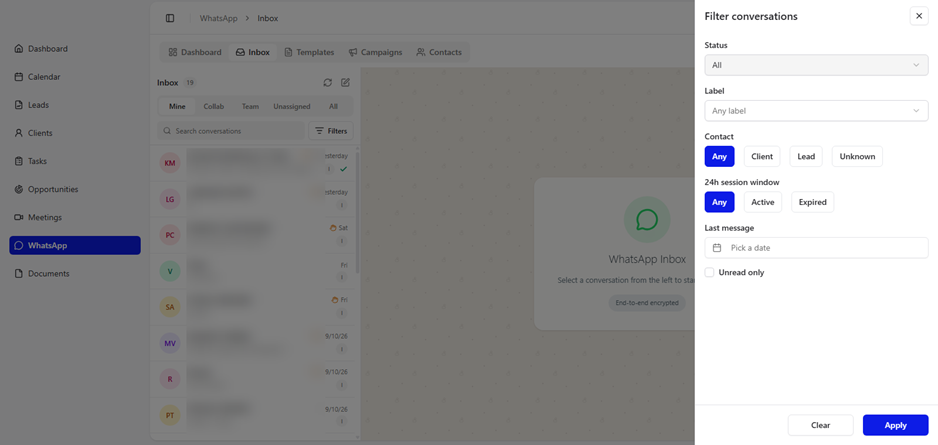
To narrow the list further, click Filters. You can filter by:
- Status and Label
- Contact type: Any, Client, Lead or Unknown
- 24h session window: Any, Active or Expired (see "The 24-hour rule" below)
- Last message date, and Unread only
Click Apply to see the results, or Clear to remove the filters.
Read a conversation and client details
Click a chat to open it. At the top you will see the client's name and number, their status (for example Resolved or Assigned) and a Resolve button (or Reopen for a resolved chat). The panel on the right shows:
- First message and Last activity dates
- Assigned to: the team member handling the chat
- Collaborators: other team members involved who are able to view this chat and can intervene at any point in time. The activity logs for this intervention are created in the respective client/lead view page under comments and activities section.
Reply to a client
Type in the Type a message box at the bottom and click the send button. Use the Note tab, next to Message, for internal notes that the client does not see.
To add: Screenshot of sending a reply, plus the steps to assign a chat, add a collaborator and add a label. Please confirm where these are in the CRM.
The 24-hour rule
WhatsApp lets you send free-form messages only within 24 hours of the client's last message. After that the session is Expired: the message box is switched off and a banner says "Session expired. The 24-hour reply window has closed — send an approved template to re-open it."
To continue the conversation, click Choose template and send an approved template. When the client replies, the 24-hour window starts again.
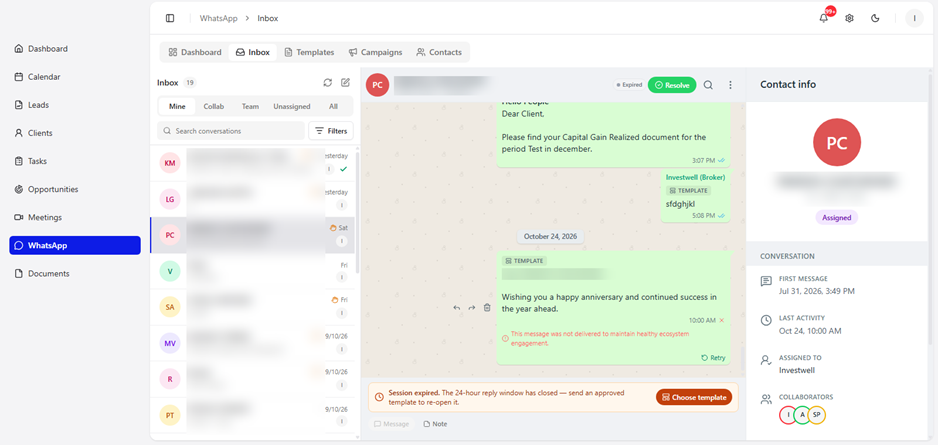
If a message shows a red cross: it was not delivered. The reason appears under the message, for example "This message was not delivered to maintain healthy ecosystem engagement." Click Retry to try again.
Templates
A template is a pre-approved message. You need one to start a conversation with a client, to message a client after the 24-hour window closes, and to run a campaign. Templates can contain placeholders, such as the client's name, that the CRM fills in for each person.
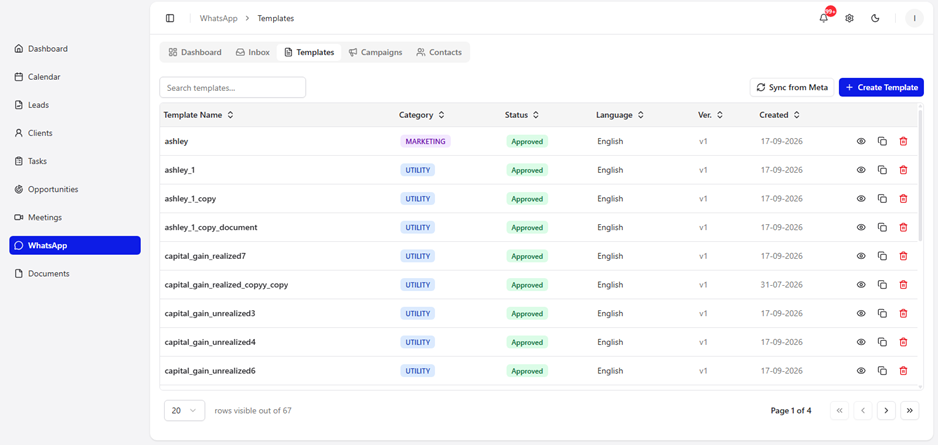
The list shows each template's name, category, status, language, version and created date. Use the icons on the right to view, duplicate or delete a template.
- Category: Marketing (promotional messages) or Utility (messages about something the client already has or asked for, such as a statement).
- Status: only templates marked Approved can be sent.
Click Sync from Meta to refresh the list and statuses from your WhatsApp account.
View a template
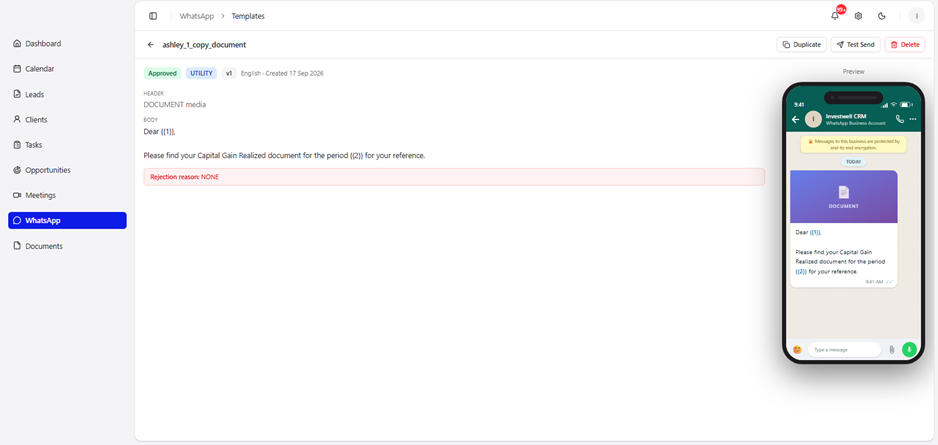
Click a template to see its header, message text, status and, if Meta turned it down, the rejection reason. From here you can Duplicate it, send yourself a Test Send, or Delete it. The phone preview on the right shows how the client will see it.
Create a new template
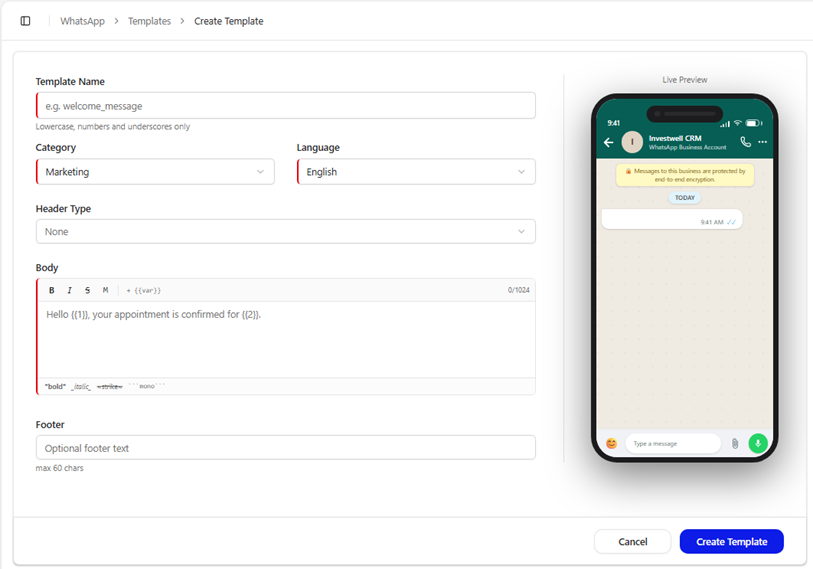
Click Create Template and fill in the form. The phone on the right updates as you type.
- Template Name: use lowercase letters, numbers and underscores only, for example welcome_message.
- Category: choose Marketing or Utility.
- Language: for example English.
- Header Type: optional. Choose None, or add a header such as a document.
- Body: type your message (up to 1,024 characters). To add a blank for the client's details, click + {{var}}. The blanks appear as {{1}}, {{2}} and so on. You can format text with *bold*, _italic_, ~strikethrough~ and ```monospace```.
- Footer: optional, up to 60 characters.
- Click Create Template.
Campaigns
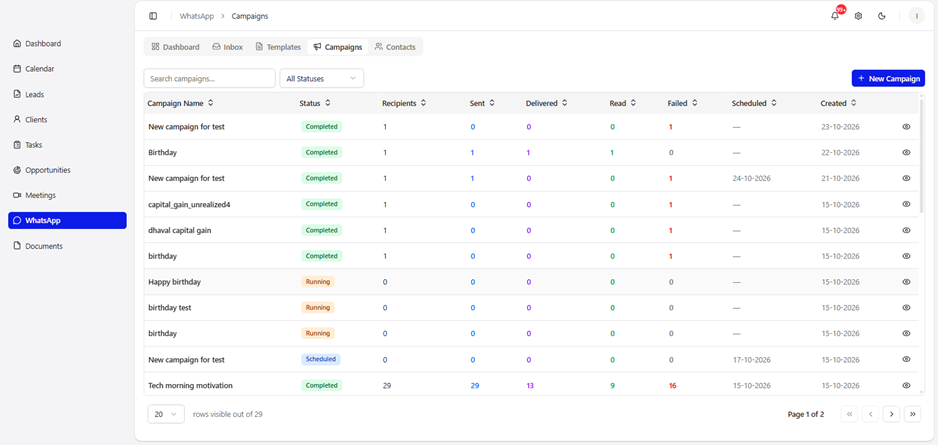
A campaign sends one approved template to many clients at once. The Campaigns tab lists every campaign with its status (Completed, Running or Scheduled) and its Recipients, Sent, Delivered, Read and Failed counts. Click the eye icon on the right or the name of a campaign to see a campaign's details.
Create a campaign
Click New Campaign. The screen has four steps, shown at the top: Template → Audience → Variables → Schedule. Click Next to move forward and Back to change something.
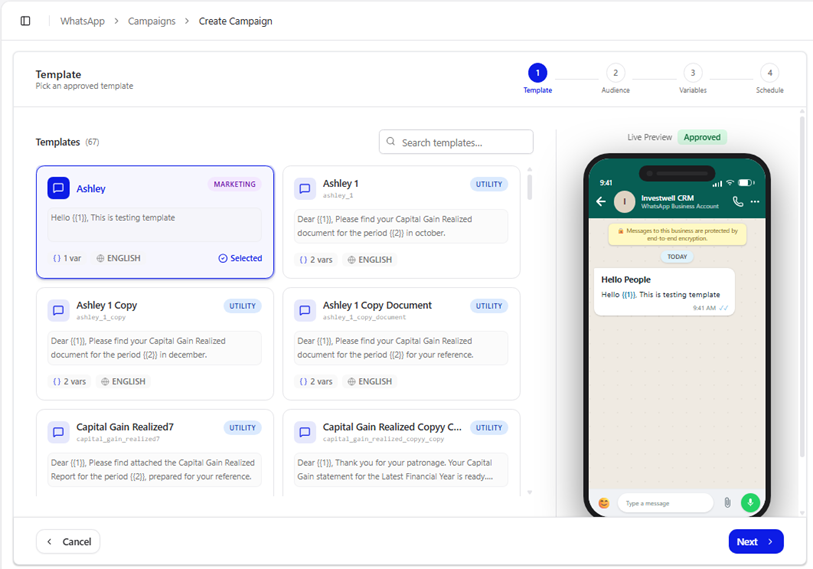
Step 1: Choose a template
Pick one of your approved templates. Click a card to select it, and check the phone preview on the right. You can also search by name.
Step 2: Choose who receives it
- Type a Campaign Name so you can find it later, for example Q2 SIP Nudge.
- Under Target Audience, choose Family Heads, Clients, Leads or Unknown Contacts.
- Under Selection Method, choose how to pick people.
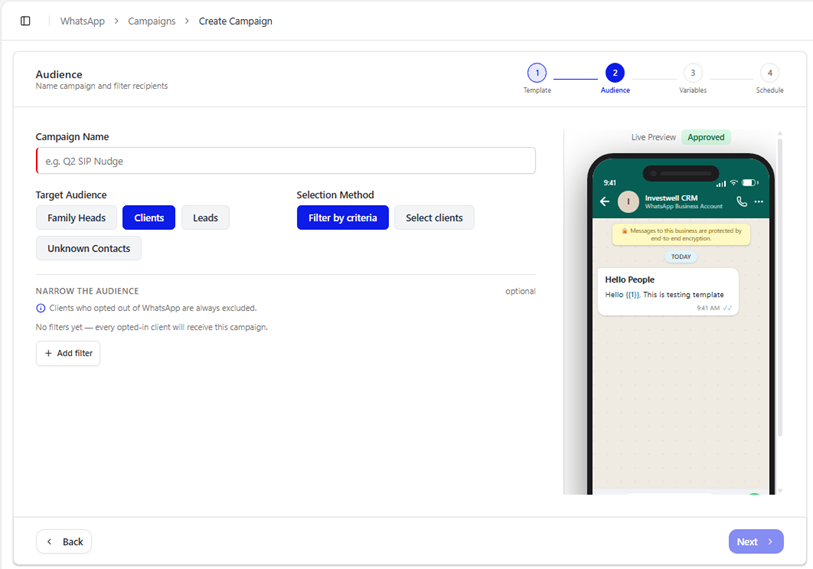
Opted-out clients are always left out. Clients who have opted out of WhatsApp are automatically excluded, so you cannot message them by mistake. By deafult a client who is marked disabled for communication from mint is also marked as opted out.
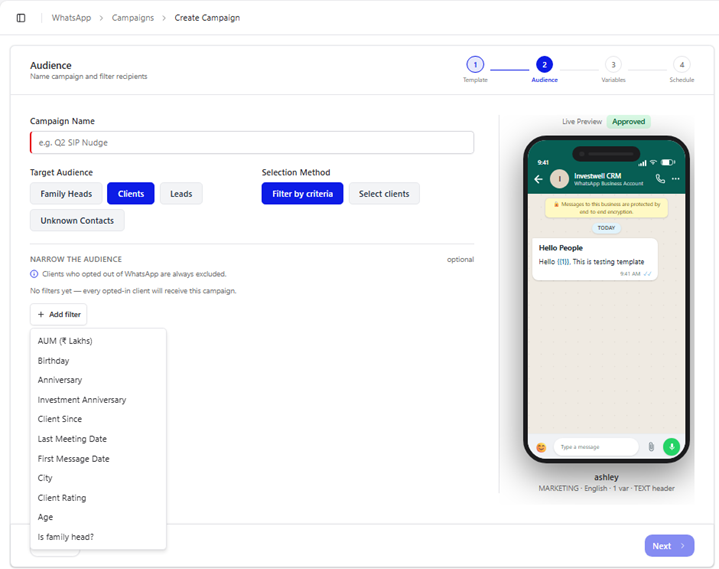
Filter by criteria sends to everyone who matches. Click Add filter and choose from: AUM (₹ Lakhs), Birthday, Anniversary, Investment Anniversary, Client Since, Last Meeting Date, First Message Date, City, Client Rating, Age and Is family head? If you add no filter, every opted-in client receives the campaign.
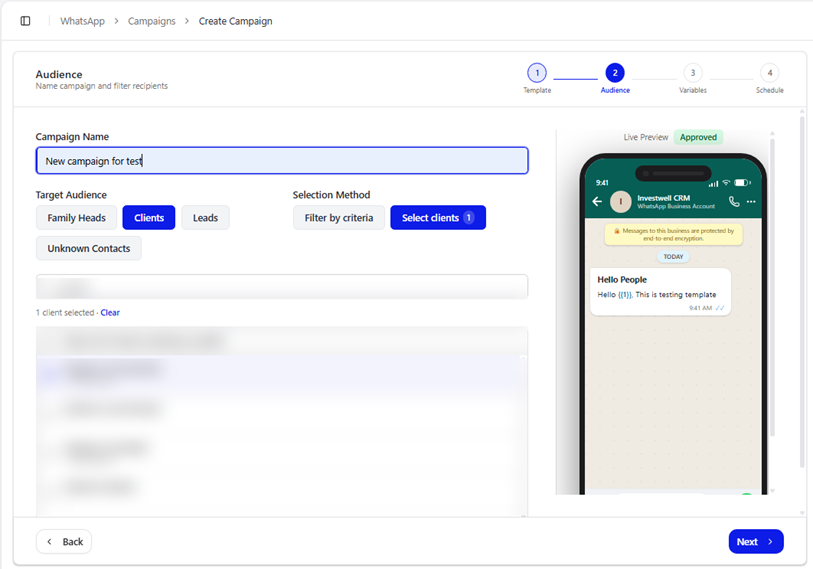
Select clients lets you pick people by hand. Search by name or phone, tick the clients you want, or tick Select all to choose everyone in the list. You must select at least one client to continue.
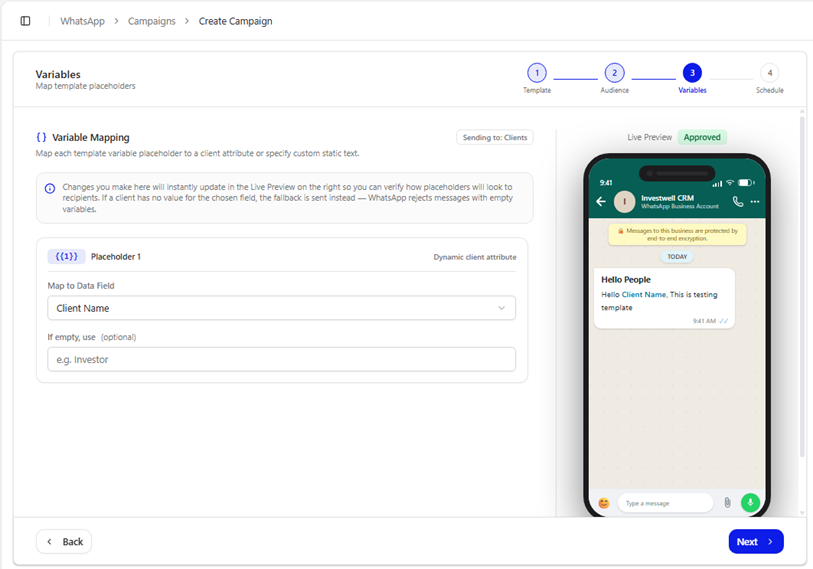
Step 3: Fill in the blanks (Variables)
If your template has blanks such as {{1}}, tell the CRM what to put in each one. For every placeholder:
- Under Map to Data Field, choose the client detail to use, for example Client Name.
- Under If empty, use, type a fallback such as Investor. It is sent when a client has no value for that field. WhatsApp does not accept messages with an empty blank.
The phone preview shows how the message will look.
Step 4: Send now or schedule
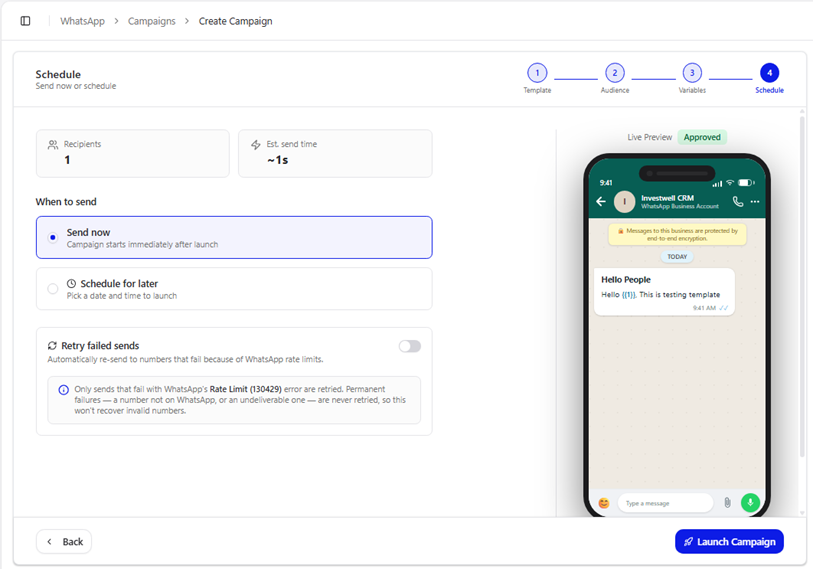
The top of this screen shows the number of Recipients and the estimated send time. Then choose:
- Send now: the campaign starts as soon as you click Launch Campaign.
- Schedule for later: pick a Date (DD-MM-YYYY) and a Time.
Optional: Retry failed sends for marketing templates
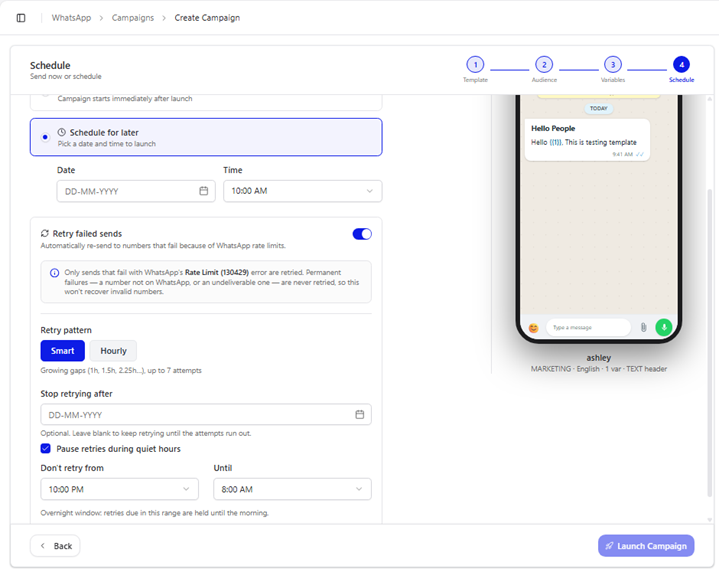
Delivery rate for marketing templates is lower than utilities templates. In order to ensure that marketing messages are also delivered, switch on Retry failed sends and the CRM will try again automatically. It is off by default.
- Smart: retries with growing gaps (1 hour, 1.5 hours, 2.25 hours and so on), up to 7 attempts.
- Hourly: retries every hour.
- Stop retrying after: optional end date. Leave it blank to keep retrying until the attempts run out.
- Pause retries during quiet hours: keeps retries from running overnight. The screen shows 10:00 PM to 8:00 AM, and you can change it.
Check how your campaign did
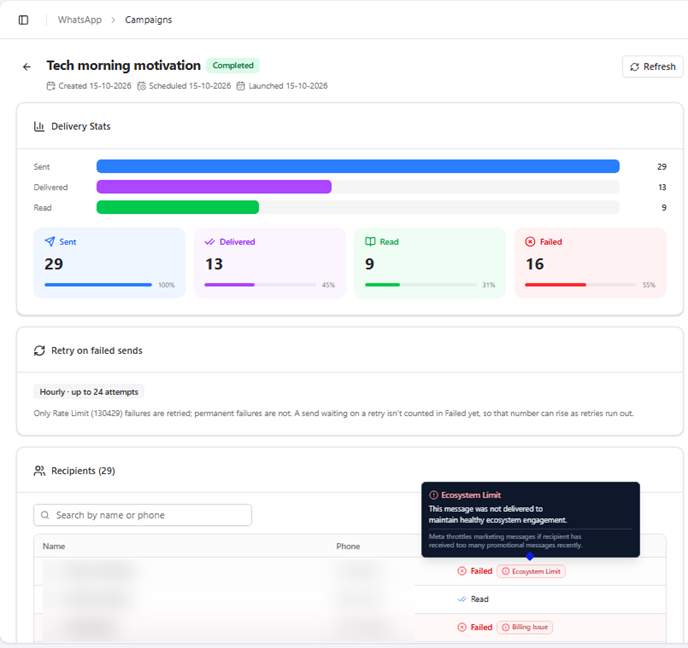
Open the campaign from the list. Delivery Stats shows how many messages were Sent, Delivered, Read and Failed, with percentages. Below that, Recipients lists each person and the status of their message. You can search by name or phone. Click Refresh to update the numbers.
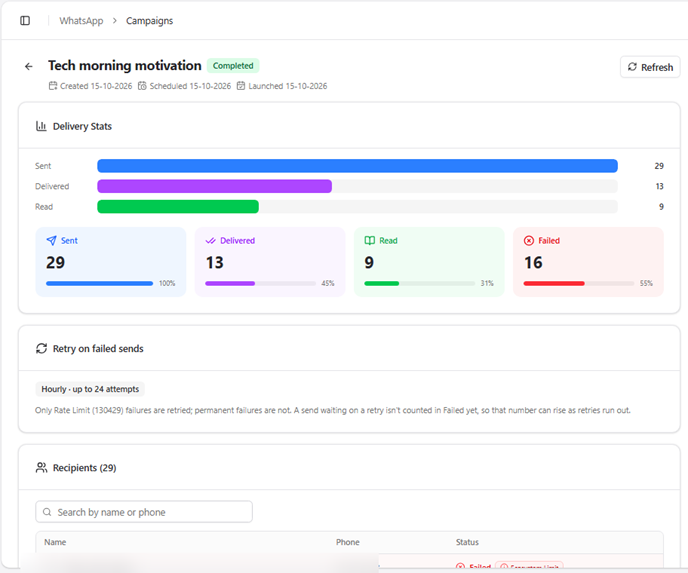
Hover over a failed status to see why it failed. For example, Ecosystem Limit means: "This message was not delivered to maintain healthy ecosystem engagement. Meta throttles marketing messages if the recipient has received too many promotional messages recently."
Contacts
The Contacts tab lists the people you can message on WhatsApp and whether each person has agreed to receive your messages.
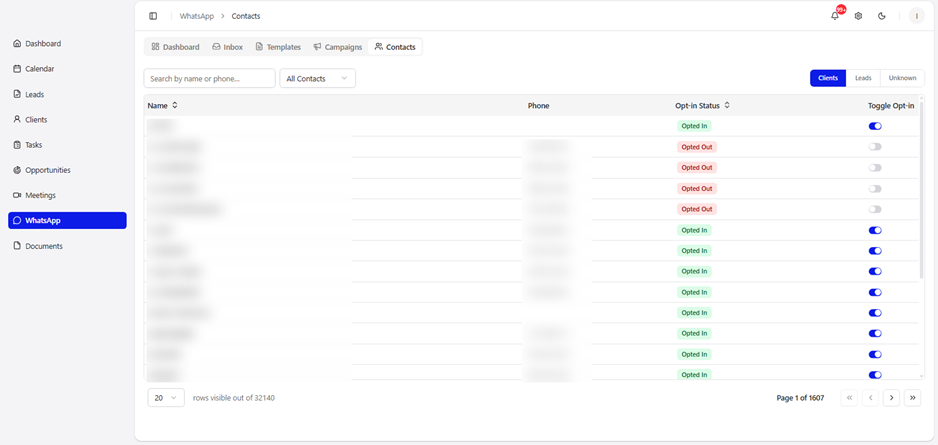
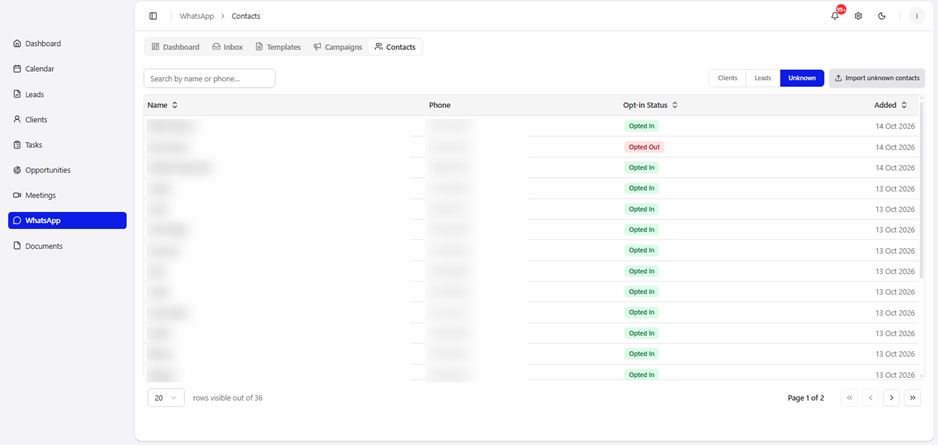
Use the buttons at the top right to switch between Clients, Leads and Unknown contacts.
- Search by name or phone, or use the All Contacts menu to filter.
- Opt-in Status shows Opted In or Opted Out. Use the Toggle Opt-in switch to change it.
Unknown contacts are people who have messaged you on WhatsApp but are not in your CRM as a client or lead. You can add them with Import unknown contacts.
WhatsApp settings in Investwell CRM
These settings control how incoming WhatsApp messages are handled in Investwell CRM: who gets new chats, what clients see when they first write to you, and how clients opt in or out.
Go to Settings → WhatsApp. Besides Account (see "How to connect WhatsApp to Investwell CRM"), you will find five pages:
- Routing: decides who receives a chat from a new, unknown number.
- Agents: shows your WhatsApp-enabled team members and whether they are online.
- Greetings: automatic welcome messages for first-time chats.
- Quick Replies: saved messages you insert by typing a shortcut.
- Opt-in / Opt-out: the keywords clients send to start or stop receiving your messages.
Routing
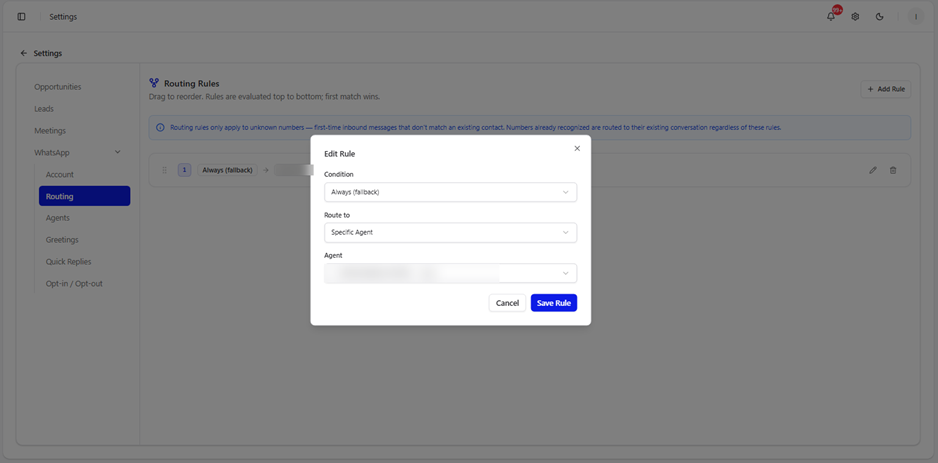
Routing rules decide which team member (agent) receives a chat when someone writes to your WhatsApp number for the first time.
Important: routing rules apply only to unknown numbers, meaning first-time messages that do not match an existing contact. If the number already belongs to a client or lead, the chat goes to their existing RM/Sub broker assigned to the client/lead.
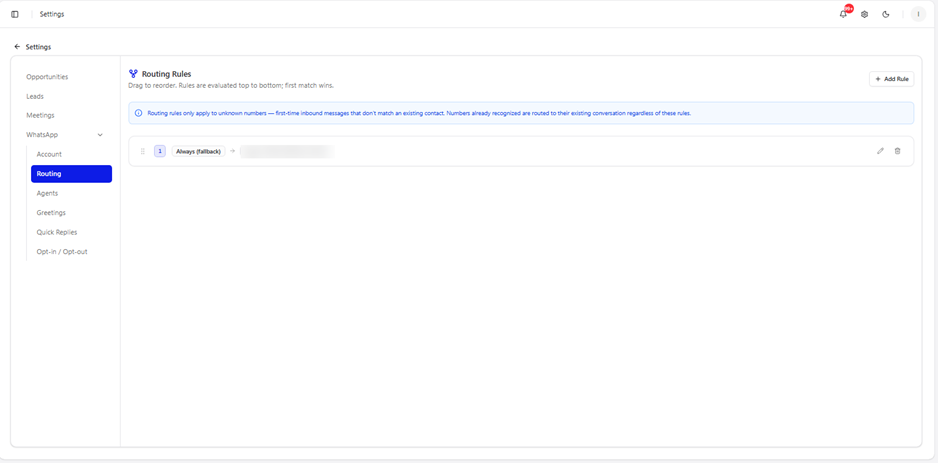
Rules are checked from top to bottom, and the first match wins. Drag a rule using the handle on its left to change the order. Use the pencil icon to edit a rule and the bin icon to delete it.
Add or edit a rule
- Click Add Rule (or the pencil icon on an existing rule).
- Choose a Condition. Always (fallback) applies to every new chat that no earlier rule caught.
- Choose Route to. For example, Specific Agent.
- Choose the Agent who should receive the chats.
- Click Save Rule.
Agents
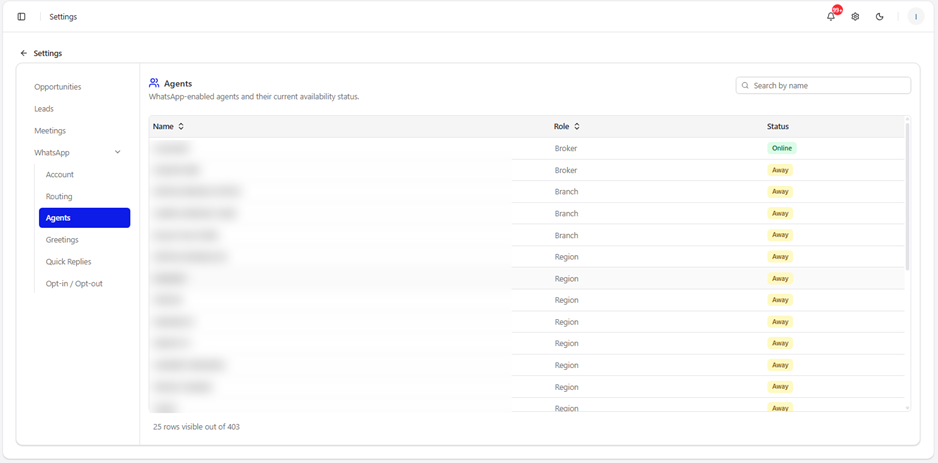
This page lists the team members who can use WhatsApp in the CRM, with their Role (for example Broker, Branch or Region) and their current Status: Online or Away. Use Search by name to find someone. It is a view-only list.
Greetings
A greeting is sent automatically when a contact messages your WhatsApp number for the first time. You can send up to 3 messages in a row, for example a welcome note, a logo and a video link.
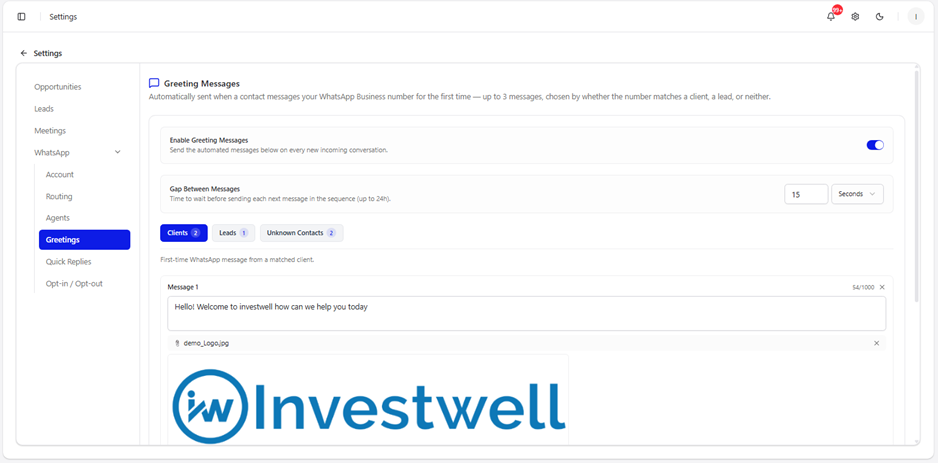
- Switch on Enable Greeting Messages.
- Under Gap Between Messages, set how long to wait before each next message, for example 15 seconds. You can use seconds, minutes or hours, up to 24 hours.
- Pick the tab for the type of sender: Clients, Leads or Unknown Contacts. Each type has its own messages, and the small number on the tab shows how many are set.
- Type Message 1 (up to 1,000 characters). To attach an image, video or PDF, click Attach image, video, or PDF.
- To add more, click Add message. Use the × on a message to remove it.
- Click Save Greetings.
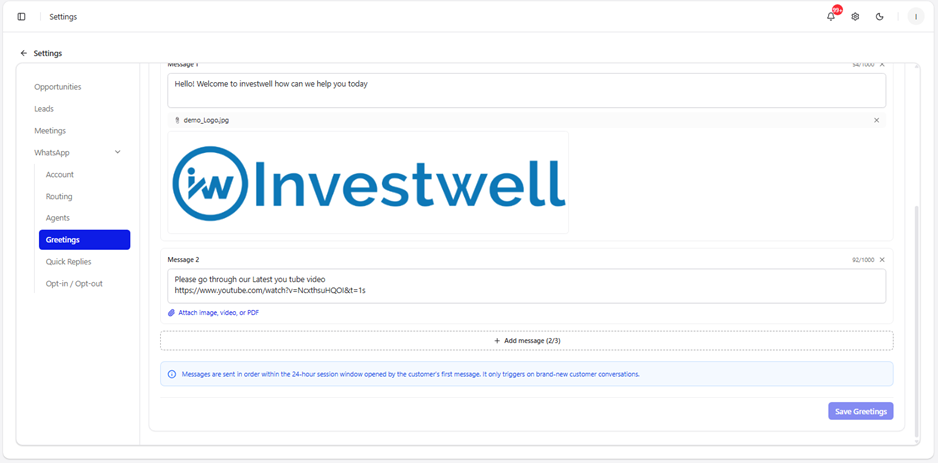
Good to know: greetings go out within the 24-hour window opened by the client's first message, and only for brand-new conversations. They are not sent again to a client who is already chatting with you.
Quick Replies
Quick replies are saved messages your team can insert in a chat by typing a shortcut, so they don't have to retype common answers.
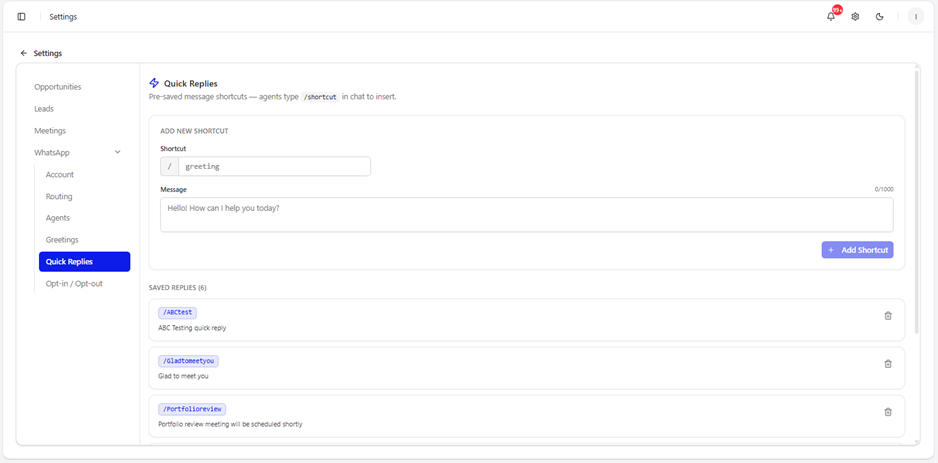
Add a quick reply
- Under Add new shortcut, type a Shortcut word, for example greeting. The CRM adds the / for you.
- Type the Message (up to 1,000 characters).
- Click Add Shortcut.
Your saved replies are listed under Saved Replies. Click the bin icon to delete one.
Use a quick reply
In an Inbox chat, type / followed by your shortcut, for example /Portfolioreview, to insert the saved message.
Opt-in / Opt-out
Clients control whether they receive your WhatsApp campaigns by sending a keyword. Contacts who send an opt-out keyword are automatically left out of campaigns and broadcasts. Ordinary support chats in the Inbox are not affected.
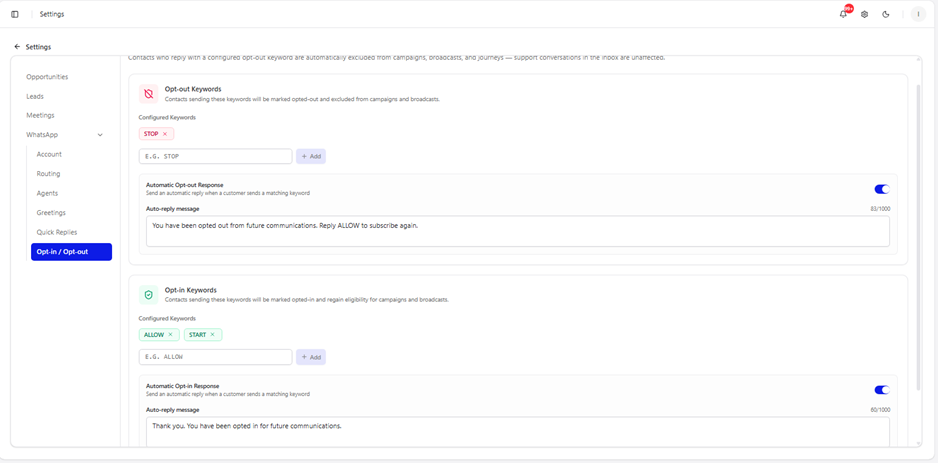
Opt-out keywords
- Add the words that mean "stop messaging me". The default is STOP. Type a word and click Add, or click the × next to a word to remove it.
- Switch on Automatic Opt-out Response to send a confirmation, for example: "You have been opted out from future communications. Reply ALLOW to subscribe again."
Opt-in keywords
- Add the words that mean "start messaging me again". The defaults are ALLOW and START.
- Switch on Automatic Opt-in Response to send a confirmation, for example: "Thank you. You have been opted in for future communications."
Tip: keep your opt-in reply instructions in the opt-out message (as in the example above), so clients know how to come back.
Frequently asked questions
Why can't I type a reply to a client?
The 24-hour window has closed. WhatsApp only allows free-form replies within 24 hours of the client's last message. Click Choose template and send an approved template. Once the client replies, you can type normally again.
What does "Session expired" mean?
It means 24 hours have passed since the client last wrote to you. In the Inbox filters, you can find these chats under 24h session window → Expired.
What is the difference between Marketing and Utility templates?
Utility templates are for messages the client expects, such as a statement or a confirmation. Marketing templates are promotional. Meta limits how many marketing messages a client receives, so marketing messages fail more often.
Why did my message fail with "Ecosystem Limit"?
Meta limits how many promotional messages one person receives in a short time. If a client has had too many recently, your marketing message is held back. Try a Utility template where it fits, or send the message again on another day.
What does "Billing Issue" mean?
The message could not be sent because of a payment problem with your WhatsApp account. Check the payment method on your Meta account, then try again.
Why are fewer messages Delivered than Sent?
Sent means the message left the CRM. Delivered means it reached the client's phone, and Read means they opened it. A message may not be delivered if the client's phone is off, the number is not on WhatsApp, or Meta held it back. Open the campaign and hover over Failed to see each reason.
Will opted-out clients receive my campaign?
No. Clients who have opted out are always excluded from campaigns.
Which templates can I use in a campaign?
Only templates with the status Approved. If a template was turned down, open it to read the rejection reason, then duplicate it, fix the text and submit it again.
What if a client has no name or detail saved?
On the Variables step, type a fallback in If empty, use, for example Investor. The fallback is sent instead of a blank.
Can I schedule a campaign for later?
Yes. On the last step, choose Schedule for later and pick a date and time.
What are Quality and Tier on the Dashboard?
Quality shows how clients are reacting to your messages. GREEN is healthy. If many clients block or report your messages, it can drop and WhatsApp may limit your account.
Tier is the number of clients you can start new conversations with in a day. For example, TIER_250 means up to 250 a day. Your tier can rise over time if your quality stays healthy.
Why did a chat go to a different person than I expected?
Routing only applies to unknown numbers. If the number is already a client or lead, the chat goes to their existing conversation. For unknown numbers, the first rule that matches wins, so check the order of your rules.
What happens if I have no routing rule?
New chats from unknown numbers have no rule to follow. Add an Always (fallback) rule so every new chat reaches someone.
Why is an agent missing from the list?
The list shows WhatsApp-enabled agents only. Search by name, and make sure the person has been given WhatsApp access.
Why didn't a client get my greeting?
Greetings are sent only for brand-new conversations, and only if Enable Greeting Messages is on and you clicked Save Greetings. Also check that the right tab (Clients, Leads or Unknown Contacts) has a message.
Can I send a document or image in a greeting?
Yes. Click Attach image, video, or PDF under a message.
A client replied STOP. Will they still get my replies in the Inbox?
Yes. Opting out stops campaigns and broadcasts only. Support conversations in the Inbox continue as normal.
How does a client start receiving messages again?
They reply with an opt-in keyword such as ALLOW or START. You can also switch their opt-in on yourself from the Contacts tab.
Can I add my own keywords?
Yes. Type the word in the box under Configured Keywords and click Add.
Was this article helpful?
That’s Great!
Thank you for your feedback
Sorry! We couldn't be helpful
Thank you for your feedback
Feedback sent
We appreciate your effort and will try to fix the article