A Systematic Investment Plan (SIP) can be stopped for a client from the Investwell platform, using the systematic orders section under either BSE or BSE 2.0. The overall process is similar in both, but the BSE 2.0 process includes a cancellation reason and a broker authorisation step. This guide covers both, starting with BSE and then BSE 2.0.
Part 1: Stopping an SIP in BSE
Step 1: Open Systematic Orders and Select the Filters
Under the Invest Online BSE menu, click on Systematic Orders. The Report Configuration screen opens. Here you select the status of the orders you want to view. Use the Select Status drop-down to choose the status. In the screenshot below, the status is set to ACTIVE.
Next, enter the client's name in the Search field. Then select the dates for the report. The screen shows a Registration date toggle with a Start Date range, where you can enter the date range. Once the status, client and dates are set, click Apply.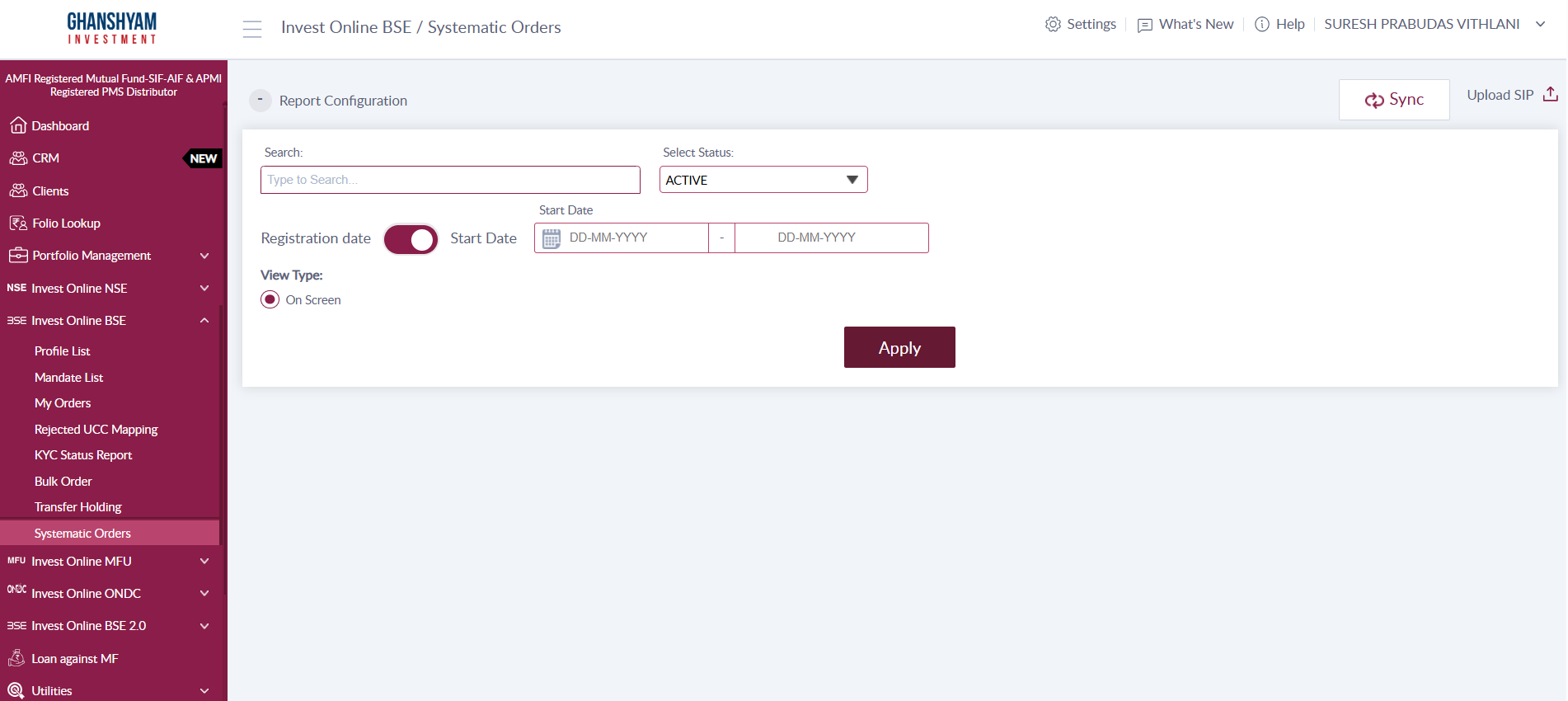
Step 2: Select the Order and Choose Cease
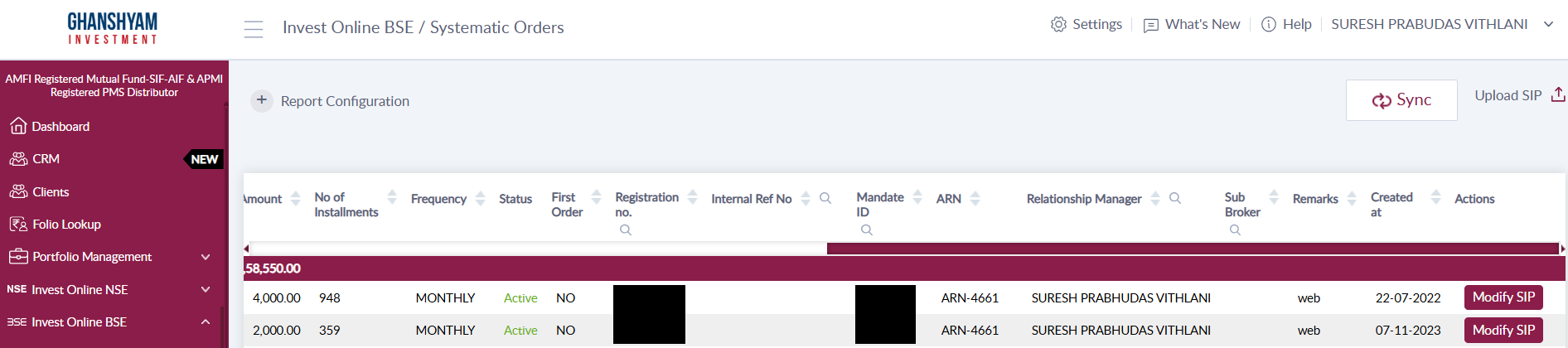
After you click Apply, the system displays the complete list of systematic orders for the client. Each record shows details such as the amount, number of installments, frequency, status, registration number and the date created. Against each record, you will find a Modify SIP button.
Click Modify SIP on the order you want to stop. You will see three options: Pause, Cease and Change Mandate. Select Cease, and then click Submit.
Step 3: Complete Client Authentication
Once the request is submitted, the client receives an authentication link by email from BSE. The client needs to open this link and authenticate the request.
After the client authenticates, the cancellation order is processed successfully at the exchange end. Until the client completes authentication, the cancellation is not processed, so it is worth confirming with the client that they have received the email and acted on it.
Part 2: Stopping an SIP in BSE 2.0
Step 1: Open Systematic Orders and Select the Client
Under the Invest Online BSE 2.0 menu, click on Systematic Orders. The Report Configuration screen opens. Enter the client's name in the Client Search field, then select the Report Type. You can choose SIP, STP or SWP. For stopping an SIP, select SIP. Once both are set, click Apply.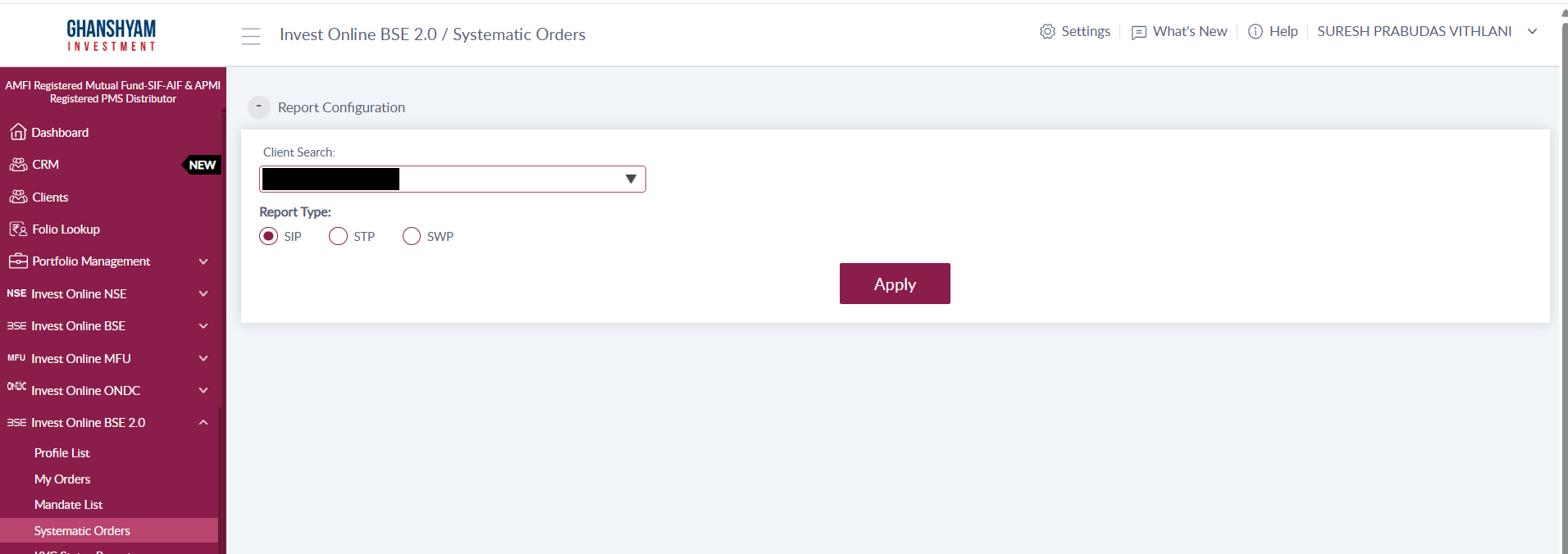
Step 2: Select the Order and Open the Modify Options
After you click Apply, the system displays the complete list of systematic orders for the client. The page shows counts for Total Order, Active, Paused and Cancelled at the top, followed by the list of orders. Each record shows the investor, UCC, scheme, folio, dates, amount, frequency, number of installments and status. Against each record, you will find a Modify button.
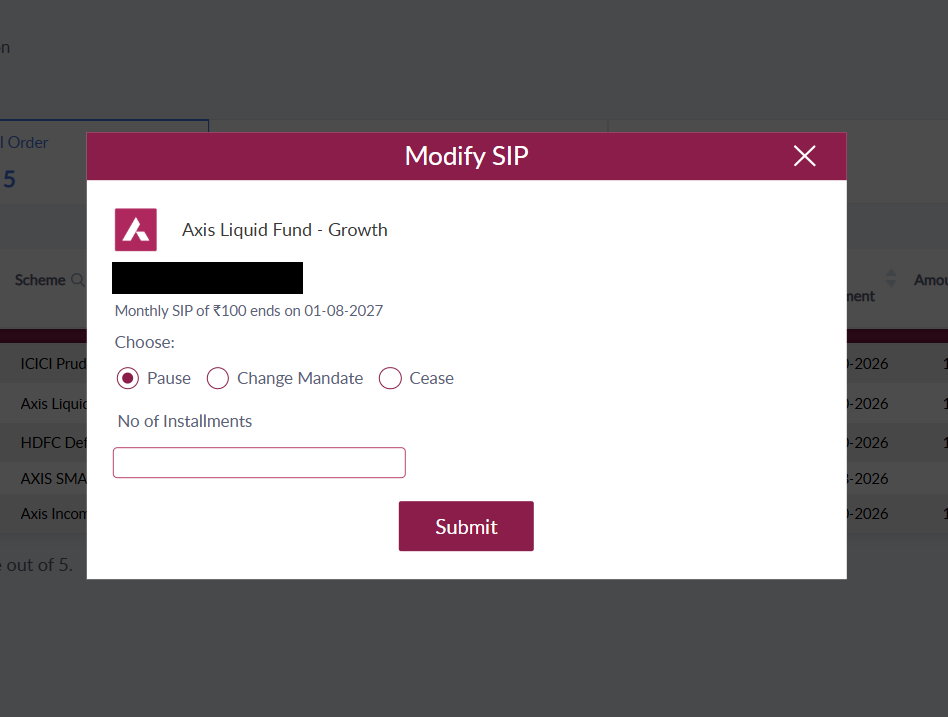
Click Modify on the order you want to stop. A Modify SIP window opens with the scheme name and the SIP details, along with three options under Choose: Pause, Change Mandate and Cease.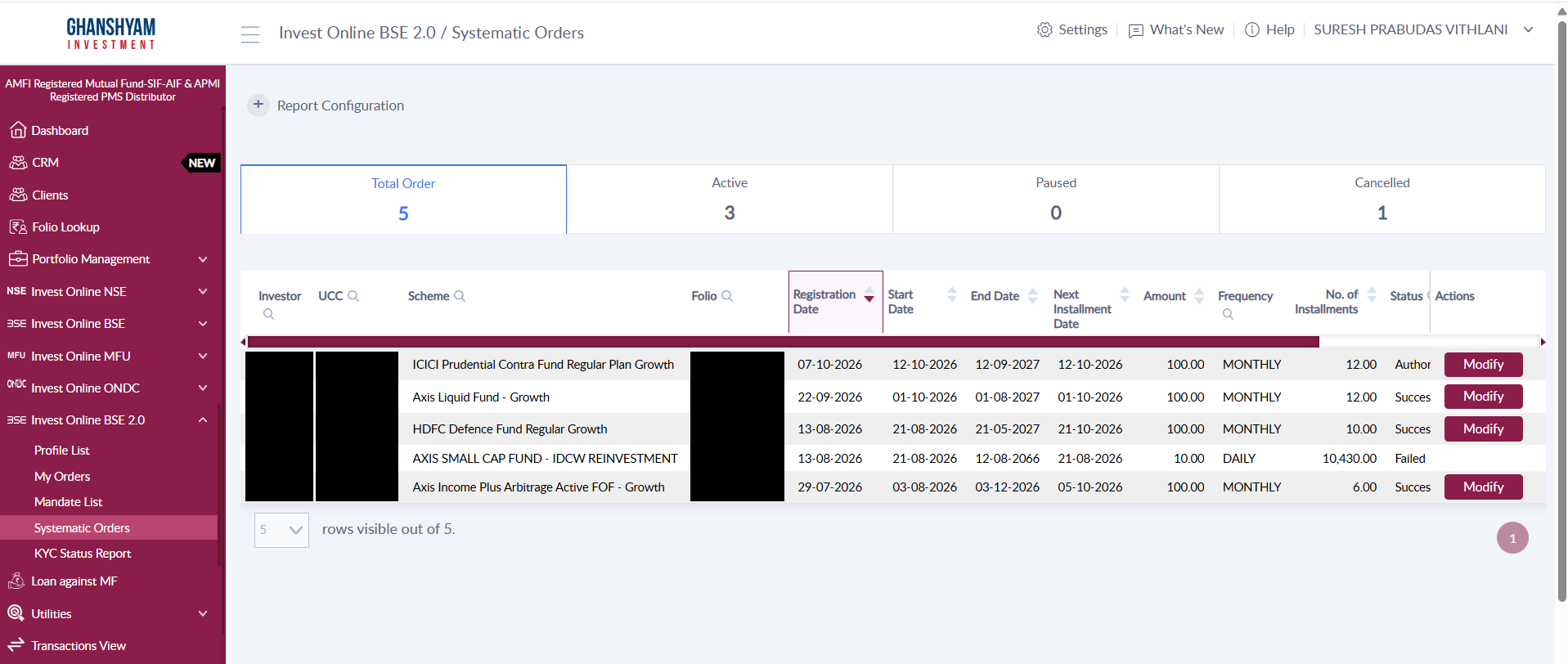
Step 3: Cease the SIP, Submit, Authorise and Authenticate
Select Cease in the Modify SIP window. You will then select the cancellation reason from the list provided. Once the reason is selected, click Submit. Once the request is submitted, two things happen.
The broker will see an option to authorise now for the cancellation request. The client also receives an authentication link by email from BSE.
FAQs
Q: Where do I find the option to stop an SIP in BSE?
Under the Invest Online BSE menu, open Systematic Orders, set the status (for example, ACTIVE), enter the client’s name, select the dates, and click Apply. Then click Modify SIP against the order and choose Cease, followed by Submit.
Q: Where do I find the option to stop an SIP in BSE 2.0?
Under the Invest Online BSE 2.0 menu, open Systematic Orders, enter the client’s name in Client Search, choose SIP as the Report Type, and click Apply. Then click Modify against the order, select Cease, choose a cancellation reason from the list, and click Submit.
Q: What does the client have to do after the request is submitted?
In both BSE and BSE 2.0, the client receives an authentication link by email from BSE and must open it to authenticate the request. The article says the cancellation is not processed at the exchange until the client completes this step, so it is worth confirming that the client has acted on the email.
Q: Is there an extra step in BSE 2.0?
Yes. BSE 2.0 requires a cancellation reason, and the broker sees an option to “authorise now” for the cancellation request. The client also still receives the authentication email.
Q: Can an SIP be paused from the Investwell platform?
Yes, the Investwell platform shows a Pause option. In the article, the Modify SIP window for both BSE and BSE 2.0 offers Pause, Change Mandate, and Cease.
Q: Do I enter the number of installments to pause in BSE 2.0?
Yes. When you select Pause, you enter the number of installments to be paused.
Q: Where do I pause an SIP in BSE 2.0?
Under Invest Online BSE 2.0, open Systematic Orders, enter the client’s name in Client Search, select SIP as the Report Type, and click Apply. Click Modify on the order, select Pause, and enter the number of installments.
Q: What rules apply to pausing an SIP generally?
Fund house SIP pause forms commonly limit the number of installments that can be paused, but the limits vary by AMC, and none of these are BSE 2.0 rules. For example, one AMC form allows a pause of 1 to 6 installments, another allows up to 3 consecutive installments for monthly SIPs, and some allow a pause only twice in an SIP’s life. These should not be treated as BSE 2.0 rules.
Q: After a pause ends, does the SIP restart automatically?
Fund house forms generally say the SIP restarts automatically after the pause period. I could not confirm this for BSE 2.0 from the sources available.
Was this article helpful?
That’s Great!
Thank you for your feedback
Sorry! We couldn't be helpful
Thank you for your feedback
Feedback sent
We appreciate your effort and will try to fix the article