INTRODUCTION
The Meetings Module in Investwell CRM helps you schedule, track, and complete client and lead meetings from a single place. Each meeting can be assigned a host, linked to a client or lead, and tracked through to completion — including the ability to add meeting notes and set reminders.
Path: CRM → Dashboard → Meetings Module (via left navigation or directly via Dashboard)
TABLE OF CONTENTS
- INTRODUCTION
- Purpose of the Meetings Module
- Meeting Types
- Scheduling & Assigning Meetings
- Viewing Meetings
- Managing Meetings
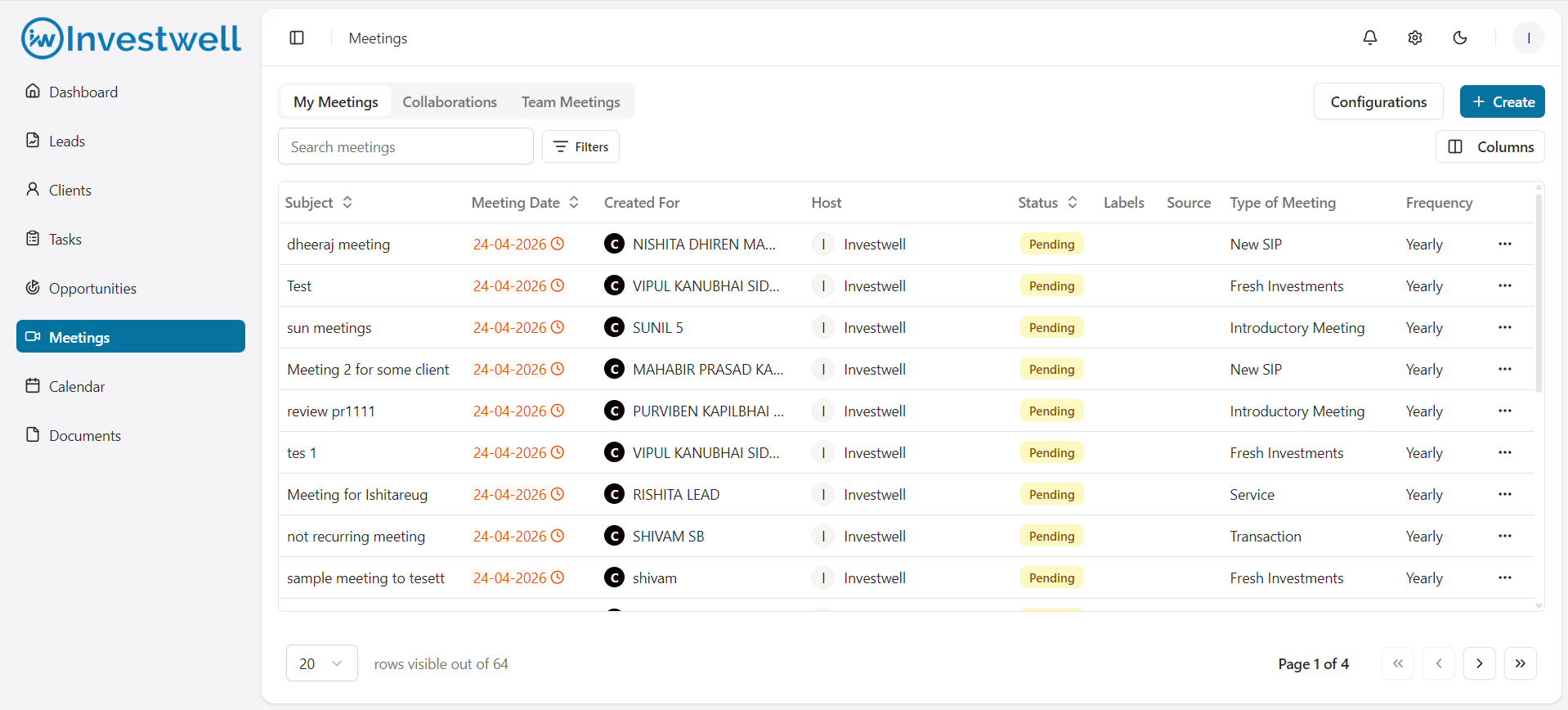
Purpose of the Meetings Module
- Schedule and host meetings with any client or lead across the organisation, enabling seamless collaboration.
- Track all pending and completed meetings from a single view.
- Assign a host and collaborators to ensure the right team members are involved.
- Set reminders to ensure timely follow-up and reduce missed meetings.
- Capture meeting notes directly within the meeting record and share them with clients as a PDF.
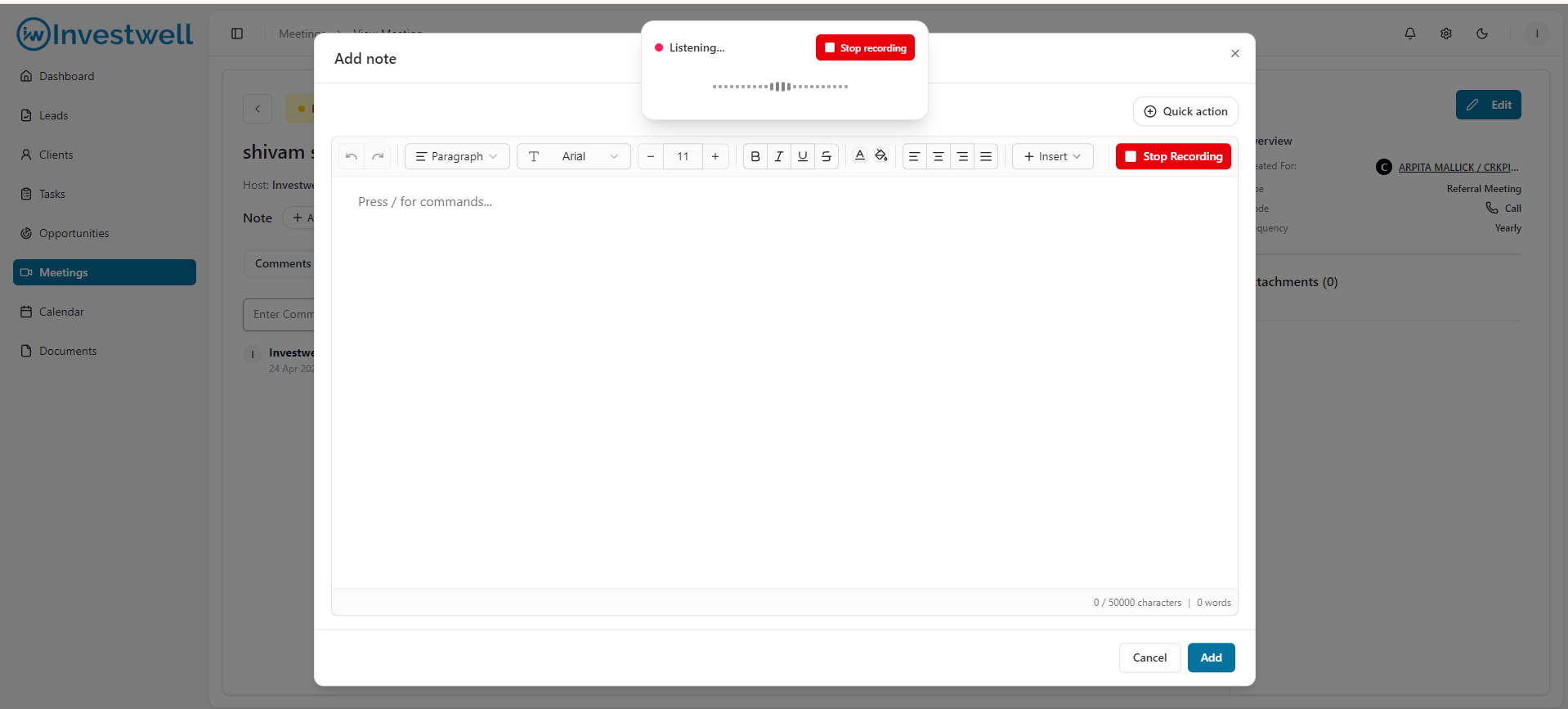
- In this user may use our Speech to text functionality to transcribe as they speak.
- From this they can also create Task directly while taking notes via Quick action button given on the screen
- Automatically track Portfolio Review meetings based on client review frequency.
Meeting Types
Common examples of meetings include:
- Portfolio Review
- Referral Meeting
- Introductory Meeting
- Fresh Investment discussion
- New SIP or New Product Discussion
- Service or Transaction follow-up
Notes
- Meetings can be created directly from the Client, Lead, or Opportunity modules.
- Each user can view meetings they are hosting or have created under the My Meetings tab in the Meetings listing page.
- Each user can view meetings to which they have been added as a collaborator under the Collaborations tab.
- Each user can view meetings hosted by their team members under the My Team Meetings tab.
- Portfolio Review is a special meeting type available only for Clients (not Leads). The system automatically schedules the next review meeting once the current one is marked as completed.
Scheduling & Assigning Meetings
Introduction
Meetings can be created manually by any user with access to the Meetings module. Assigning a host ensures the right team member leads the meeting and is notified promptly.
Path: CRM → Meetings → Create Meeting | CRM → Clients/Leads/Opportunities → Create Meeting
Steps to Schedule a Meeting
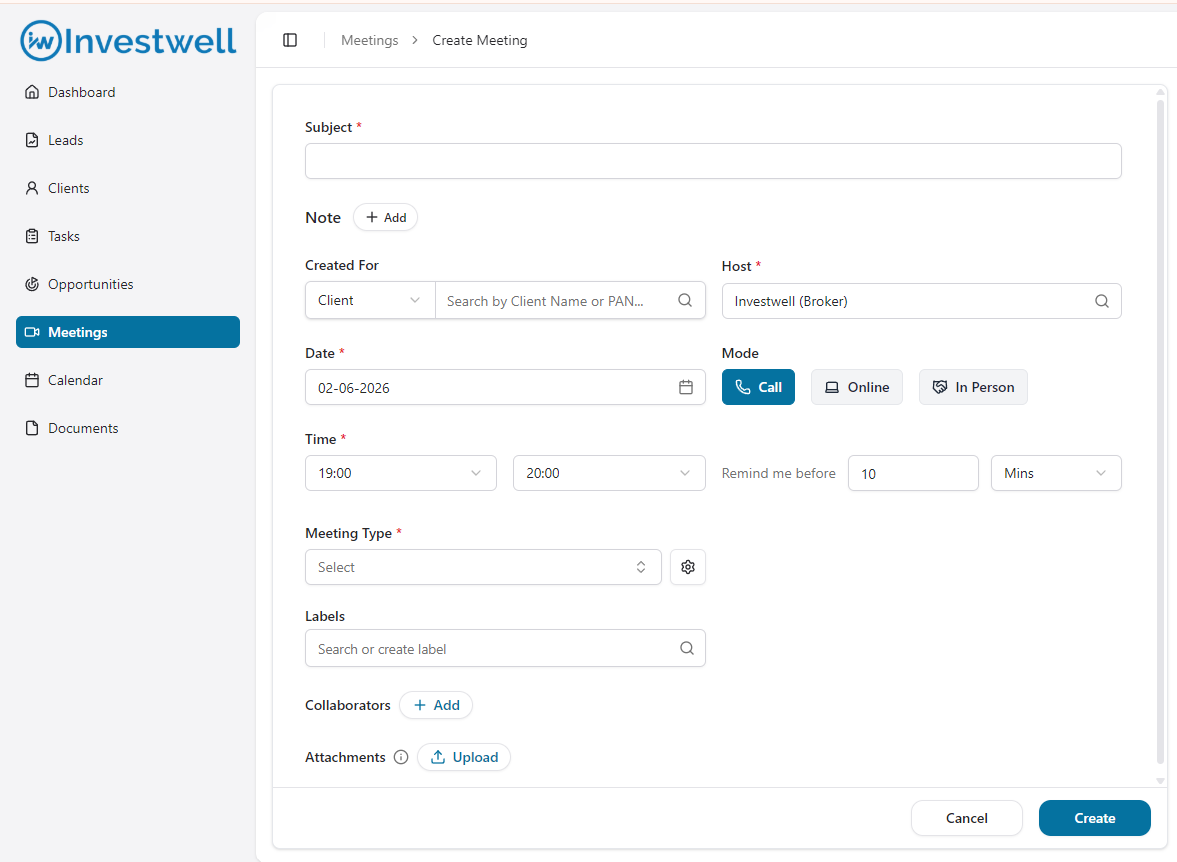
- Click Create .
- Enter the Meeting Subject.
- Link it to a Client or Lead (mandatory). This is the client or lead for whom the meeting is being held.
- Set the Schedule Date and Schedule Time for the meeting.
- Set a Reminder (optional). Enter a numeric value and select a frequency — Minute, Hour, Days, Week, or Month — to receive a notification before the meeting.
Note: Reminders cannot be set for meetings scheduled in the past or for today.
- Select a Type of Meeting . Choose from the types configured by your organisation's admin.
Note: If you select Portfolio Review, an additional read-only Frequency field will appear, showing the review frequency set for the client. The next meeting will be auto-created once this one is marked as Completed.
- Select the Meeting Mode— Call, Online, In Person.
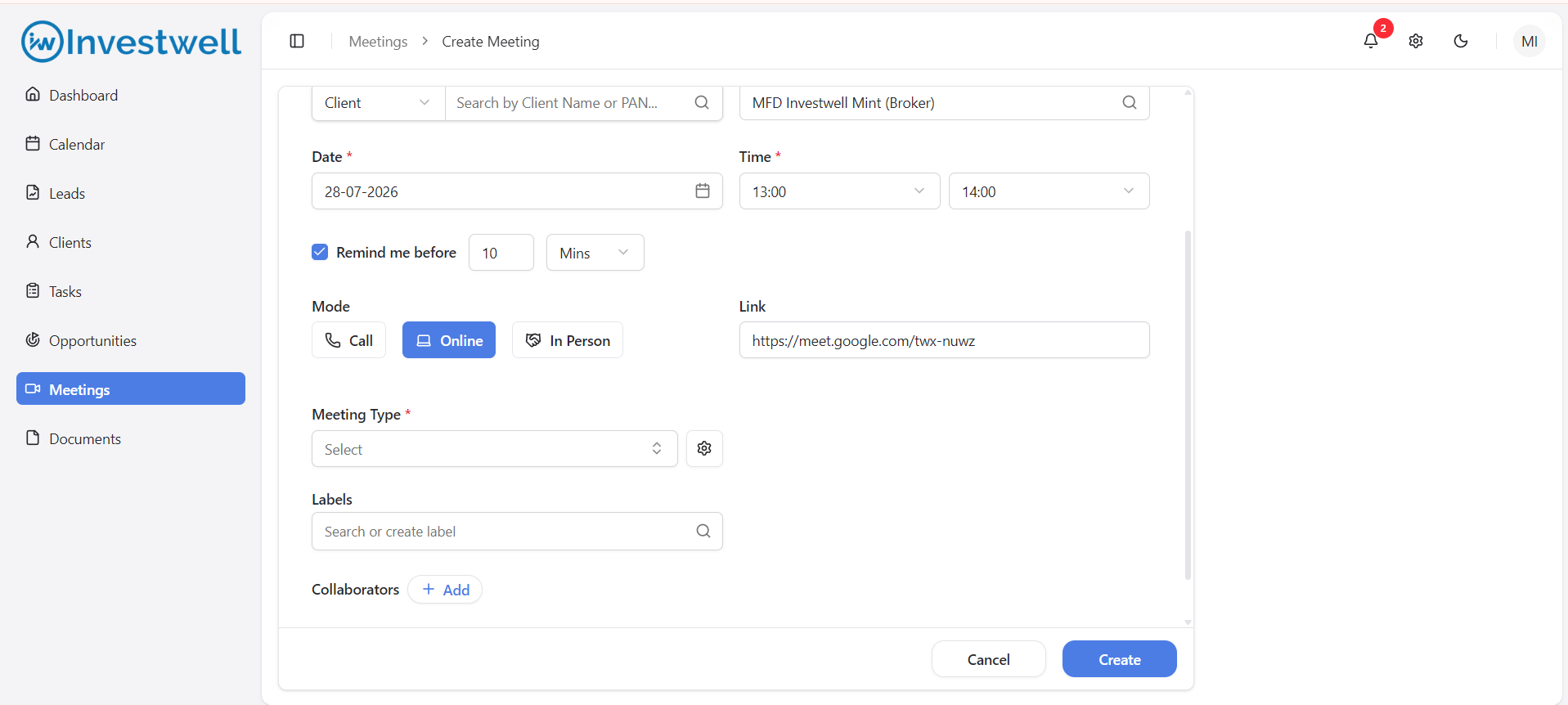
- Online - On selecting online, user shall get an option to paste the link for meeting they shall have created. It can be Zoom, G meet etc.
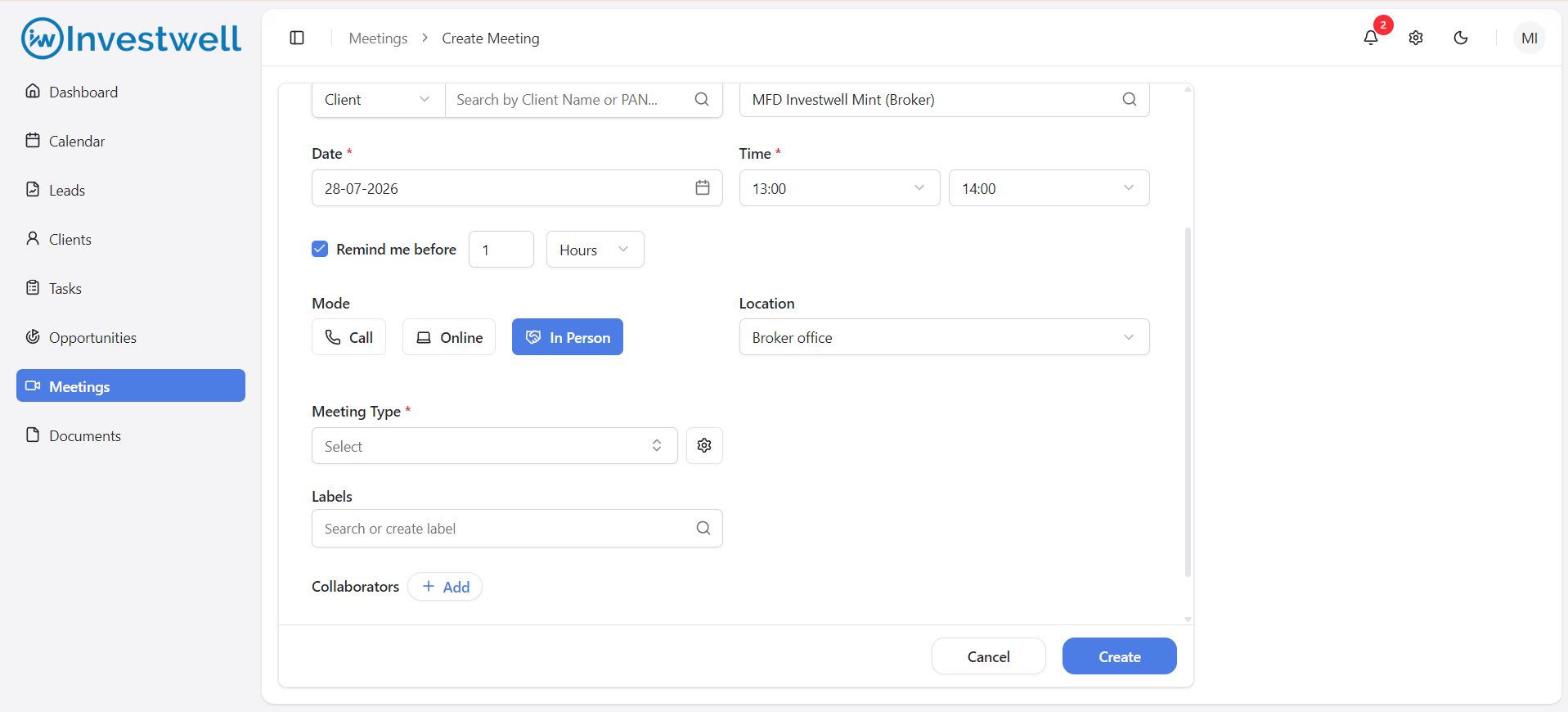
- On Selecting In Person , the user shall have an option to select the location at which the meeting shall take place. They may type a custom location by selecting Other.
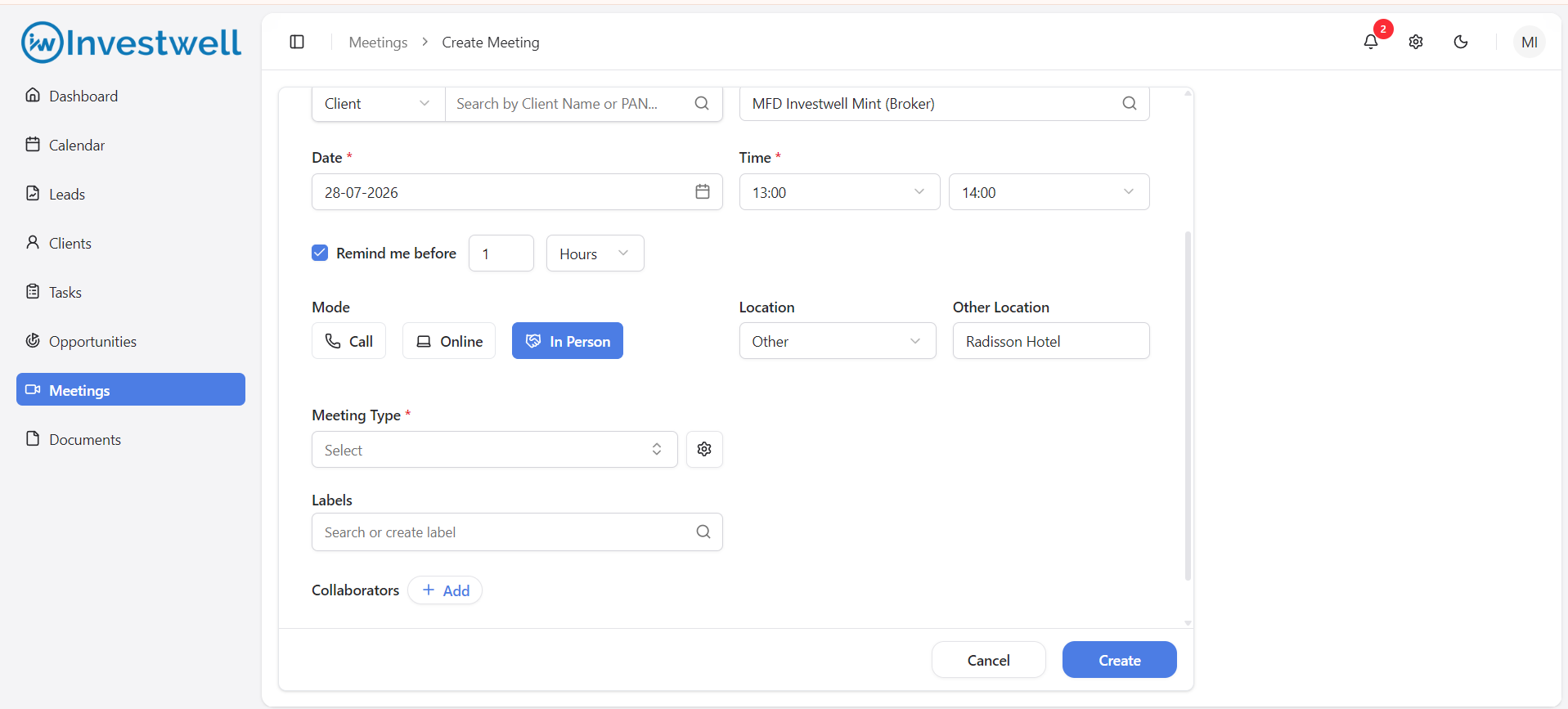
- Assign a Host for the meeting. The primary user of the selected Client or Lead is pre-filled by default, but you can change this to any user in your organisation.
- Optionally, add Collaborators — other team members who should have access to the meeting card. The primary user of the Client or Lead is added as a collaborator by default.
- Optionally, add Attachments (up to 5 files, 5 MB each).
- Optionally, add Labels to tag the meeting (up to 4 labels).
- Optionally, add Meeting Notes directly at the time of creation.
- Click Create.
Note: After creation, you will be taken to the View page of the newly created meeting. An email notification will be sent to the Client/Lead, with the Host and Collaborators copied in.
Notes
- The Host and Collaborators receive in-app notifications when the meeting is created.
- You cannot create two Portfolio Review meetings with Status = Pending for the same client at the same time. The system will alert you if one already exists.
- You can make a meeting recurring by checking the Repeat Meeting option and selecting a frequency (Monthly, Quarterly, Semi-Annually, or Annually) and number of occurrences.
- Bulk actions are available from the listing page: change host, change status, and delete meetings (admin only).
Viewing Meetings
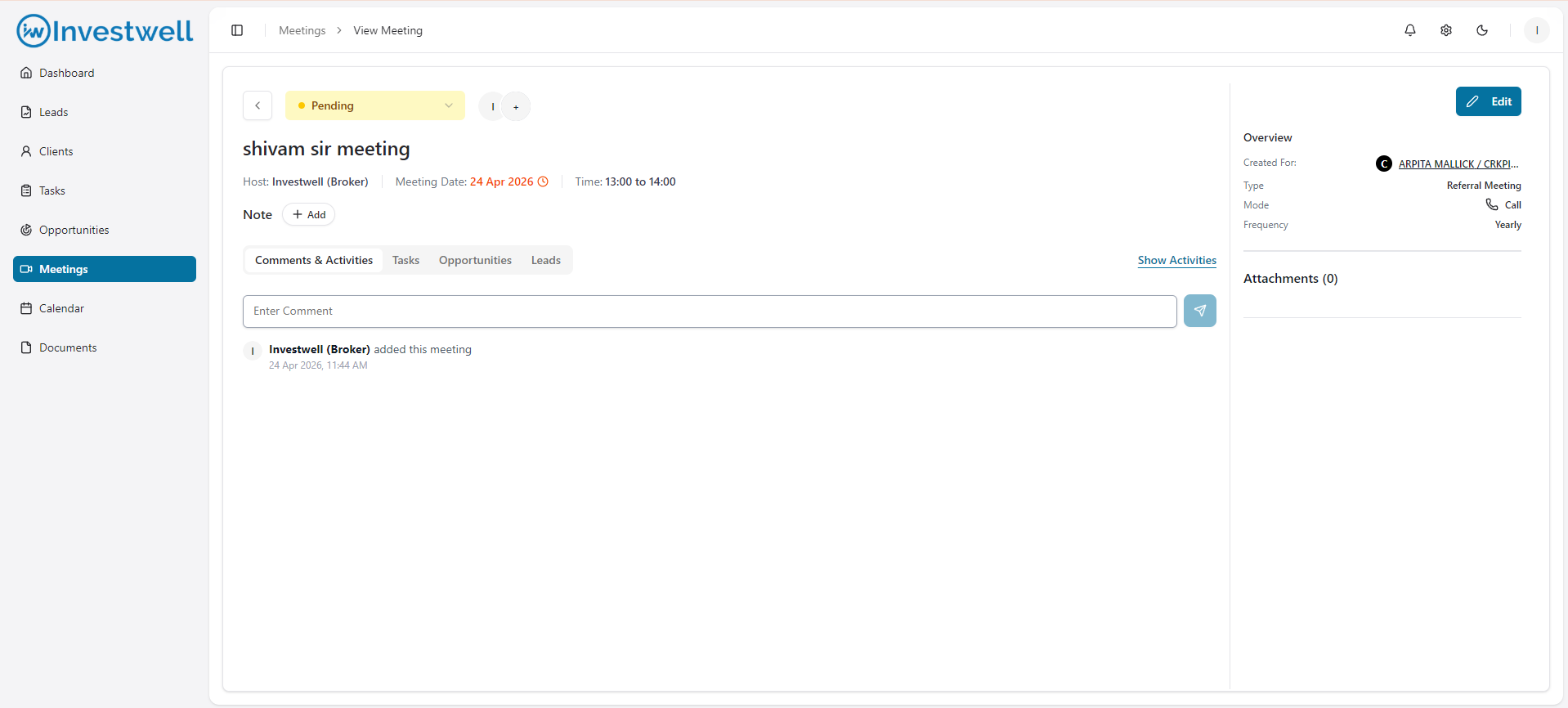
You can open any meeting by clicking its name in the Meetings listing page.
Path: CRM → Meetings → Click on Meeting Subject
On the Meeting View page, you can:
- Edit the meeting details by clicking Edit Meeting (available for Pending meetings).
- Mark the meeting as Completed — note that a Meeting Note with content must be added before you can complete a meeting.
- Add or remove Collaborators.
- Add, edit, or delete Comments on the meeting.
- Download the Meeting Note as a PDF.
- Send the Meeting Note to the client or lead by email directly from the view page.
- Create a Task directly from the Meeting Note using the quick action button.
- View the Activities log to see a history of all changes — what was changed, who changed it, and when.
Notes
- Once a meeting is marked as Completed, the edit button is hidden. You can still add comments and edit the Meeting Note on the view page.
- For Portfolio Review meetings that are marked as Completed, the system will prompt you to confirm whether a next review meeting should be auto-created based on the client's review frequency.
Managing Meetings
The Meetings List View allows you to see all meetings hosted by you or your team. You can filter, sort, and update status directly from this screen.
Path: CRM → Meetings
Viewing Meetings
Use the Tabs to switch between:
- My Meetings: Meetings you are hosting or have created.
- My Team Meetings: Meetings hosted by users in your team (below your hierarchy).
- Collaborations: Meetings to which you have been added only as a collaborator.
Click on any Meeting Subject to open its view page. Click the three-dot menu at the right end of a row to Edit or Delete a meeting (Delete is available to Admins, Host, and Creators only).
Filtering
You can filter meetings by:
- Status — Filter by Pending or Completed.
- Created For — Filter by the Client or Lead the meeting is linked to.
- Host — Filter by the name of the meeting host.
- Family Head — Filter by the family head of the client.
- Created By — Filter by the user who created the meeting.
- Type of Meeting — Filter by the meeting type (e.g. Portfolio Review, Referral Meeting).
- AUM — Filter by a range of client AUM.
- Due Status — Filter by Upcoming, Due Today, or Overdue.
- Last Meeting Date — Filter by a time range such as Last Week, Last Month, Last Quarter, Last Year, or a custom date range.
Notes
- Overdue meetings are highlighted in orange on the listing page.
- Meetings are listed with the most overdue first (farthest past due date at the top), followed by upcoming meetings.
- Completed meetings are not visible on the listing page by default. Apply a Status filter to view them.
- You can search for meetings by name, client/lead name, or meeting note text using the search field within the Meetings module.
- Bulk actions can be performed by selecting multiple meetings via the checkboxes provided.
Was this article helpful?
That’s Great!
Thank you for your feedback
Sorry! We couldn't be helpful
Thank you for your feedback
Feedback sent
We appreciate your effort and will try to fix the article