CRM notifications alert users, inside the CRM, when something changes on a lead, client, task or meeting that involves them. Every update is visible in one place, and the related item opens in one click.
Overview
Notifications are sent from one CRM user (for example a broker or admin) to one or more other users. They appear in the notification centre, which opens from the bell icon.
Notifications are sent about:
- Tasks: assigned, created, reminder, due date, edits and deletion.
- Leads: assigned, added as collaborator, status change, assignee or collaborator changes.
- Clients: a task, meeting or opportunity created from a client the user owns or collaborates on.
- Meetings: assigned, reminder, rescheduled, status change, role changes.
Notifications are shown in the CRM first. Mobile push notifications use the same message text (see Mobile push notifications).
Using the notification centre
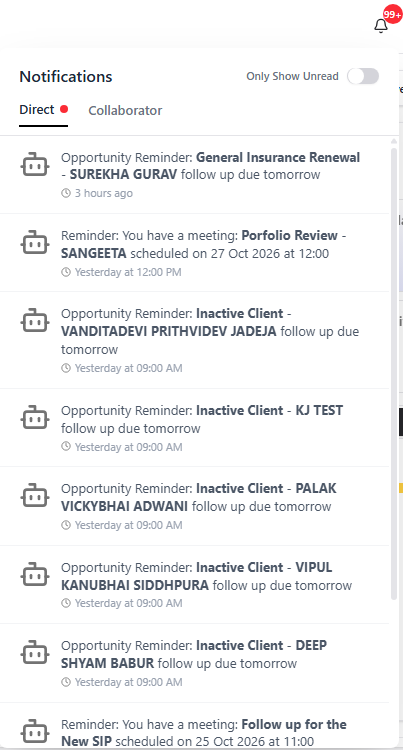
Bell icon and badge. The bell icon shows a badge with the number of unread notifications. Opening the notification centre and scrolling the unread notifications, clears the badge to zero.
Two tabs. The centre opens on the Direct tab by default. Each tab shows its own unread count.
- Direct: updates on items where the user is directly responsible, such as being the assignee.
- Collaborator: updates on items where the user was added as a collaborator.
Separating the two helps prioritise directly assigned work first.
Unread and read. Unread notifications have a red dot on them, until they have been seen.
What a notification shows. Each notification names the person who made the change, what they did, the item concerned and when. Time is shown in a simple format such as "5m ago", "Yesterday" or "Aug 30". Example: Paridhi assigned you a task: Prepare Proposal for Client X – 5m ago.
Opening the item. Click anywhere on a notification to open the related lead, client, task or meeting.
How long notifications stay. Notifications expire after 10 days and are then removed from the centre.
Who receives notifications
A notification is received only for items the user is connected to, and never for an action that same user performed. The same rules apply to web and push notifications.
Role on the item | Notified? |
Person who made the change | No |
Primary user of the lead or client | Yes, for all items under it |
Collaborator | Yes, for that item |
Created by | Yes, for that item |
Assigned to / Host | Yes, for that item |
Manager of the assignee, primary user (in case of lead/client) or creator | No |
Managers higher up the reporting hierarchy are not notified automatically. They only receive a notification if they hold one of the roles above on the item.
Lead notifications
Lead notifications are sent when someone else assigns a lead to a user, changes who works on it, or changes its status.
Event | Who is notified | Example message |
A lead is assigned to a user (by someone else) | The new assignee | Prashant Verma assigned you a lead: Lead Name |
A user is added as a collaborator | The new collaborator | Prashant Verma added you as a collaborator to lead: Lead Name |
The assignee changes | The new assignee, the collaborators and the person who created the lead | Notification of the new assignment |
A user is removed as assignee | Only the removed assignee | Notification of the removal |
Collaborators are added or removed | The people added or removed, and the other users connected to the lead | Notification of the addition or removal |
The lead status changes (by someone else) | Users connected to the lead | Prashant Verma updated lead: Lead Name's status from New to In Progress |
Bulk updates. If the bulk actions are performed from the table eg. bulk updating primary user or the status of several leads is changed at once, a separate notification is created for each lead.
Client notifications
When a task, meeting or opportunity is created from a client, the client's primary user and the collaborators carried into the new item are notified. The message depends on how the user is connected to the new item:
- Paridhi Chaturvedi added you as a collaborator in the task Document verification.
- Paridhi Chaturvedi assigned you a new task: Document verification
Notifications for merged clients are not available yet (see Not available yet).
Task notifications
Event | Example message |
A task is assigned to a user | [Created by] assigned you a task: [Task name] due on [Due date] |
A user is added as a collaborator | [Adder name] added you as a collaborator to the task: [Task name] |
Task reminder | You have a task: [Task name] due on [Due date] |
Task status is changed (by someone else) | [Modifier name] updated task: [Task name] status from [Old value] to [New value] |
The due date changes | [Editor name] changed due date of the task: [Task name] from [Previous value] to [New value] |
A user is removed as assignee | [Remover name] removed you as an assignee from the task: [Task name] |
A user is removed as collaborator | [Remover name] removed you as a collaborator from the task: [Task name] |
A task is deleted (by someone else) | [Modifier name] deleted task: [Task name] |
Task reminders
A reminder can be enabled when a task is created.
- Due today or in the past: the send-reminder option is disabled and no reminder is sent.
- Due tomorrow or later: the option is enabled. The people involved receive two notifications: one when the task is created and one as a reminder.
Example for a task due on 31-10-2025:
- On creation: Paridhi Chaturvedi assigned you a task: Collect KYC Documents due on 31-10-2025
- Reminder: You have a task: Collect KYC Documents due on 31-10-2025
Meeting notifications
Notifications are sent when a user is assigned as host, added as a collaborator, or when a meeting they are part of changes.
Event | Example message |
A meeting is assigned to a user | [Created by] assigned you a meeting: [Meeting name] scheduled on [Date] from [Start time] to [End time] with [Client/Lead name] |
A user is added as a collaborator | [Adder name] added you as a collaborator to the meeting: [Meeting name] |
Meeting reminder | You have a meeting: [Meeting name] scheduled on [Date] at [Start time] |
Meeting status is changed (by someone else) | [Modifier name] updated meeting: [Meeting name] status from [Old value] to [New value] |
A user is removed as host | [Remover name] removed you as a host from the meeting: [Meeting name] |
A user is removed as collaborator | [Remover name] removed you as a collaborator from the meeting: [Meeting name] |
Scheduled date, start time or end time changes | [Editor name] changed scheduled date/start time/end time of the meeting: [Meeting name] from [Previous value] to [New value] |
Both date and time change | [Editor name] changed scheduled date and time of the meeting: [Meeting name] from [Previous value] to [New value] |
A change affects a series of meetings | [Editor name] changed scheduled date and time of the series of meetings: [Meeting name] from [Previous value] to [New value] |
Mobile push notifications
On the mobile app, CRM notifications also arrive as push notifications.
- Label: each push is labelled CRM.
- Timing: sent immediately.
- Message text: the same as the web notification.
- Tapping a push: opens the related item in the mobile app's web view.
- Who receives them: the same people as web notifications (see Who receives notifications).
The creator, assignee, host or primary user of an item receives a push for every edit to it, and when a sub-item is created or deleted under it (for example a task added to a client, or an opportunity created from a meeting). A primary user who is not the direct assignee still receives pushes for the tasks, meetings and opportunities related to their leads and clients.
Not available yet
The following are not available in the CRM at the moment:
- Email and SMS notifications.
- Notification preferences, so individual notifications cannot be turned on or off.
Frequently asked questions
1. Why is no notification received for an action the user performed?
A user is never notified of their own actions. Notifications go to the other people connected to the item.
2. Why does a manager not receive a notification?
Managers are not notified just because they are higher in the hierarchy. They are notified only if they are the primary user, collaborator, creator or assignee/host of the item.
3. What is the difference between the Direct and Collaborator tabs?
Direct shows updates on items the user is directly responsible for, such as tasks assigned to that user. Collaborator shows updates on items where the user was added as a collaborator.
4. Why is the badge number gone?
The badge on the bell icon clears to zero as soon as the notification centre is opened.
5. How long do notifications stay?
They expire after 10 days.
6. How does a notification open the lead, client, task or meeting?
Click anywhere on the notification.
7. Why is no reminder sent for a task?
Reminders are not available for tasks due today or in the past. The option is only enabled when the due date is tomorrow or later.
8. Can notifications be turned off or filtered?
Not at the moment. Notification preferences are not available.
9. Are notifications sent by email or SMS?
No. Notifications are in the CRM and as push notifications on the mobile app.
10. Does a bulk change to many leads create one notification?
No. Bulk changes to primary user or status create a separate notification for each lead.
11. Is a notification sent when a user is removed from a task or meeting?
Yes. The user is told when removed as an assignee, host or collaborator.
Glossary
Term | Meaning |
Notification centre | The panel opened from the bell icon that lists a user's notifications. |
Primary user | The user who owns a lead or client. |
Assignee | The user a task or lead is assigned to. For meetings this role is called host. |
Host | The user a meeting is assigned to. |
Collaborator | A user added to an item to follow or help with it, without being its assignee. |
Created by | The user who created the item. |
Item | A lead, client, task, meeting or opportunity. |
Was this article helpful?
That’s Great!
Thank you for your feedback
Sorry! We couldn't be helpful
Thank you for your feedback
Feedback sent
We appreciate your effort and will try to fix the article