INTRODUCTION
The Calendar Module in Investwell CRM provides a centralized view of all Meetings, Tasks, and Opportunities, enabling users to efficiently plan, schedule, and manage their daily activities. The module offers multiple calendar views, allows creation of CRM activities directly from the calendar, and helps users coordinate schedules across their team.
Path: CRM → Calendar (Via Left Navigation Menu)
TABLE OF CONTENTS
INTRODUCTION
Purpose of Calendar Module
Calendar Views
Creating Activities
Scheduling Meetings
Find a Time
Dashboard View
Viewing Calendar Events
Managing Calendar
Notes
Purpose of Calendar Module
The Calendar module helps users:
View all Meetings, Tasks and Opportunities from a single screen.
Plan daily, weekly and monthly schedules efficiently.
View and plan your agenda of the whole next month from agenda view.
Schedule meetings without overlapping existing engagements.
Create CRM activities directly from the Calendar.
View schedules of users within the reporting hierarchy.
Improve collaboration and follow-up planning.
Drag and drop events between dates and time to change the same in real time without navigating to specific module.
Calendar Views
The Calendar provides multiple viewing options based on the user's planning requirements.
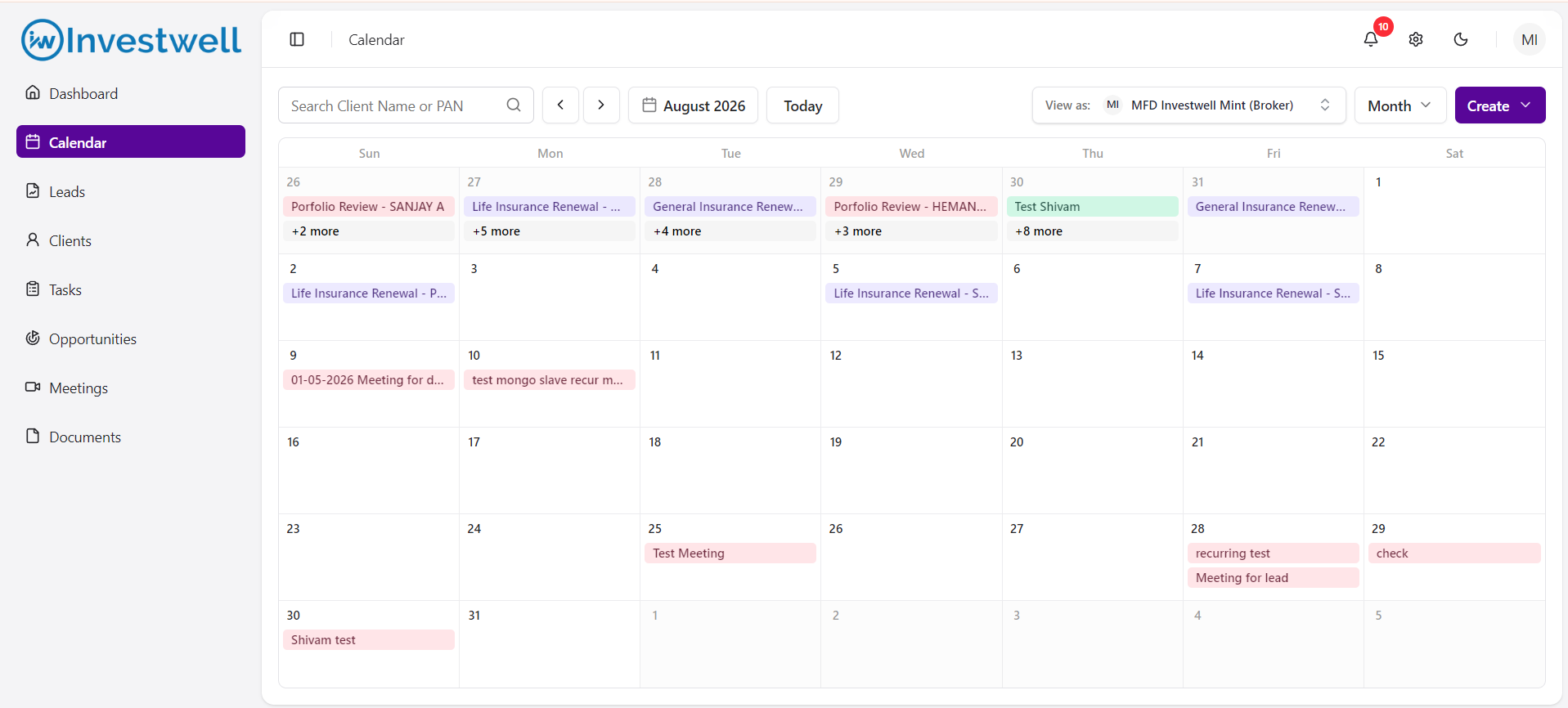
Month View
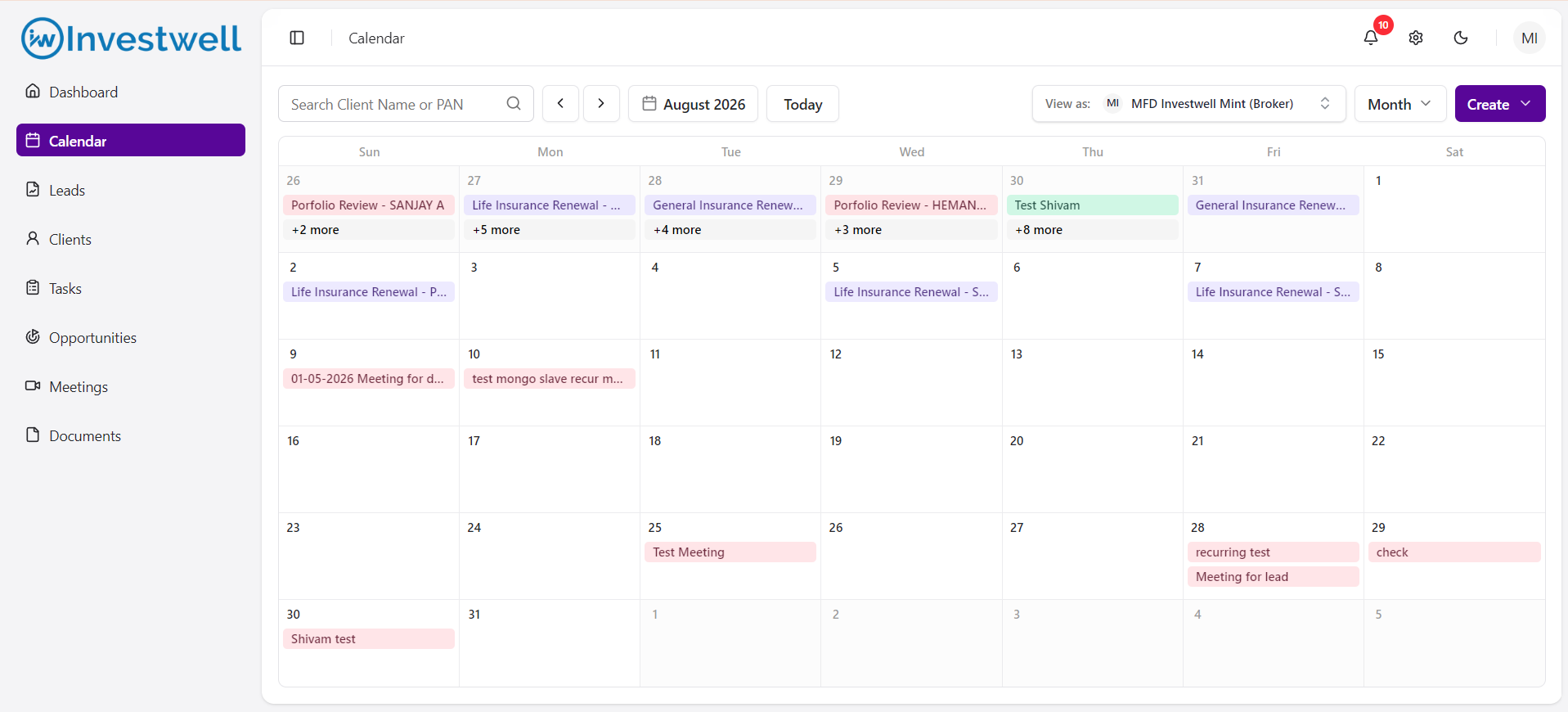
Displays all scheduled activities for the selected month, allowing users to quickly identify upcoming engagements. Users can navigate to different months by the given arrow keys, and click on today to go the current month
Week View
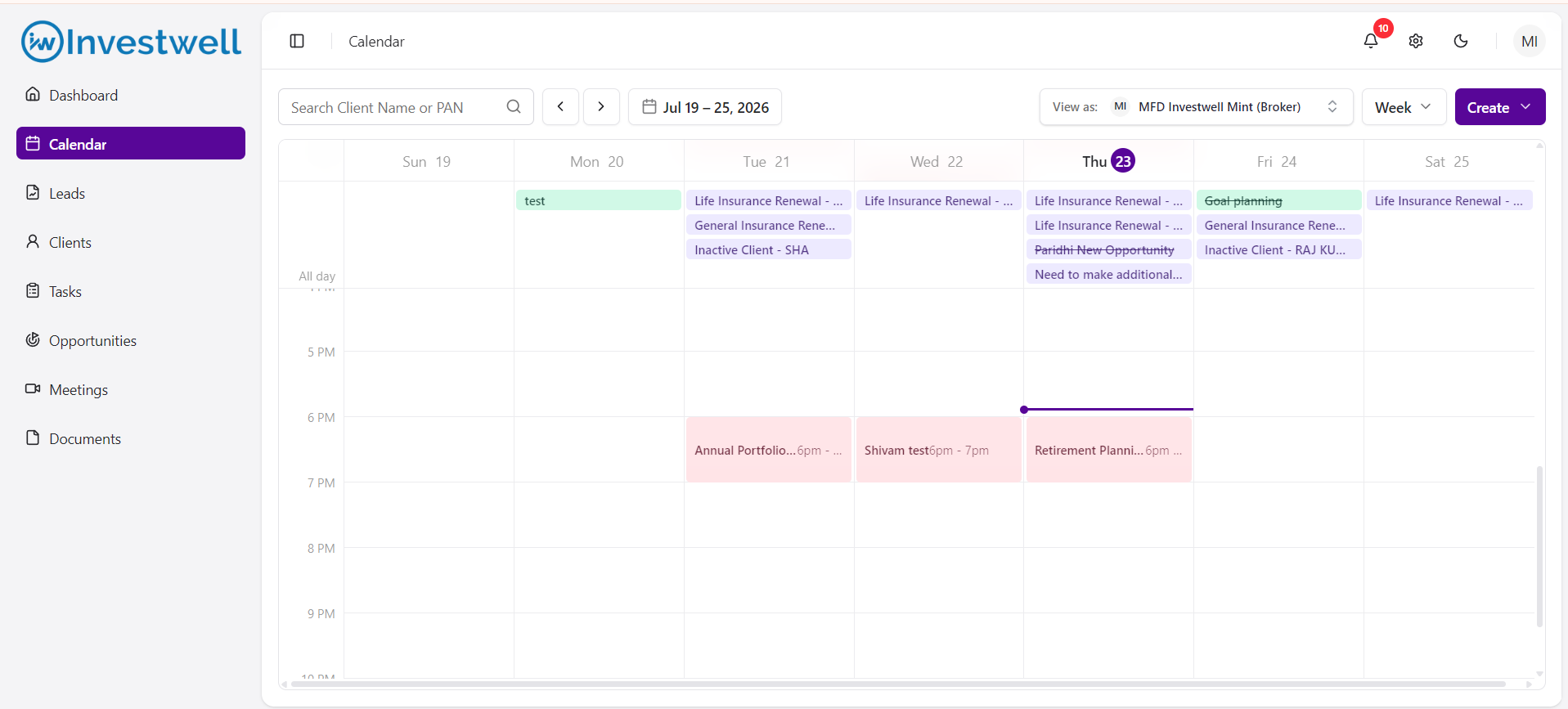
Displays activities scheduled during the selected week along with their respective time slots. Users can navigate to different weeks by the given arrow keys, and click on today to go the current week. The events are bifurcated as all day events - tasks/opportunities and time based events - Meetings.
This view is useful for weekly planning and workload management.
Day View
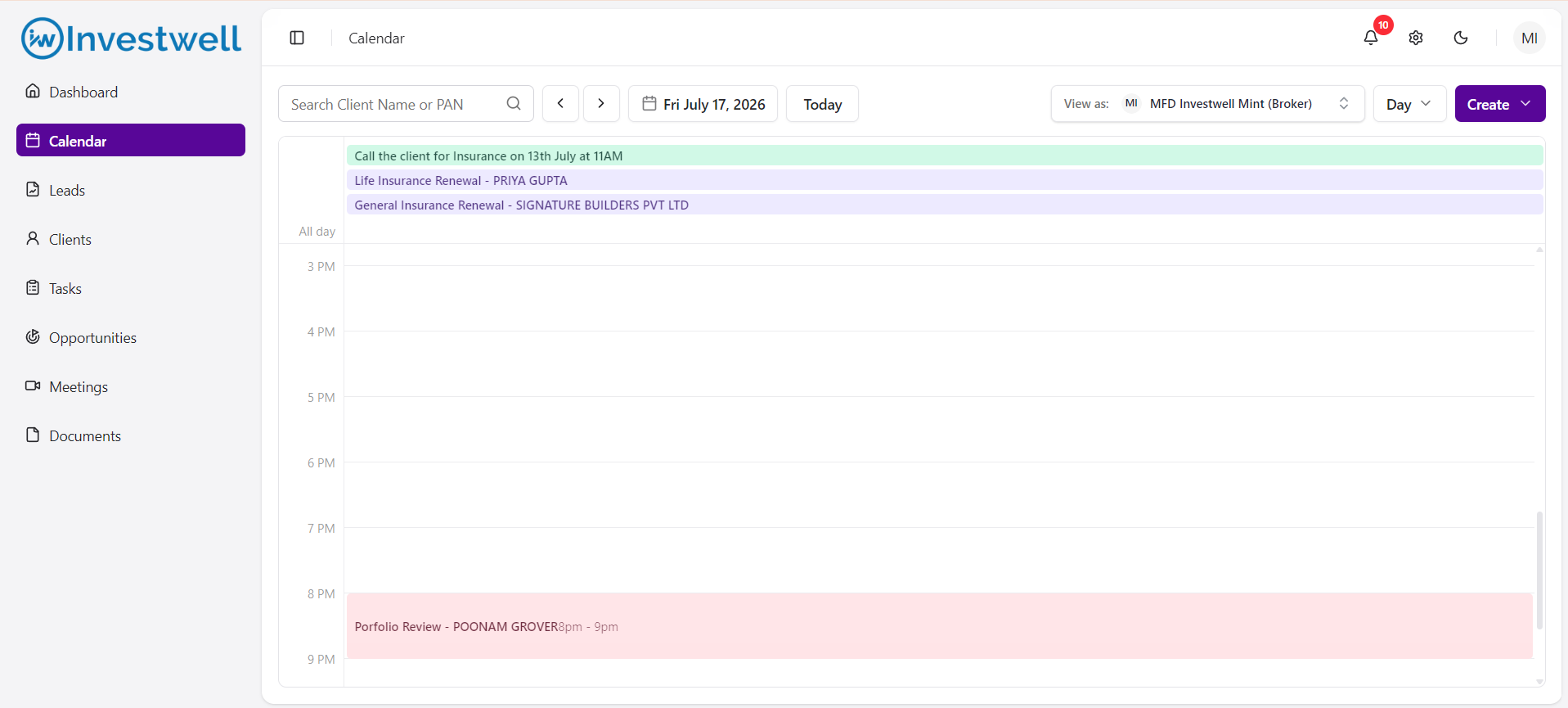
Displays all scheduled activities for a selected day in a time-based layout. Users can navigate to different days by the given arrow keys, and click on today to go the current day.
Users can easily identify occupied and available time slots.
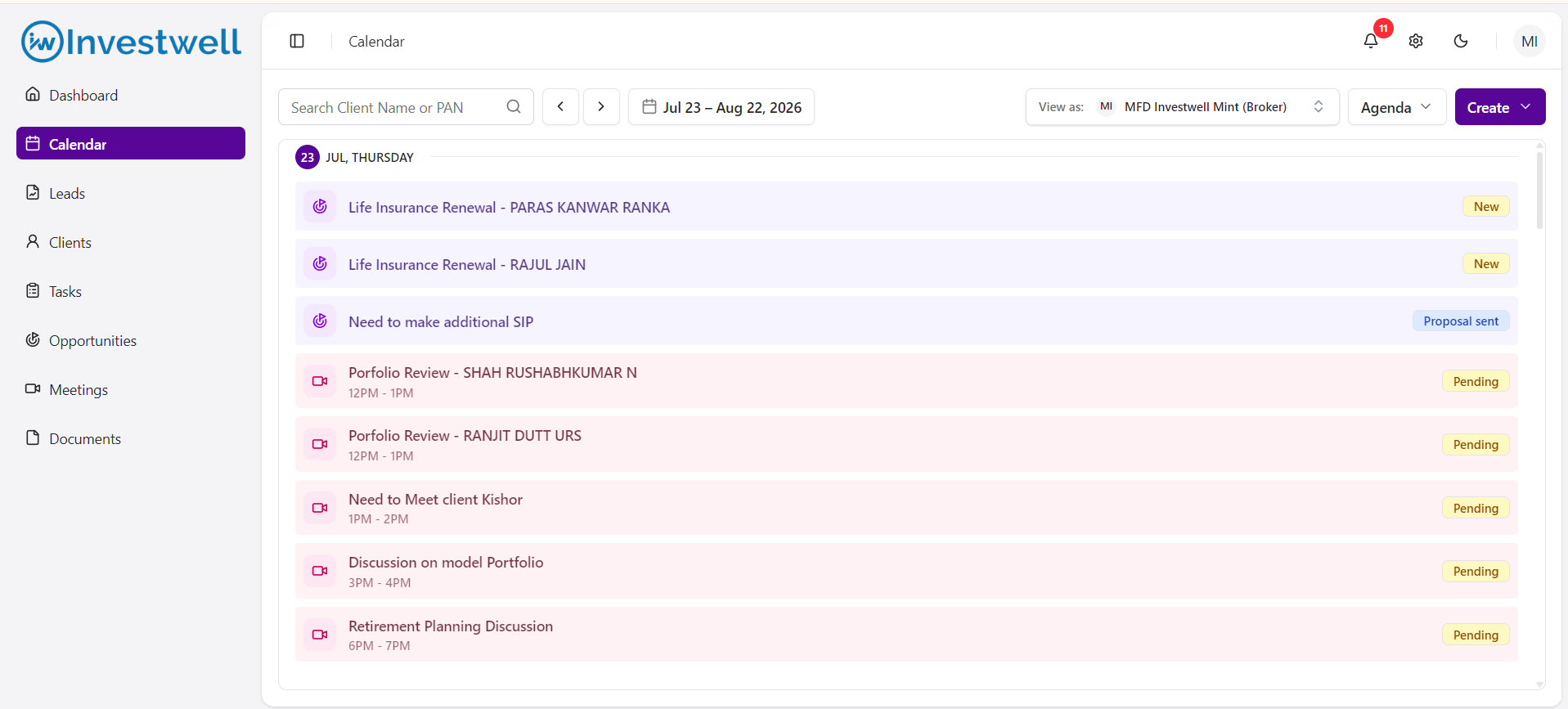
Agenda View
Displays all upcoming calendar activities in chronological order.
Agenda View provides a simplified list format for quickly reviewing scheduled events.
Notes
Users can switch between Month, Week, Day and Agenda views at any time.
Navigation controls allow users to move to previous or upcoming dates.
Clicking Today returns the calendar to the current date.
Creating Activities
Introduction
Users can create CRM activities directly from the Calendar without navigating to individual modules.
Path: CRM → Calendar → Create
Path: CRM → Calendar → Click on any day in month view/day and time in week view/time slot in day view
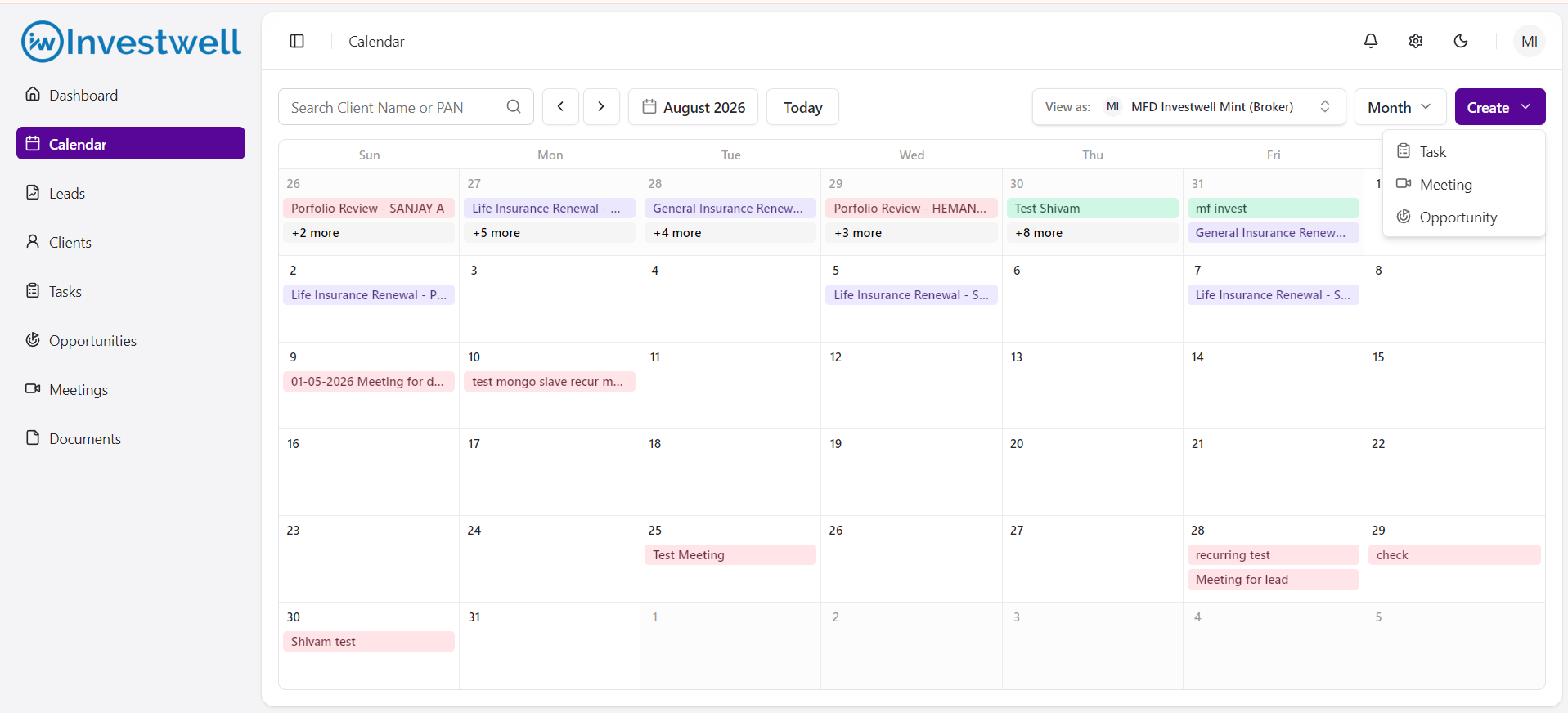
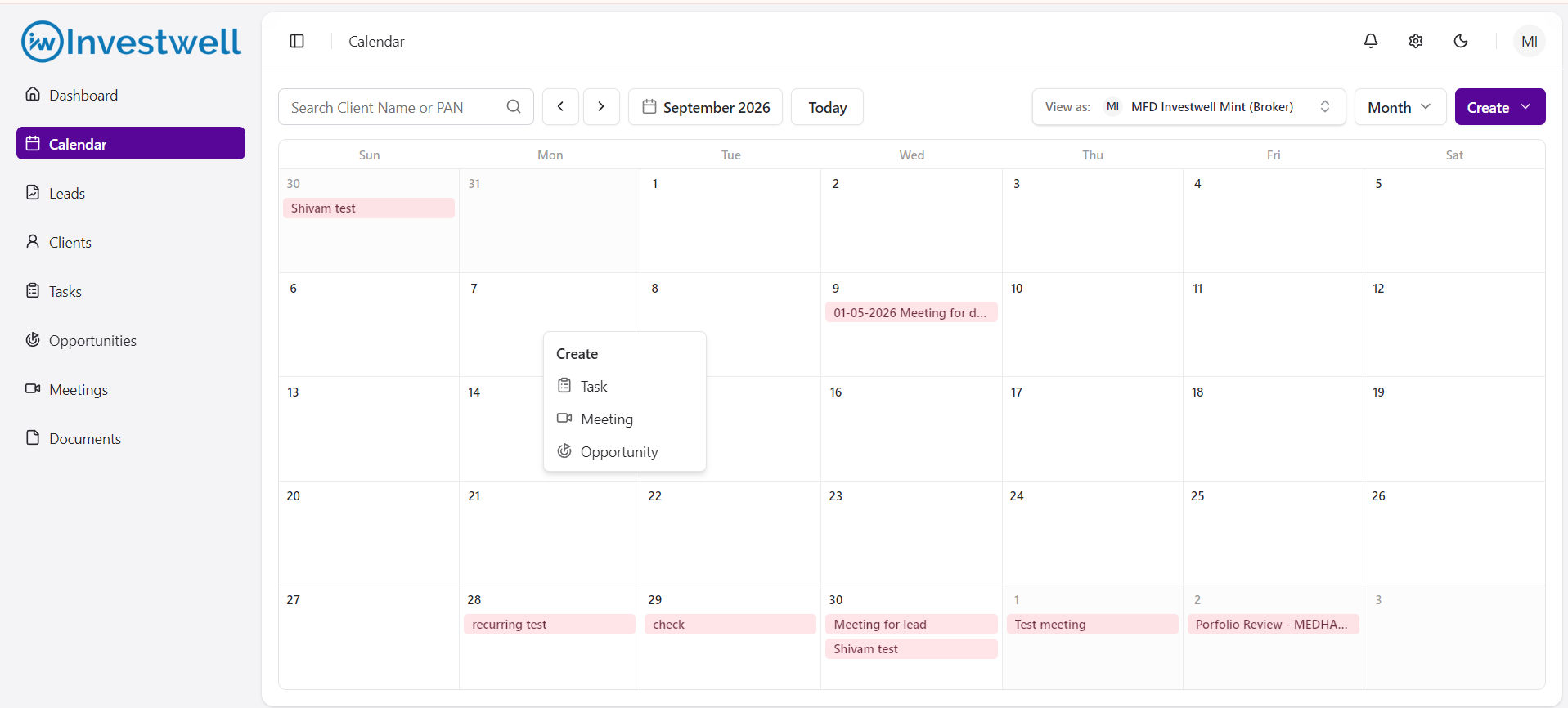
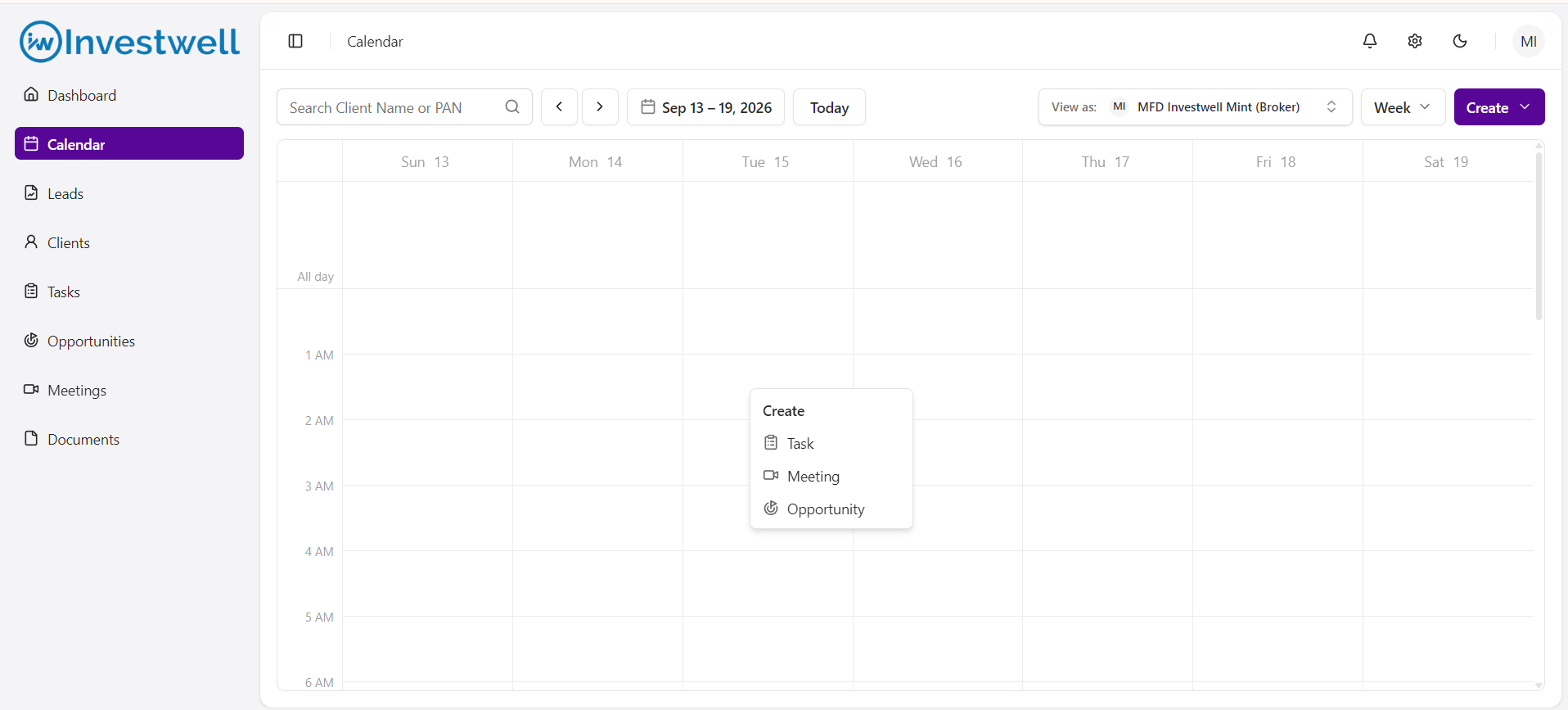
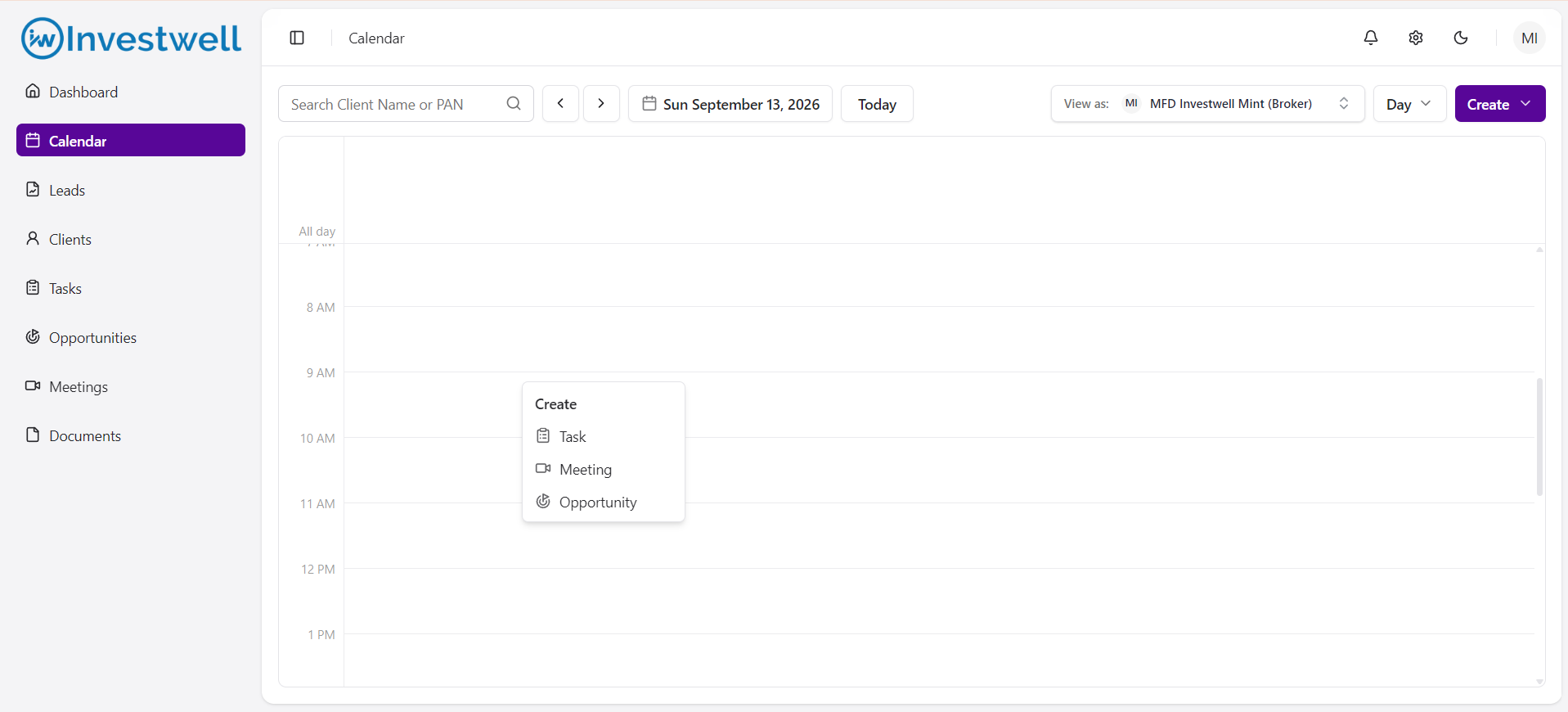
Creating a Task/Meeting/Opportunity
To create
Click Create/Click on the calendar on any view
Select Task/Meeting/Opportunity
Enter the required details.
Click Create.
The newly created task/meeting/opportunity is immediately displayed in the calendar on the selected date
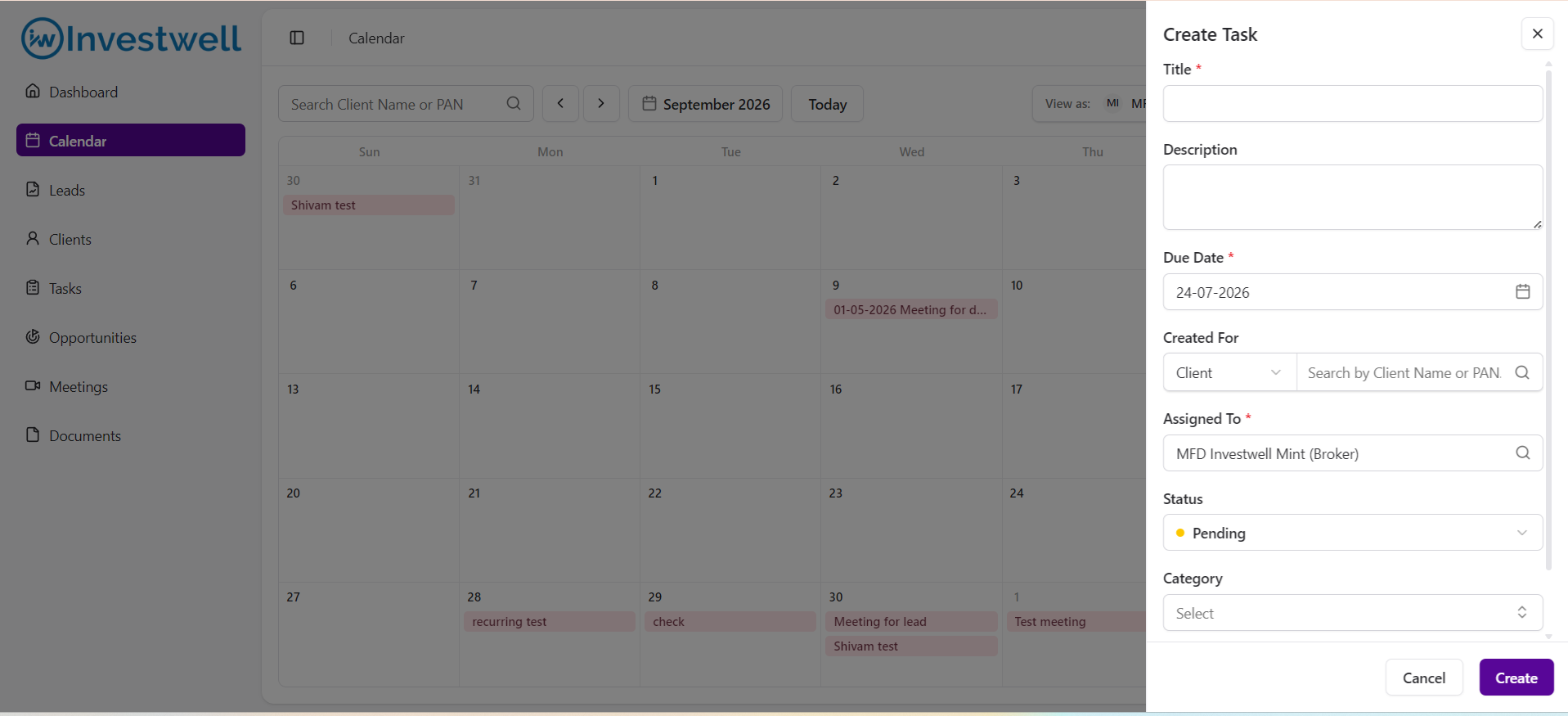
Editing a Task/Meeting/Opportunity
To edit
Click on any existing Task/meeting/opportunity in any view on the calendar
Edit the values shown on cascade
Edit the required details.
Click Save
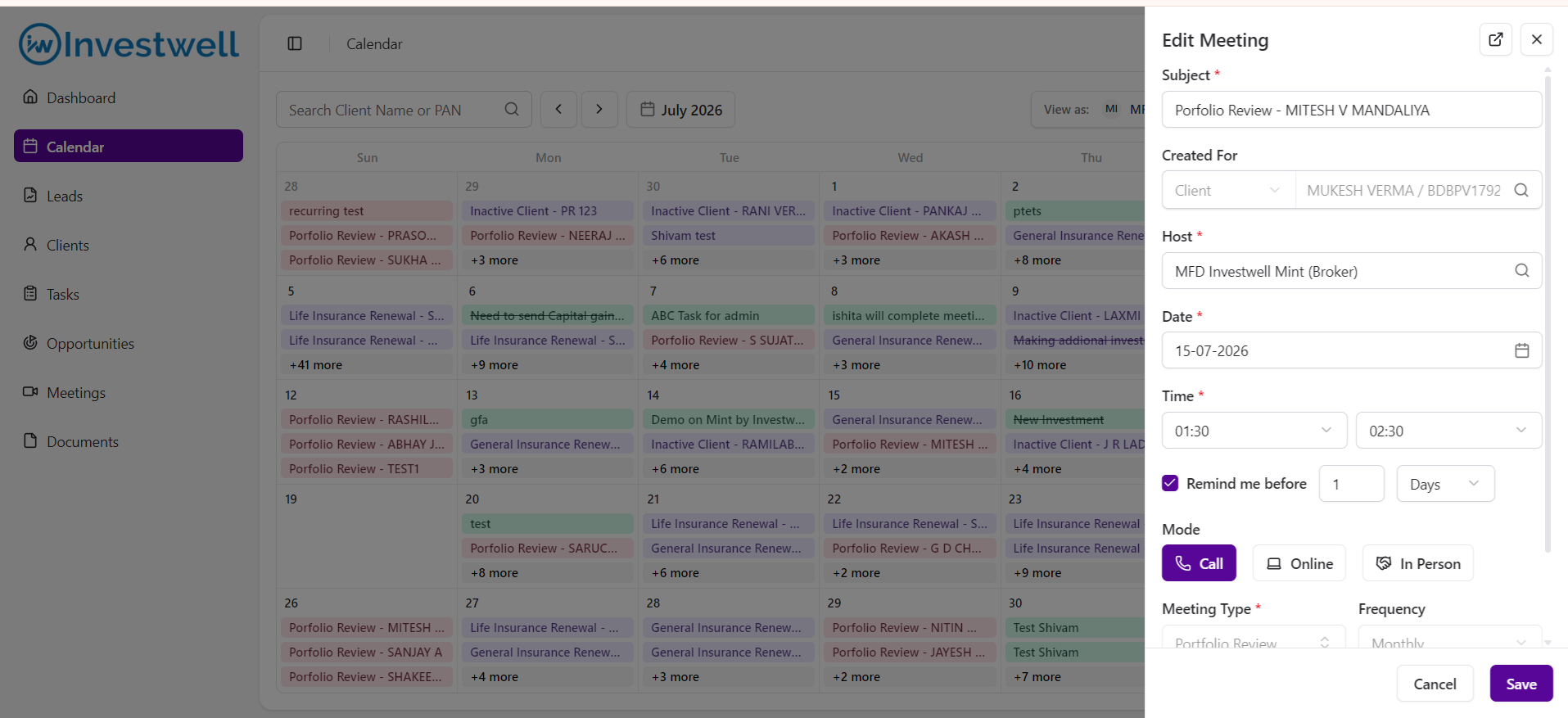
Important : Users can also
- Change the date of All day events - tasks and opportunities - via direct drag and drop in Month and Week view
- Change the date of meetings in Month view via drag and drop
- Change the date and time of meetings in Week view via drag and drop
- Change the time of meetings in Day view via drag and drop
Notes
Activities can be created/edited directly from the Calendar.
Newly created activities become immediately visible in the selected Calendar view on the selected date
Find a Time
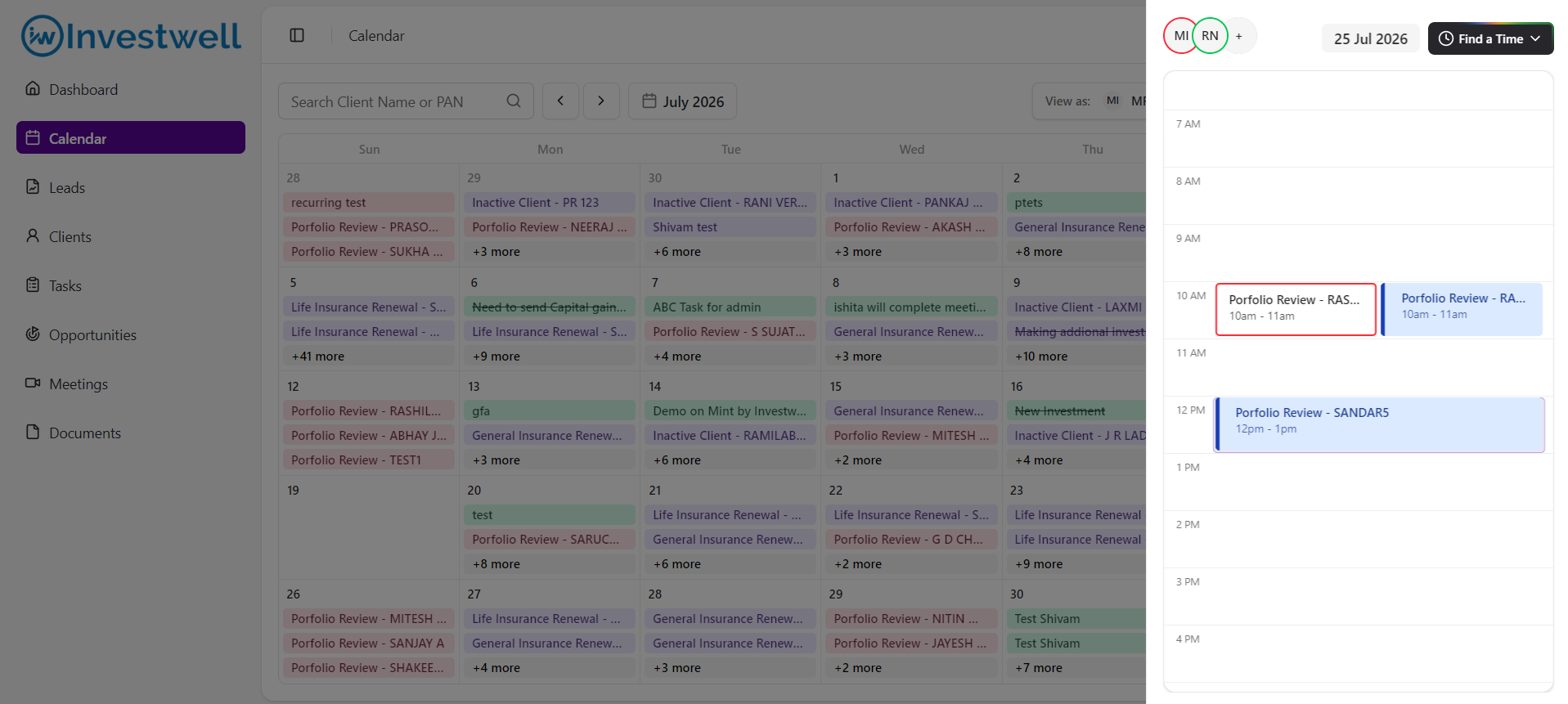
The Find a Time feature helps users schedule meetings without conflicting with existing participant schedules.
Users can:
View existing meetings of selected collaborators.
Identify available meeting slots.
Select a suitable time before scheduling the meeting.
For using the same -
- Create a meeting/edit a meeting
- Add collaborators/edit coolaborators
- Click on Find a time option
- See the existing meetings of added collaborators of the day and schedule the meeting as per their schedule
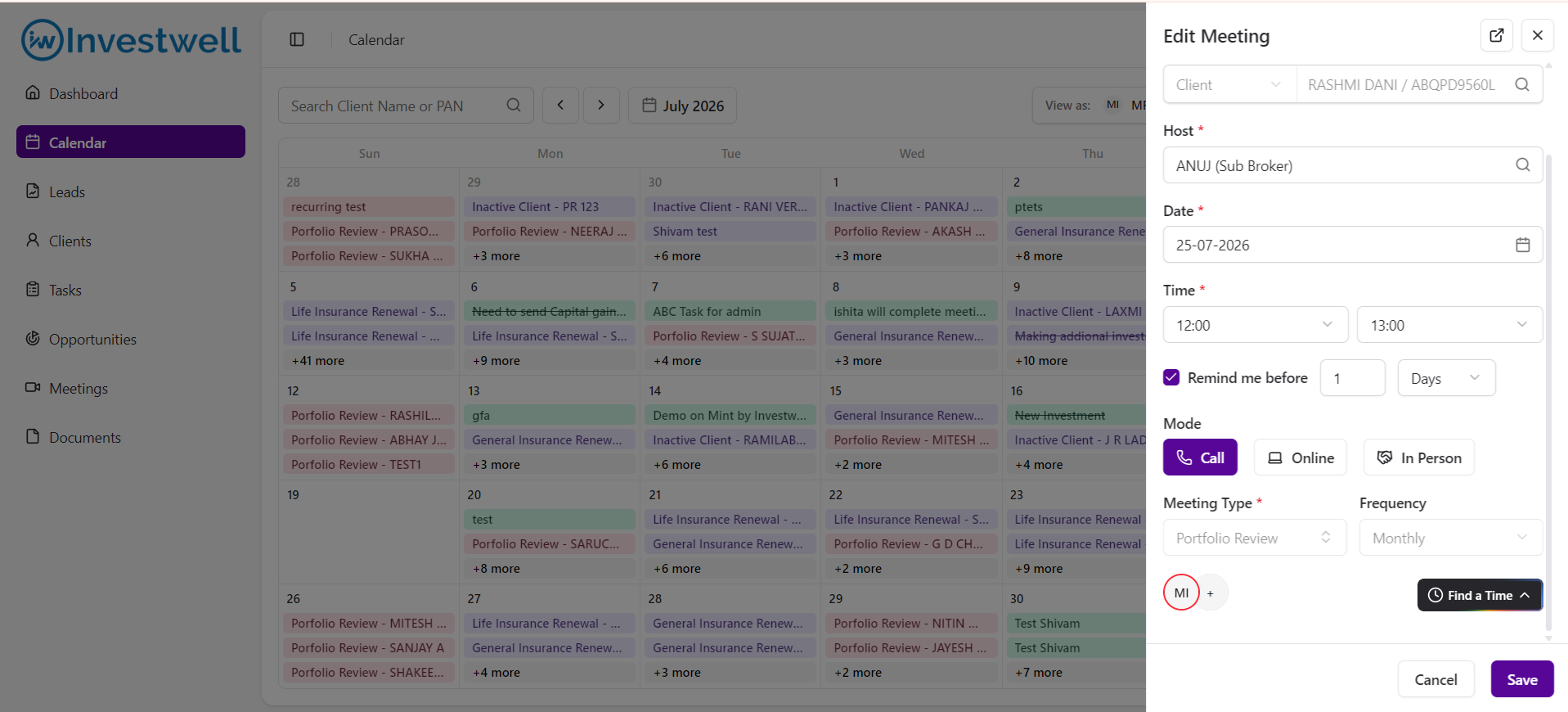
Notes
Existing meetings are displayed to help avoid scheduling conflicts.
Meeting timings can be adjusted before saving.
View As
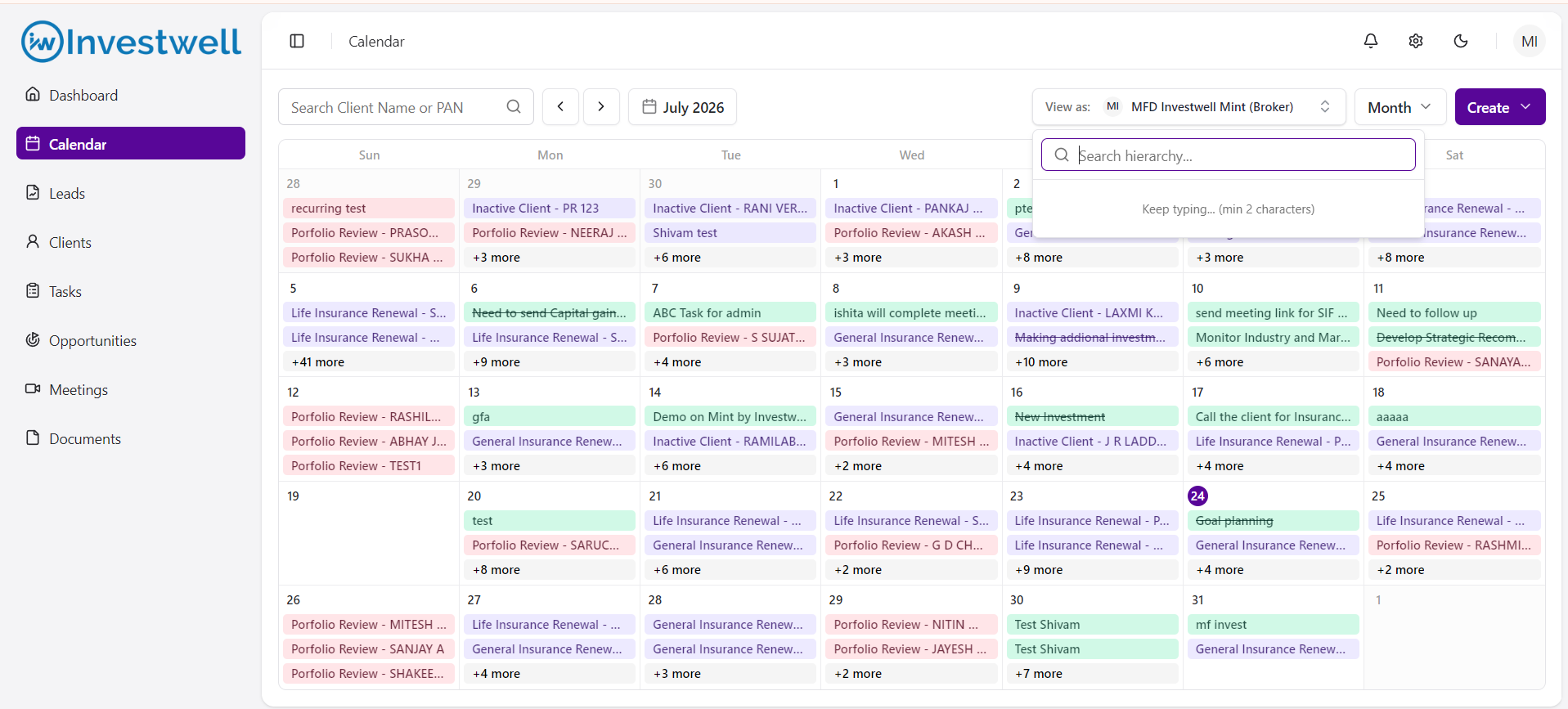
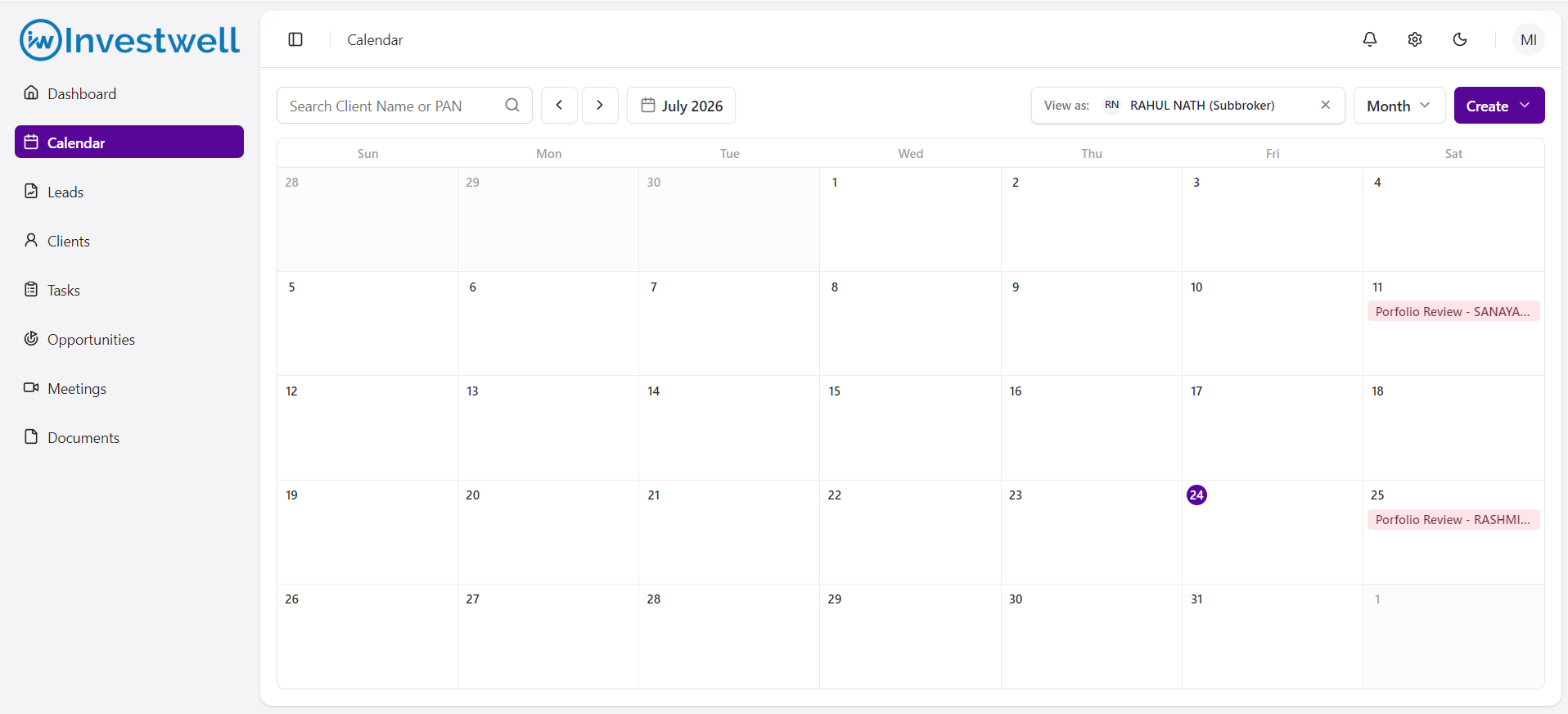
View As enables users to view calendar schedules of other users within their reporting hierarchy.
Users can:
View schedules of team members.
Switch between accessible users.
Monitor team availability.
Plan events more effectively.
Edit the events within their hierarchy in case of non availability of a user within a period
Notes
Users can only view calendars for users they have permission to access.
Calendar visibility follows the CRM hierarchy.
Notes
The Calendar displays Meetings, Tasks and Opportunities in a unified interface.
Multiple Calendar views are available for different planning requirements.
Activities created from the Calendar are immediately reflected in the selected view.
Find a Time assists users in identifying suitable meeting slots by displaying collaborator availability.
Views as allows users to view the calendar of users under their hierarchy, effectivly allowing broker admin to view calendar of whole organisation.
Was this article helpful?
That’s Great!
Thank you for your feedback
Sorry! We couldn't be helpful
Thank you for your feedback
Feedback sent
We appreciate your effort and will try to fix the article