In Investwell, you can create Sub brokers, assign them to clients, define payout sharing rules and run the calculation to know the amount to be paid to each sub broker for each brokerage process month. This guide will take you through each of these steps.
Create Sub broker:
From your Admin portal login go to Settings >> User Settings
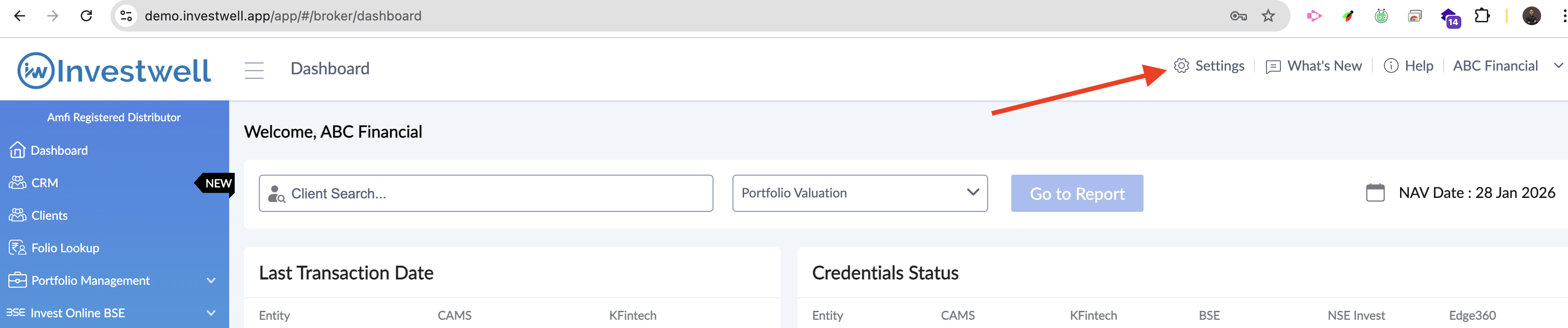
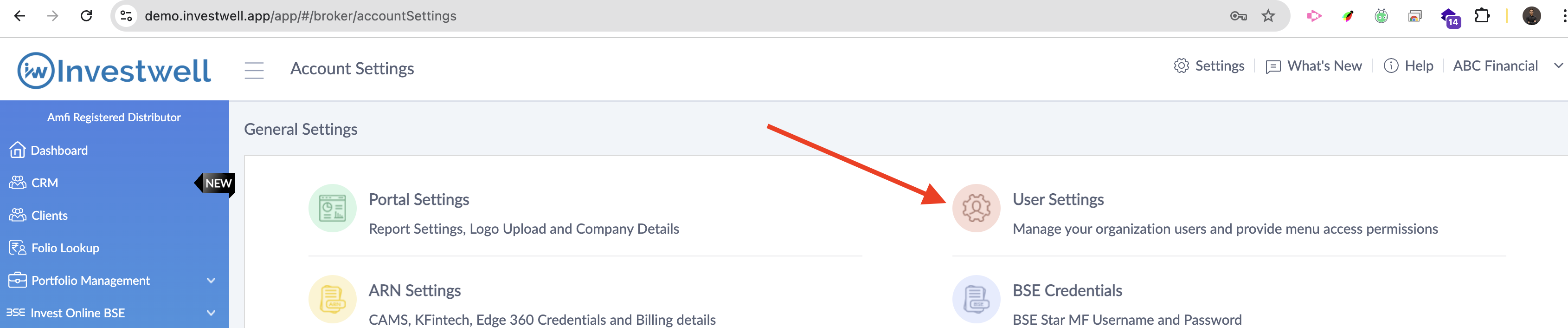
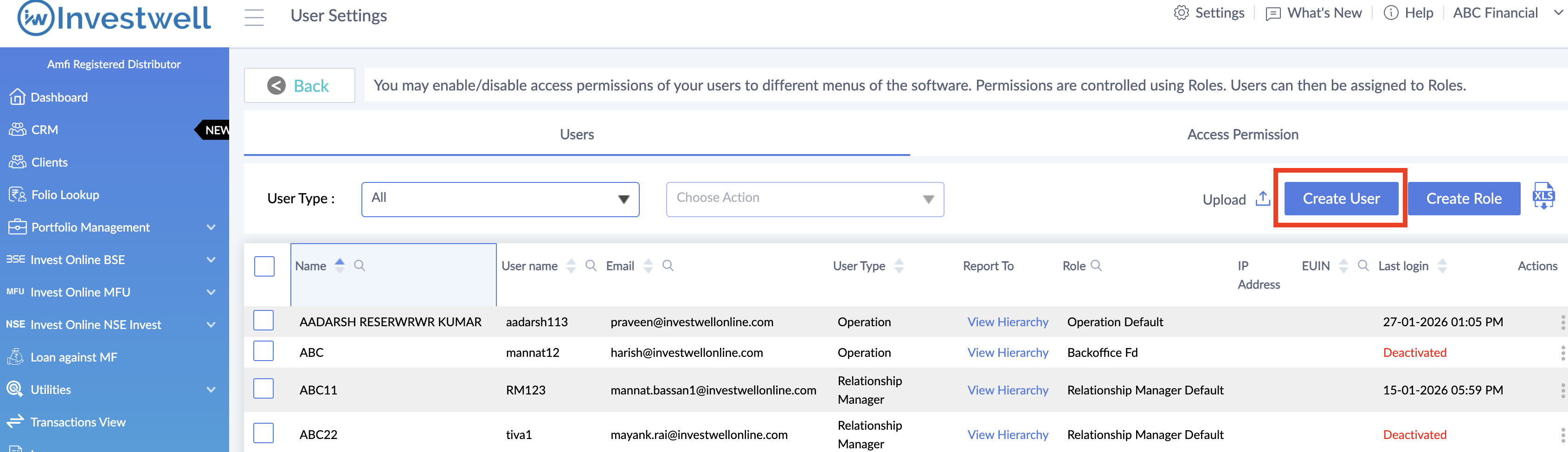
Here, you can see all the organization users under Admin. Click on Create User and choose User Type as Sub broker to create a sub broker.
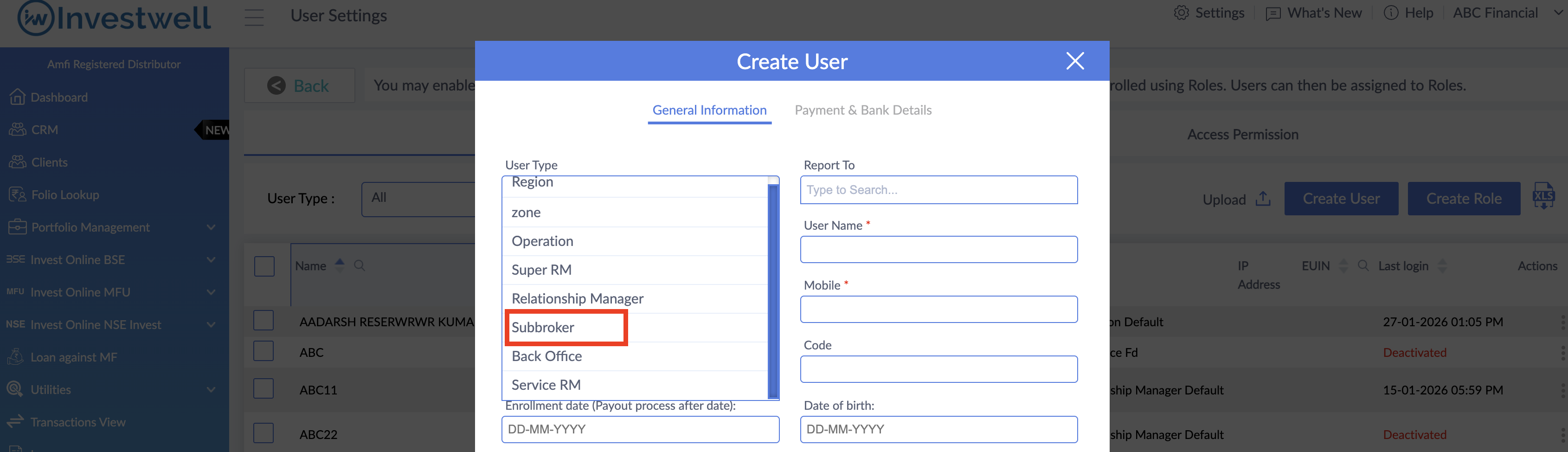
Please note - In Investwell, you can rename the level names as per your organization's policy. So, in case you have renamed Sub broker as Associate, please chose that level in User Type dropdown and fill in the rest of the details to create the Sub broker.
Enter Category of the Sub broker to be able to assign Payout sharing rules based on category later on. You may assign any alphabet for the available list. Usually, MFDs organize their Sub brokers in tiers (Gold, Silver, Platinum etc). The same can be defined by Categories in Investwell.
Sub broker ARN and EUIN are not mandatory fields but if your sub broker has their own ARN and EUIN you should enter them here.
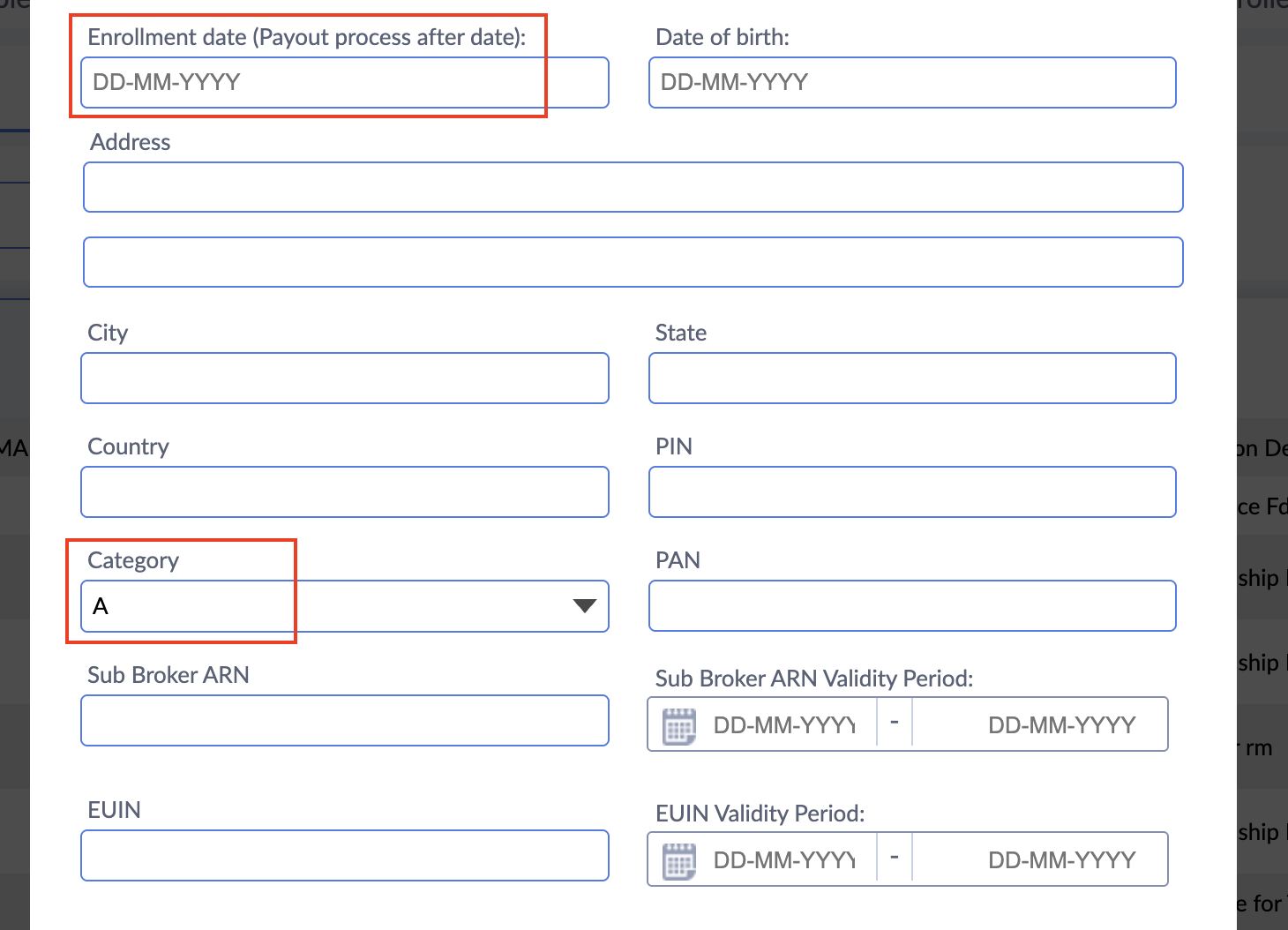
Also Enrollment date is advisible to be entered. Payout is calculated on only those transactions where transaction date is greater than Enrollment date of the Sub broker. This is done because those transactions have been done prior to Sub broker joining your organization.
Add Sharing rules
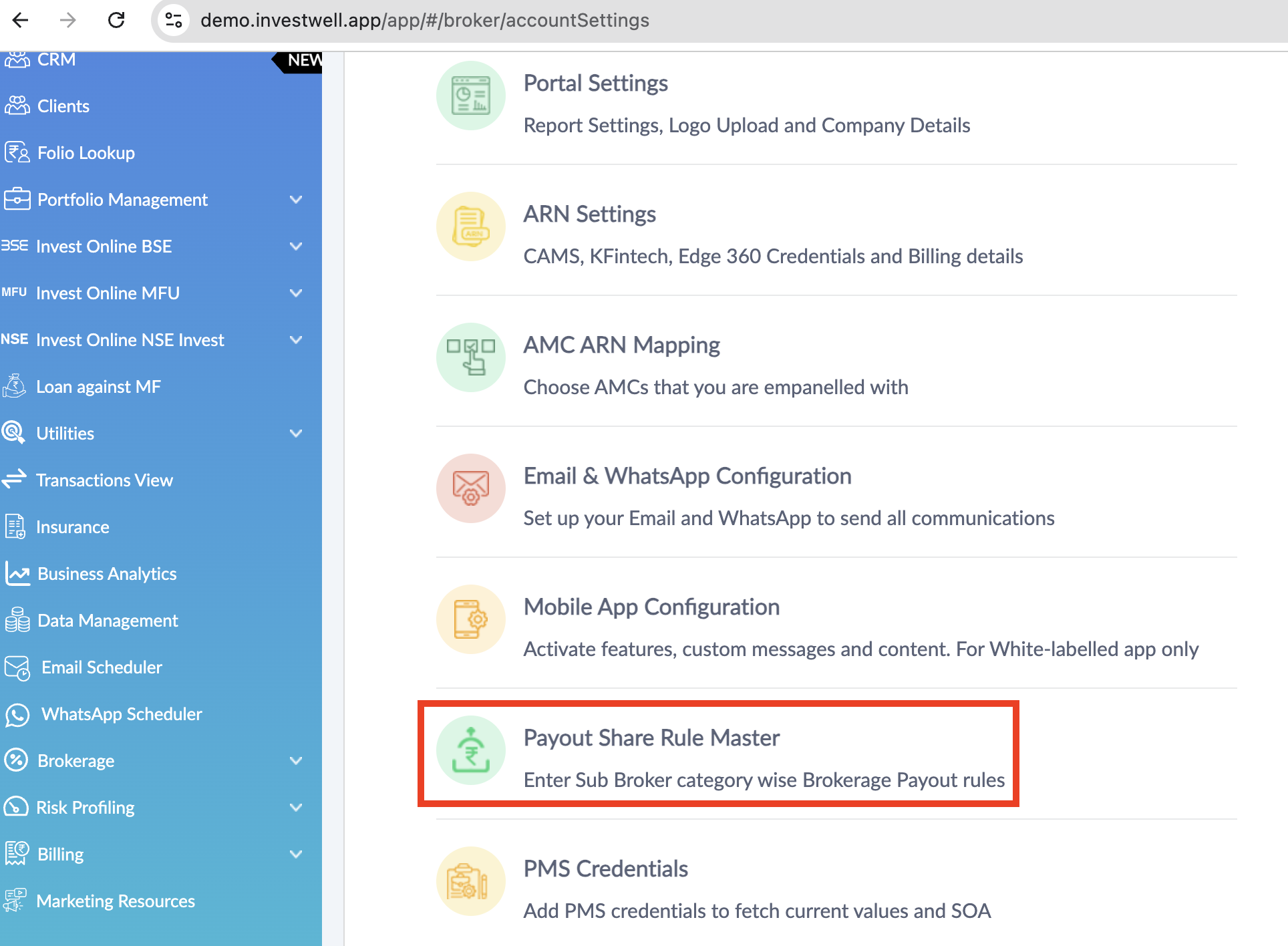
Go to Settings >> Payout Rule master.
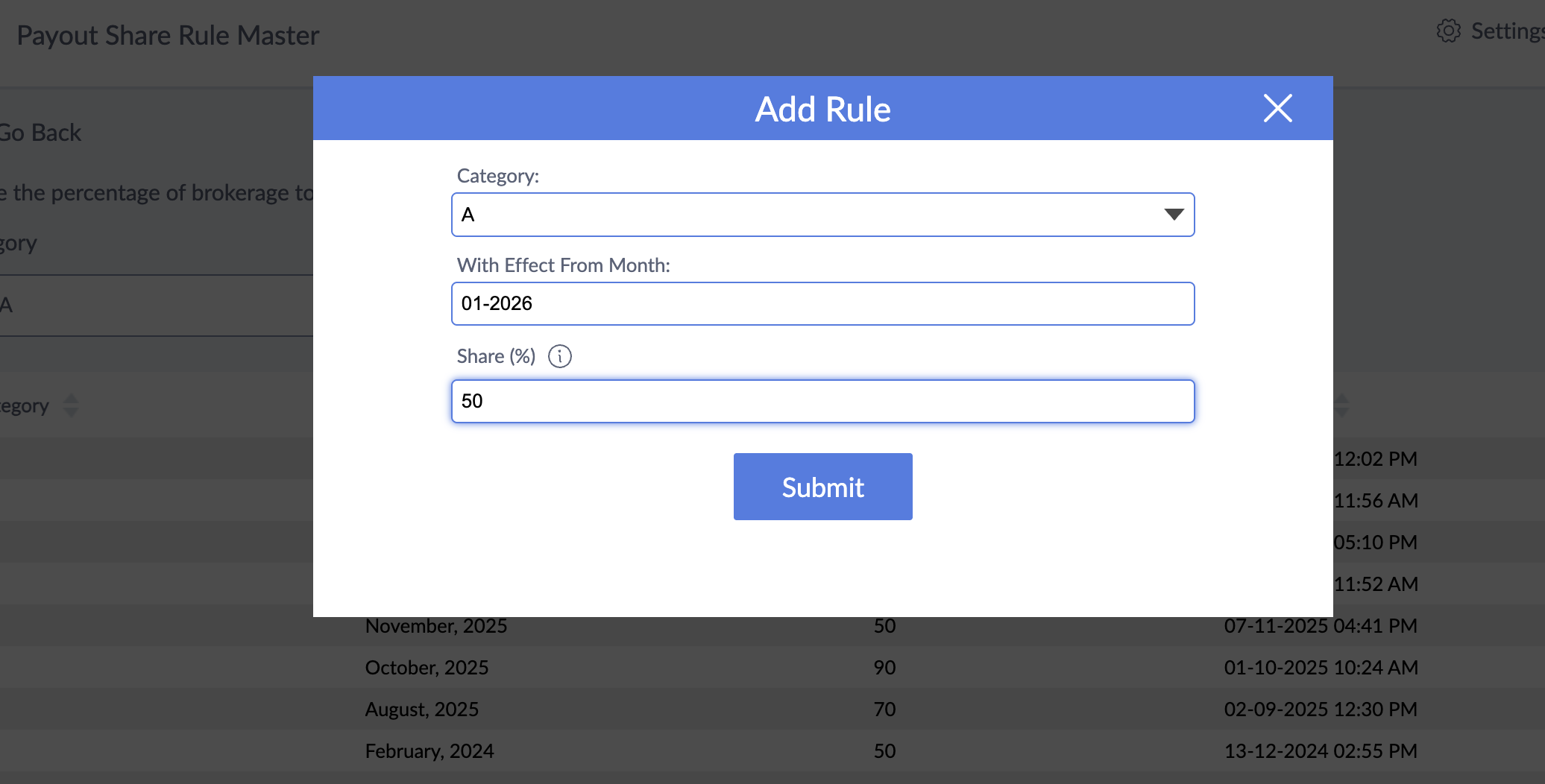
Here, you will be able able to define the Sharing rules for each Sub broker category and based on an Effective date.
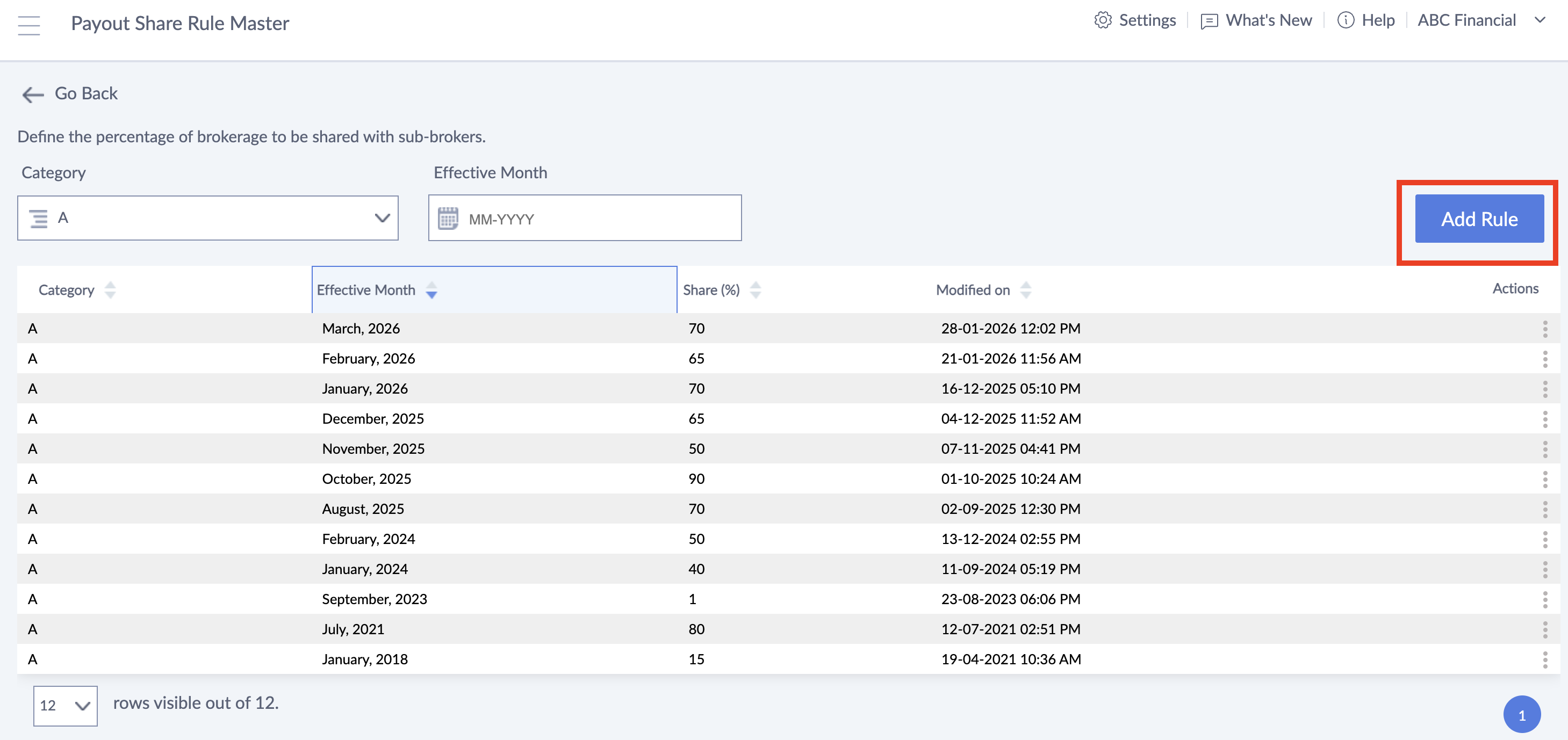
The Effective date is used to change Sharing rules over time. For Example, if a AMC changes their brokerage structure over time you can also change the Sub broker sharing rules the same way. When Brokerage is process for a particulat process month the last available Sharing rule as per the Effective date is picked up.
Assign client to Sub broker:
The AMC pays Brokerage on each transaction that's part of clients' holdings every month. In Investwell, Brokerage earned by a Sub broker is shown by checking which client the folio belongs to and in turn which sub broker the client belongs to.
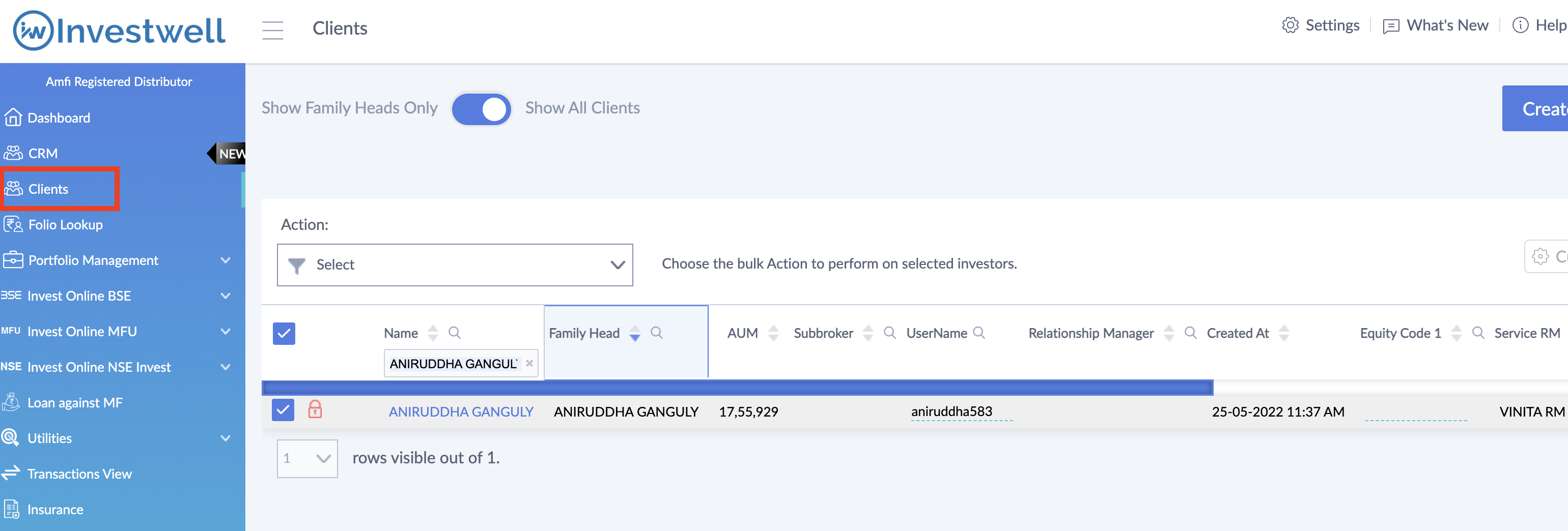
To Assign a Sub broker to a client go to the Clients menu from your Broker login.
Here, search for a client and select them from the checkbox on the left of the table
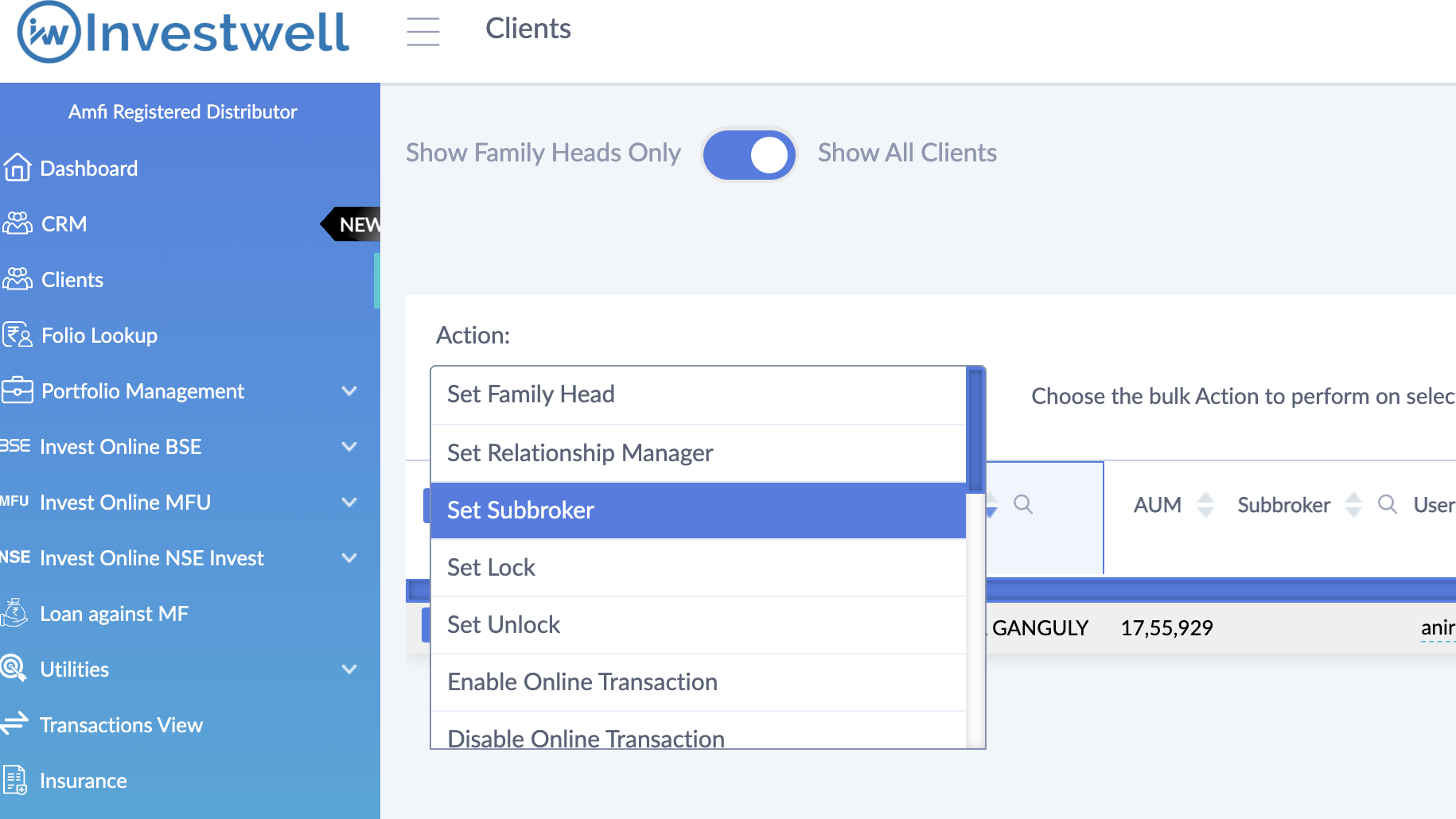
Then select Assign Sub broker from the Action list
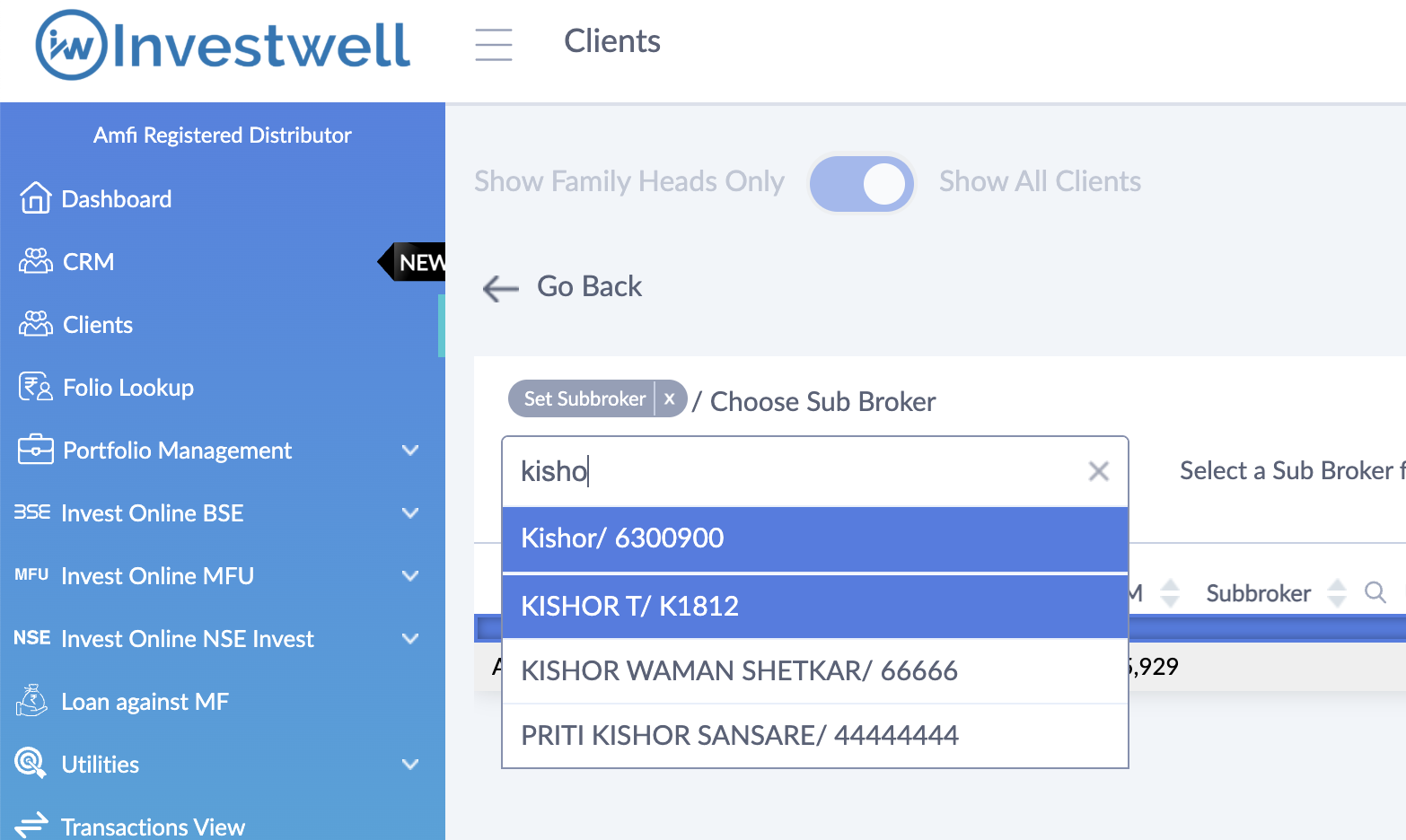
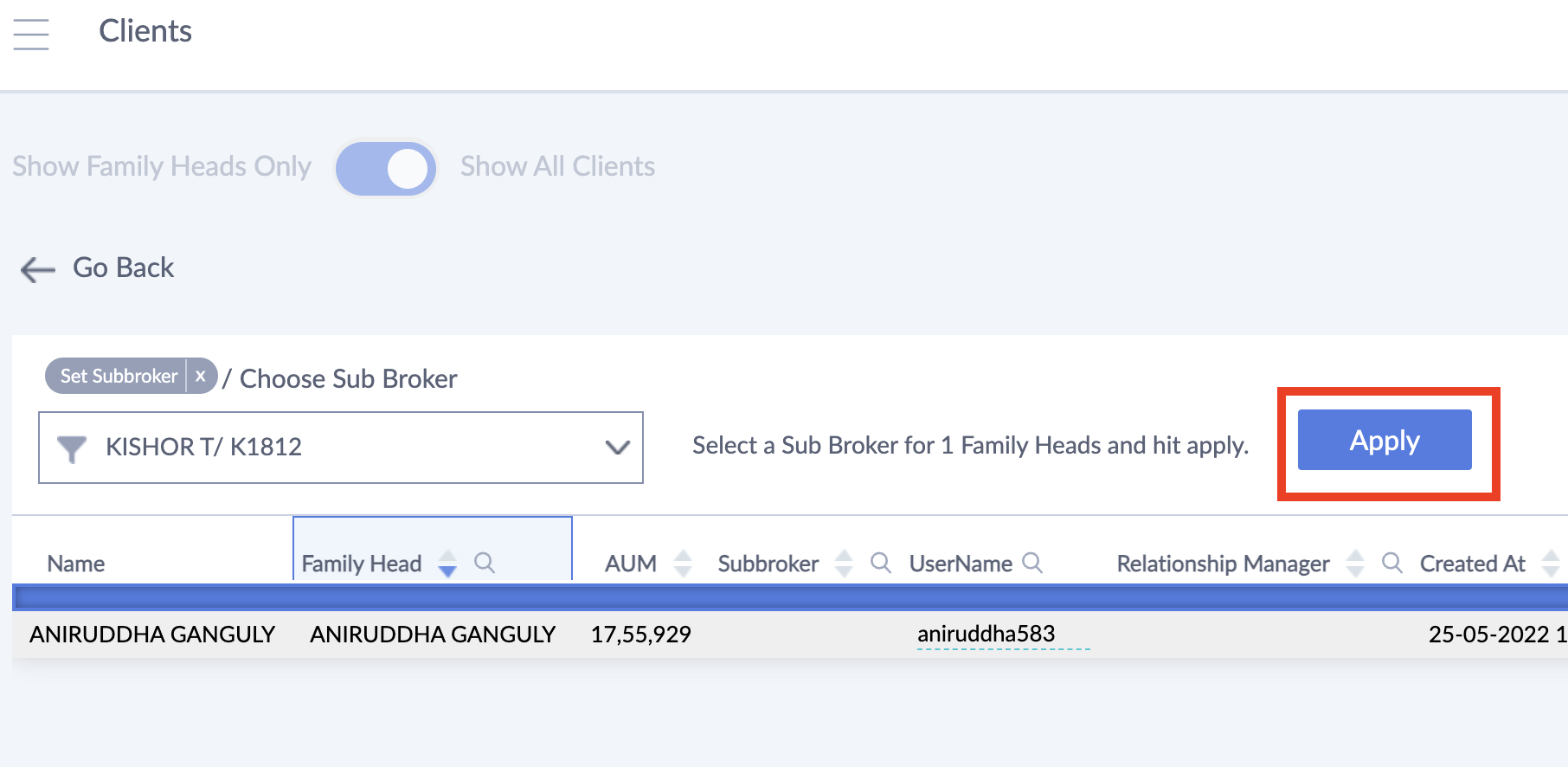
Search for the Sub broker and click on Apply
Payout Process:
Now that we have assigned Sub broker to the respective clients, set the category for the Sub broker and defined the category wise payout sharing rates we can now go to Process the Payout calculation.
- Go to Brokerage >> Payout Process menu
- Select the process month.
- You may also select a particular Sub broker category and then click on View
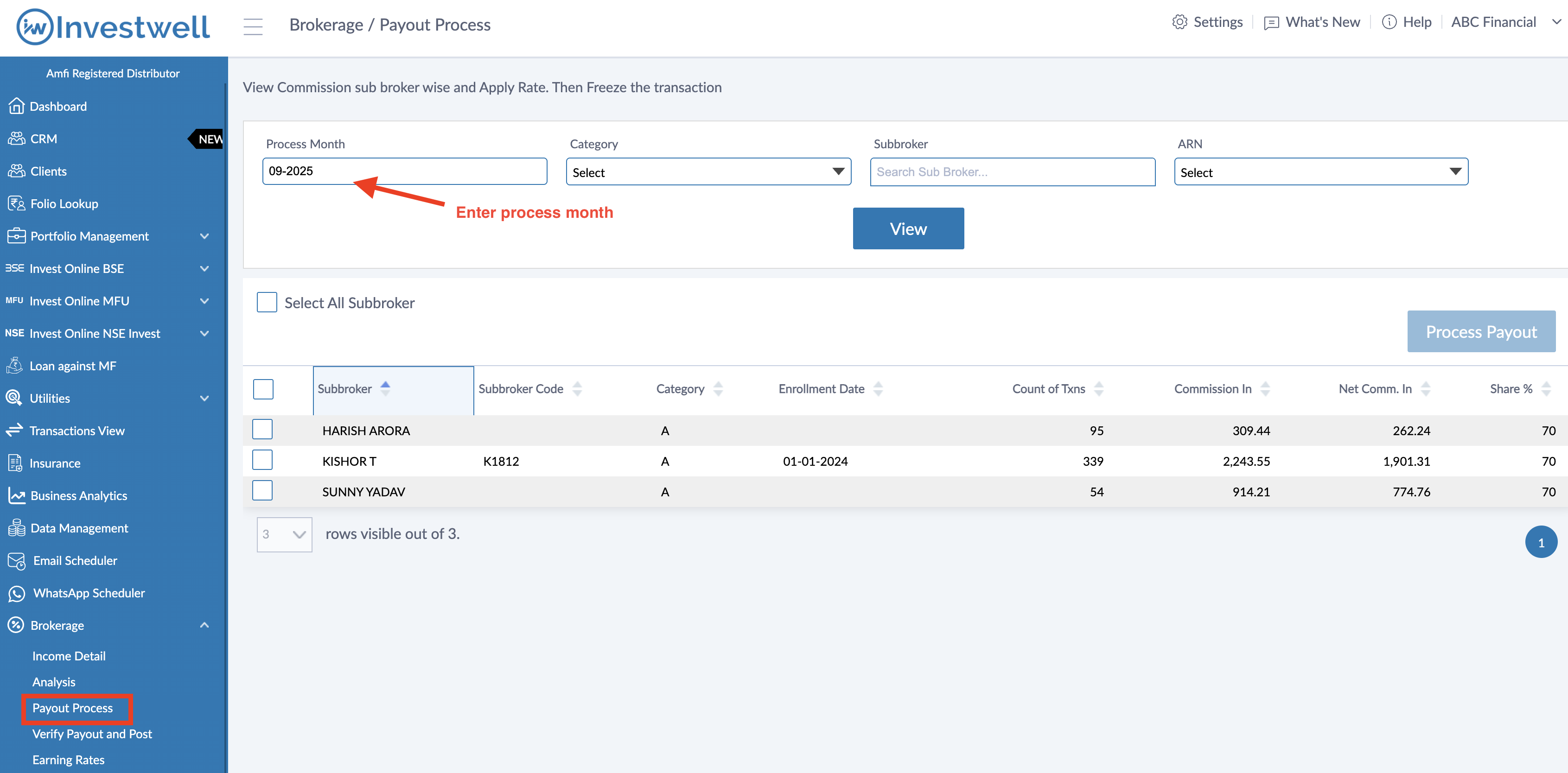
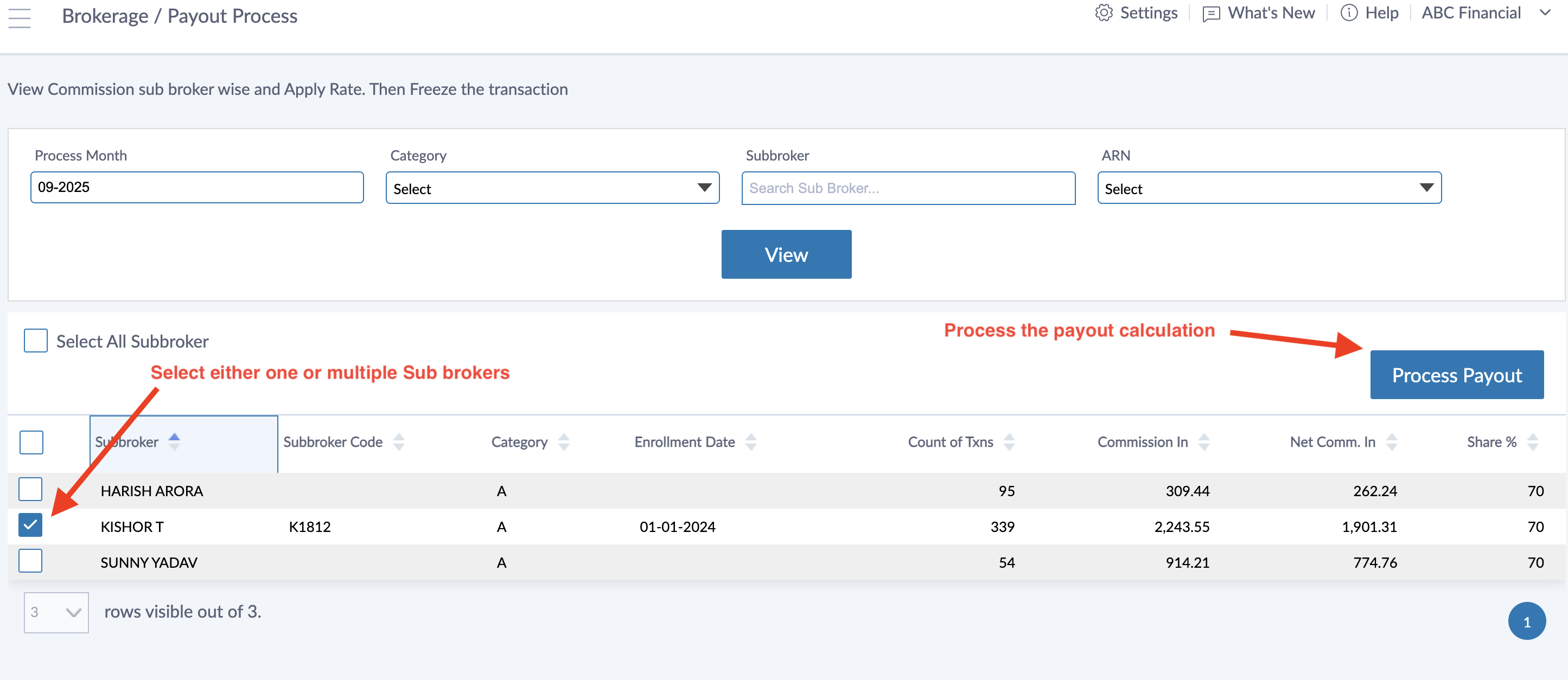
Here, you may want to verify if the system has correctly categorized each Sub broker with their respective Payout rates. Then select the sub brokers and click on Process Payout button. Investwell will then apply the payout sharing % to all the applicable brokerage data in a few hours time.
Verify Payout and Post
Go to Verify Payout and Post menu, choose that process month and click on View.
Here, you'll be able to see the Commission Out amount calculated for each Sub broker.
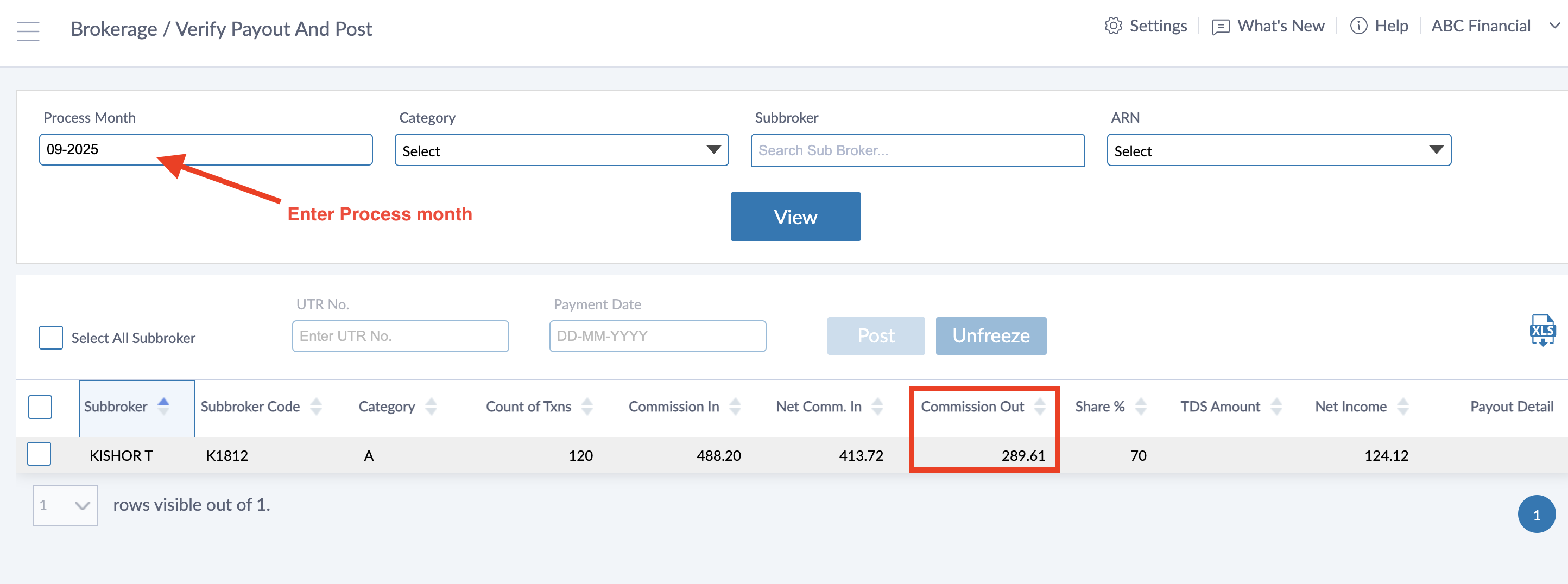
- You can see Commission In,
- Net Commission in (After deducting GST, if entered in ARN Details) = Commission In * 100/118
- Commission Out (Net Commission in * Share %)
- Net Income (Commission in - Commission out)
After making the actual payment to the Sub broker you can come here and select the Sub broker and update the Transaction Reference no. and Date and click on Post for record keeping purpose. This is called Posting the Sub Brokerage
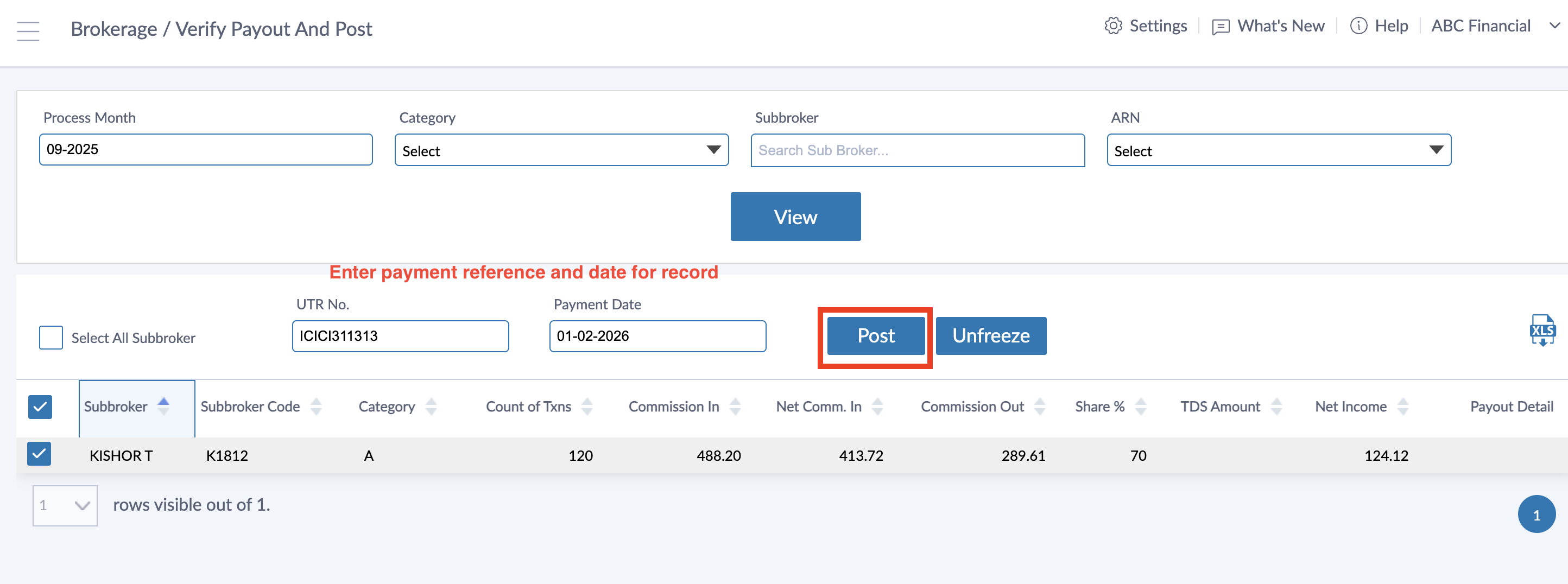
After clicking on Post button a pop up will open with some information. Please read carefully and click on Yes to confirm as this cannot be undone.
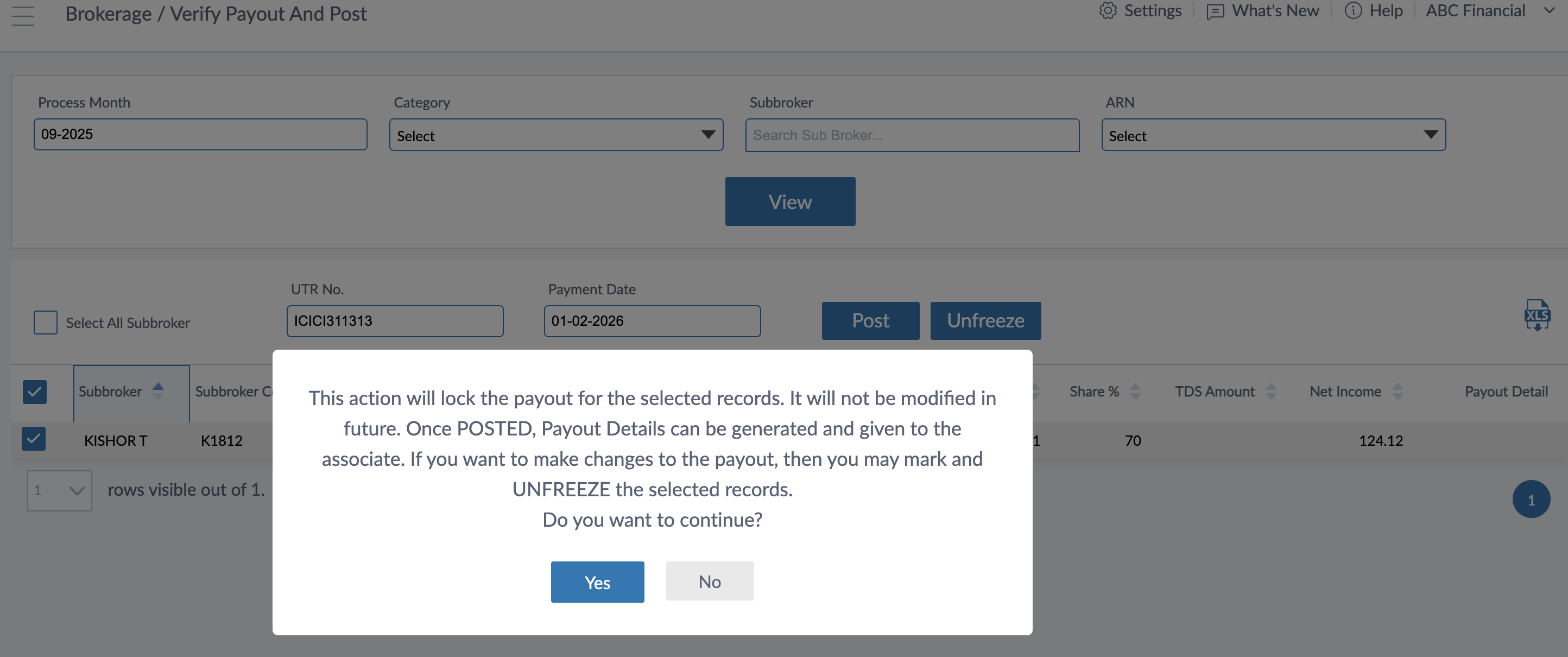
In case, you feel that the Brokerage amout has not been calculated properly and you want to undo the process click on Unfreeze button to do so.
After Posting, you'll be able to see an Excel and PDF download button visible against the Sub broker. This PDF is called Brokerage Payment Detail report. It can be given to a Sub broker where they can see for each Transaction how much Sub brokerage has been paid.
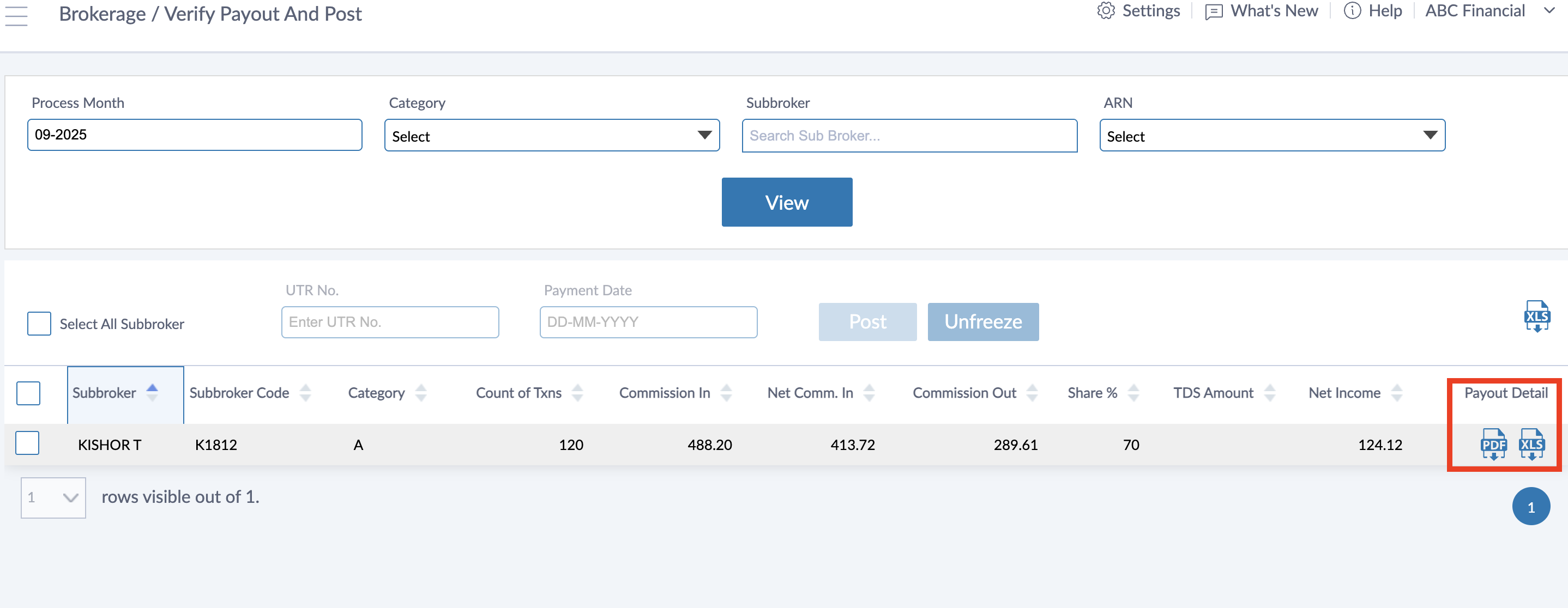
A sample Brokerage Payment detail report is attached to this article for reference.
In the Sub broker login posted sub brokerage is visible for them to analyse for a given month.
Common issues -
After Process the payout if you see that the payout amount hasn't been calculated in Verify Payout and Post menu
You can also go to Income detail report and group by Investor and see the Brokerage data investor wise with Sub broker mapped. This can be used to see if Investor to Sub broker mapping has been done or not.
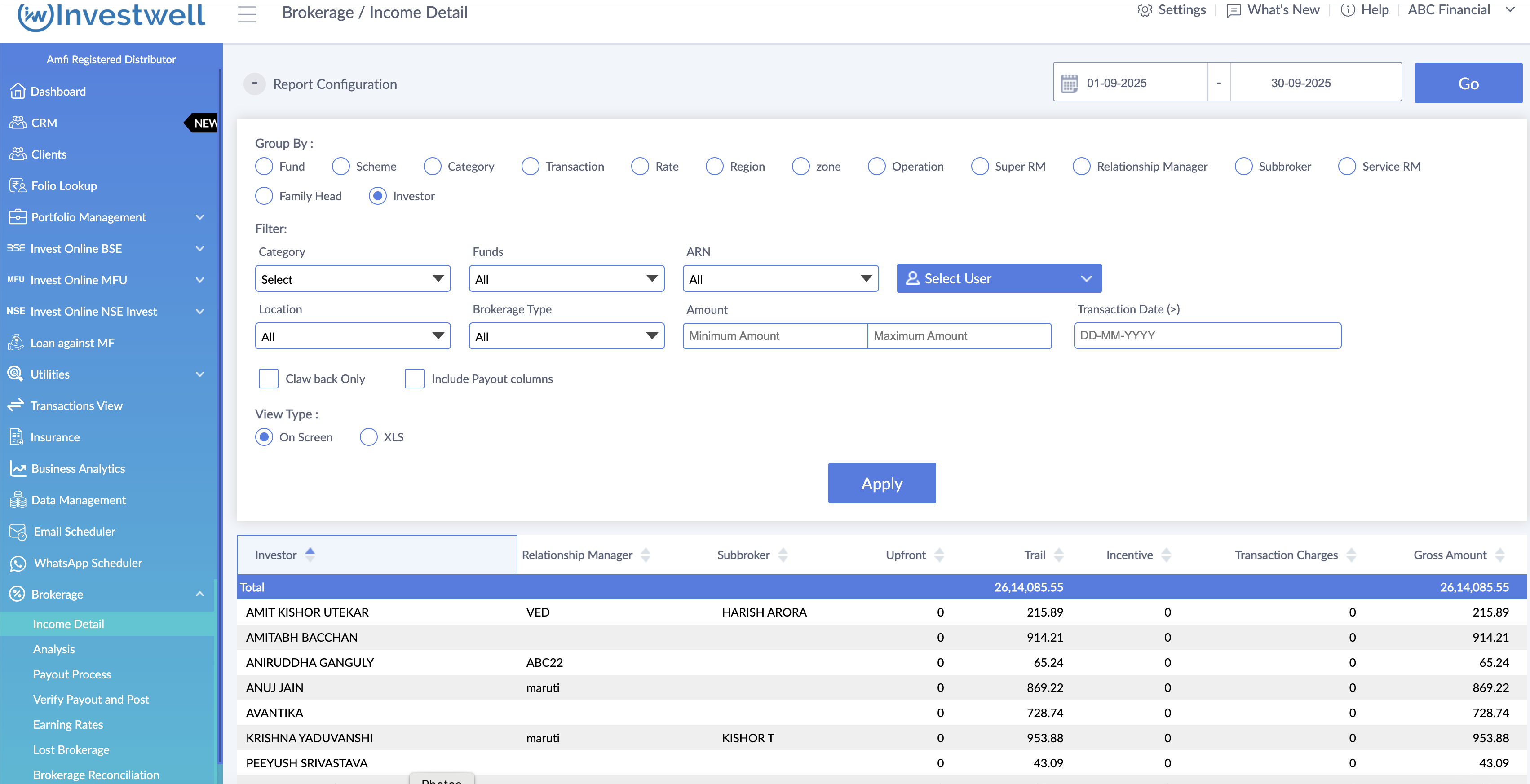
You can also use the Select User filter to select 1 sub broker and see Brokerage income for that Sub broker only Grouping on Transaction reveals 1 more interesting use case.
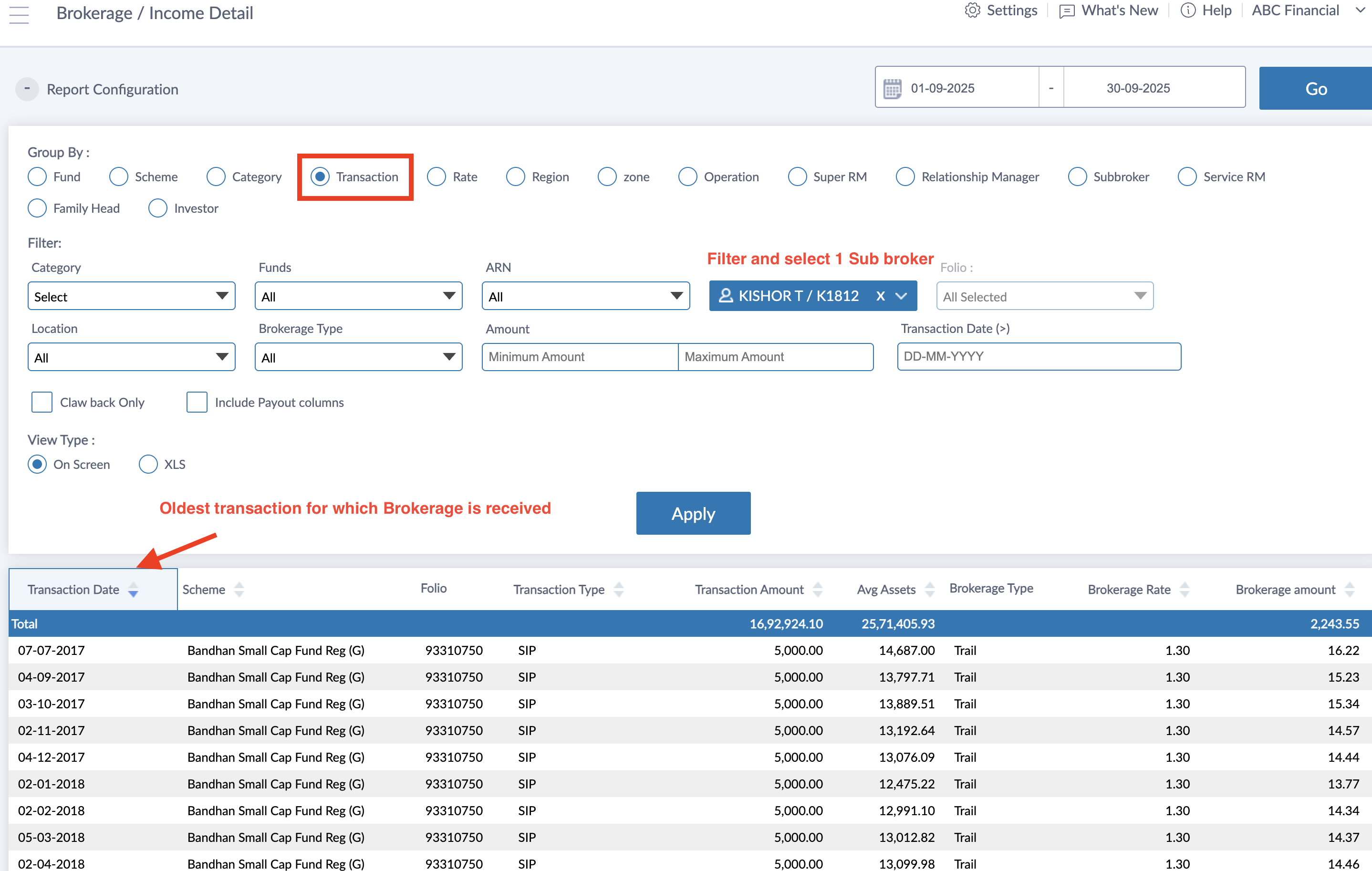
By default the data is shown with Oldest transaction shown first. The Enrollment date of the sub broker should be before this date for him to be eligible to receive this transaction's payout.
Was this article helpful?
That’s Great!
Thank you for your feedback
Sorry! We couldn't be helpful
Thank you for your feedback
Feedback sent
We appreciate your effort and will try to fix the article