The CRM section of the mobile app helps you manage your leads, follow-ups, tasks and meetings from your phone. This guide explains the CRM summary on the Home screen, how to move around CRM, and how to use Leads: viewing, searching, filtering, opening a lead and changing its status. Lead names, mobile numbers and email addresses in the screenshots are blurred for privacy.
1. CRM summary on the Home screen
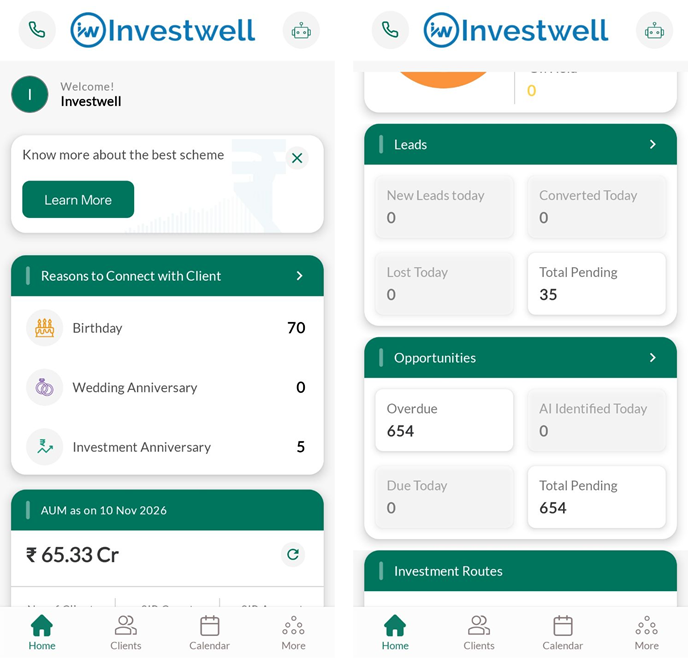
The Home screen of the app gives a quick summary of your CRM work. Scroll down the Home screen to see the cards which either show the summary of already added tasks, opportunities and leads or give an option to add one if there are no previously created tasks, leads and opportunities.
Leads card
- New Leads today: leads added today.
- Converted Today: leads converted today.
- Lost Today: leads marked as lost today.
- Total Pending: leads that are still open.
Opportunities card
- Overdue: opportunities whose date has passed.
- AI Identified Today: opportunities identified by the system today.
- Due Today: opportunities due today.
- Total Pending: all opportunities that are still open.
Tap the arrow at the right of the Leads or Opportunities heading to open that module.
Other cards on the Home screen
- Reasons to Connect with Client: the number of clients with a Birthday, Wedding Anniversary or Investment Anniversary, so that you know whom to contact.
- AUM: your total AUM as on the date shown. Tap the refresh icon to update it.
The bar at the bottom of the Home screen has Home, Clients, Calendar and More.
2. Moving around CRM
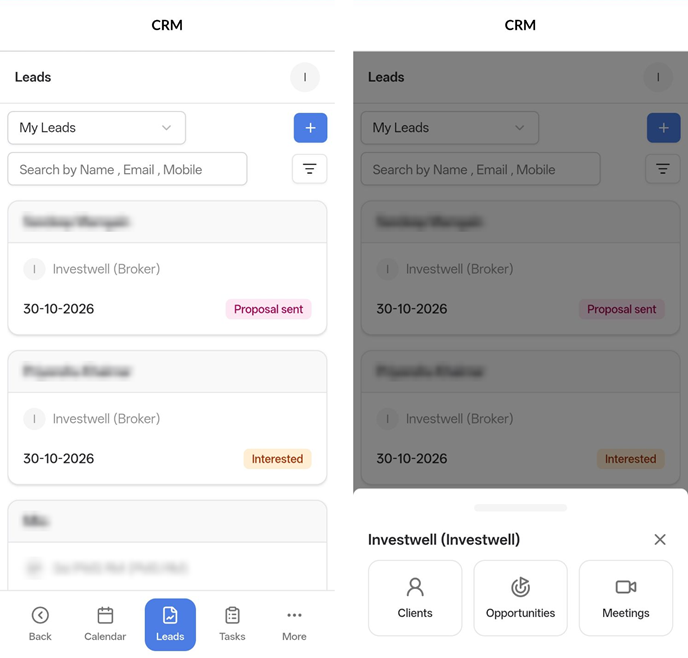
Inside CRM, the page title at the top shows CRM and the name of the module you are in, such as Leads. The bar at the bottom of the screen has these options:
- Back: returns to the previous screen.
- Calendar: opens your calendar.
- Leads: opens the list of leads. It is highlighted when you are in Leads.
- Tasks: opens your tasks.
- More: opens a panel with Clients, Opportunities and Meetings. Tap the X to close the panel.
3. Leads
The lead list
The Leads screen shows one card for each lead. Each card shows the lead's name, the primary user (the person the lead is assigned to), the date the lead was created and the lead's current status, for example Proposal sent or Interested. Tap a lead to open its details (see section 4).
Switch between lead views
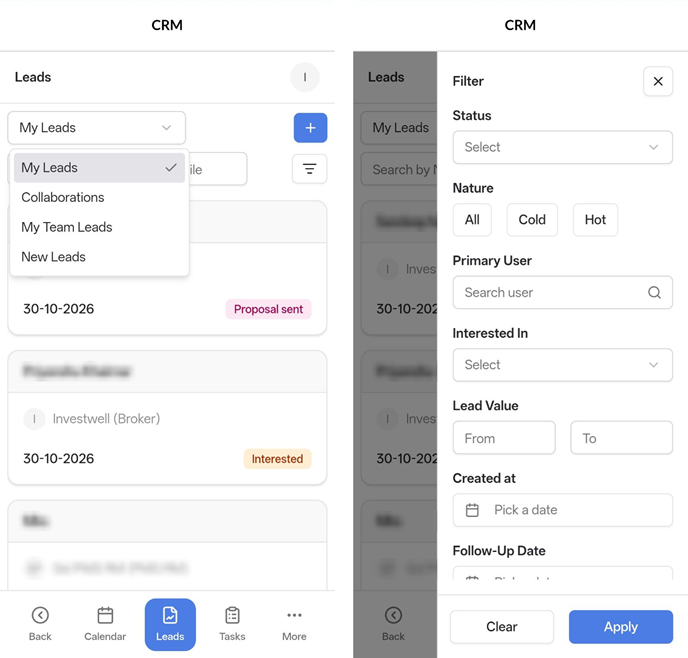
Tap the dropdown at the top left of the list. It shows My Leads by default. The options are:
- My Leads: your own leads.
- Collaborations: leads in which you are a collaborator.
- My Team Leads: leads of your team members.
- New Leads: newly added leads.
Search for a lead
Type in the Search by Name, Email, Mobile box to find a lead by its name, email address or mobile number.
Filter the leads
- Tap the filter icon at the right of the search box. The Filter panel opens.
- Choose one or more filters: Status, Nature (All, Cold or Hot), Primary User, Interested In, Lead Value (From and To), Created at and Follow-Up Date. Scroll down in the panel to see all the filters.
- Tap Apply to see the filtered list. Tap Clear to remove the filters. Tap the X at the top of the panel to close it.
4. Lead details
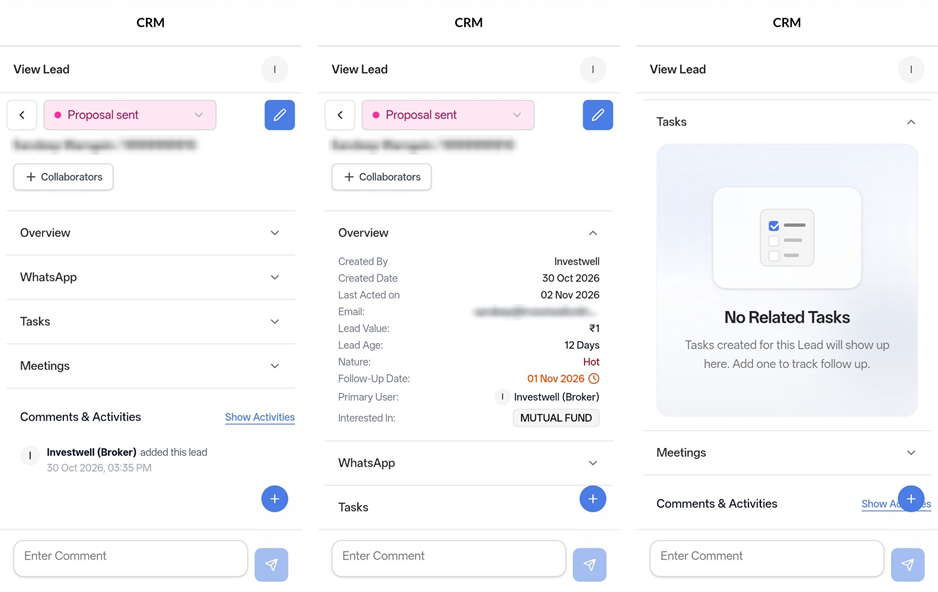
Tap a lead in the list to open the View Lead screen. The screen has these parts:
- Back arrow: at the top left, returns to the lead list.
- Status: the coloured tag at the top shows the lead's current status. Tap it to change the status (see section 5).
- Pencil icon: the blue button at the top right is used to edit the lead.
- Lead name and mobile number: shown below the status.
- Collaborators: tap + Collaborators to add other users who work on this lead with you.
- Overview, WhatsApp, Tasks and Meetings: tap a heading to open or close that section.
- Comments & Activities: the history of the lead and a box to add comments.
Overview
Tap Overview to see the key details of the lead:
- Created By and Created Date: who added the lead and when.
- Last Acted on: the date of the last action on the lead.
- Email and Lead Value: the lead's email address and the value of the lead.
- Lead Age: the number of days since the lead was created.
- Nature: whether the lead is Hot or Cold.
- Follow-Up Date: the date on which you plan to follow up. A clock icon is shown beside it.
- Primary User: the user the lead is assigned to.
- Interested In: the product the lead is interested in, for example Mutual Fund.
Tasks and Meetings
Tap Tasks to see the tasks created for this lead. If there are none, the screen shows "No Related Tasks" with the message that tasks created for the lead will show up here, and you can add one to track follow-up. Tap Meetings to see the meetings of the lead.
Comments and activities
- To add a comment, type it in the Enter Comment box at the bottom and tap the send arrow.
- Tap Show Activities to see the full history of the lead, such as "added this lead", "created task" and changes to the lead's Nature (for example "updated Temperature from Hot to Cold"), with the date and time. Tap Hide Activities to show only comments.
- The blue + button at the bottom right of the screen is used to add new items to the lead, such as a task.
5. How to change a lead's status
- Open the lead.
- Tap the coloured status tag at the top of the screen (for example Proposal sent or Interested). A list of statuses opens.
- Tap the new status.
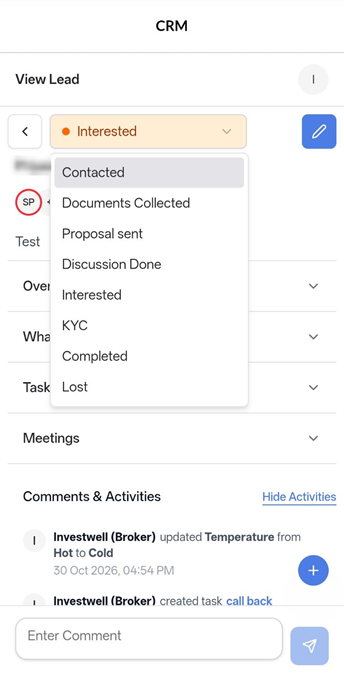
The available statuses are Contacted, Documents Collected, Proposal sent, Discussion Done, Interested, KYC, Completed and Lost. The status is also shown on the lead's card in the lead list.
6. Other CRM modules
The other CRM modules are available from the bottom bar and the More panel:
- Opportunities: opens the list of opportunities (also available from the Opportunities card on the Home screen).
- Meetings: opens your meetings.
- Tasks: opens your tasks
- Calendar: opens your calendar
- Clients: opens your clients.
7. Tips
- Check the Leads card on the Home screen every day to see new and pending leads.
- Use the Nature filter to see only Hot leads and follow them up first.
- Set a follow-up date and create a task for every lead so that nothing is missed. Use the Follow-Up Date filter to see the leads due for follow-up.
- Update the status as soon as a lead moves forward, so that the lead list and the Home screen counts stay correct.
- Add a comment after each conversation, so that you and your team can see the full history in Comments & Activities.
8. Frequently asked questions
Q1. Where do I see my leads on the mobile app?
Tap the Leads card on the Home screen, or open CRM and tap Leads in the bottom bar. The list shows My Leads by default.
Q2. How do I see my team's leads?
Tap the dropdown at the top of the Leads screen and choose My Team Leads.
Q3. How do I find a particular lead?
Type the lead's name, email address or mobile number in the Search box at the top of the Leads screen.
Q4. How do I see only Hot leads?
Tap the filter icon, choose Hot under Nature and tap Apply.
Q5. How do I change the status of a lead?
Open the lead, tap the status tag at the top and choose the new status.
Q6. What statuses can a lead have?
Contacted, Documents Collected, Proposal sent, Discussion Done, Interested, KYC, Completed and Lost.
Q7. How do I add a comment to a lead?
Open the lead, type in the Enter Comment box at the bottom and tap the send arrow.
Q8. How do I see what has happened on a lead?
Open the lead and tap Show Activities in the Comments & Activities section.
Q9. How do I add someone to work on a lead with me?
Open the lead and tap + Collaborators.
Q10. Where do I find Clients, Opportunities and Meetings?
Tap More in the bottom bar. A panel opens with Clients, Opportunities and Meetings.
Q11. What does Total Pending on the Home screen mean?
It is the number of leads (in the Leads card) or opportunities (in the Opportunities card) that are still open.
Still need help? Contact the Investwell support team by raising a ticket.
Was this article helpful?
That’s Great!
Thank you for your feedback
Sorry! We couldn't be helpful
Thank you for your feedback
Feedback sent
We appreciate your effort and will try to fix the article