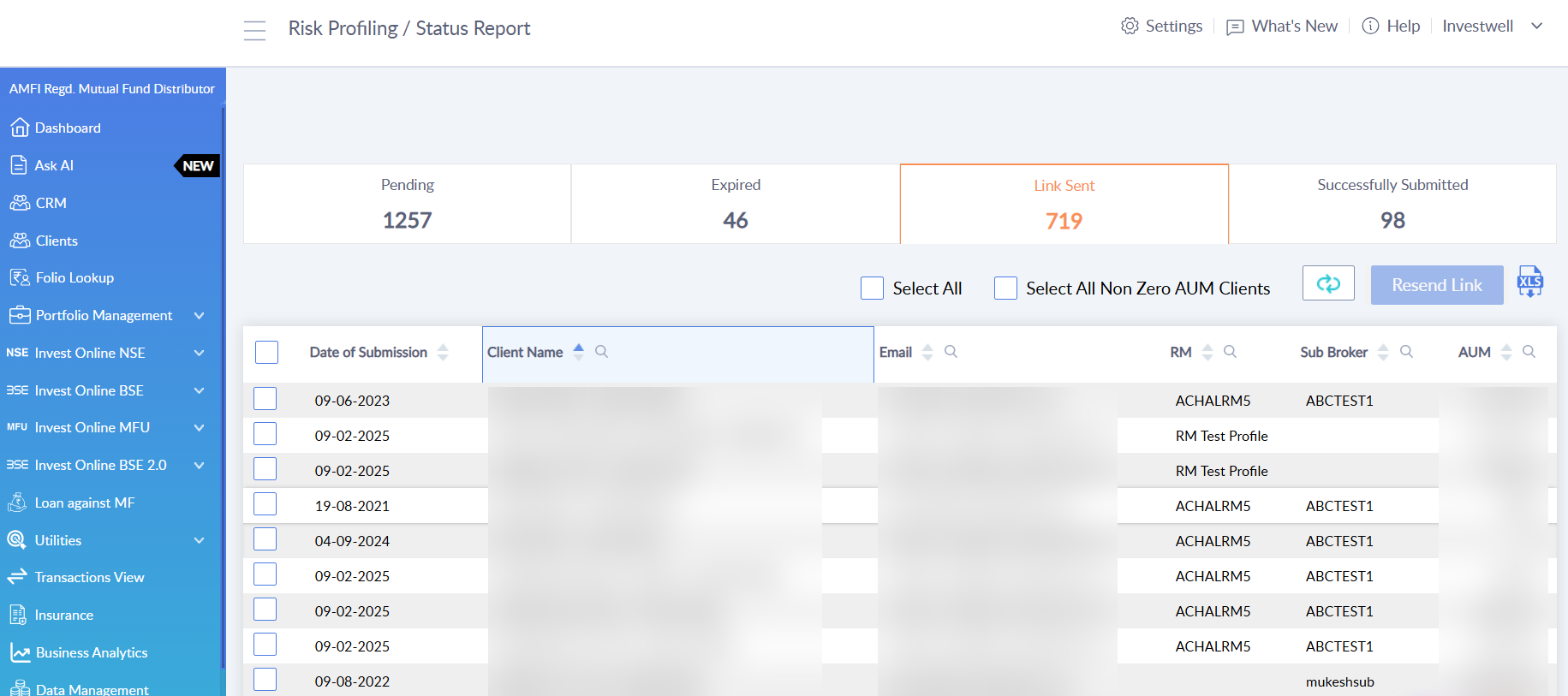
The Status Report is a new section under Risk Profiling that shows where each client stands in the risk profiling process.
Status Tabs
- Pending: Clients who have never completed a risk profile.
- Expired: Clients whose risk profile has expired and who need to be notified to complete it.
- Link Sent: Clients who have been sent the risk profile link but have not completed it yet.
- Successfully Submitted: Clients whose risk profile is submitted and currently active.
Sending Risk Profile Links
From the Pending and Expired tabs, you can select individual clients or use Select All, then click Send Link to email them the risk profile link.
From the Link Sent tab, you can select clients and click Resend Link to send the link again.
Exporting the List
You can export the client list for any status using the export icon at the top right of the Status Report.
Changes to the Submissions Menu
The Submissions menu now contains logs only. The Pending and Expired lists have moved to the new Status Report menu, which shows the list client-wise.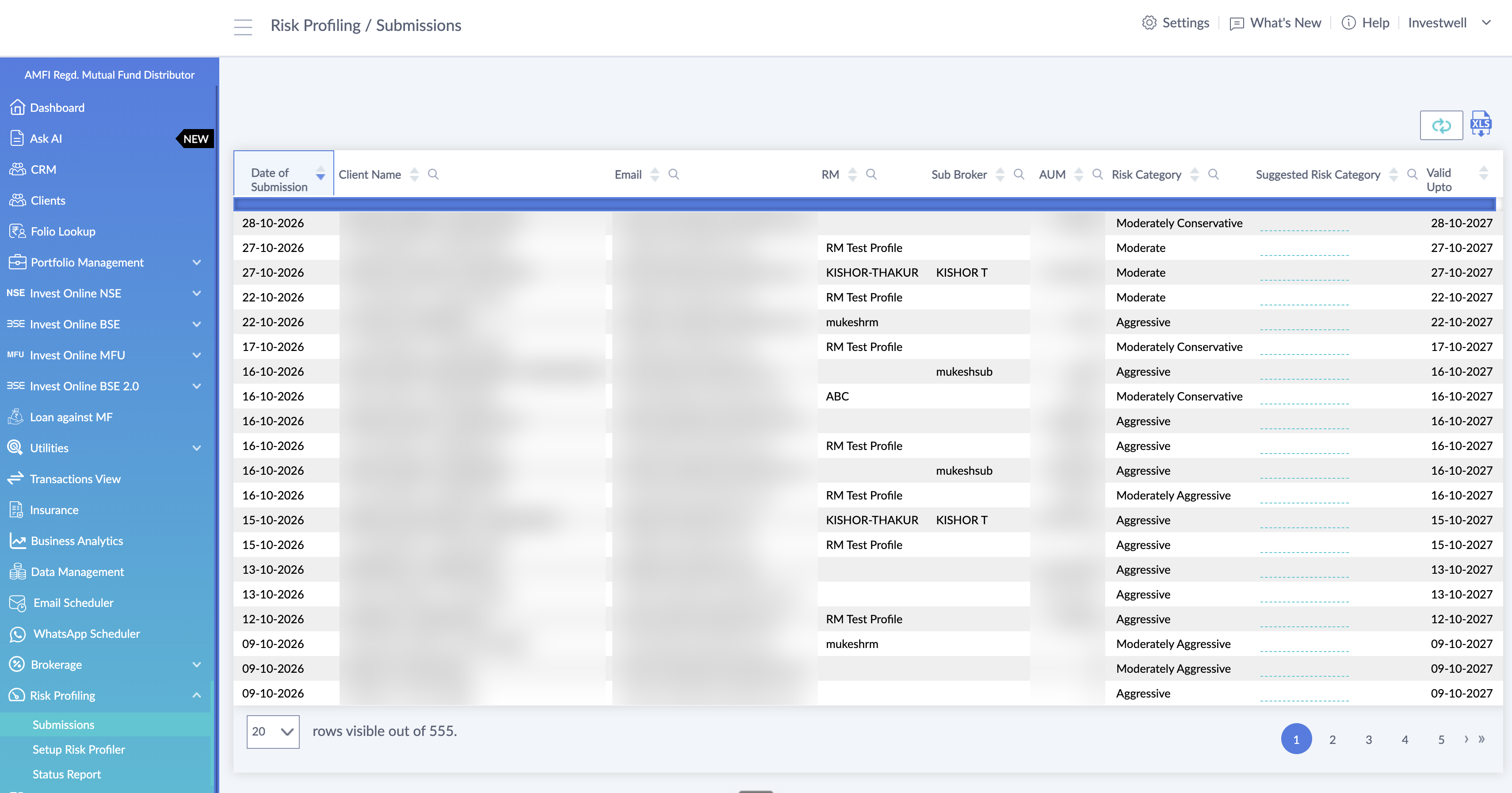
FAQs:
Where can I find the Status Report?
Go to Risk Profiling in the left menu and select Status Report.
What is the difference between Pending and Expired?
Pending clients have never completed a risk profile. Expired clients completed one earlier, but it has expired and needs to be completed again.
What does the Link Sent tab show?
It shows clients who were sent the risk profile link but have not yet completed it. From this tab, you can resend the link.
Can I send the link to more than one client at once?
Yes. Select individual clients or use Select All on the Pending or Expired tab, then click Send Link.
Can I resend the link to a client who already received it?
Yes. Go to the Link Sent tab, select the client, and click Resend Link.
Where did the Pending and Expired lists go from the Submissions menu?
They have moved to the Status Report menu. Submissions now shows logs only.
Can I export the list?
Yes. Use the export icon at the top right of the Status Report. The list is exported for the status tab you are viewing.
What does Successfully Submitted mean?
It means the client’s risk profile has been submitted and is currently active.
Was this article helpful?
That’s Great!
Thank you for your feedback
Sorry! We couldn't be helpful
Thank you for your feedback
Feedback sent
We appreciate your effort and will try to fix the article