CAS Import lets you pull an investor's held-away mutual fund holdings straight into the portfolio, without waiting for a physical statement. The OTP based flow fetches a Consolidated Account Statement (CAS) from MF Central and imports the transactions against the selected client.
This article covers the end-to-end process of importing an investor's data from MF Central using the Sync transactions with OTP option.
Where to find it
Log in to the portal and go to Data Management > CAS Import.
The screen has two ways to bring in held away assets:
Sync transactions with OTP – fetch data directly from MF Central using an OTP sent to the investor. This is the flow covered here. This is only applicable in case you have subscribed to MF Central Credentials from MF Central yourself for your own ARN. This facility is no longer functional in without your own MF Central CAS credentials.
Upload PDF manually – an alternative where you order a detailed CAS since inception from the CAMS website and upload the PDF. Instructions are available here https://help.investwellonline.com/a/solutions/articles/19000111541
Step 1. Start the import from Investwell
In the Sync transactions with OTP section,
Choose Client – select the investor whose data you want to import. The PAN appears next to the name. You can also switch to New Client tab if the investor is not an existing client.
Mobile / Email – choose how the OTP should be sent. Select Mobile and enter the investor's registered mobile number, or select Email. The mobile number/email used must be the one registered with the PAN of that investor
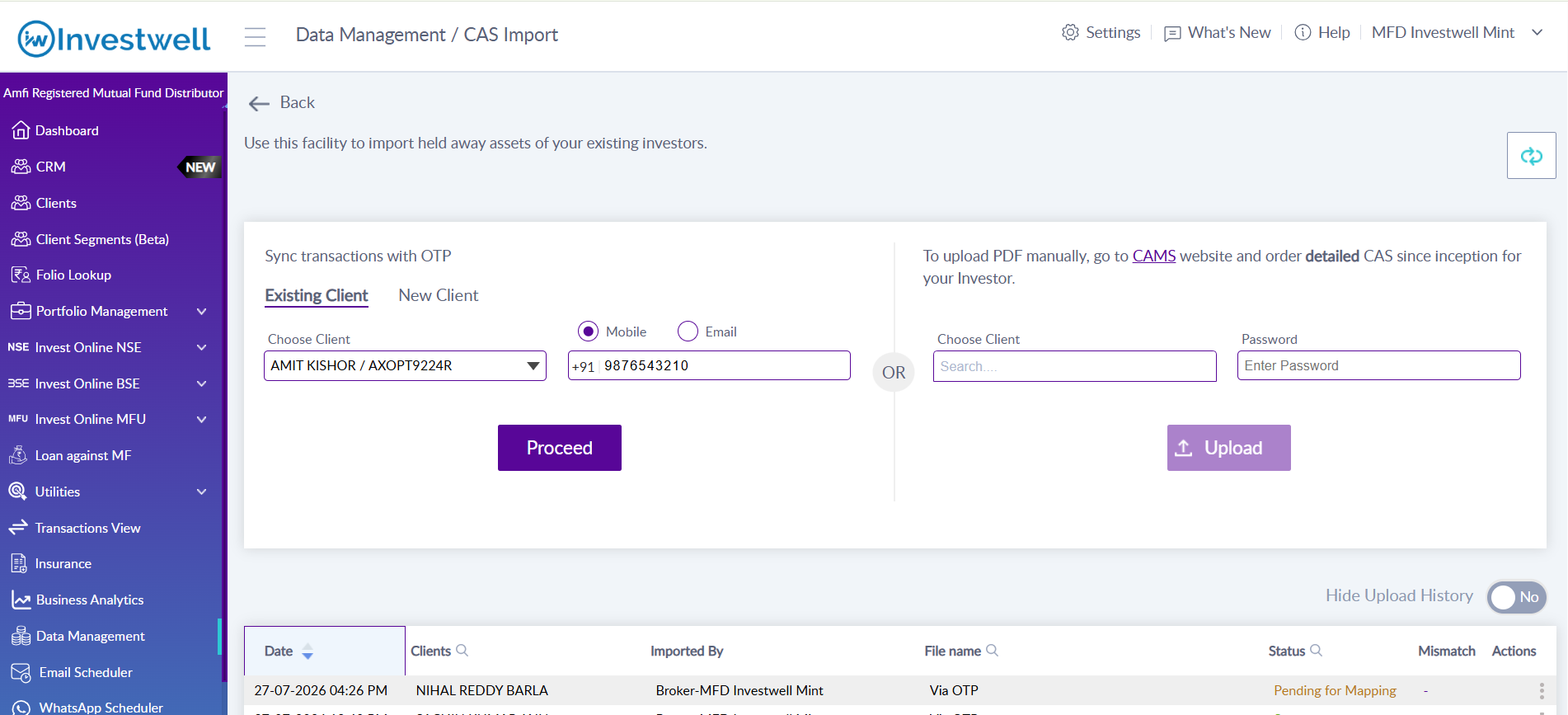
Clicking Proceed opens the MF Central page in a new browser tab.
Step 2. Authenticate on MF Central with OTP
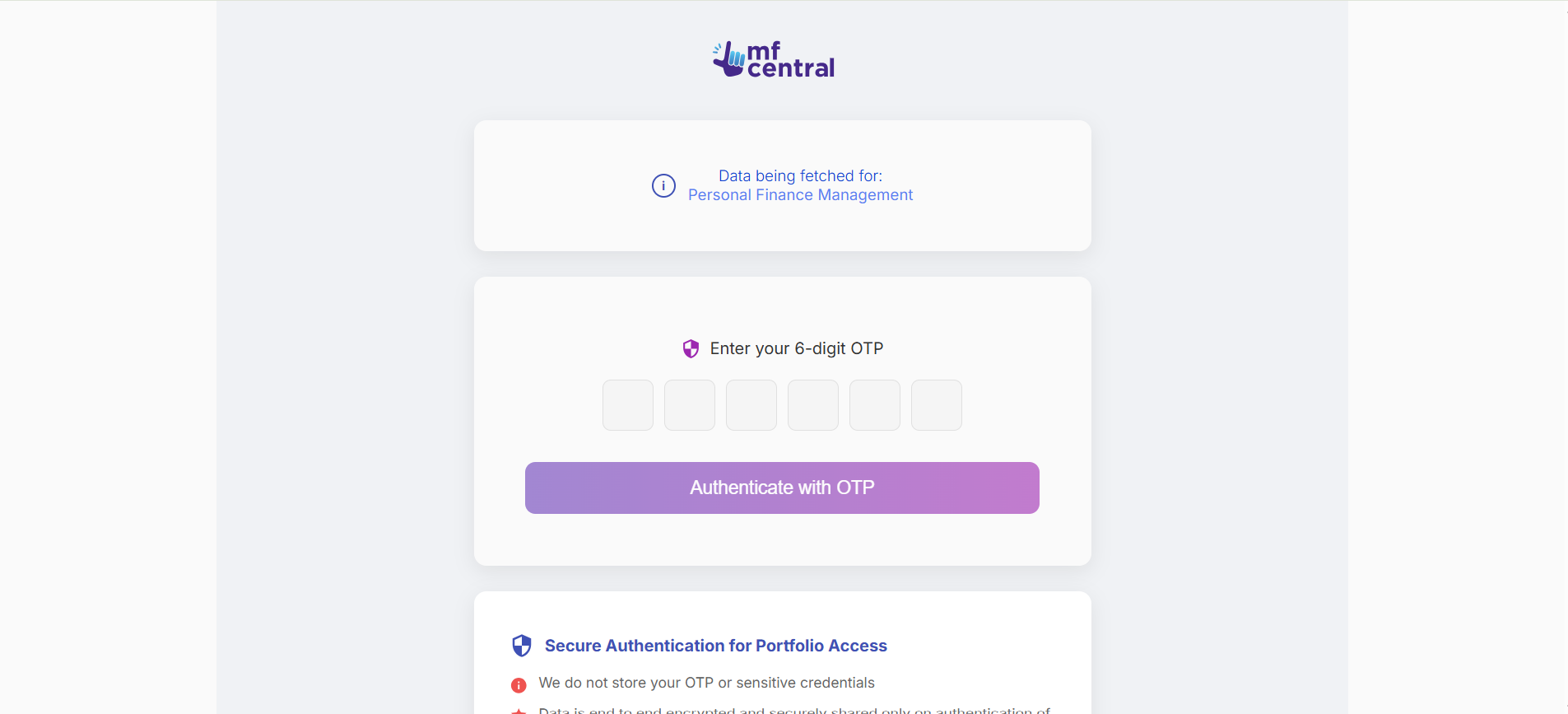
The MF Central page opens and an OTP is sent to the investor's registered mobile number/email.
Enter the 6-digit OTP and click Authenticate with OTP.
Step 3. Configure the CAS preferences and generate the QR code
Once the OTP is verified, the screen shows the Generate QR Code for CAS Request screen. Set the preferences and click Generate QR Code.
What type of data can be shared? – select Regular + Direct Investments to include both.
What extent of data can be shared? – select Transactions.
Select the AMCs you want to include – tick Select All AMCs so that no holdings are left out.
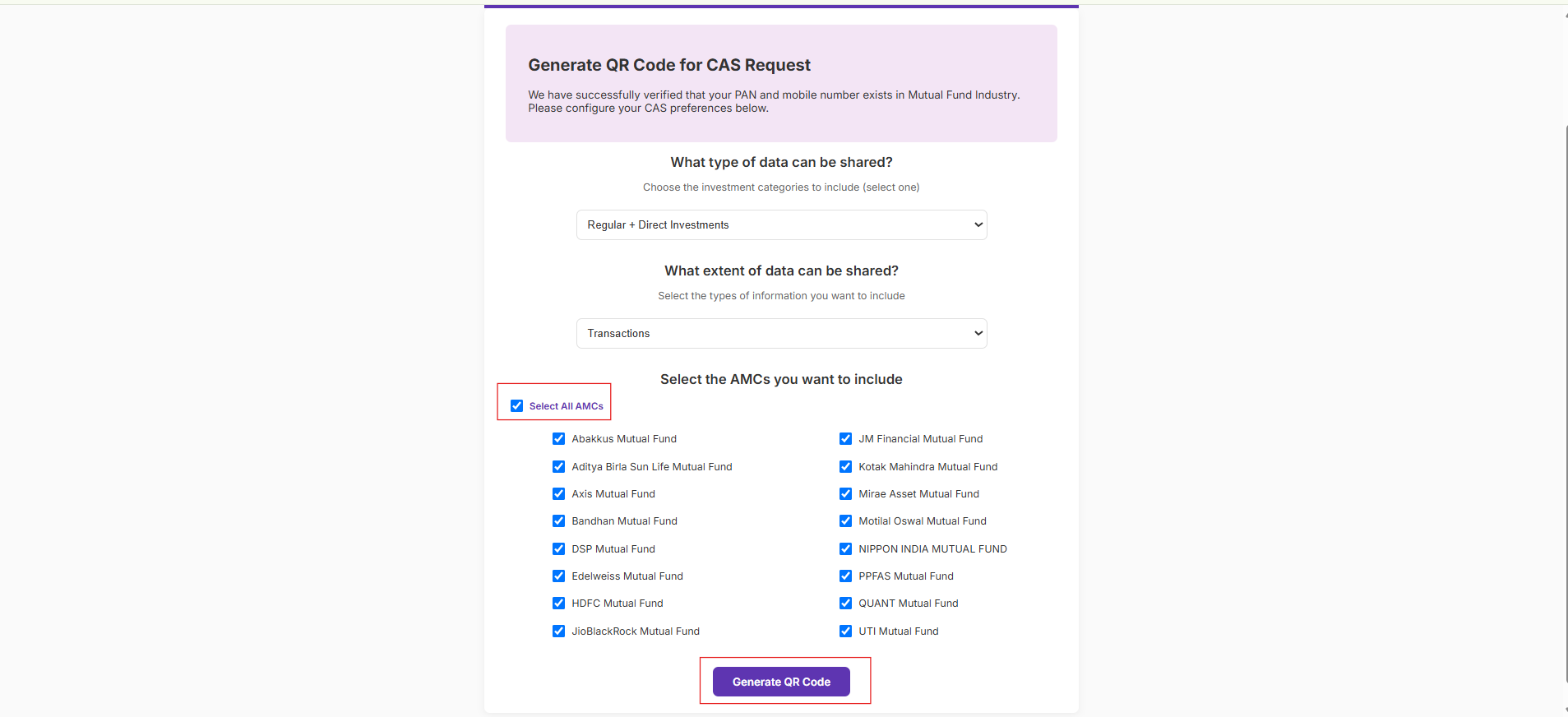
Important: Make sure Select All AMCs is ticked. If any AMC is left unchecked, the transactions of that AMC will not be fetched.
Step 4. Download the QR code and continue
MF Central shows QR Code Generated Successfully along with the CAS Request QR code. Click Download and Share QR.
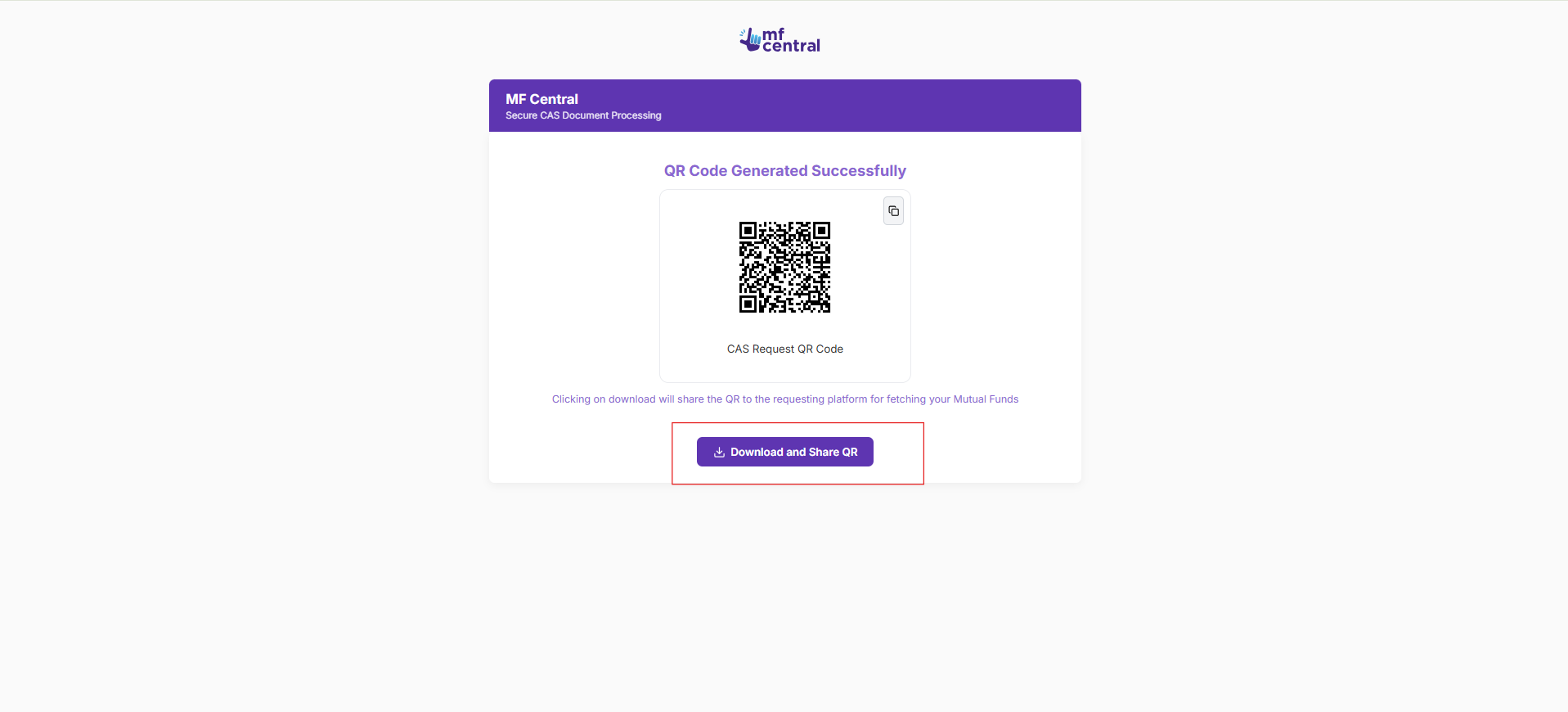
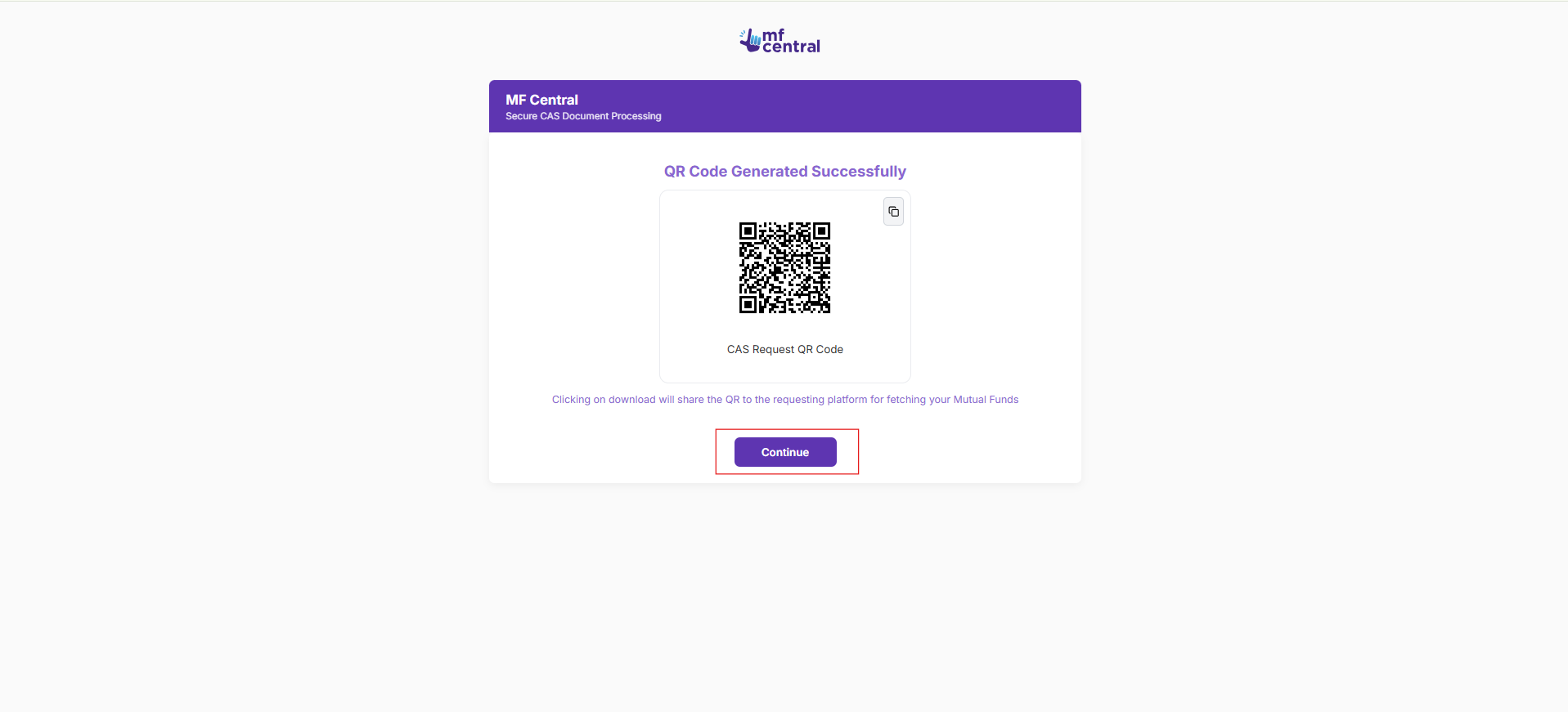
Once the QR is downloaded, the button changes to Continue. Click Continue to complete the MF Central step.
Step 5. Upload the QR code back in Investwell
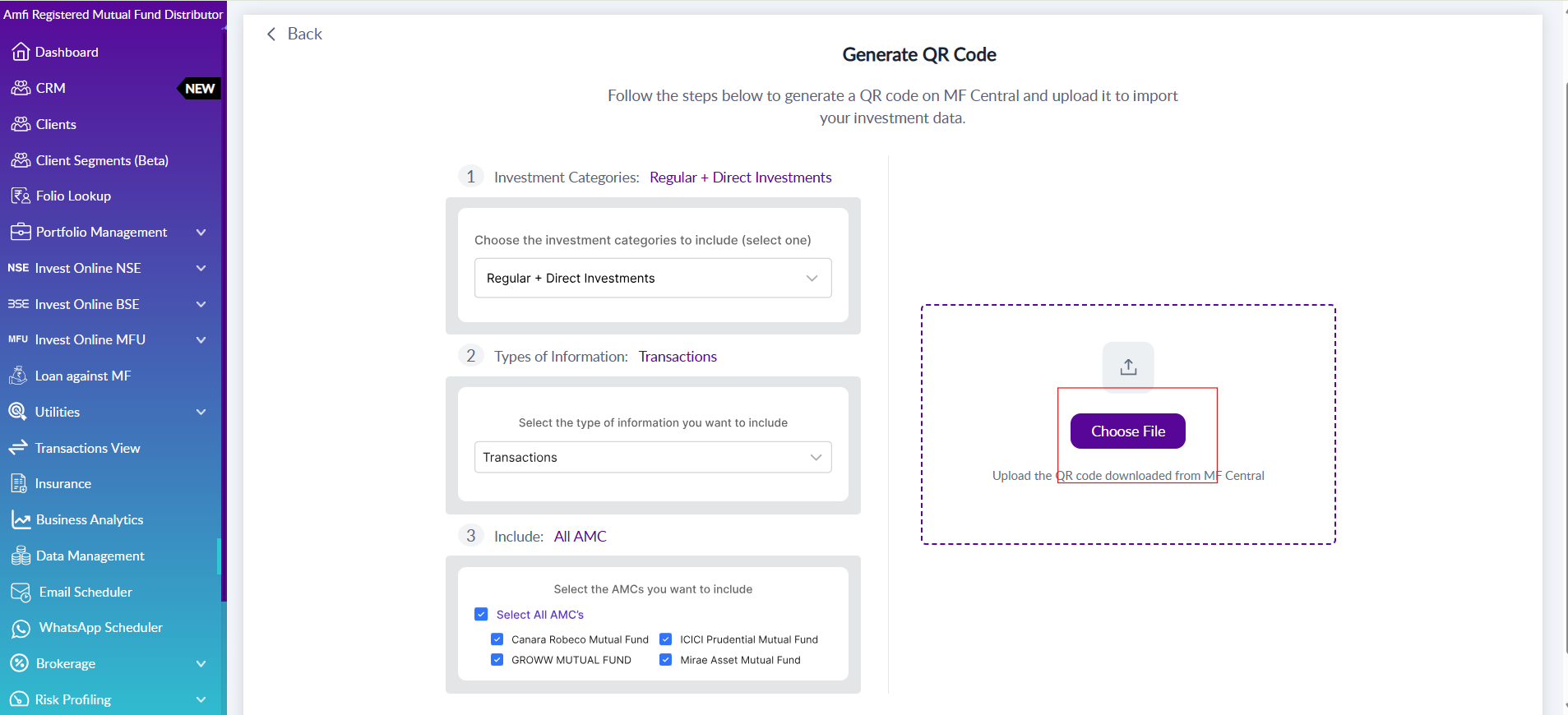
When continue is clicked, the tab switches back to Investwell where you need to upload the downloaded QR code. Click Choose File and upload the QR code. Make sure you upload the correct recently generated QR code that was downloaded in the process.
Step 6. Data is fetched
Once the QR code is uploaded, Investwell fetches the investor's holdings from MF Central. The import is listed in the Upload History at the bottom of the CAS Import screen, with the date, client and status.
Was this article helpful?
That’s Great!
Thank you for your feedback
Sorry! We couldn't be helpful
Thank you for your feedback
Feedback sent
We appreciate your effort and will try to fix the article