Broadly speaking, there are 2 types of bills which can be created in Investwell Mint.
- Client Bill - These are bills that you can raise to your Investors for advisory services provided.
- AMC Bill - These are bills that you can give to an Asset Management company in exchange for Distribution Commission Received.
Client Bill is useful in case you are a Registered Investment Advisor (RIA). The system allows you to create a bill on 2 basis
- Flat Bill - In this you need to enter the amount of the invoice
- AUM Based Bill - In this bill you can choose the Average AUM in all the folios for a client and apply a Fee % on it to arrive at a Total Fee Amount.
You may create a Quotation invoice first and then choose to create a Tax Invoice. Tax Invoice no. will be in a predefined Invoice series no. and GST Amount will be calculated if GSTIN is entered in the client's profile and similarly in ARN Holder's profile (in Settings >> ARN Settings).
AMC billing
Billing module now allows you to create 2 kind of AMC bills
- Inclusive of GST - Commission added by you in the system includes the GST.
- Exclusive of GST - GST is calculated over and above the commission added by you in system. For example, a ₹10,000 commission with 18% GST results in a total invoice of ₹11,800 (₹10,000 + ₹1,800 tax).
Creating an AMC Bill
SECTION 1 — Navigation
Follow this path to reach the Create AMC Bill screen:
Dashboard → Billing (left sidebar) → Create AMC Bill
The Billing menu is located in the left-hand navigation panel. Click to expand it, then select Create AMC Bill.
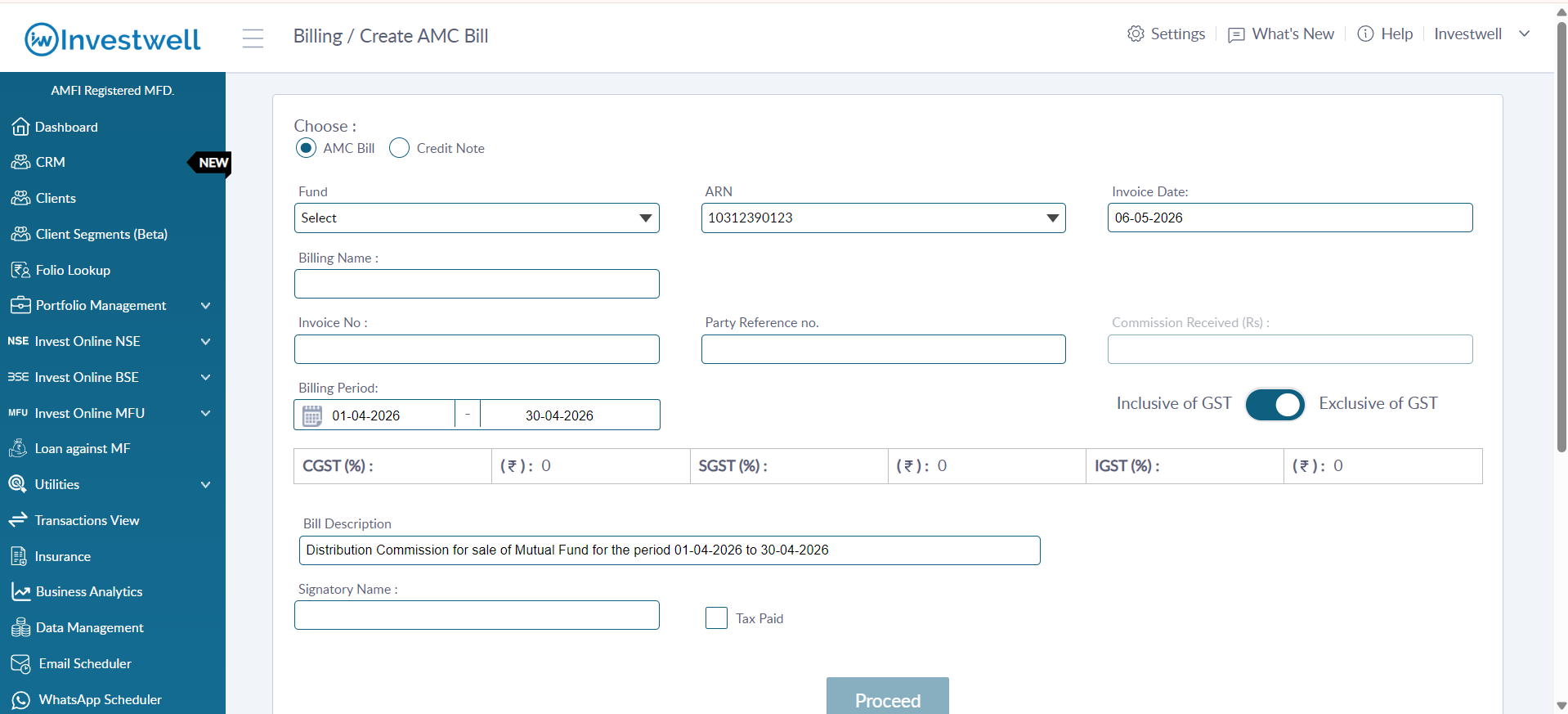
SECTION 2 — Steps to Create an AMC Bill (Exclusive of GST)
Part A — Fill in Bill Details
1 Choose Bill Type Ensure AMC Bill is selected (radio button at the top of the form).
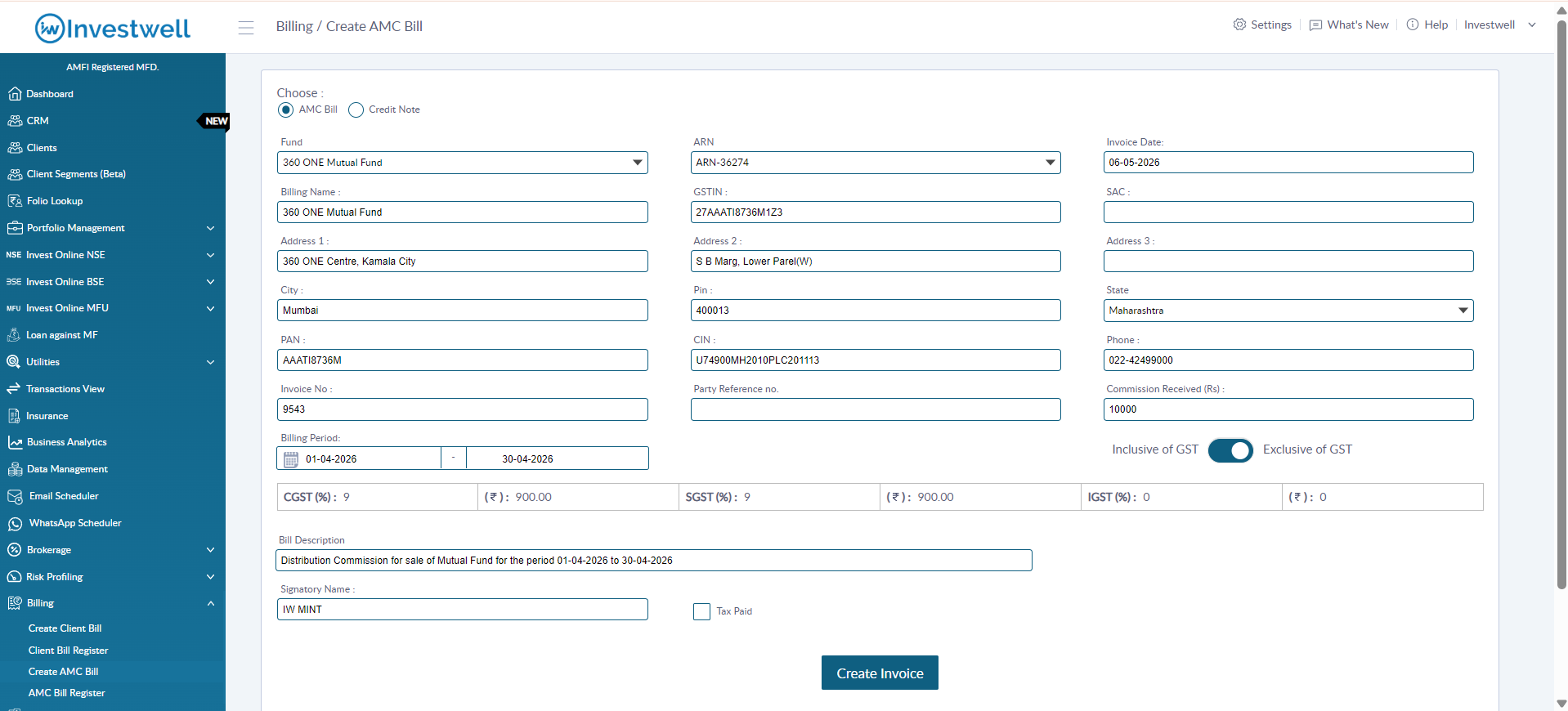
2 Select Fund Choose the AMC / Fund from the Fund dropdown. Billing Name, GSTIN, and address fields will auto-populate.
3 Select ARN Choose the relevant ARN from the ARN dropdown.
4 Invoice Date Auto-filled with today's date. Edit if required.
5 Invoice No. Enter a unique invoice number for this bill.
6 Party Reference No. (Optional) Enter the AMC's reference number if available.
7 Commission Received (Rs.) Enter the gross commission amount received from the AMC including GST or enter the net commission received excluding GST
8 Billing Period Set the From Date and To Date for the billing period using the date pickers.
Part B — Enable 'Exclusive of GST/Inclusive of GST' ⬅ Key Step
Locate the GST toggle on the right side of the form:
Inclusive of GST [ toggle] Exclusive of GST
Click the toggle to switch to Inclusive of GST or Exclusive of GST.
- Inclusive GST - GST amounts (CGST, SGST, IGST) will be calculated within the entered commission amount.
- Exclusive GST - GST amounts (CGST, SGST, IGST) will be calculated on top of the entered commission amount
Part C — Complete & Submit
9 Verify GST Amounts CGST %, SGST %, and IGST % are auto-filled. Confirm the calculated tax values (₹) are correct.
10 Bill Description Auto-populated with a standard description. Edit if needed.
11 Signatory Name Enter the name of the authorised signatory for the invoice.
12 Click Proceed Click the Proceed button to move to the confirmation screen.
13 Click Create Invoice Review the summary, then click Create Invoice to generate the bill.
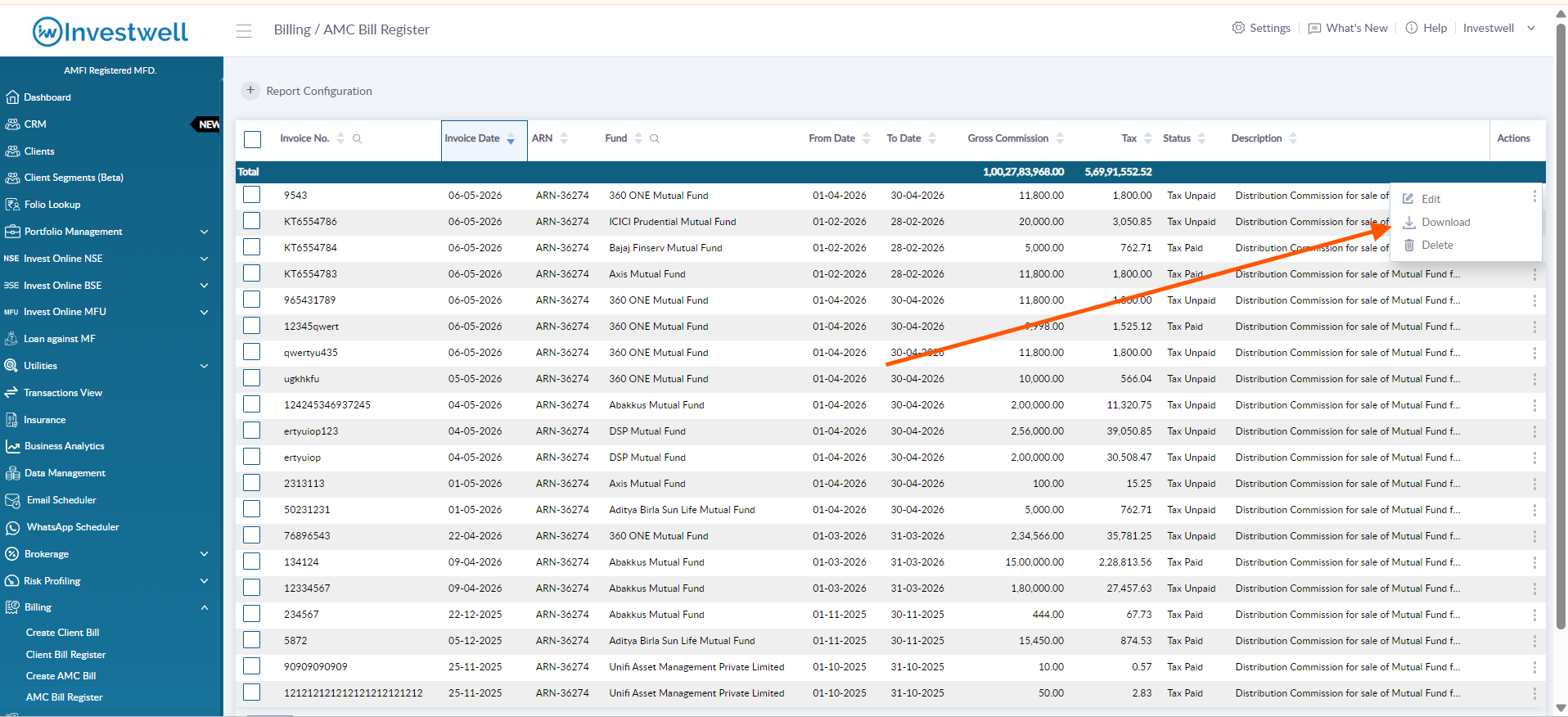
SECTION 3 — Viewing & Downloading the Bill
After the invoice is created, follow these steps to download it:
1 Go to AMC Bill Register Navigate to Billing → AMC Bill Register from the left sidebar.
2 Find Your Bill Locate the bill by Invoice No., Fund name, or Invoice Date in the register list.
3 Click Actions Menu Click the three-dot (⋮) Actions icon on the right side of the bill row.
4 View Invoice Select View Invoice. The Tax Invoice PDF opens in a preview panel.
5 Download PDF Click the Download icon (⬇) in the PDF viewer toolbar to save the invoice as a PDF file.
SECTION 4 — Quick Reference Summary
Create a new AMC Bill Billing → Create AMC Bill
Set GST as Exclusive/Inclusive Toggle
View all created AMC bills Billing → AMC Bill Register
Download invoice as PDF AMC Bill Register → ⋮ Actions → View Invoice → ⬇ Download
Was this article helpful?
That’s Great!
Thank you for your feedback
Sorry! We couldn't be helpful
Thank you for your feedback
Feedback sent
We appreciate your effort and will try to fix the article