A mandate authorises the bank to debit the client's account for mutual fund investments. This article explains how to create a mandate for a client profile, how to approve it, how to view the complete mandate list by status, and how to manage mandates in each status.
Part 1: Creating a mandate
The steps are the same for NSE, BSE and BSE 2.0.
Step 1: Open the profile
- Go to Invest Online (NSE, BSE or BSE 2.0) in the left menu.
- Click Profile List.
- Find the client's profile in the list.
Step 2: Open the Create Mandate option
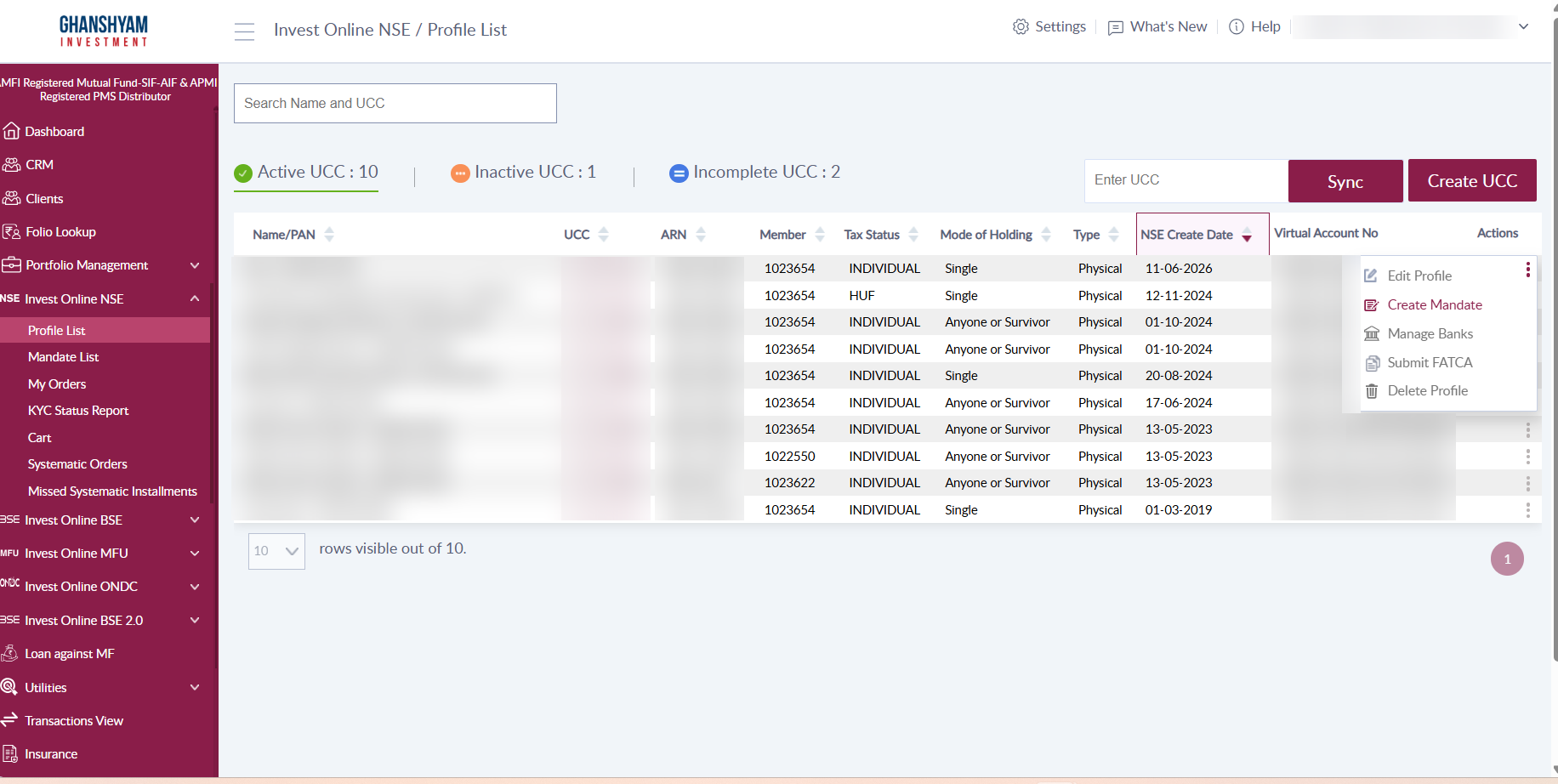
- Click the three dots (⋮) in the Actions column for the client's profile.
- The menu shows these options: Edit Profile, Create Mandate, Manage Banks, Submit FATCA and Delete Profile.
- Select Create Mandate.
Step 3: Select the bank and mandate type
- The Submit Mandate pop-up shows the Investor Details and the Bank Details of the approved banks for that profile.
- Select the bank account to use for the mandate.
- Choose the mandate type: eNACH or Physical.
Step 4a: eNACH mandate
- Select the start date and end date as per the client's requirement.
- Enter the amount.
- Click Submit.
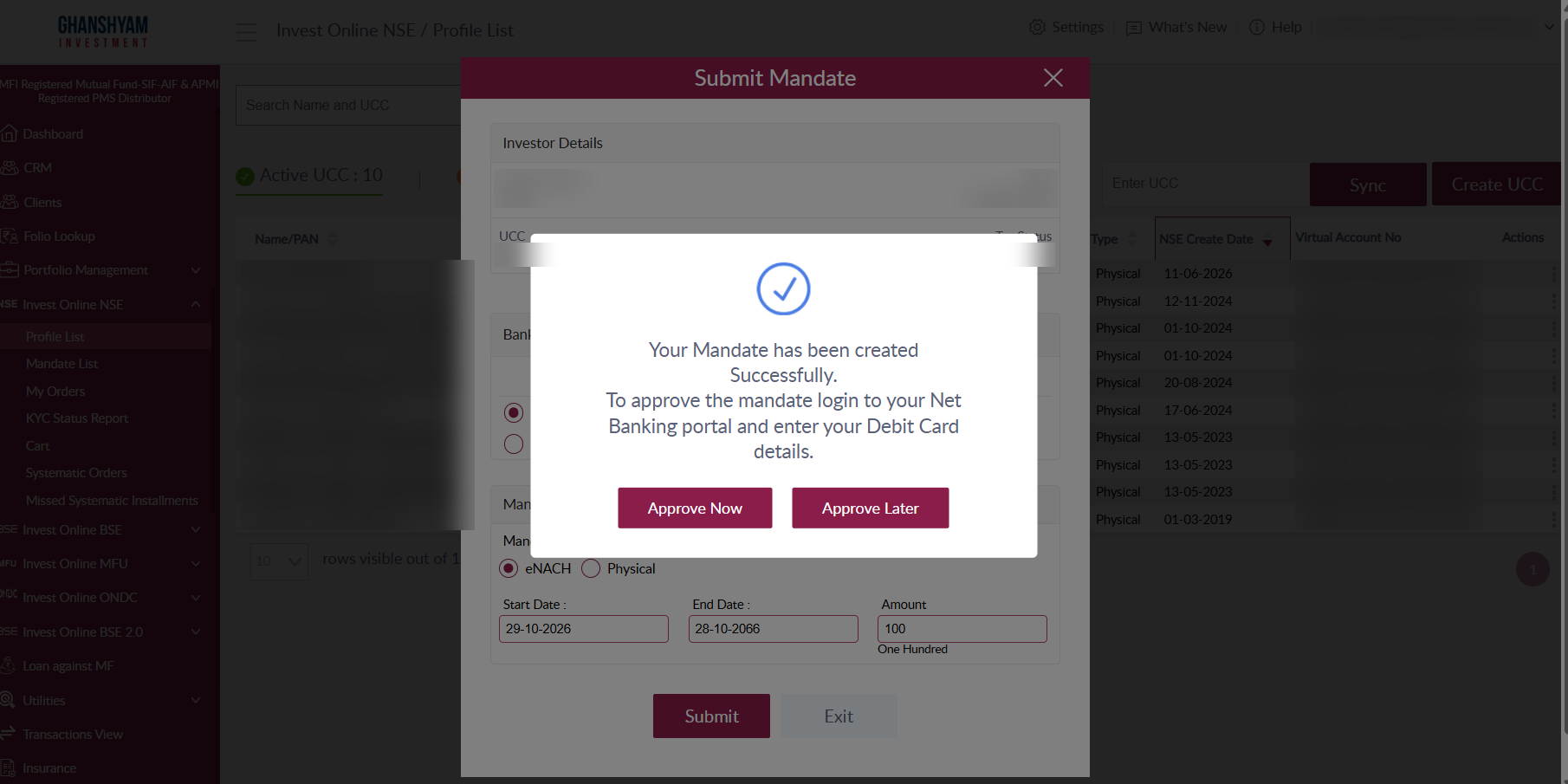
- A confirmation pop-up appears with two options: Approve Now and Approve Later.
- The client also receives an email and an SMS from the exchange to approve the mandate. The client must follow the exchange's steps to complete the approval.
Step 4b: Physical mandate
- Select the start date and end date as per the client's requirement.
- Enter the amount.
- Click Submit.
- A mandate form in the exchange's format is downloaded. It is pre-filled with the investor's details.
- Share the form with the client so they can get it approved from their bank.
- Once the client returns the approved mandate, go to Mandate List (below Profile List).
- Open the Pending tab and find the client's mandate.
- In the Actions menu, click Upload Mandate and upload the approved file that the client shared.
Part 2: Viewing the mandate list
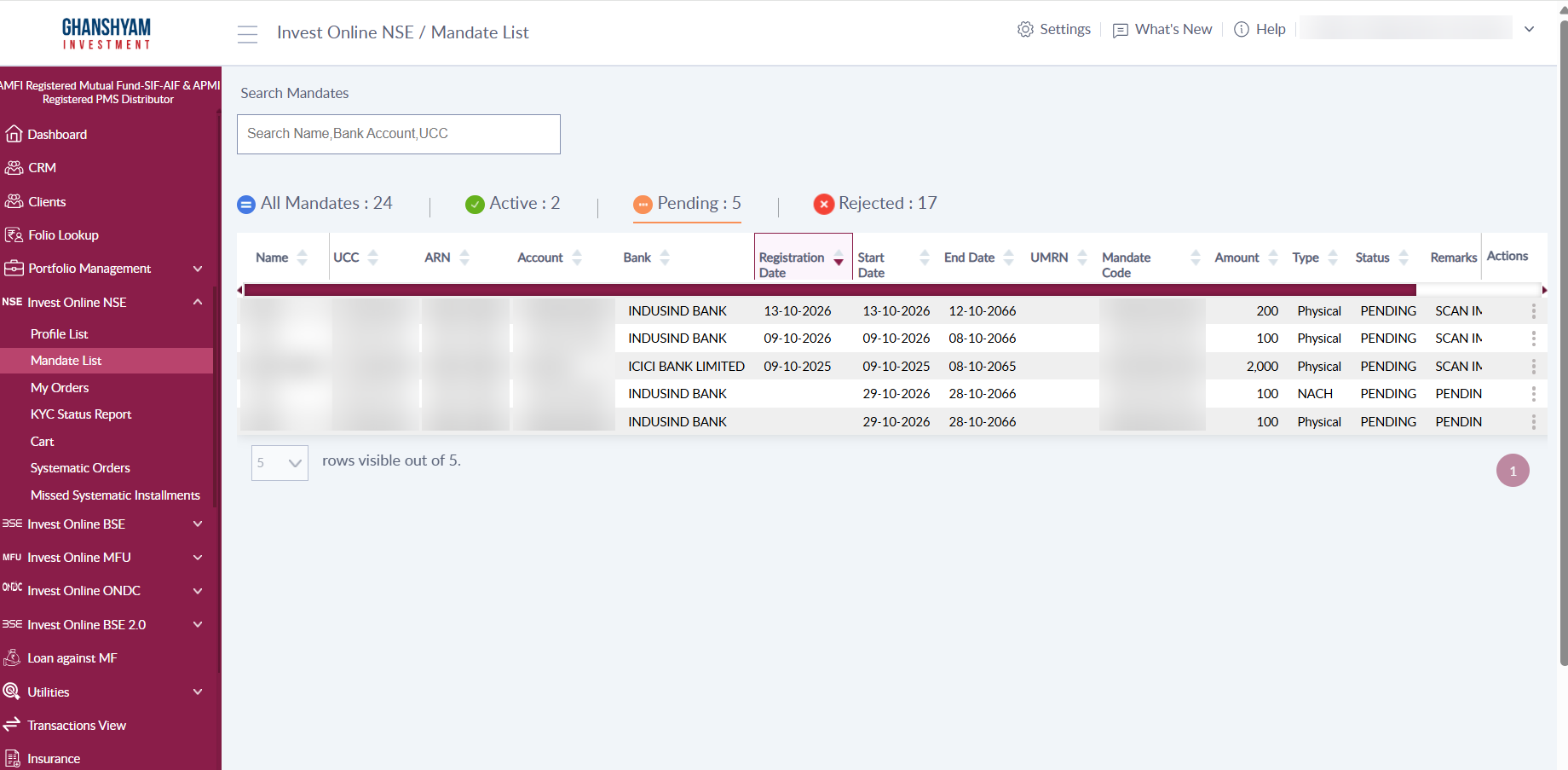
The complete list of mandates is available under Invest Online (NSE, BSE or BSE 2.0) > Mandate List.
Mandate List with status tabs
The list has four tabs:
- All Mandates: every mandate, across all statuses.
- Active: mandates that have been approved and are live.
- Pending: mandates that have been created but not yet approved.
- Rejected: mandates that were rejected.
Actions available by status
| Status tab | Available actions |
|---|---|
| Active | Delete |
| Rejected | Delete |
| Pending | Check status, Approve, Delete, Upload mandate form |
Part 3: Checking mandate status
- Go to Mandate List.
- Open the Pending tab (or All Mandates) and find the client's mandate.
- Use the search box to search by name, bank account or UCC if needed.
- Check the Status column.
- For a pending mandate, use the Actions menu to check the status.
Note: Mandate status is updated every two hours. If the client has just approved a mandate, wait for the next update before checking again.
FAQs:
1. When are mandate statuses updated?
Mandate statuses are updated every two hours. If you want to check the updated status of a mandate after approving it, check the status from the Mandate List.
2. What is the daily limit on a mandate, and what happens if the total of several transactions exceeds it?
A mandate limit applies to the total amount debited against the mandate within a day, not to each transaction on its own.
For example, with a mandate of ₹10 lakh:
- Two orders of ₹9 lakh placed on the same day: the first order is expected to go through, using ₹9 lakh of the limit. The second order would take the total above ₹10 lakh, so it is expected to be rejected.
- One order of ₹9 lakh today and another ₹9 lakh tomorrow: each day is checked separately, so both are expected to go through.
3. What is the difference between an eNACH mandate and a Physical mandate?
An eNACH mandate is approved online by the client through their bank's net banking portal. A Physical mandate is created by downloading a pre-filled form, getting it approved by the client's bank, and uploading the approved file in the system.
4. What happens if I select "Approve Later" after creating an eNACH mandate?
The mandate is saved and stays in the Pending tab until it is approved. The client receives an email and an SMS from the exchange with the approval steps. Once the client has approved, check the status from the Mandate List (see the status update FAQ above).
5. How do I approve a pending eNACH mandate?
Go to Mandate List and open the Pending tab. Find the mandate and use the Actions menu to select Approve. The client must complete the approval steps sent by the exchange, which require logging in to their net banking portal and entering their debit card details.
6. What if the client has already approved but the mandate still shows as Pending?
Mandate statuses are updated every two hours, so wait for the next update and check the status again from the Mandate List. If the mandate is still Pending after the update, contact support with the UCC and mandate code.
7. I have a physical mandate. What do I do after the client returns the signed form?
Go to Mandate List, open the Pending tab, and find the client's mandate. In the Actions menu, select Upload Mandate and upload the approved file that the client shared with you.
8. Which mandates can I delete?
You can delete mandates from the Actions menu in all three tabs: Active, Rejected and Pending.
9. How do I edit a mandate if I entered the wrong amount or dates?
The Mandate List does not show an edit option. The actions available are delete (for Active, Rejected and Pending mandates), and check status, approve and upload mandate form (for Pending mandates). To correct a mandate, delete it and create a new one with the correct details.
10. How can I find the NACH or OTM details of an investor?
Go to Invest Online (NSE, BSE or BSE 2.0) > Mandate List. Search for the investor by name, bank account or UCC. Each mandate row shows the bank, UMRN, mandate code, amount, start and end dates, type (NACH or Physical), and status. To see the mandates for a specific status, open the All Mandates, Active, Pending or Rejected tab.
Was this article helpful?
That’s Great!
Thank you for your feedback
Sorry! We couldn't be helpful
Thank you for your feedback
Feedback sent
We appreciate your effort and will try to fix the article