INTRODUCTION
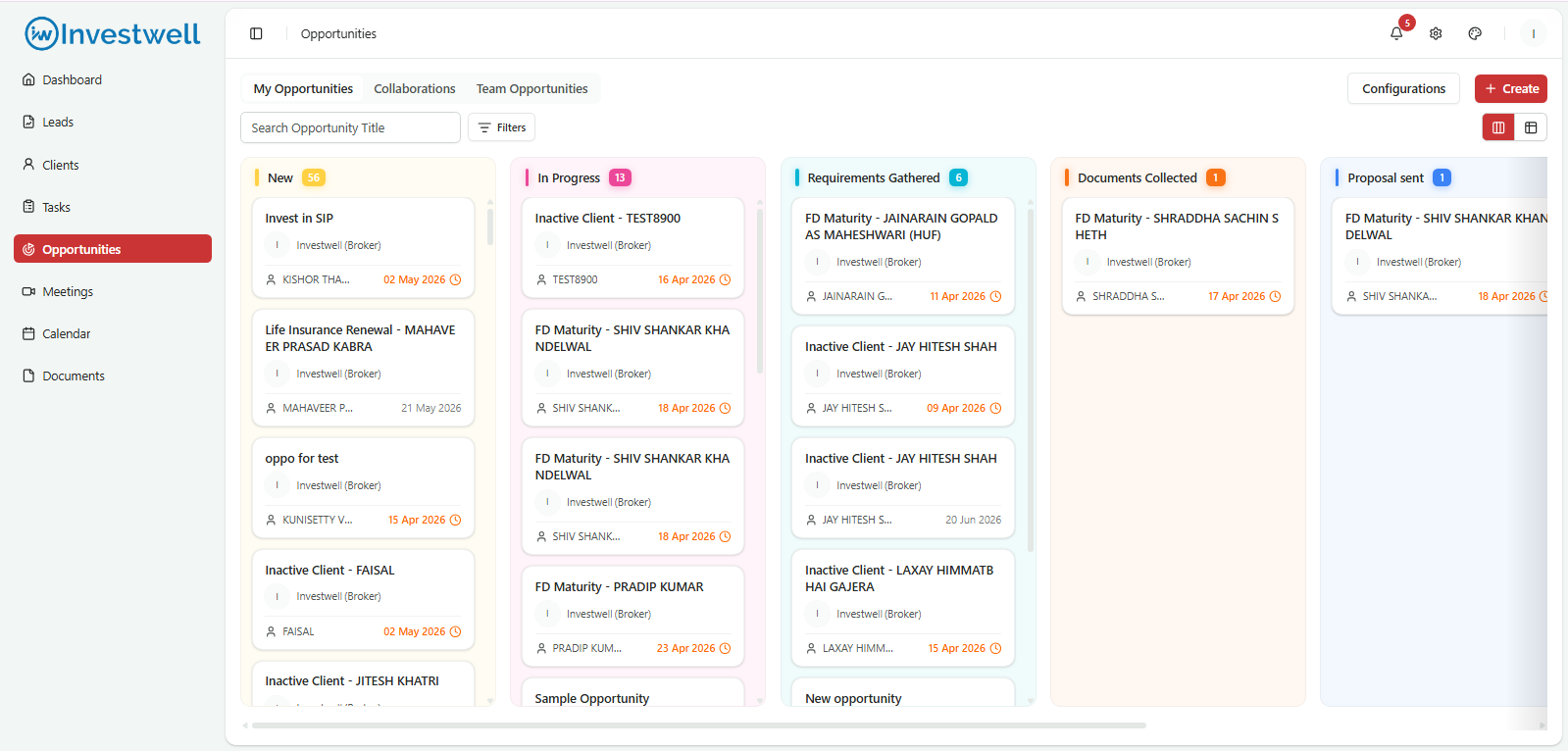
The Opportunities Module in Investwell CRM provides a centralized and structured way for brokers, sub-brokers, and Relationship Managers to create, manage, and act upon financial opportunities for their existing clients and leads. Unlike tasks, opportunities are always client-related and financial in nature, helping teams streamline follow-ups, prioritize accounts, and act on data-driven signals. Opportunities can be created manually by any authorised user or generated automatically by AI, based on predefined triggers such as FD maturities, SIP expirations, or client inactivity.
Path: CRM → Dashboard → Opportunities Module (Via Left Navigation or Directly Via Dashboard)
Purpose of the Opportunity Module
• Track all active, pending, and closed financial opportunities for clients and leads from a single view.
• Assign clear responsibilities to RMs, sub-brokers, and other users across the organisation.
• Set follow-up dates and reminders to ensure timely action and reduce missed opportunities.
• Allow supervisors to assign opportunities to team members for execution.
• Automatically surface data-driven opportunities such as FD maturities, SIP expirations, inactive clients, and portfolio rebalancing needs.
• Improve accountability and visibility across the team with full transparency into opportunity ownership and status.
Opportunity Statuses
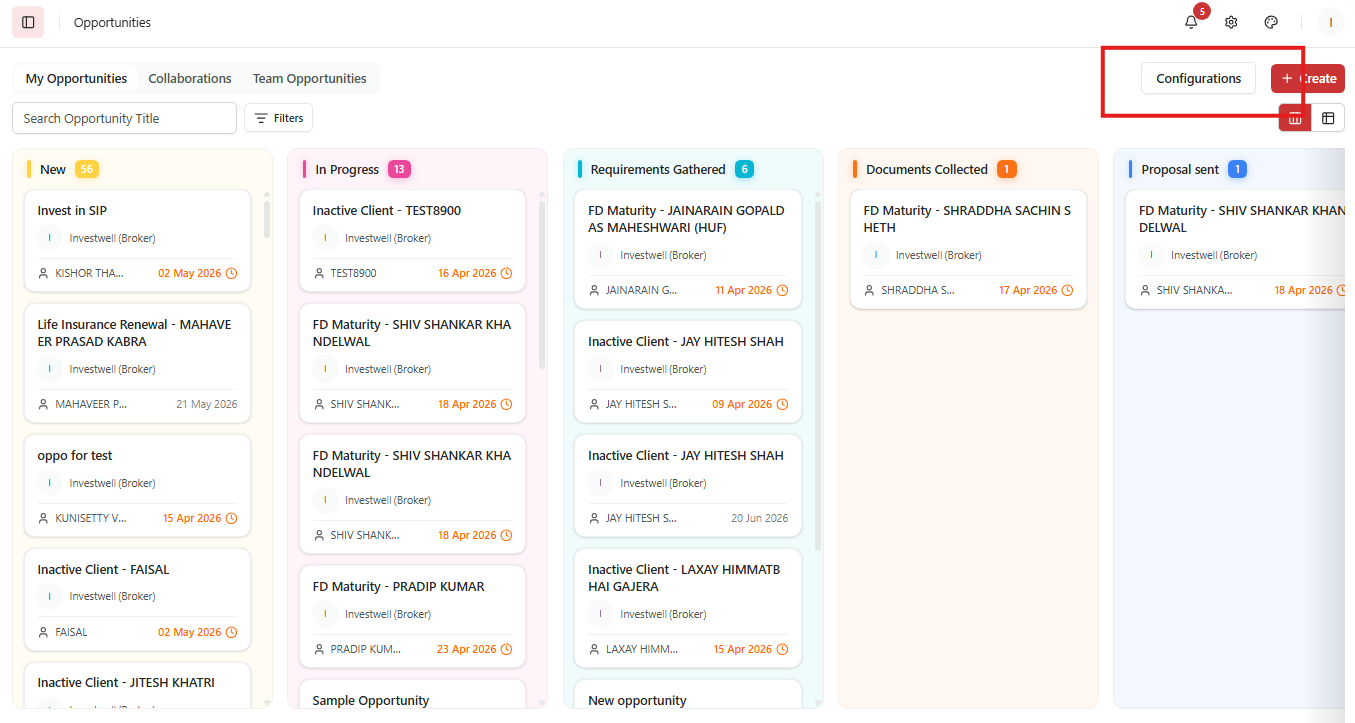
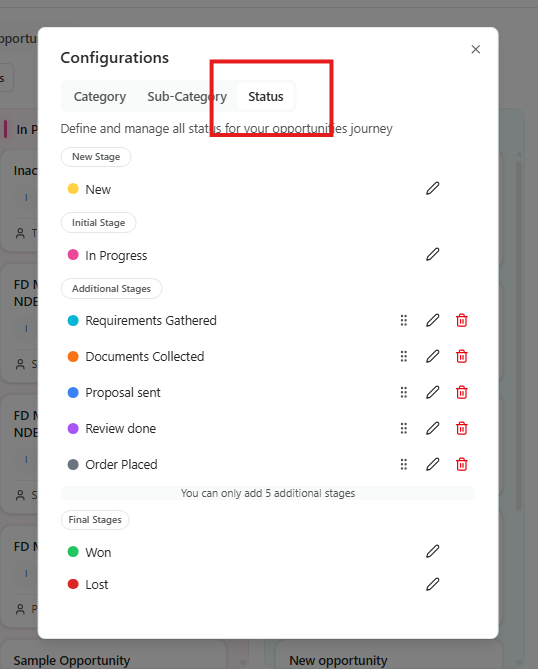
Each opportunity moves through defined stages. The default status on creation is New. By Deafult the following statuses have been set in the opportunities module. However these can be configured in the configuration menu on top right in opportunities module.
- New
- In Progress
- Requirements Gathered
- Documents Collected
- Proposal sent
- Review done
- Order Placed
- Won
- Lost
Notes
- AI-generated opportunities stop being created if the client's AUM is zero and if a date of death has been recorded.
- In the event of a client merge, all opportunities are transferred to the merged client record.
Creating an Opportunity
Opportunities can be created manually by any authorised user, or they may be generated automatically by AI based on configured triggers. Manual creation gives the RM full control over the details, while AI-generated opportunities are pre-filled with relevant client and transaction data.
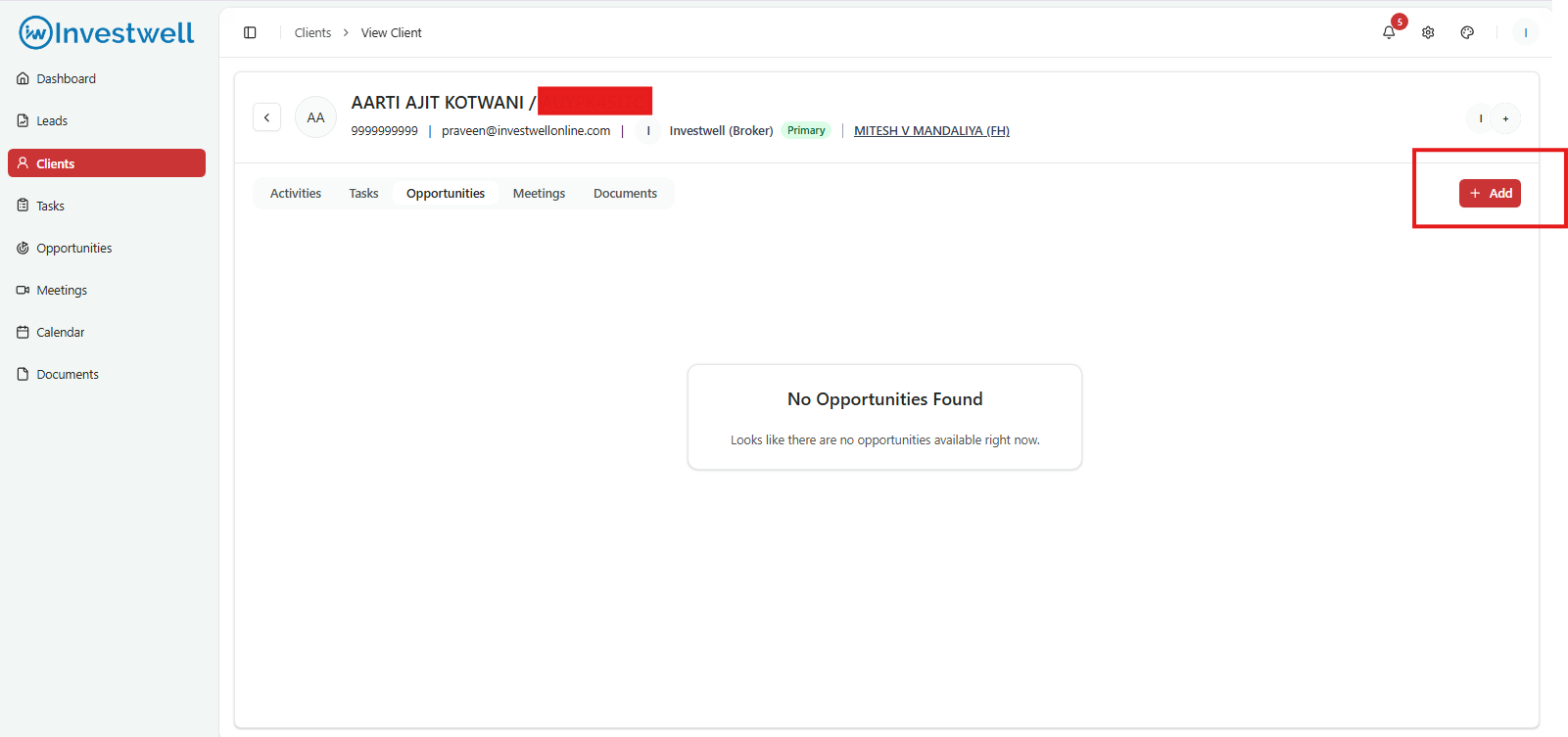
Path:
- CRM → Opportunities → Add Opportunity
- CRM → Clients → Client view → Add Opportunity
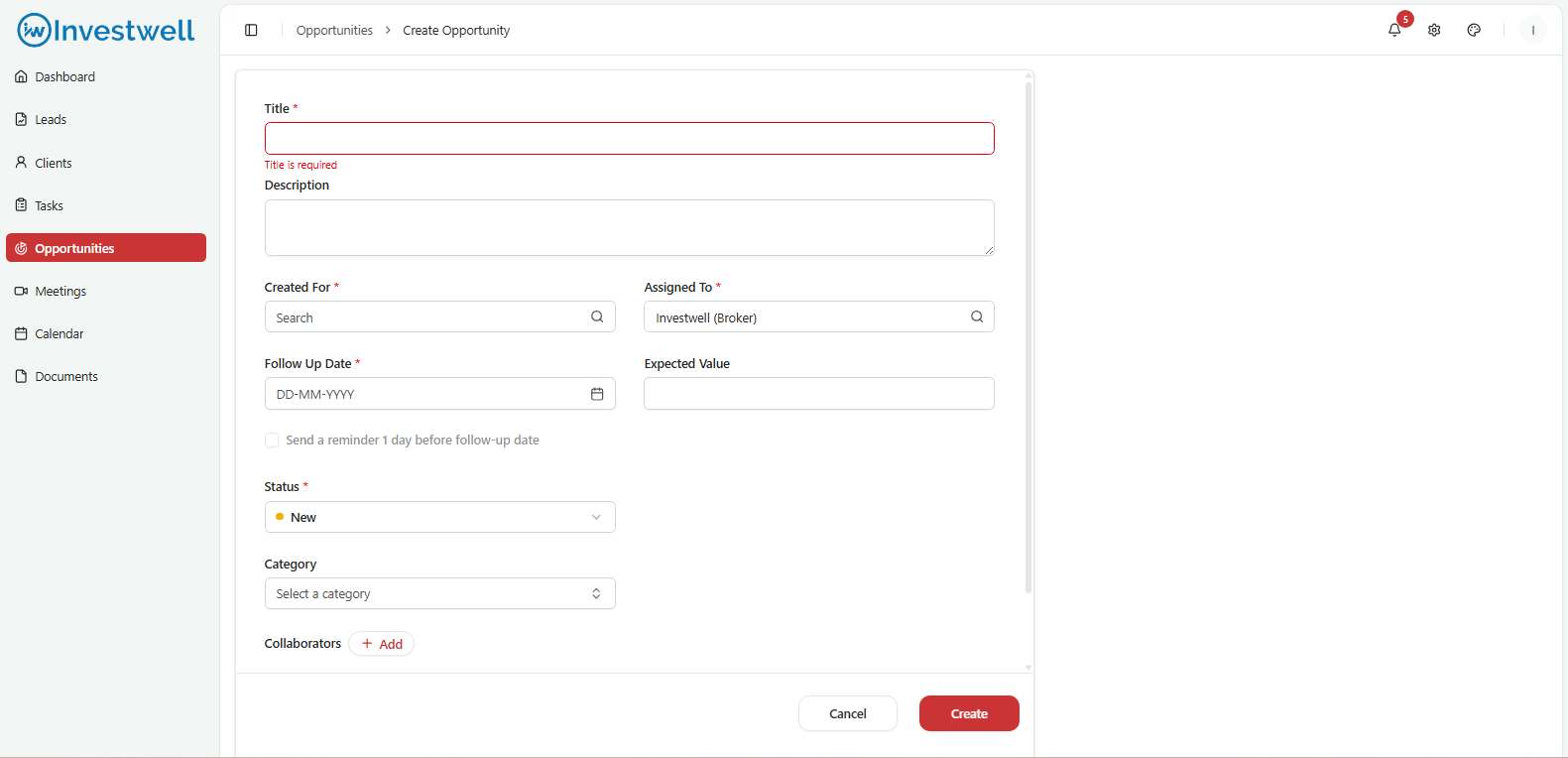
Steps to Create an Opportunity
1. Click Add Opportunity.
2. Enter the Opportunity Name. This can be a contextual title (e.g., "FD Maturity – Reinvestment Suggestion").
3. Add a Description (optional, up to 3,000 characters).
4. Select the Client this opportunity is created for.
5. Assign To a team member. Defaults to the logged-in user.
6. Set the Expected Value (the size of the opportunity in currency terms).
7. Set the Follow-up Date.
8. Set the Reminder. The reminder is hardcoded to 1 day before the follow-up date and will trigger push and web notifications.
9. Select Category and Sub-Category (e.g., SIP, FD, PMS, AIF, Insurance). These are configurable from Settings.
10. Set the Status. The default status on creation is New.
11. Click Create. You will be navigated to the View page of the newly created opportunity.
Notes
- Opportunity Score is an AI generated score which is auto-filled and can be used for opportunity prioritisation.
Viewing Opportunities
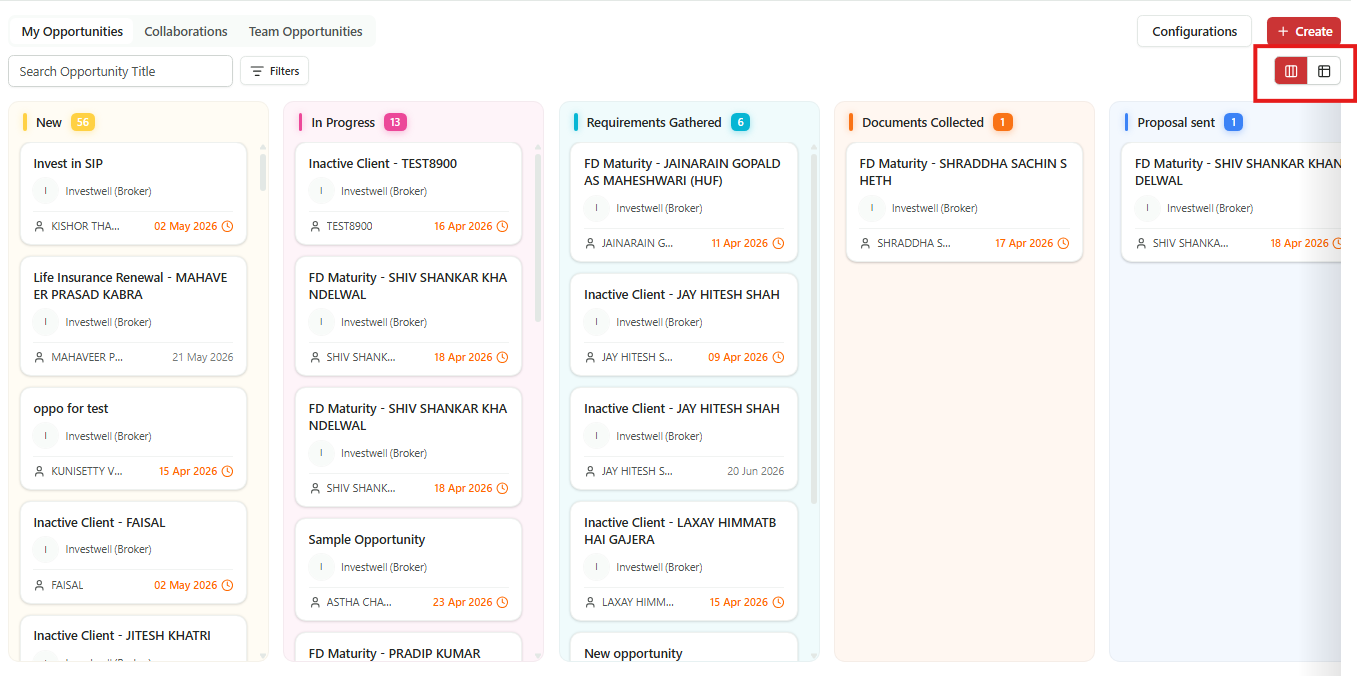
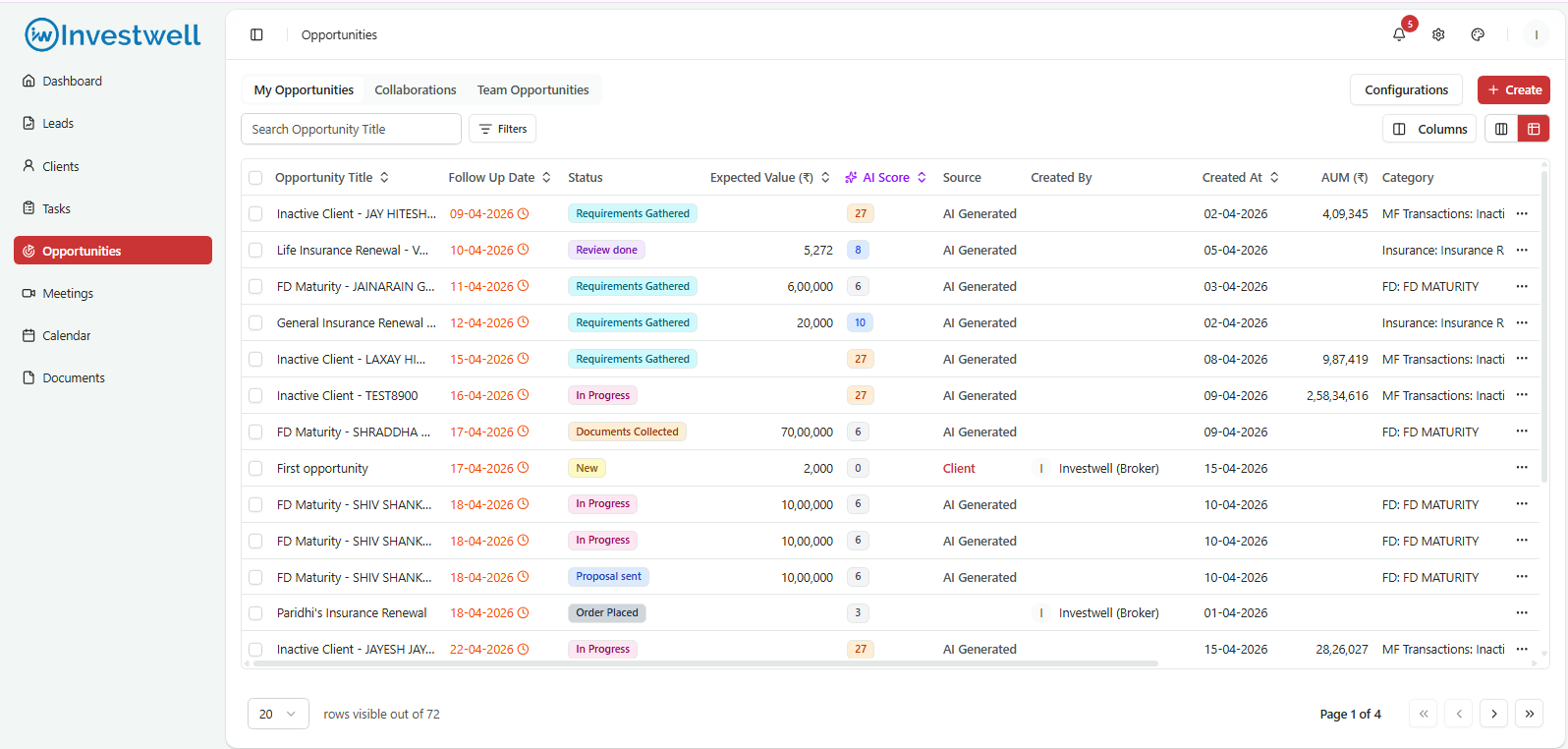
Users can view opportunities either from the Kanban or tabular listing page by clicking directly on an opportunity name. The module supports two distinct views: a Table View for execution-focused workflows and a Kanban View for visual pipeline tracking and ease of movements of opportunity cards across statuses.
1. Table View
The Table View is designed for RMs, sub-brokers, and admins who manage a high volume of opportunities. It displays all opportunities in a structured list with key metrics shown at the top of the screen.
2. Kanban View
The Kanban View provides a visual pipeline representation of opportunities, allowing users to see the distribution across stages at a glance.
Stages:
- New (static - name is editable)
- In Progress (static - name is editable)
- Requirements Gathered
- Documents Collected
- Proposal sent
- Review done
- Order Placed
- Won (static - name is editable)
- Lost (static - name is editable)
Each card in the Kanban view displays:
- Client Name
- Opportunity Name
- Assigned To
- Follow-up Date
Notes
- Cards can be dragged and dropped between stages in the Kanban view to update the opportunity status.
- Filters applied in the Table View also apply in the Kanban View.
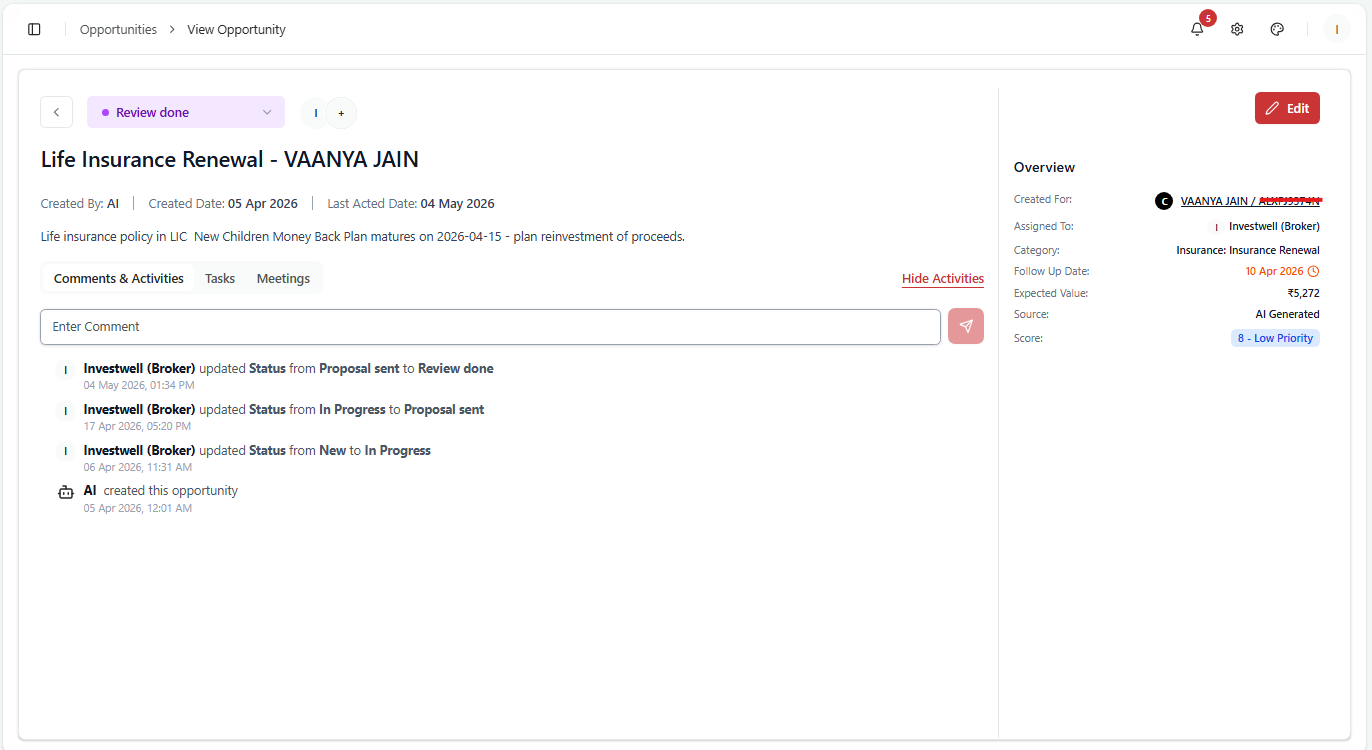
Opportunity Detail View
Clicking on any opportunity name opens the Detail View, where users can perform the following actions:
- Edit the opportunity details
- Change the status of the opportunity
- Add comments to the opportunity (editable within 10 minutes of posting)
- View the full activity log, showing what changed, who made the change, and when
Bulk Actions
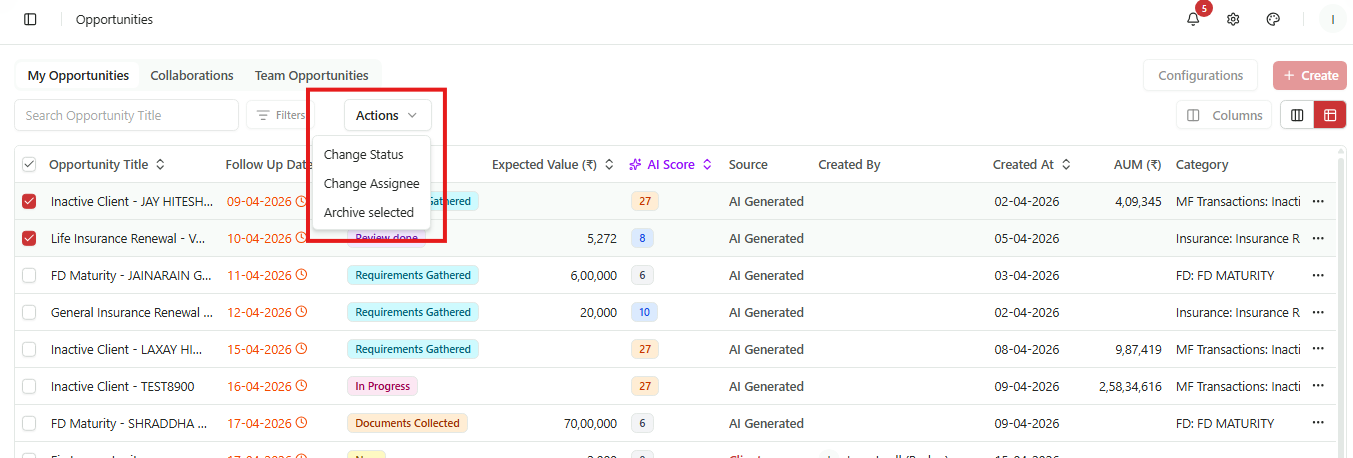
Users can select multiple opportunities using checkboxes on the listing page and apply the following bulk actions:
- Change Status — Update the status of all selected opportunities at once.
- Reassign — Reassign selected opportunities to another user.
- Delete — Permanently delete selected opportunities. This action is available to Admin users only.
Notes
- Won and Lost opportunities are not shown by default. Apply a status filter to view them.
- Opportunities can be searched by name using the search field within the module.
AI-Generated Opportunities
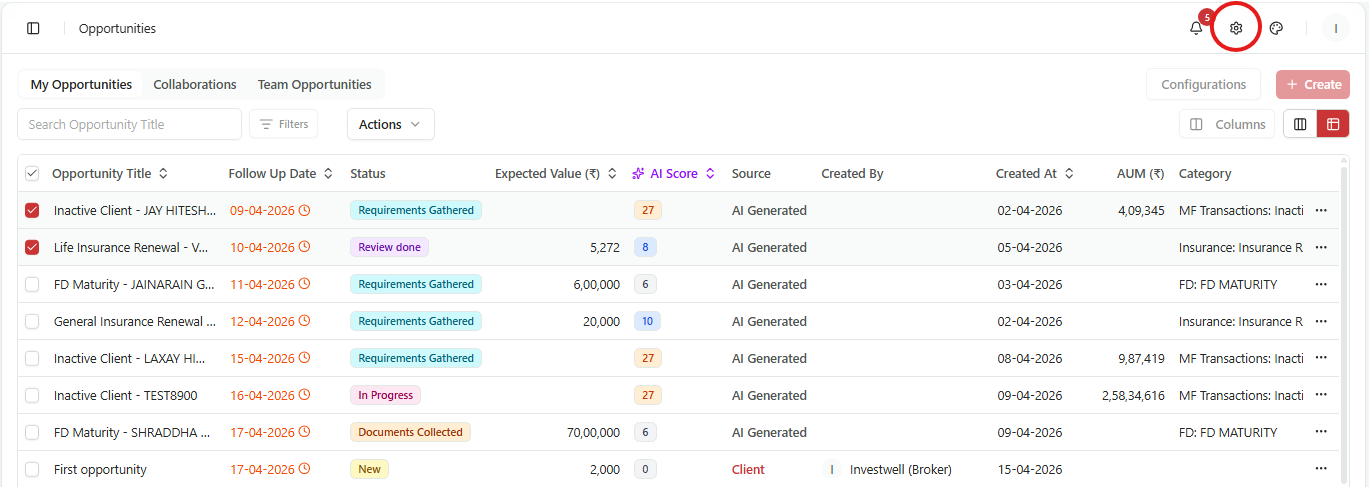
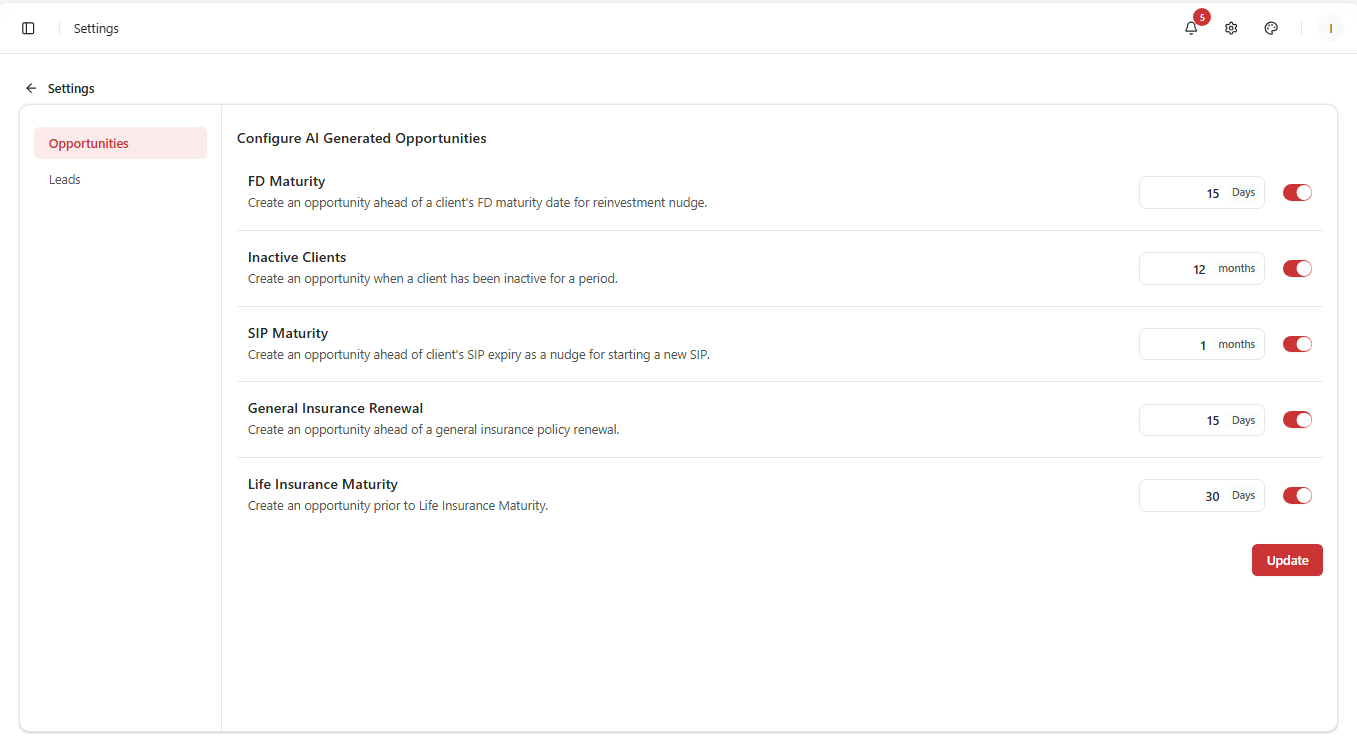
Each AI generated opportunity type can be toggled on or off from Settings, along with configuration of the date of creation.
AI-Generated Opportunity Types
The following triggers are supported for now. More will be added at a later stage:
FD Maturity - FD nearing maturity within a configured number of days
SIP Expiry - SIP ending within a configured number of months
Inactive Clients - No MF purchase in a configured number of months; client has existing AUM
General Insurance Renewal - Policy expiry approaching within a configured number of days
Life Insurance Maturity - Policy maturing within a configured number of days
Alerts and Notifications
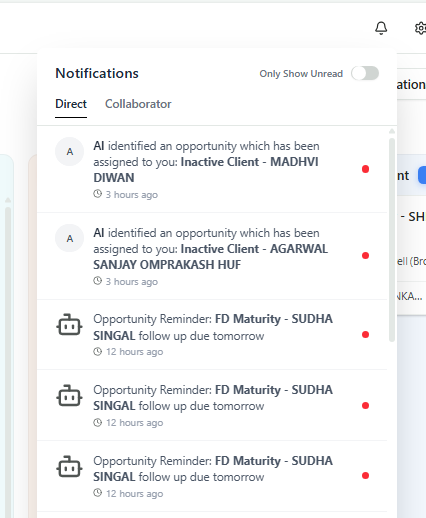
The system sends notifications to keep users informed about their opportunities and follow-ups.
- In-App, and Push notifications are supported for each opportunity.
- Alerts are triggered for due opportunities where reminder checkbox has been ticked and when an opportunity is assigned or reassigned to them by another user.
Was this article helpful?
That’s Great!
Thank you for your feedback
Sorry! We couldn't be helpful
Thank you for your feedback
Feedback sent
We appreciate your effort and will try to fix the article