Overview
The Goal Planner module helps you define financial goals for your clients, map their existing investments to those goals, and track whether each goal is on track, in shortfall, or in surplus. It also allows you to generate a goal-wise PDF report that can be shared with clients during reviews.
How to Access Goal Planner
Navigate to Utilities → Goal Planner.
You will see a list of clients along with their PAN and the number of goals created. Use the search box to find a client, then click on the client name to open their Goal Planner.
Goal Planner Layout
The Goal Planner is divided into three tabs:
Goal Maker, used to create goals
Map Asset, used to allocate investments to goals
Goal Status, used to track progress and funding gaps
Step 1: Create Goals (Goal Maker)
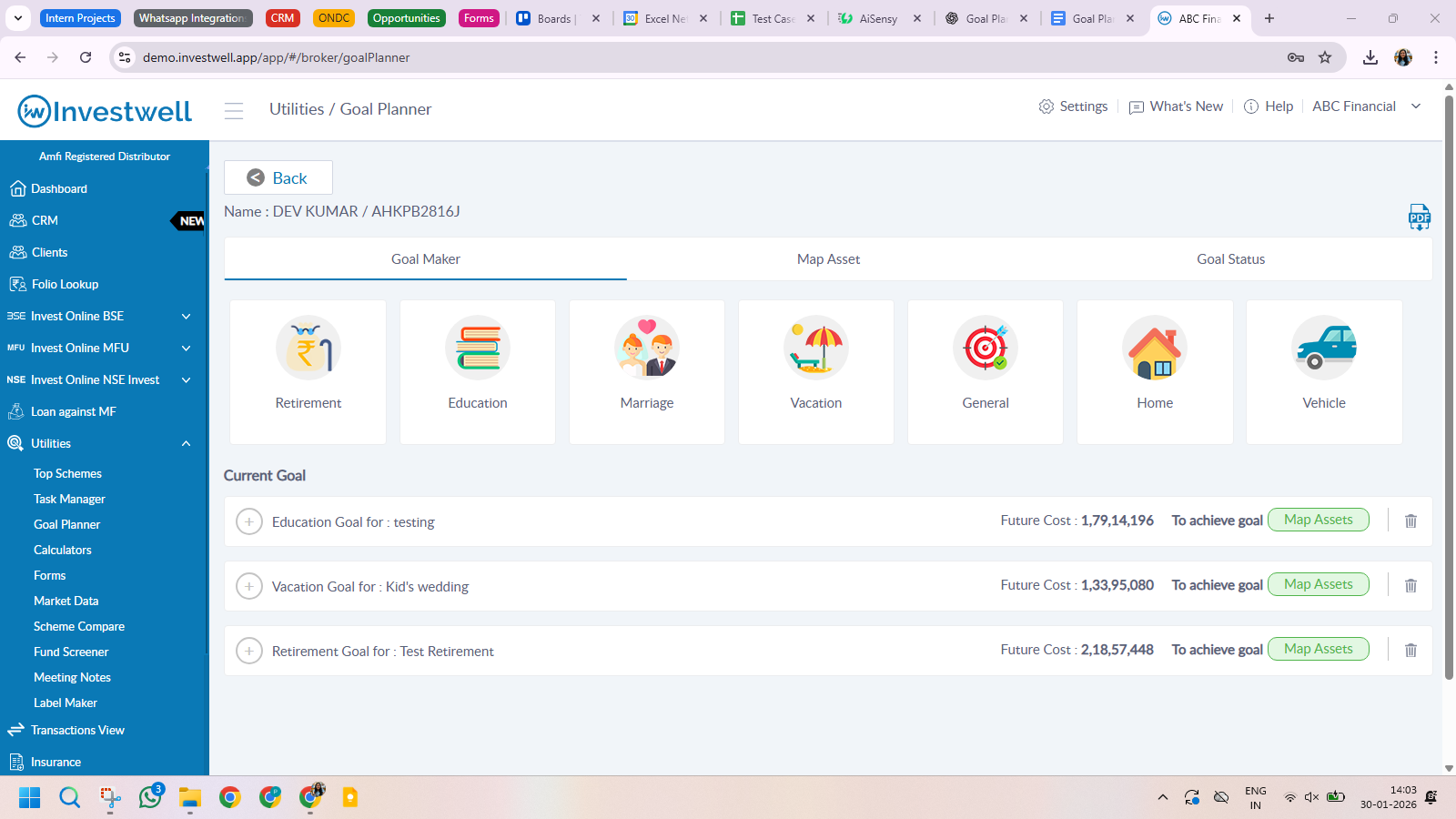
Under the Goal Maker tab, you can create goals using predefined goal types such as Retirement, Education, Marriage, Vacation, Home, Vehicle, and General.
When you click on a goal type, a form opens below where you enter goal-specific details. For example, a Retirement goal asks for retirement age, annual expenses, inflation, returns, and life expectancy, while other goals such as Education or Vacation ask for target date, present cost, inflation, and expected return.
Once saved, the goal appears under Current Goals, showing its future cost and a Map Assets action.
Step 2: Map Assets to Goals (Map Asset)
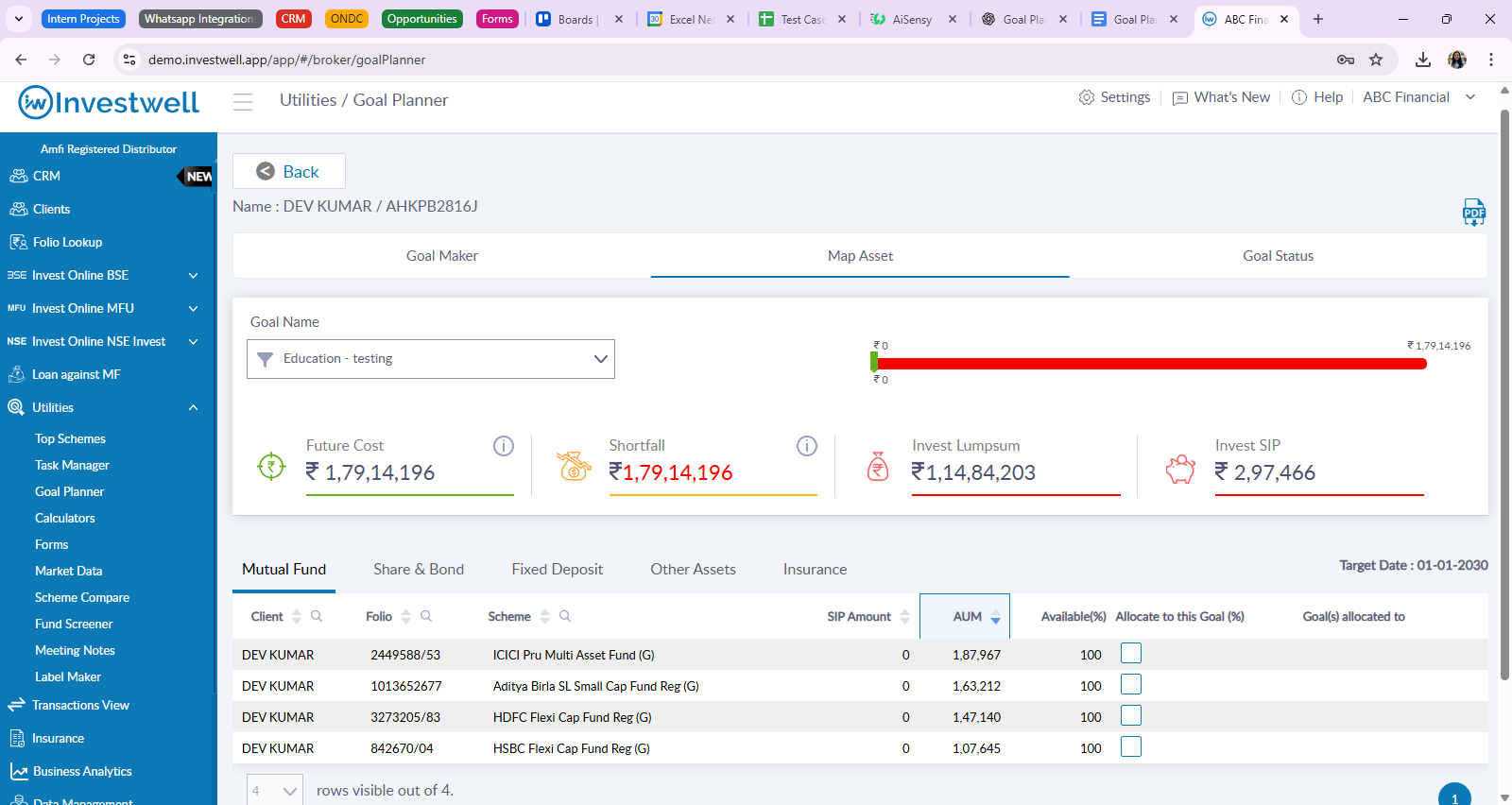
Clicking Map Assets or switching to the Map Asset tab allows you to allocate a client’s existing investments to a selected goal.
At the top of the page, you can choose the goal from a dropdown and view a progress bar showing whether the goal is on track, in shortfall, or in surplus. You will also see key figures such as the goal’s future cost, shortfall or surplus, and the suggested lump sum or SIP required.
Below this, assets are grouped into Mutual Funds, Shares & Bonds, Fixed Deposits, Other Assets, and Insurance. You can allocate a percentage of each asset to the selected goal. The same asset can be distributed across multiple goals using percentage allocation.
All calculations update automatically as allocations are changed.
Step 3: Track Goal Progress (Goal Status)
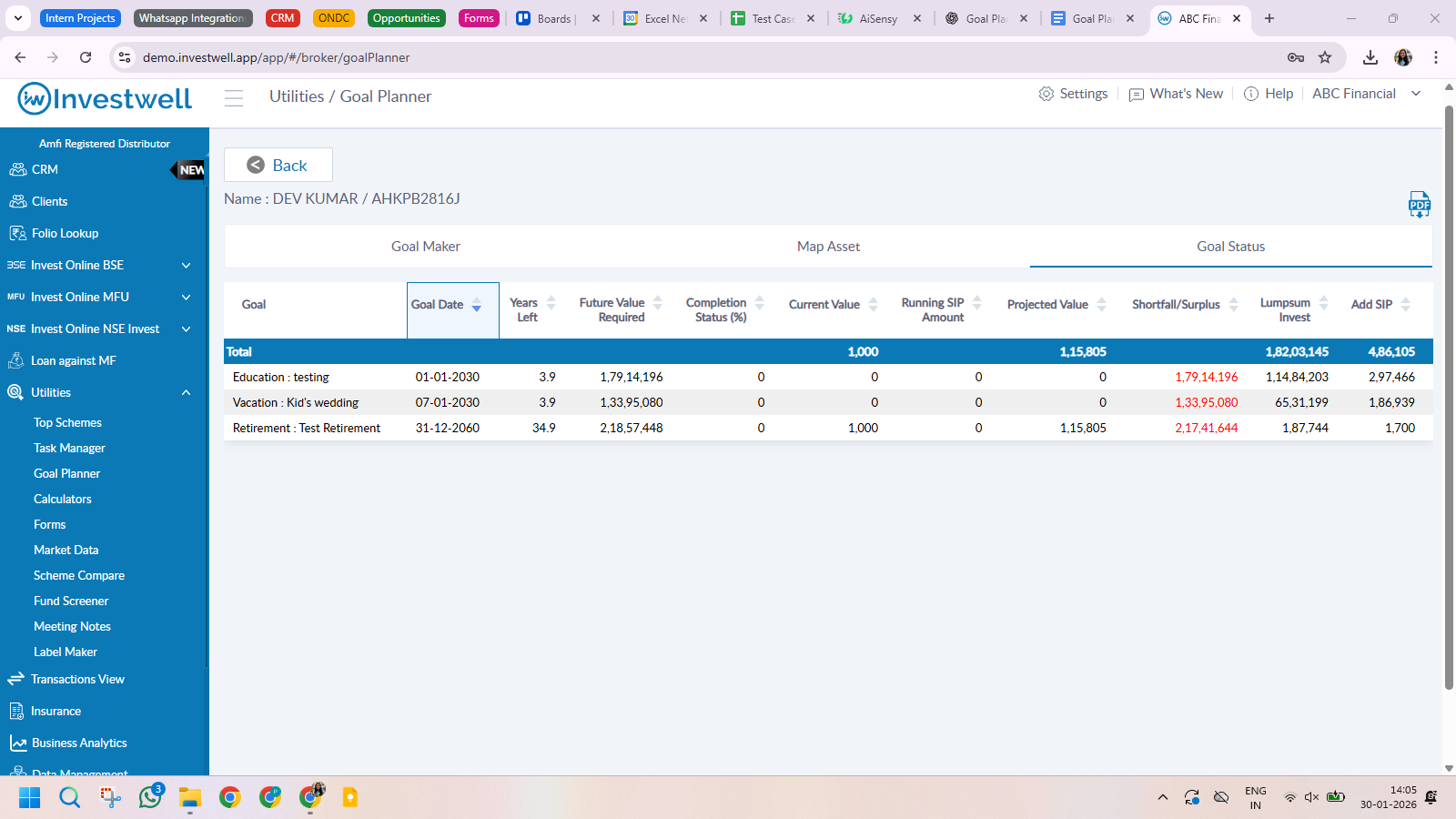
The Goal Status tab provides a consolidated view of all goals created for the client.
For each goal, you can see the future value required, current value, projected value, completion status, Running SIPs from SIP mining, shortfall (in red) or surplus (in green), and the additional lump sum or SIP required. This view helps you quickly identify which goals are well funded and which require corrective action.
Download Goal Status Report (PDF)
You can download a detailed Goal Status PDF report directly from the Goal Planner. The report summarizes all goals along with their funding status and investment requirements, making it useful for client meetings and financial reviews.
Important Notes
Goals must be created before assets can be mapped. Mapping assets improves the accuracy of goal tracking and projections. Review goal status periodically to ensure investments remain aligned with client objectives.
Was this article helpful?
That’s Great!
Thank you for your feedback
Sorry! We couldn't be helpful
Thank you for your feedback
Feedback sent
We appreciate your effort and will try to fix the article