
Merging Duplicate Clients
Introduction
As you start using Mint for the first time, you will need to perform some data correction activities, such as Deleting Clients, merging Duplicate Investors and Creating Families. These actions can be carried out on the Clients page, accessible from the Navigation menu.
Why are duplicates created in the first place?
Duplicates are created when:-
- The same investor appears in multiple folios with different PAN-name combinations, or variations in name spellings (e.g., "Amit Kumar" vs. "Amit K.") result in a duplicate client creation
- If a new folio has only the investor’s name without a PAN, a new investor is created.
How a New Client / Duplicate Client Is Created in Mint
In Mint, investors are created by detecting a unique First Applicant Name and PAN in folios. If a folio contains only a name without a PAN, a corresponding new investor is created.
How to Merge Duplicate:
There are two ways to merge duplicates:
- From the Clients Menu
- From the Duplicate Finder Menu
Note: We do not have a separate option to delete clients, In order to delete a client or client profile or client portfolio/ delete zero portfolio , merge it with another client. The AUM of folios along other assets of shares, insurance etc will be transferred to the chosen client after 1 hour (max) from when the merge action is performed successfully
Merge Duplicates from the Clients Menu:
The Clients Menu helps you manage all your clients' profile details. You can view your clients' list, navigate to their portfolio, and perform various actions. This is useful for merging a few clients together.
Actions that can be performed here are -
- Merging Clients
- Creating a Family
- Assigning a Relationship Manager or Sub-Broker
- Enabling/Disabling Online Transactions
- Enabling/Disabling Lock Profile
- Activate/Deactivate Login
Path: Go to Broker Dashboard > Clients
Here, you can view the list of all clients.
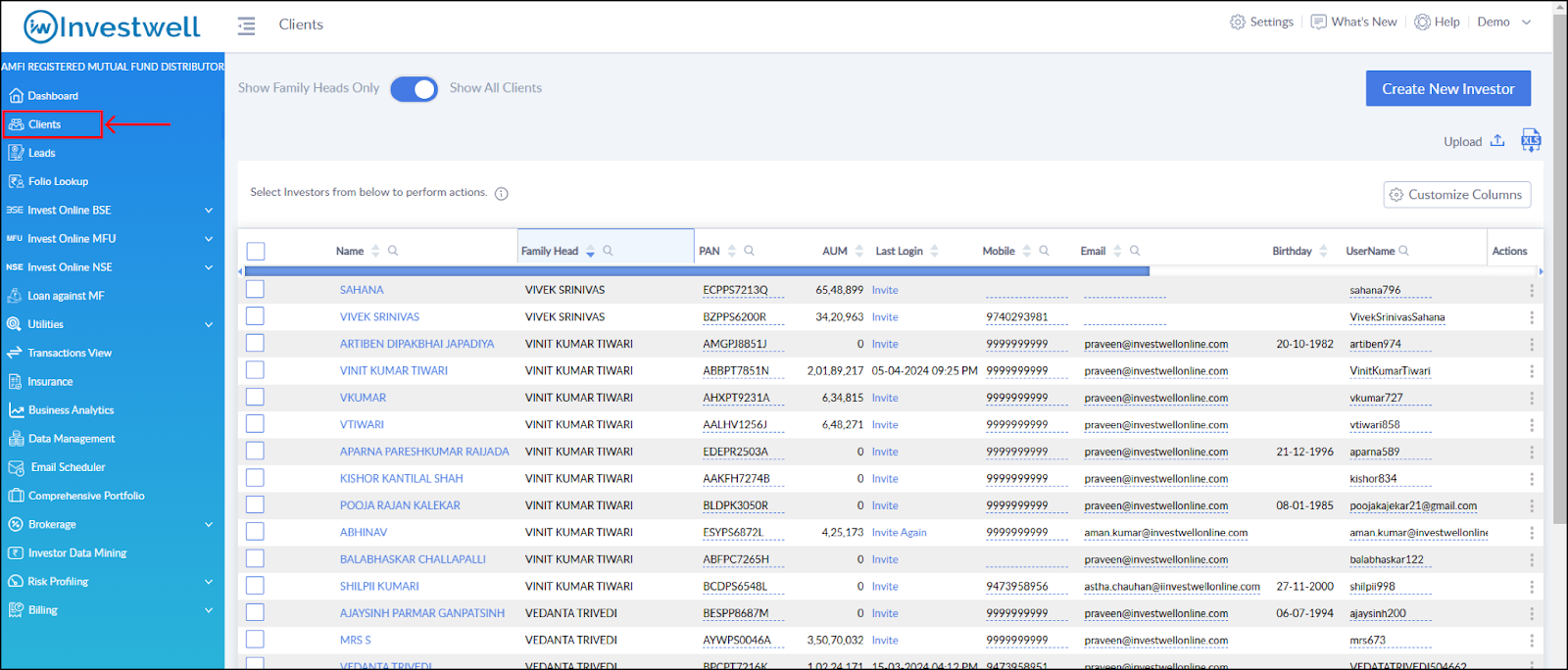
Select all the clients you want to merge together.

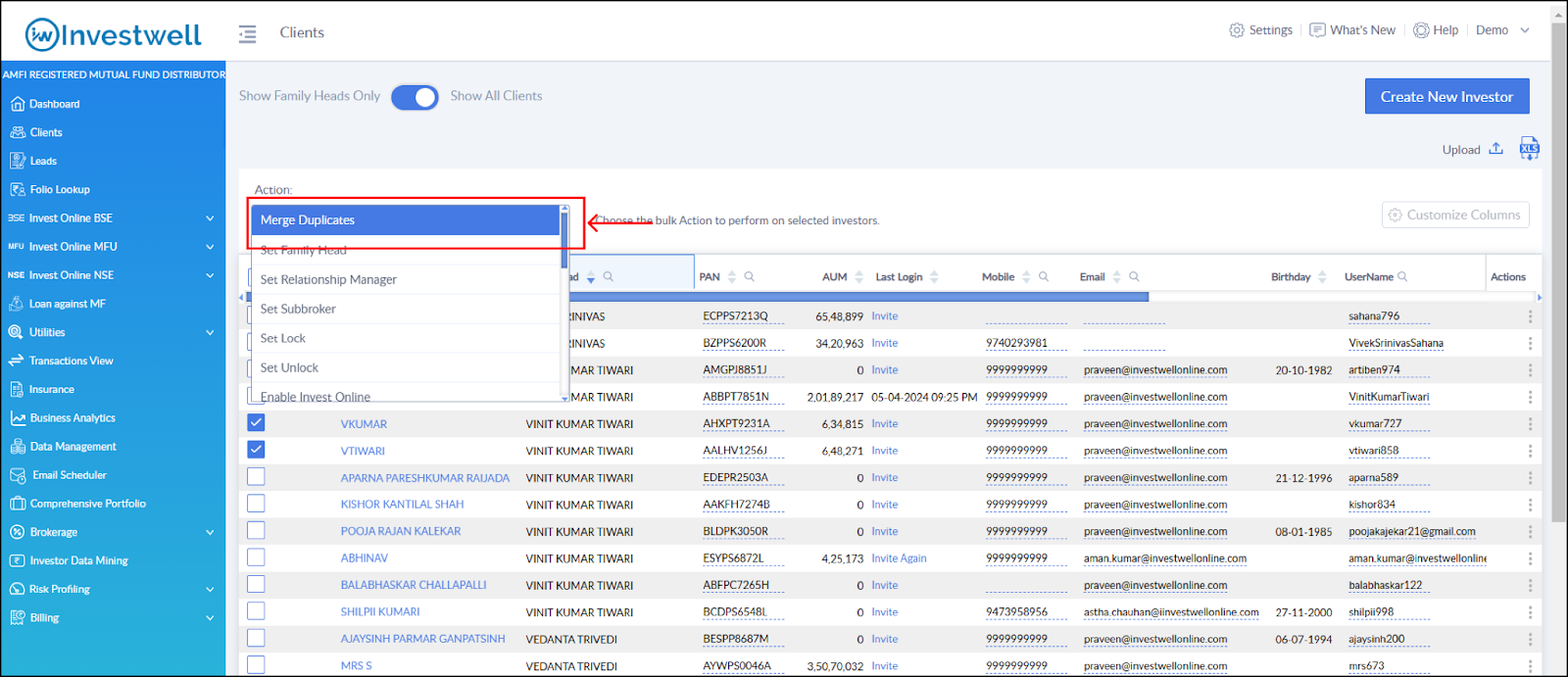
After selecting the clients, an Action menu will appear at the top of the table. From the dropdown, choose "Merge Duplicates."
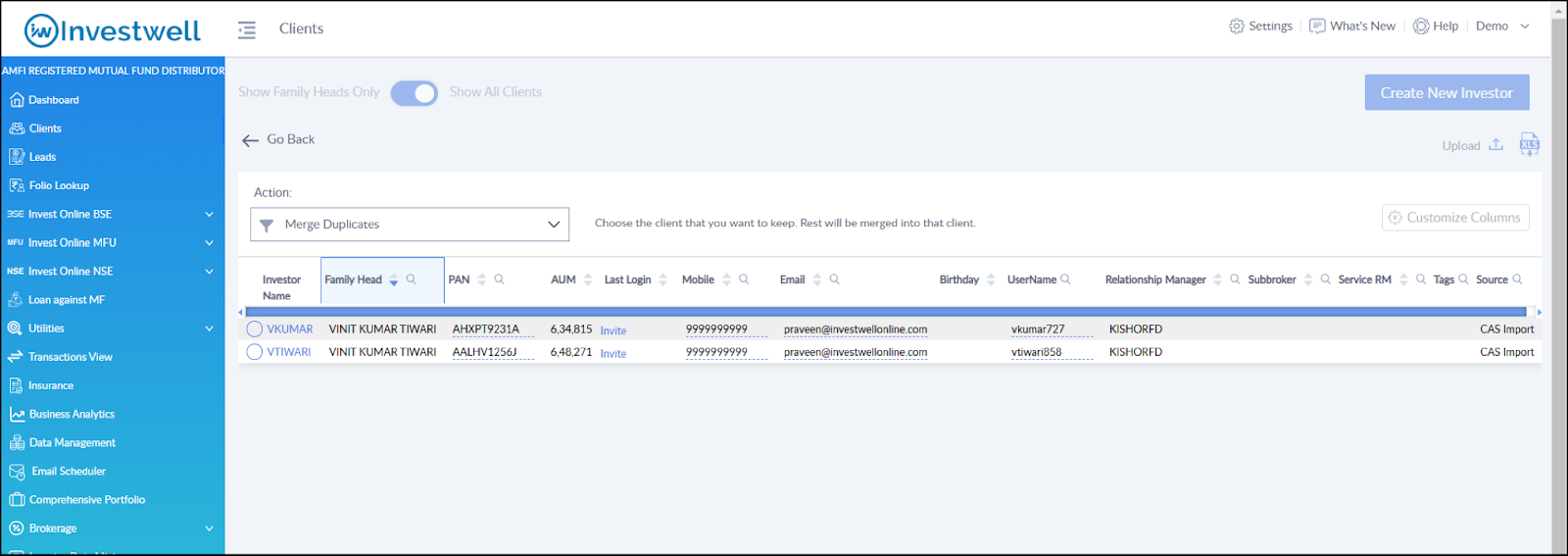
After selecting "Merge Duplicates," a list of clients for which the action needs to be performed will be displayed.
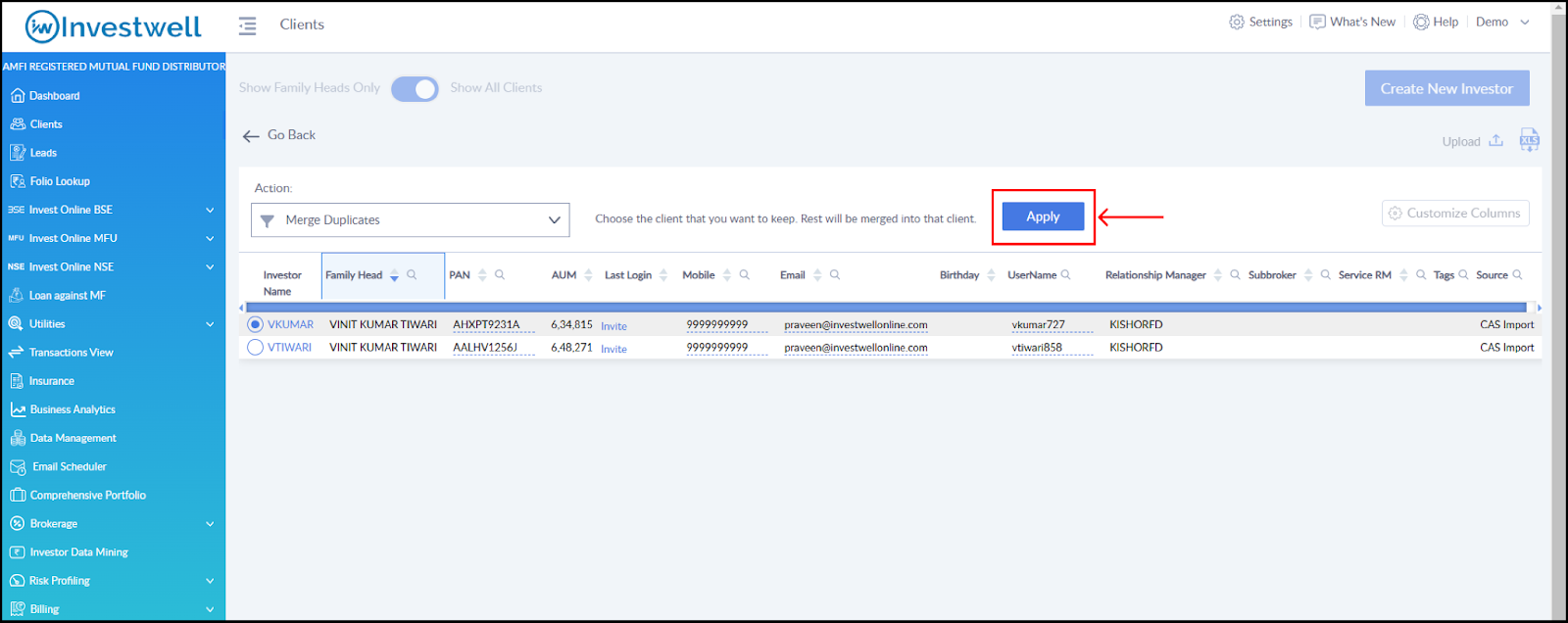
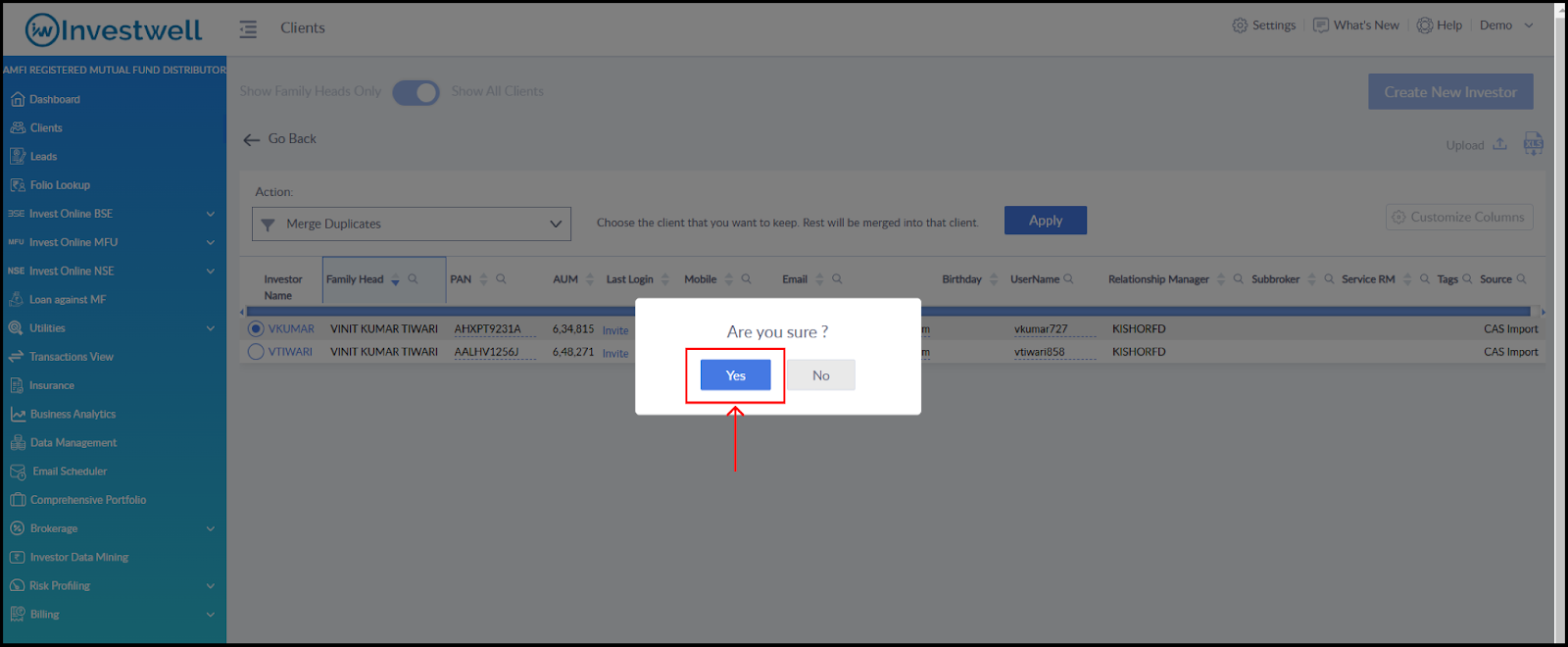
Choose the one client you want to keep and click Apply. This action will merge the rest of the clients into the selected one.
A confirmation pop-up will appear. Click "Yes" to complete the merge.
Note :
The AUM of folios along other assets of shares, insurance etc will be transferred to the chosen client after 1 hour (max) from when the merge action is performed successfully
Merge Duplicates from the Duplicate Finder Menu:
This is useful when there are multiple sets of duplicate clients based on different parameters that need to be merged.
Path: Go to Broker Dashboard > Data Management > Duplicate Finder
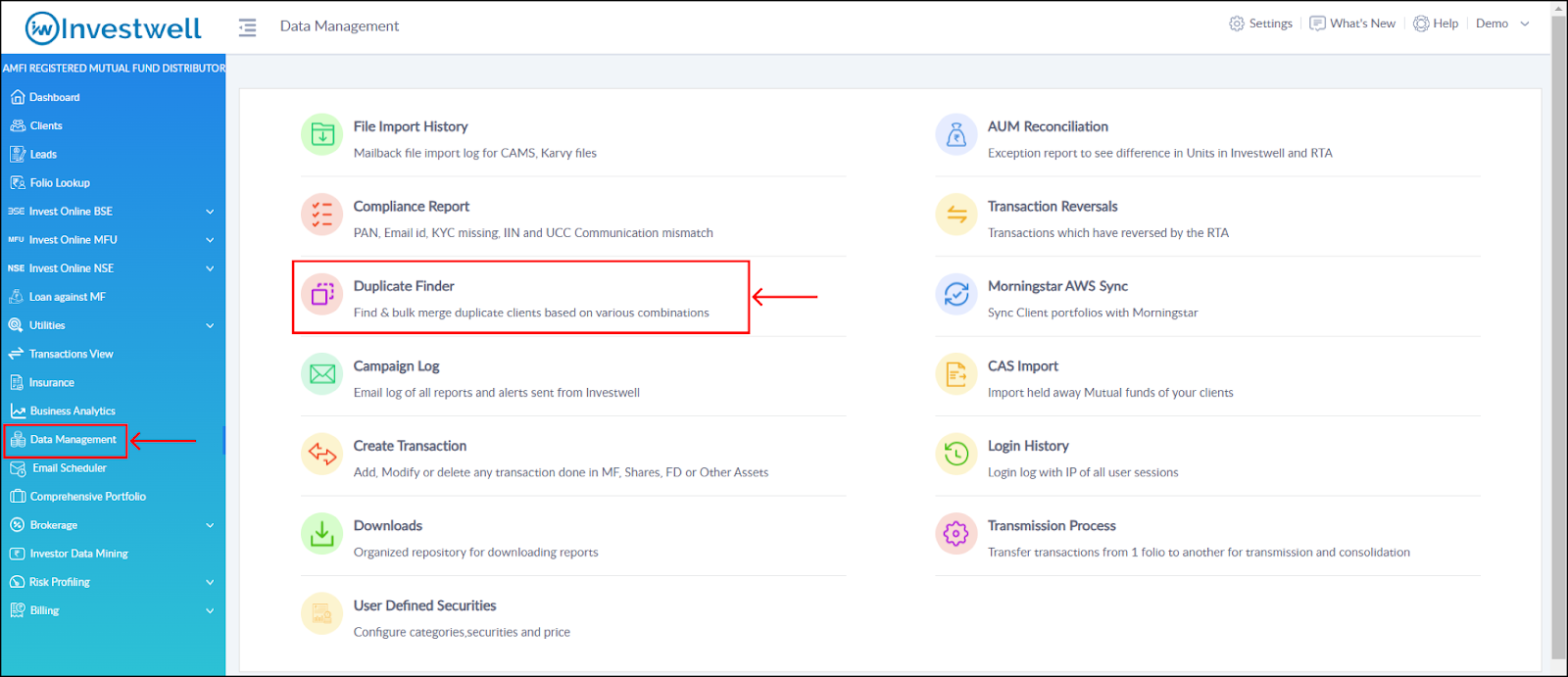
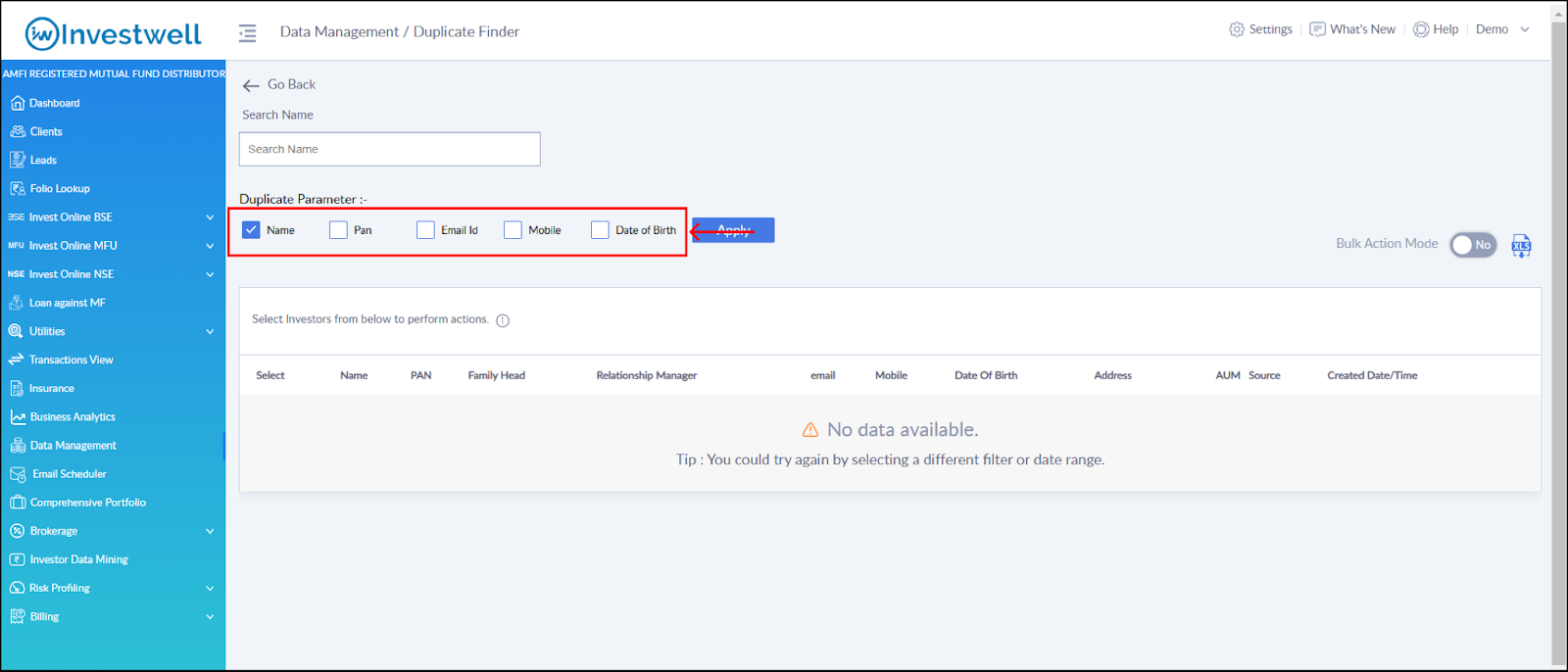
Here you will see a list of different parameter types.
After selecting a parameter, click Apply.
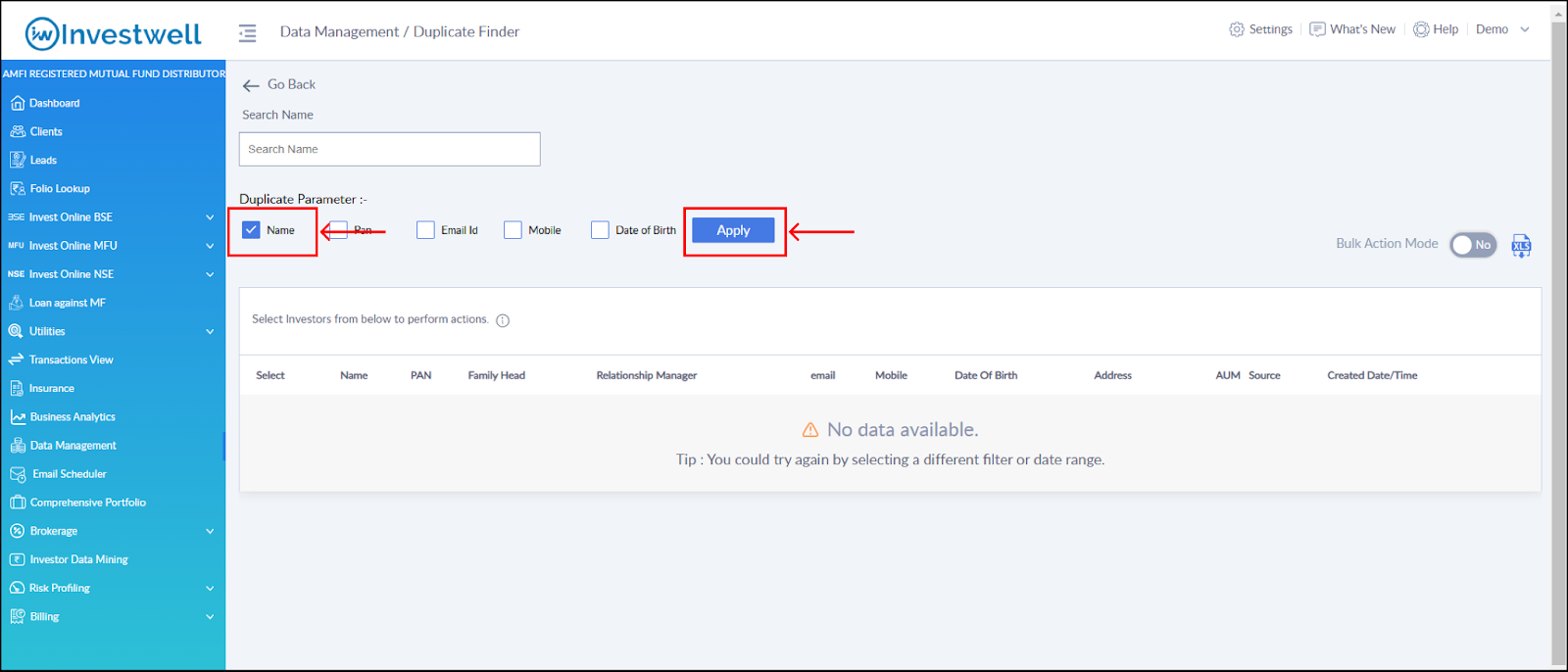
A list of all clients with the same name will appear, grouped accordingly based on the name.
For example, if "ABC" is created twice, it will be grouped separately, and if "DEF" is also created twice, it will appear in a different group. This helps in easily identifying duplicate clients.
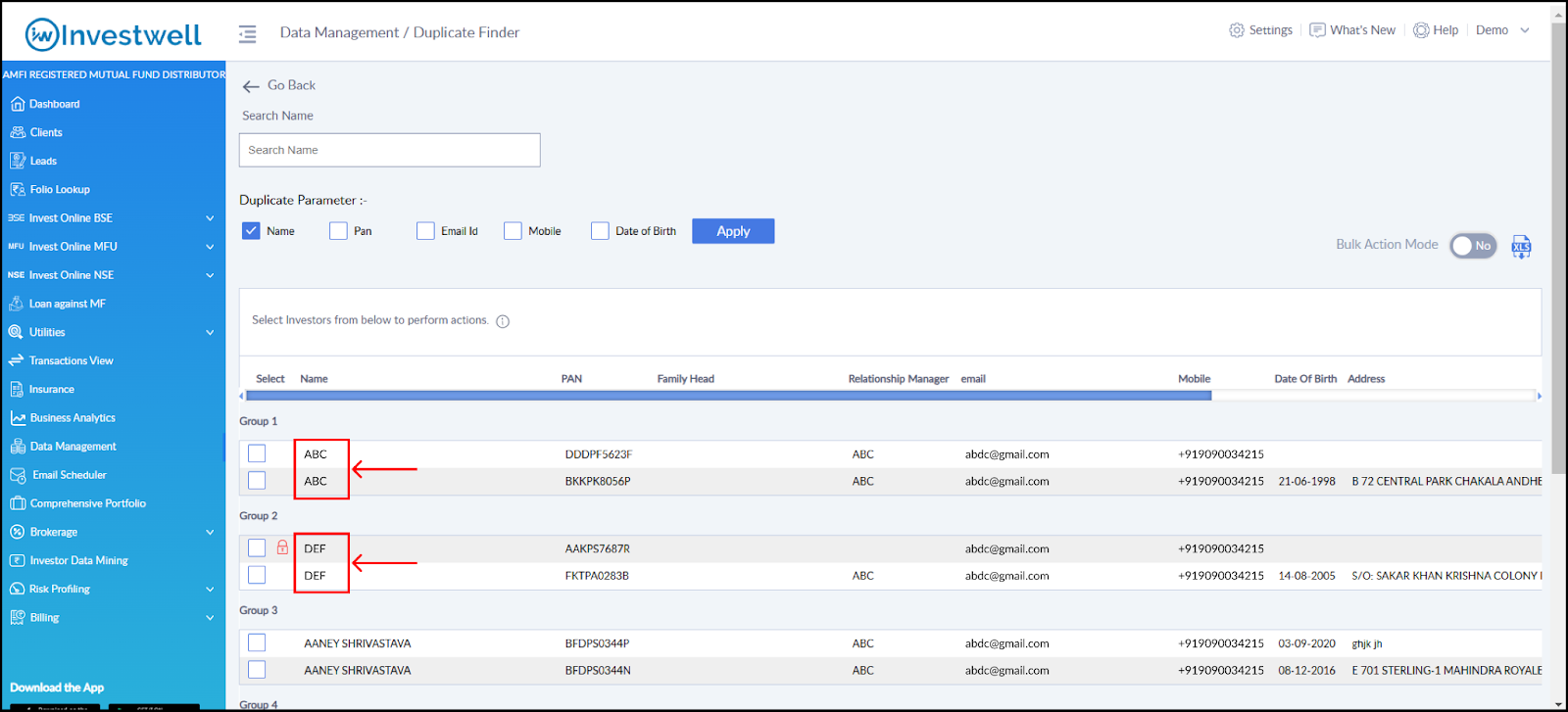
Select all the clients for which merging action needs to be performed.
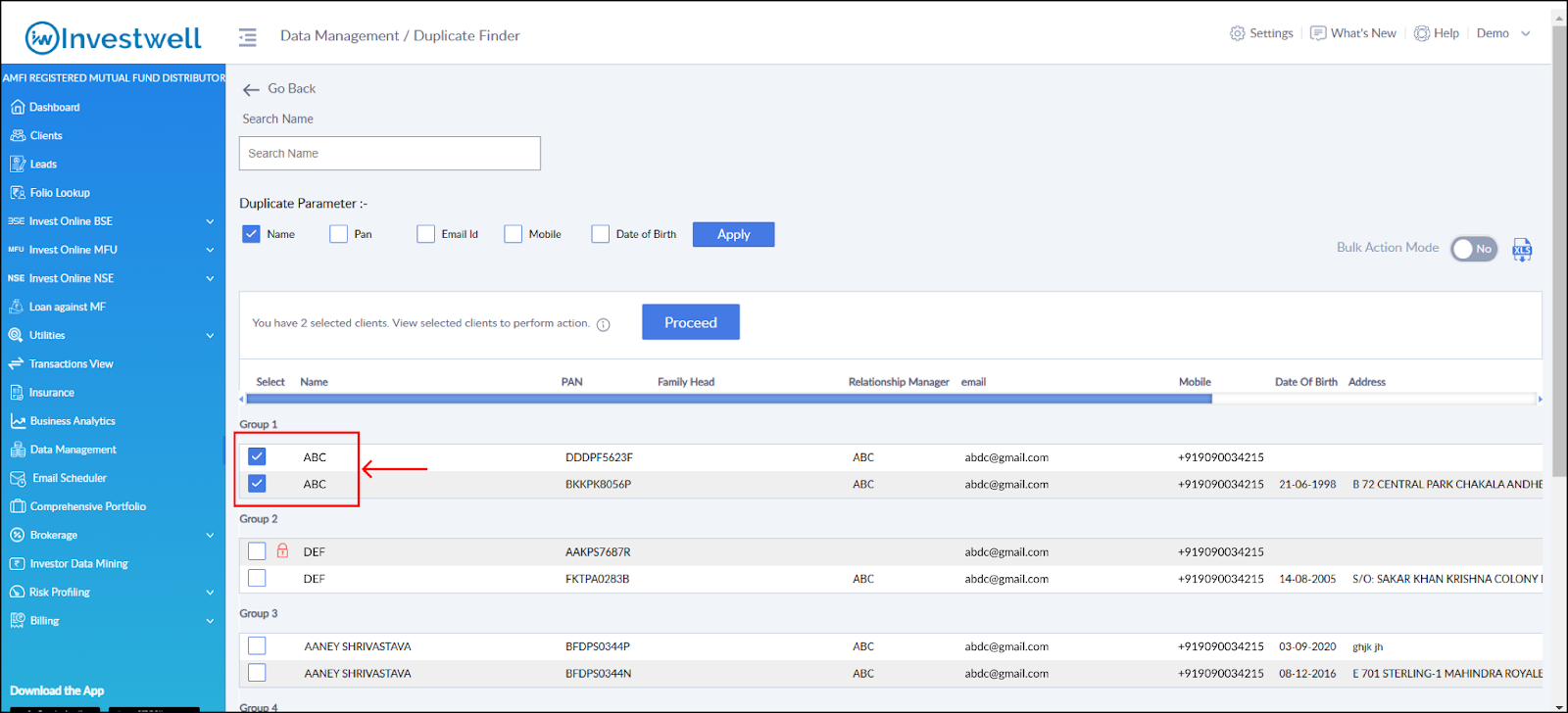
After selecting all the clients, a Proceed button will appear. Click Proceed to continue.
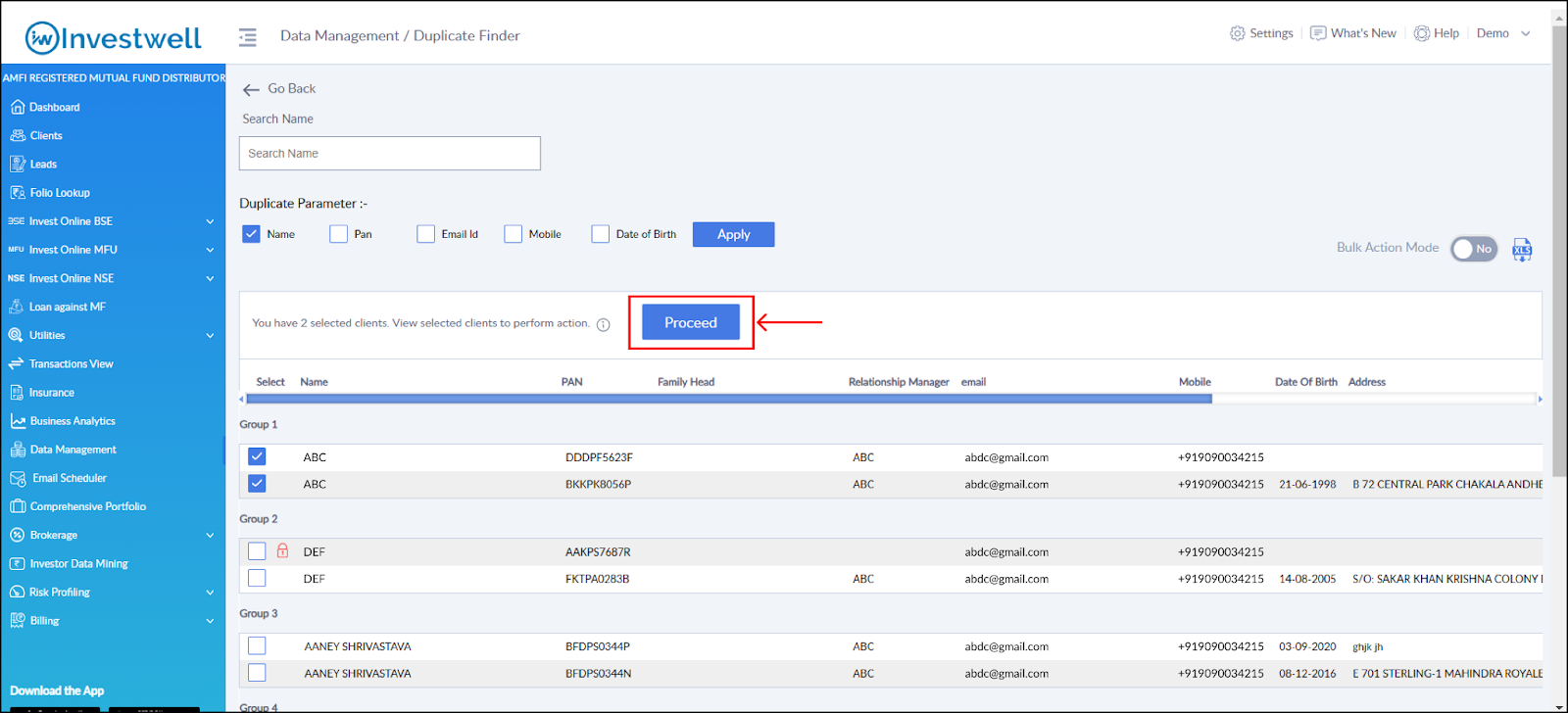
After clicking Proceed, the next screen will appear, where you will see the option "Choose Action."
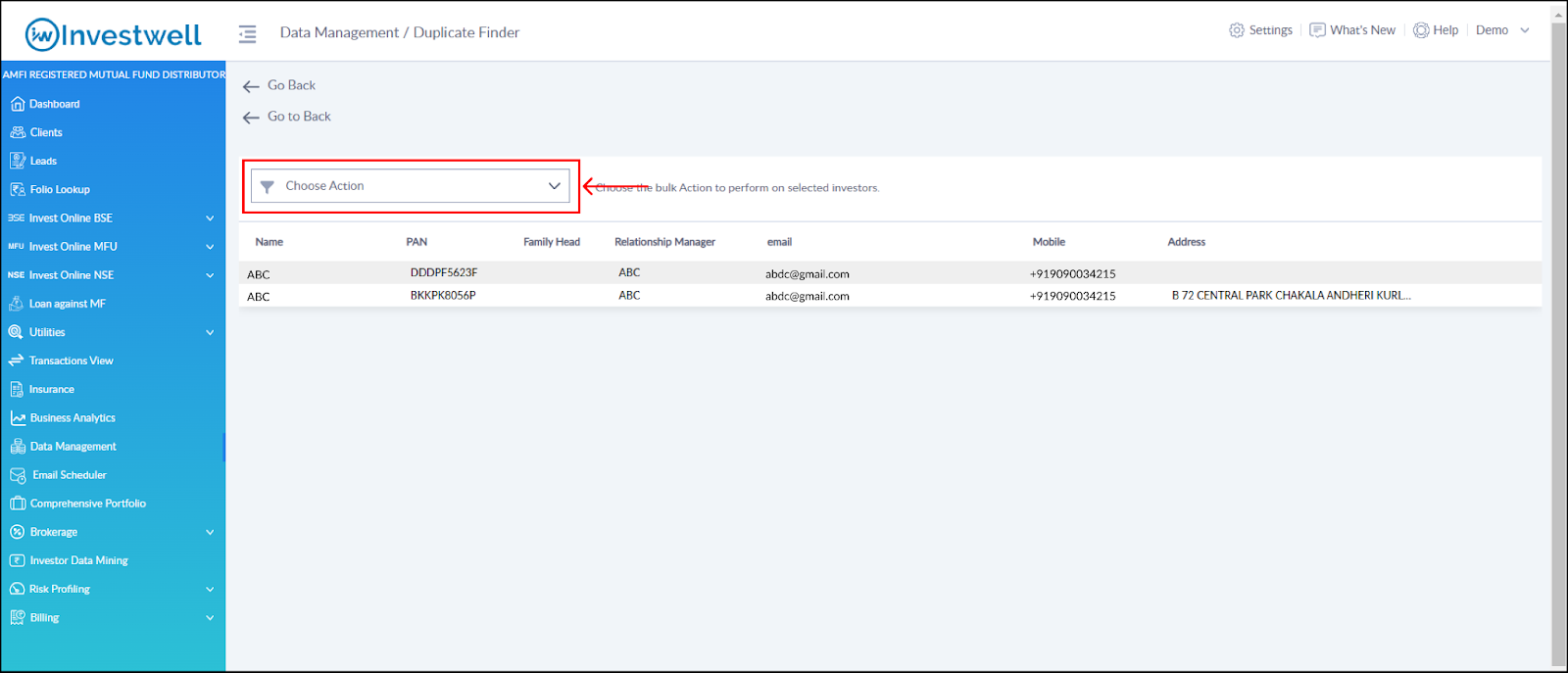
From the drop-down menu, select the "Merge With" option.
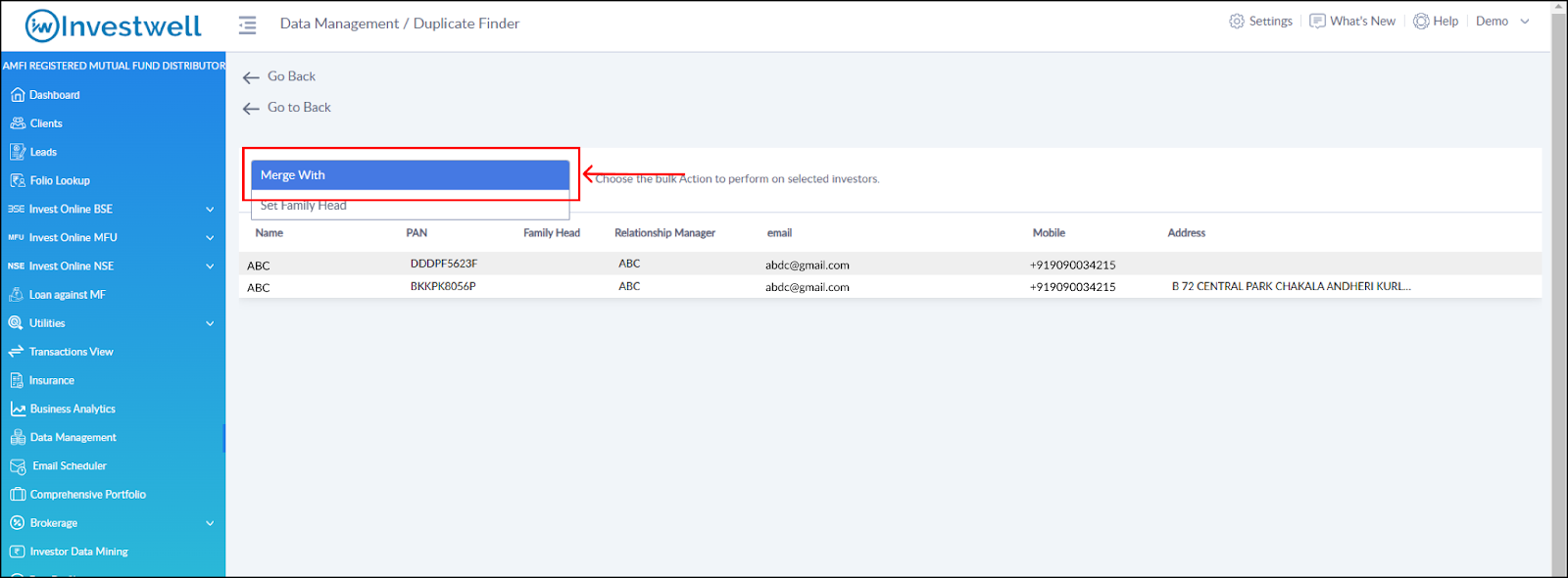
After selecting "Merge With," choose one client to keep. The rest of the duplicate clients will be merged into the selected one.
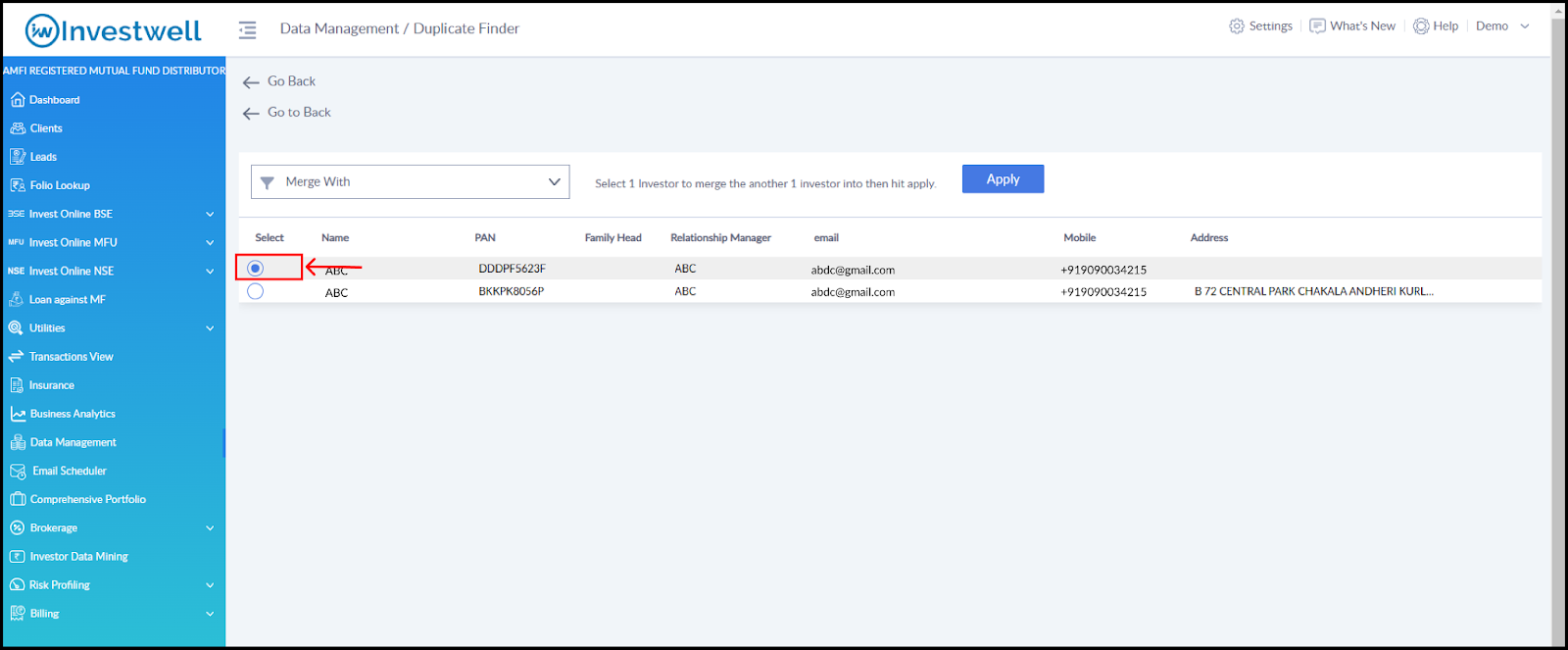
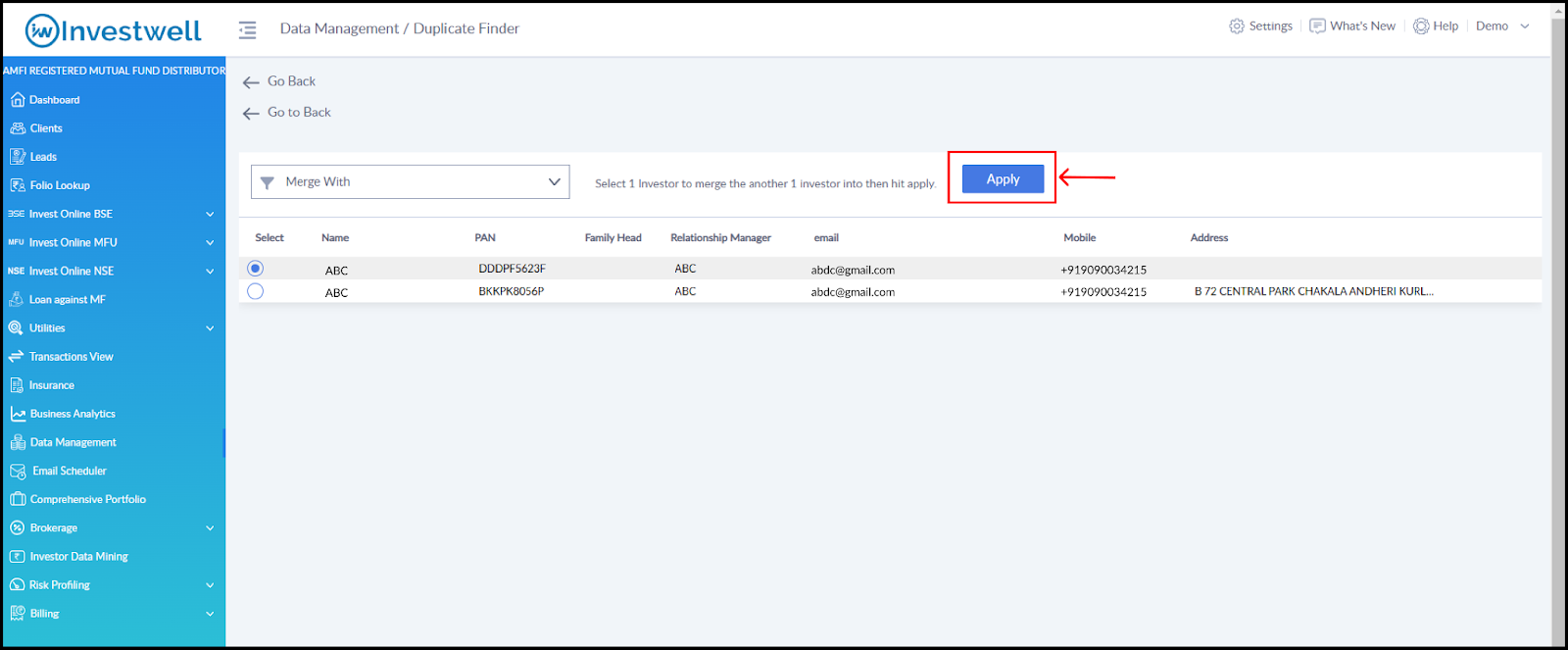
Click the Apply button after selecting the client name.
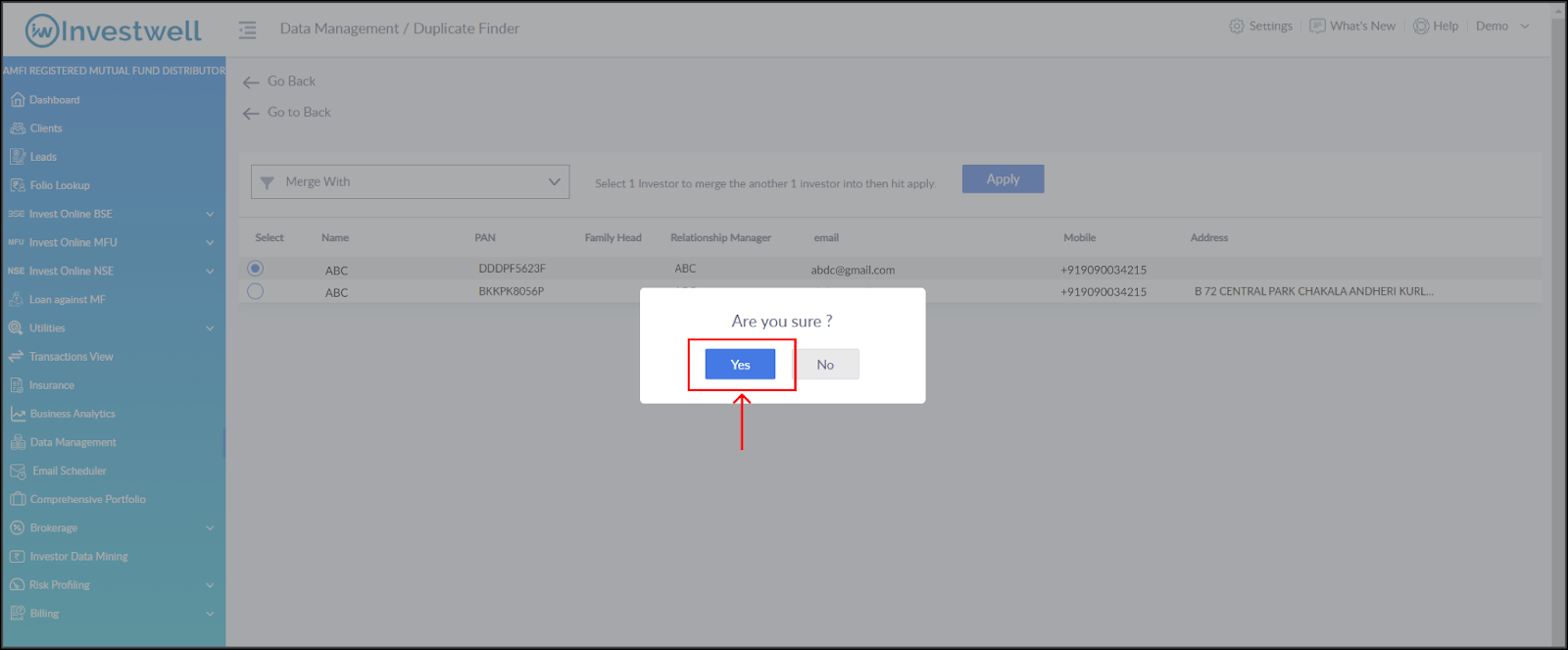
A confirmation pop-up will appear. Click "Yes" to complete the merge and your request will be taken.
Note:
- The duplicate finder type, i.e. Name, PAN, Email ID, Mobile, Date of Birth, is a multi-select option.
- The AUM of folios along other assets of shares, insurance, etc will be transferred to the chosen client after 1 hour (max) from when the merge action is performed successfully.
Merge Duplicates in Bulk from the Duplicate Finder Menu:
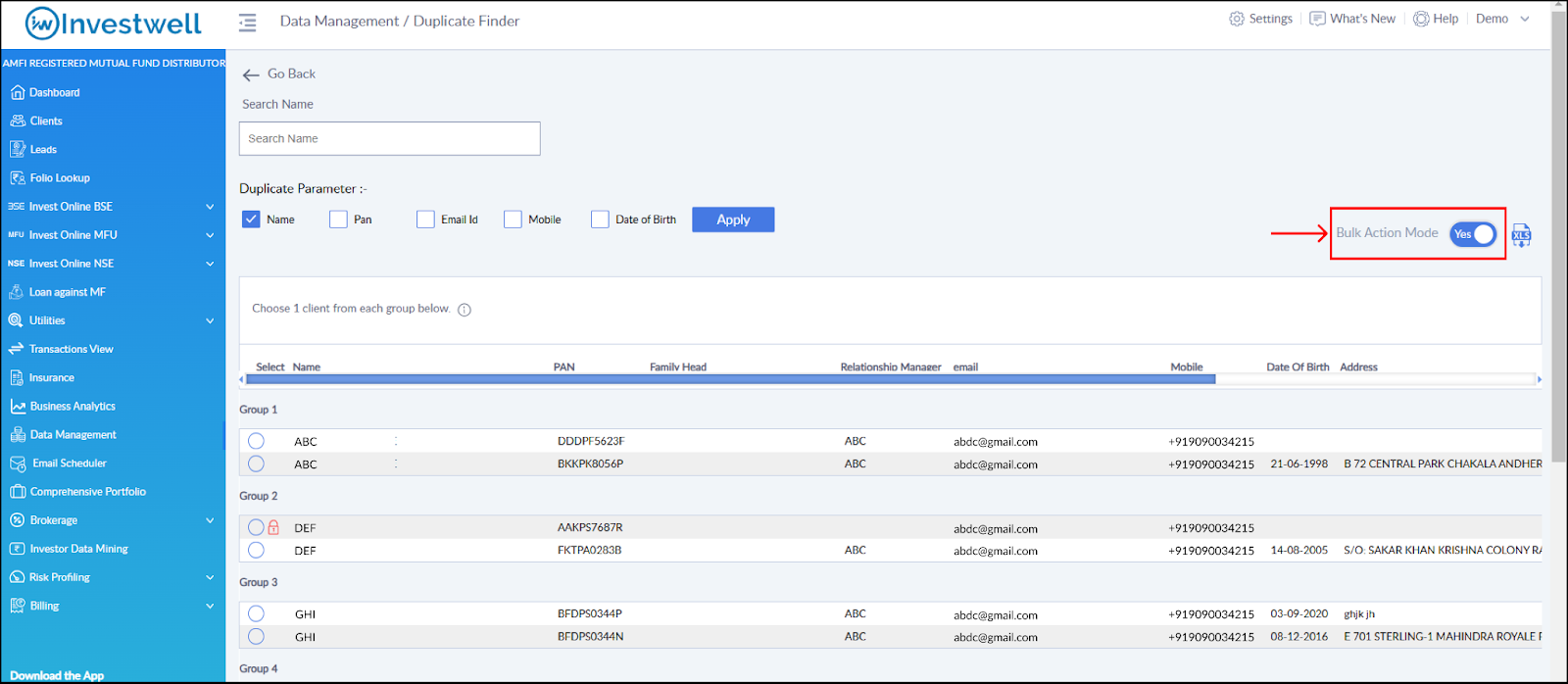
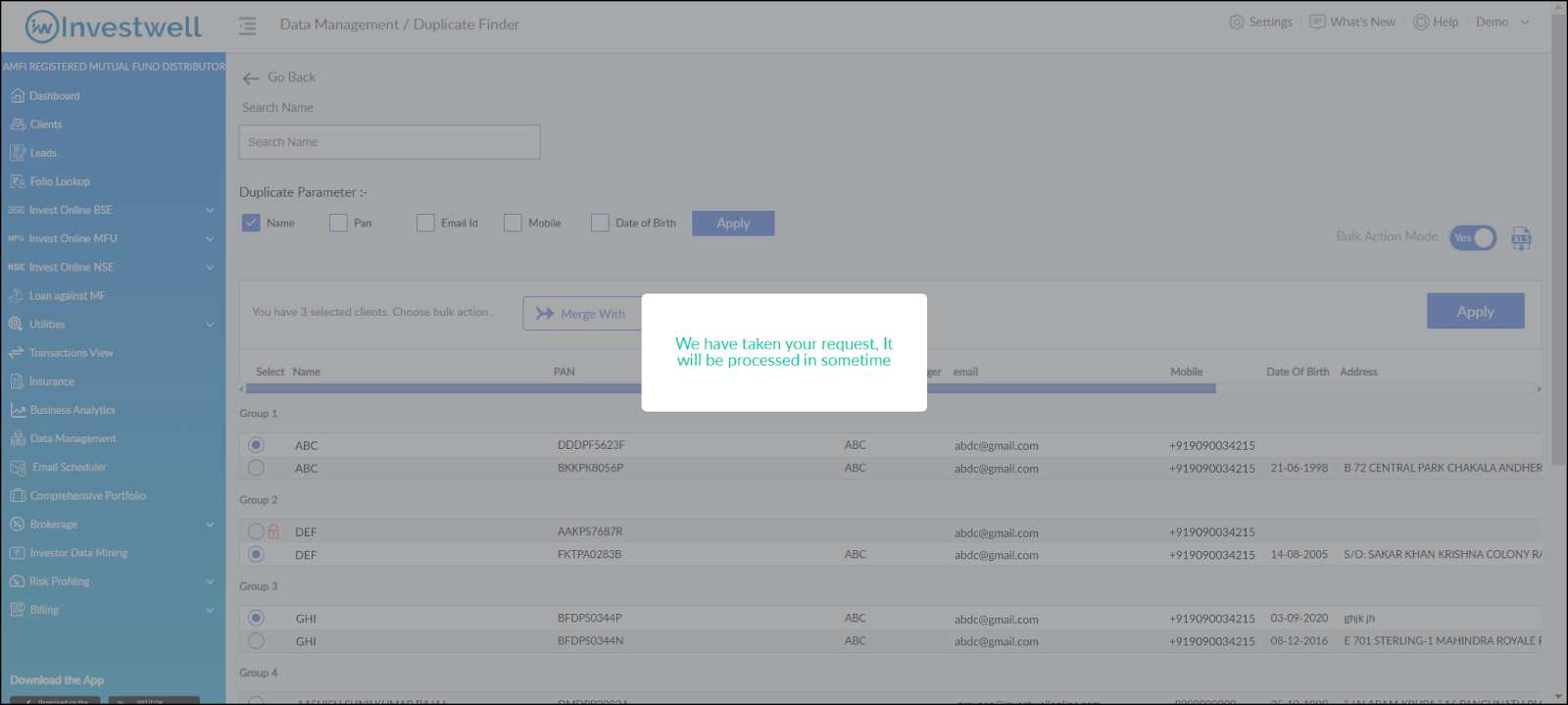
Use the Bulk Action Mode to merge duplicate clients in bulk. This helps save time by merging multiple duplicate clients in one go.
After the Duplicate Clients List is generated, turn the Bulk Action Mode toggle button to Yes.
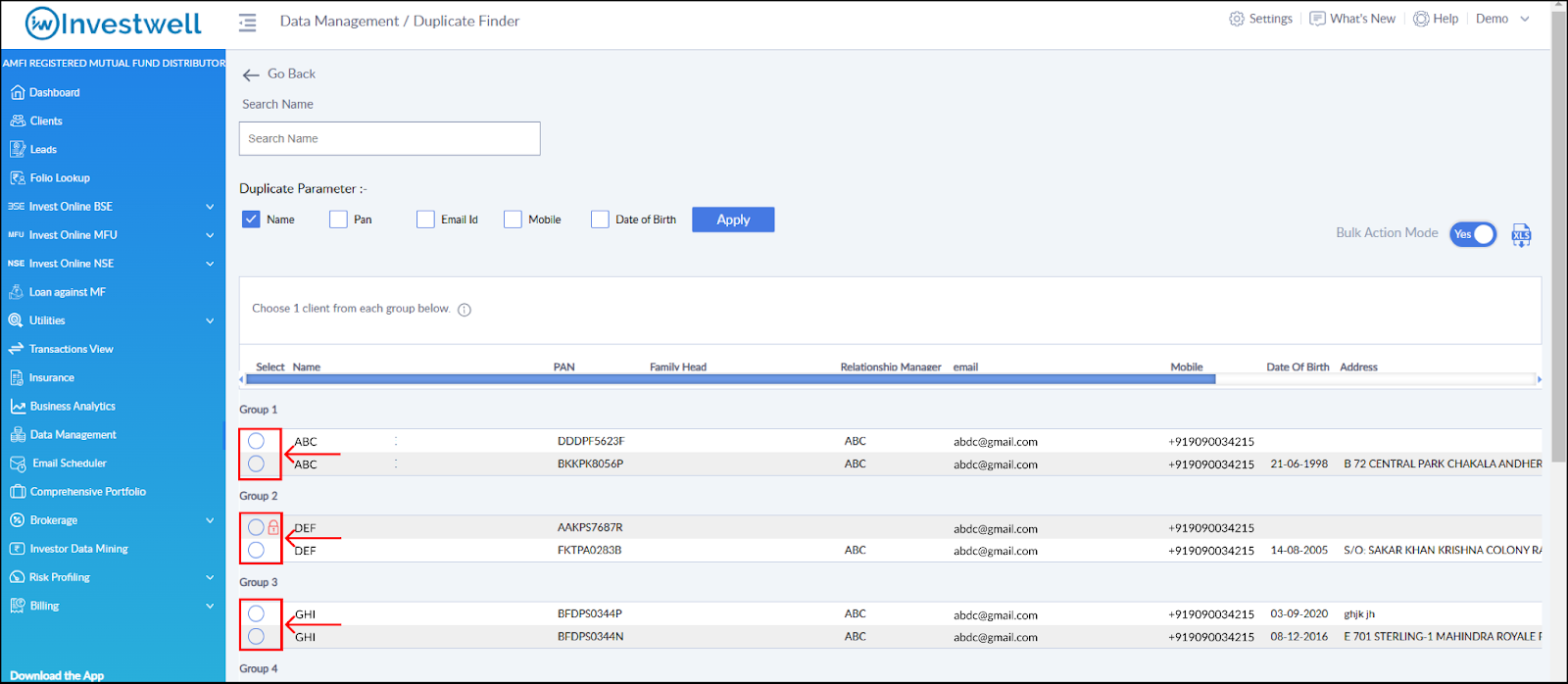
After the Bulk Action Mode is enabled, the checkboxes will change to radio buttons.
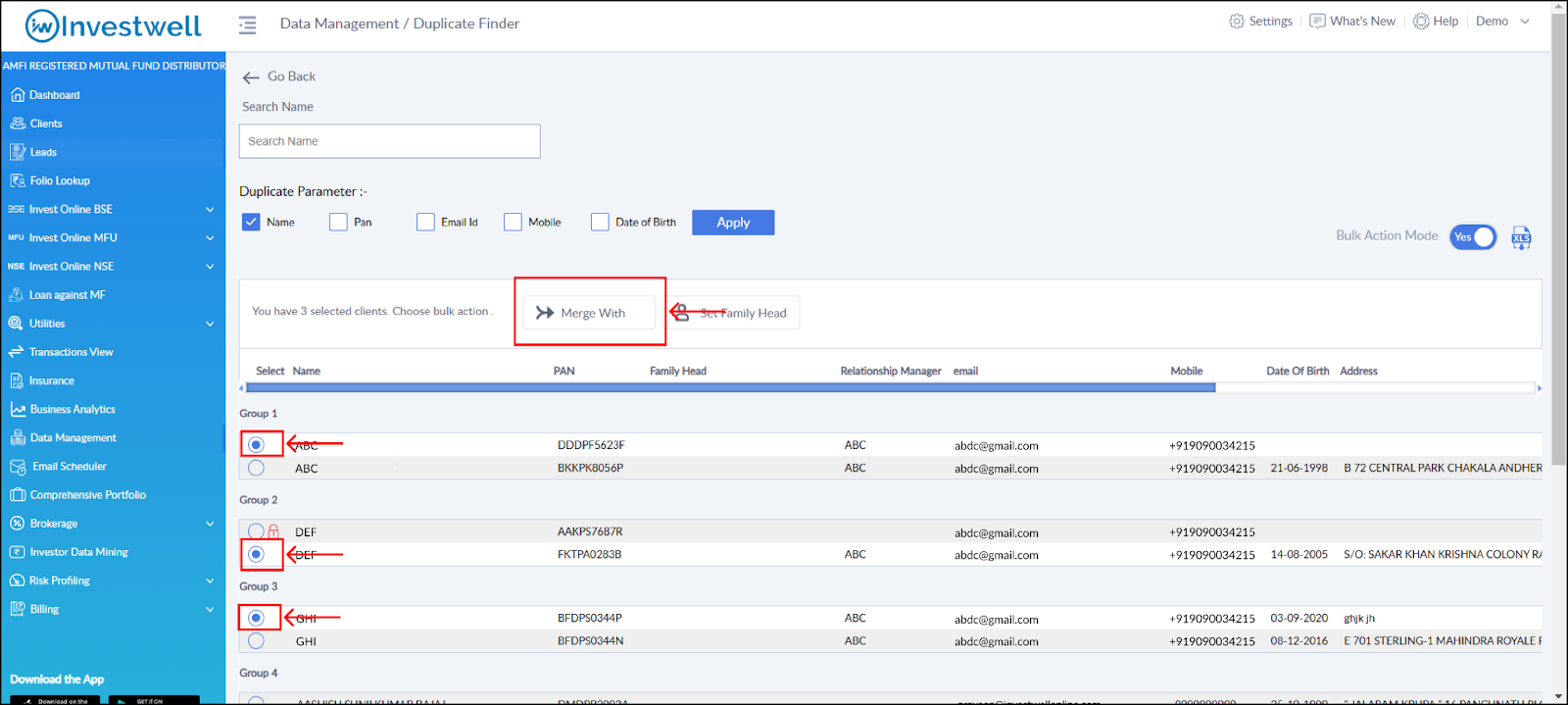
Select one client from each group of duplicate clients that you want to keep. Once selected, a new button "Merge With" will appear.
Click on "Merge With" and then click "Apply."
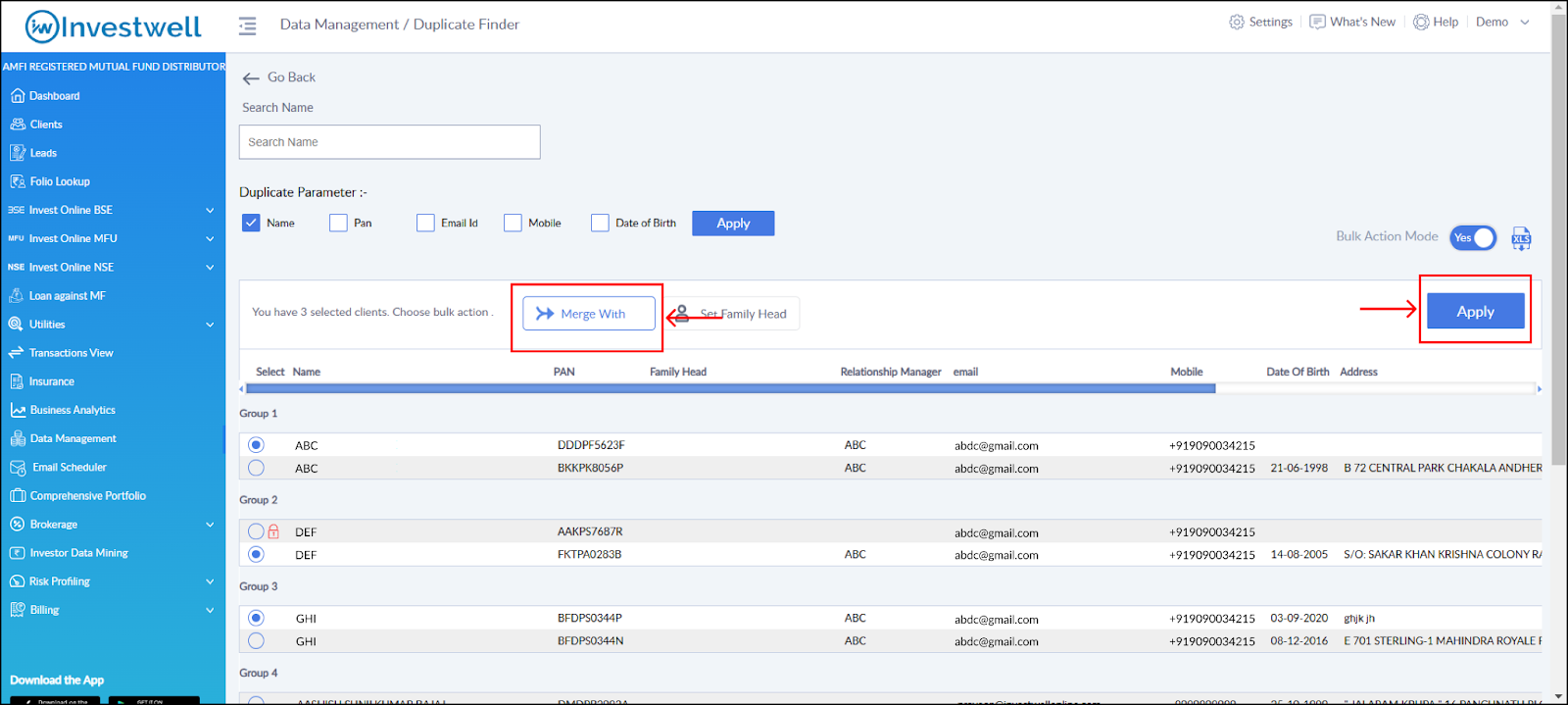
After clicking "Apply," a popup will appear, and your request will be processed shortly.
Was this article helpful?
Still stuck? Email support@investwellonline.com.